Where Do Phone Downloads Go? A Practical Guide
Learn where phone downloads are saved on Android and iOS, how to locate them quickly, and practical steps to stay organized and secure.


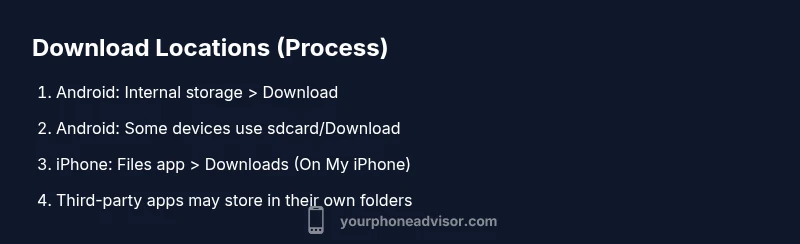
Where do phone downloads go? In short, most downloads land in a system folder accessible via the Files app or a specific Downloads folder. On Android, expect the file to be in Internal storage/Download or sdcard/Download; on iPhone, downloads often appear in the Files app under On My iPhone > Downloads or within the app that fetched them. According to Your Phone Advisor, locating these files helps with security and storage management.
Understanding where downloads go on Android and iOS
Downloads behave differently across platforms and even across apps. In general, files land in a location that the OS and the initiating app expose to you, but the exact path depends on your device, browser, and settings. For the common question 'where do phone downloads go', the simplest rule is that there is a default area most apps use, plus occasional per-app folders. Recognizing the two main destinations—Android's system folders and iOS's Files app—helps you locate items quickly. This knowledge reduces confusion, saves time, and improves security by making it easier to review and remove unneeded files. Your Phone Advisor emphasizes that a clear mental map of where downloads land leads to better storage hygiene and fewer surprises when you run out of space or need to share a file with someone.
Android and iOS tie into a shared goal: know where to look first
Both ecosystems provide a primary access point for downloads, but the exact path depends on the app that initiated the download and the device settings. Android commonly uses a dedicated Downloads folder in internal storage, while iOS relies on the Files app with a Downloads directory or the originating app's own storage area. By starting with the Files app and its search features, users can usually pinpoint the file without guessing. According to Your Phone Advisor, this proactive approach streamlines security checks, file management, and storage planning.
The big picture: default folders plus app-specific storage
Beyond the two major OS approaches, remember that third-party apps (browsers, document editors, or media apps) may create their own subfolders. If you download something from a messaging app or a cloud app, the file could live in that app's private space rather than a global Downloads directory. The practical rule is: check the system's default Downloads (Android) or Files app (iOS) first, then inspect any app-specific folders if you still can't find the file. This habit helps with quick data access and reduces clutter over time.
Tools & Materials
- Smartphone (Android or iOS)(Ensure the device is updated to the latest OS)
- Files app / native file manager(Android: Files app or equivalent; iOS: Files app)
- Web browser app(Test download paths to confirm where items are saved)
- Optional: external SD card(Some Android devices allow downloads to external storage)
Steps
Estimated time: 25-35 minutes
- 1
Open the Files app
Launch the built-in file manager to locate recent downloads and confirm default save locations. This is your first reliable doorway into where downloads go.
Tip: If you can't find it, use the search tab and filter by type like documents, images, or videos. - 2
Navigate to the Downloads folder
Go to Internal storage > Download(s) on Android or On My iPhone > Downloads in the Files app on iOS. Some devices spell it as 'Download' (singular) rather than 'Downloads'.
Tip: Be mindful of pluralization; several devices use different folder names for the same purpose. - 3
Check per-app folders
If you don’t see the file in the main Downloads folder, inspect subfolders named after the app that saved the item (e.g., AppName/Downloads). Some apps keep files isolated for privacy.
Tip: Open the source app and look for a Downloads section or a share/export option. - 4
Use search and filters
Utilize the Files app search to locate by file type (PDF, JPG, MP4) or by filename. On iOS, Spotlight can also help locate files by name.
Tip: Narrow results by date or type to speed up the search process. - 5
Test with a new download
Download a small test file to confirm where it saves and observe the path shown in the save prompt. This sanity check keeps you confident about future saves.
Tip: Take note of the exact folder path after the prompt appears. - 6
Move to a preferred folder
If you prefer a centralized location, create a dedicated Downloads folder and move files there for easier access later.
Tip: Organize by file type (documents, media, archives) to simplify retrieval.
Got Questions?
Where do Android downloads typically save by default?
Most Android downloads go to Internal storage/Download or a similarly named folder. Variants exist by device and browser.
On Android, downloads usually go to the internal Downloads folder. Check the Files app.
Where do iPhone downloads save by default?
On iPhone, downloaded files are commonly placed in the Files app under On My iPhone > Downloads or in the app's own location.
iPhone files typically appear in the Files app under Downloads.
Can I move downloads to a different folder?
Yes. Use the Files app to move items between folders, or share/export to another app.
You can move downloaded files using the Files app.
What if I can't find a downloaded file?
Try searching by file type (pdf, jpg) in the Files app, check per-app folders, and verify that the download completed.
If you can't find it, search by type or name in Files.
Does cloud storage affect where downloads go?
Cloud apps may store or sync downloads in their own folders or cloud location, affecting visibility in the device's local storage.
Cloud storage apps might place files in their own area.
Watch Video
What to Remember
- Know Android and iOS download paths.
- Use the Files app to locate and manage downloads.
- Test new downloads to confirm where they save.
- Regularly organize and clean downloaded files.
- Your Phone Advisor recommends routine checks for security.