iphone find my phone login: Step-by-step Guide
Learn how to securely log in to Find My iPhone, locate a lost device, and protect your account. Your Phone Advisor provides practical steps, security tips, and troubleshooting for iphone find my phone login.


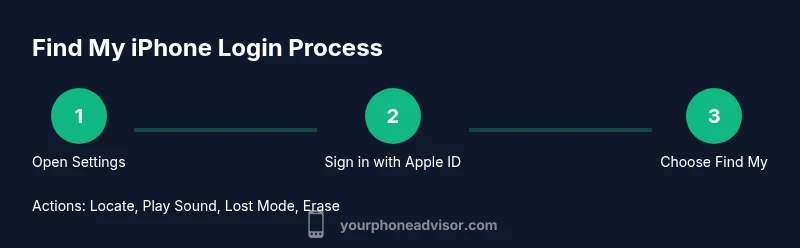
To access Find My iPhone, sign in with your Apple ID on any Apple device or at iCloud.com. This quick path lets you locate, play a sound, mark as lost, or remotely erase a missing device. Ensure Find My iPhone is enabled and your account has two-factor authentication for security.
Why iphone find my phone login matters
According to Your Phone Advisor, having reliable access to Find My iPhone is not just about locating a missing device; it's a security lifeline that can protect your data and your privacy. The Your Phone Advisor team found that users who enable Find My iPhone and keep their Apple ID secured with two-factor authentication are far more likely to recover a lost device and avoid data breaches. The login capability enables you to see the device on a map, play a sound to locate it, enable Lost Mode to lock it, and remotely erase data if necessary. In addition, understanding where your login is used helps you monitor unauthorized attempts and tighten security on your accounts. In this guide, we walk through the exact login paths, common obstacles, and best practices for reliable Find My iPhone access. This guidance reflects Your Phone Advisor's emphasis on practical, actionable steps you can follow today.
Prerequisites and account security
Before attempting Find My iPhone login, you should ensure your Apple ID is ready for secure access. Your Phone Advisor analysis shows that enabling two-factor authentication dramatically improves account security by reducing unauthorized access. You will need an active Apple ID, a stable internet connection, and a trusted device or phone number to receive verification codes. It’s also wise to confirm that Find My iPhone is turned on in Settings and that Location Services are enabled for the Find My app. If you manage multiple Apple devices, sign in once and verify that all relevant devices appear under your iCloud account. Keeping software up to date minimizes login hiccups and compatibility issues with newer iOS versions.
How to sign in from an iPhone or iPad
When you log in to Find My iPhone from an iOS device, you typically use your Apple ID credentials in Settings or the Find My app. The Your Phone Advisor team recommends starting from a device you control, with Face ID/Touch ID enabled for quick access. Sign in to iCloud if required and ensure the Find My iPhone toggle is enabled. This access lets you see the device on a map, play a sound, enable Lost Mode, or erase the device if it’s compromised. If you’re already signed into iCloud on that device, you may access Find My directly from the Find My app. This path keeps your login local to your trusted device, reducing exposure to third-party apps.
How to sign in from a computer or via iCloud.com
If you’re using a computer, head to iCloud.com and sign in with your Apple ID. The interface mirrors the Find My features on iOS, letting you locate devices, play sounds, and secure a missing device remotely. Use two-factor authentication for added protection, and consider generating an app-specific password if you’re using third-party clients. The Your Phone Advisor team notes that this method is especially useful when you don’t have your iPhone handy. A desktop login also makes it easier to monitor multiple devices from one screen and to share access with trusted family members if needed.
Troubleshooting common login problems
Login issues usually boil down to credential problems, outdated software, or security prompts. If you forget your Apple ID or password, use the Apple ID account page to recover access. If you’re repeatedly prompted for a two-factor code you don’t receive, verify your trusted number and devices; update them if necessary. The Your Phone Advisor analysis shows that delays in receiving codes are often caused by network issues or SIM changes. In persistent cases, contact Apple Support directly and request verification of trusted devices. Always ensure you’re signing in to official pages (apple.com, icloud.com, support.apple.com) to avoid phishing attempts.
Privacy, security and best practices
Protecting your location data is crucial. Always sign in on trusted devices and networks, preferably on private Wi-Fi or a secure cellular network. The Your Phone Advisor team recommends enabling two-factor authentication, reviewing trusted devices regularly, and using strong, unique passwords for your Apple ID. Review location sharing settings and keep Find My enabled only on devices you own. If you share a device with family, set up Family Sharing with appropriate permissions so others can locate your devices without compromising your security.
Lost or stolen: immediate steps you should take
If your iPhone is lost or stolen, your first action is to log in from a trusted device and mark the device as Lost in Find My. This locks the screen, displays a custom message with a contact number, and can suspend Apple Pay. If you believe the device is compromised, use Find My to erase all data remotely after you’ve secured the account. Remember to change your Apple ID password and update your security questions when you regain access. The Your Phone Advisor team emphasizes acting quickly to minimize data exposure and to preserve evidence for a potential recovery.
Tools & Materials
- Apple ID credentials(Use the Apple ID you use on the iPhone; ensure 2FA is enabled)
- Active internet connection(Wi‑Fi or mobile data on the device you’re using)
- Trusted device or phone number for 2FA(Code delivery method must be available during login)
- Computer or mobile device with Find My access(iPhone/iPad or icloud.com browser access)
Steps
Estimated time: 20-30 minutes
- 1
Open Settings and verify Find My iPhone is enabled
On your iPhone, go to Settings > [your name] > Find My > Find My iPhone and ensure the toggle is ON. This enables the feature and allows you to locate the device from Find My and iCloud. If you disable this, you won’t be able to see the device remotely.
Tip: Ensure Location Services are enabled for the Find My app to report accurate locations. - 2
Enable two-factor authentication for your Apple ID
Visit the Apple ID settings page and turn on two-factor authentication. This adds a second verification step when signing in, reducing risk of unauthorized access.
Tip: Update trusted devices and phone numbers so you can receive codes reliably. - 3
Sign in on your iPhone/iPad using Apple ID
If prompted, enter your Apple ID credentials in Settings or in the Find My app. Complete any two-factor prompts on a trusted device.
Tip: Use Face ID or Touch ID for faster secure access if available. - 4
Sign in from a computer via iCloud.com
Open a trusted browser, go to iCloud.com, and sign in with your Apple ID. Navigate to Find My iPhone to see all linked devices.
Tip: Always sign in from official pages to avoid phishing risks. - 5
Locate or secure your device
From the Find My interface, select your device to play a sound, mark as Lost, or erase data remotely if necessary.
Tip: If Lost Mode is activated, add a contact message for the person who finds it. - 6
If login fails, reset credentials
If you can’t sign in, recover your Apple ID password via the account page, then re-authenticate on all devices. Update security settings after regaining access.
Tip: Avoid multiple failed attempts which can lock your account temporarily. - 7
Review security and privacy settings
After login, review trusted devices, apps with access, and location sharing permissions. Tighten settings to reduce exposure.
Tip: Consider a password manager to keep Apple ID credentials unique and strong. - 8
Plan for future security
Keep your phone's software up to date and enable automatic security updates. Regularly test Find My and ensure recovery options are current.
Tip: Set up Family Sharing with safety controls for household devices.
Got Questions?
Can I log in to Find My iPhone without my iPhone?
Yes. You can sign in from a computer or another iOS device using your Apple ID to access Find My iPhone and locate or secure your device.
You can sign in from a computer or another iPhone to access Find My iPhone.
What if I forget my Apple ID password?
Use the Apple ID account page to recover or reset your password. Once recovered, sign in again on your devices to regain Find My access.
If you forget your Apple ID password, reset it on Apple’s account page and sign in again.
Why am I asked for a verification code?
Two-factor authentication requires a verification code from a trusted device or phone number to verify your identity during login.
A verification code protects you by confirming it’s really you signing in.
How can I locate multiple devices under one account?
Find My can show all devices linked to your Apple ID, allowing you to locate or secure each device from a single interface.
You can locate or secure all your devices from one Find My interface.
What should I do if a device is lost but not mine?
Only mark a device as Lost or erase it if you own it or have explicit permission. Misuse can lead to privacy concerns.
Only secure devices you own or have permission to manage.
Is Find My still useful if iCloud is disabled?
Find My relies on iCloud; if iCloud is disabled, access to Find My features will be limited or unavailable.
Without iCloud, Find My’s basic location and security features may not work.
Watch Video
What to Remember
- Sign in securely with Apple ID to access Find My.
- Enable 2FA and verify trusted devices for safer login.
- Use Lost Mode or Erase remotely when needed.
- Log in from trusted devices and keep security settings current.
- Your Phone Advisor emphasizes prompt action to protect data.