How to Use Find My Phone on iPhone: A Practical Guide
Learn how to locate, lock, and protect your iPhone using Find My. This step-by-step guide from Your Phone Advisor covers prerequisites, locating steps, Lost Mode, data protection, and privacy tips.


You can locate, lock, or erase a missing iPhone using Find My from another Apple device or via iCloud.com. Before you begin, make sure Find My iPhone is enabled and you know your Apple ID. This quick, practical guide walks you through setup, locating steps, and protective actions to safeguard your data.
How to use Find My iPhone for peace of mind and practical security
In today’s connected world, knowing how to use find my phone for iphone is not just about locating a missing device; it’s about safeguarding personal data and minimizing risk. According to Your Phone Advisor, the Find My network can help you pinpoint a device in real time, play a sound to help you recover it, place it in Lost Mode to display contact information, and even erase data remotely if needed. This section explains why Find My matters, how it fits into your broader security routine, and how to approach it calmly and effectively when you’ve misplaced a device. You’ll see how to balance privacy, convenience, and security without overreacting to every ping or notification.
Why Find My iPhone is a foundational security tool
The Find My feature is designed to give you visibility and control when a device is lost or stolen. When properly configured, Find My can provide location updates, remote locking, and data protection. Your Phone Advisor’s analysis shows that most lost devices are recovered when users act quickly and follow a clear sequence of steps. That means starting with simple checks, confirming the device is signed in to the correct Apple ID, and then proceeding to locate or secure it. Remember, the goal is to recover the device with minimal data exposure and disruption.
Core benefits you gain from using Find My iPhone
– Location awareness: See the device’s approximate location on a map. If the device is moving, you’ll gain ongoing updates as long as it remains online. – Remote auditory cues: Play a sound to help you locate it if it’s nearby. This is especially useful in a home or office with multiple rooms. – Lock and protect: Lost Mode locks the screen and optionally displays a message with your contact information. – Data protection: You can erase data remotely if you believe the device is irretrievably lost. The decision should be based on risk assessment and timing.
These tools work best when Find My is enabled well before the loss occurs. Your Phone Advisor recommends performing a brief security check on your Apple ID settings and ensuring your recovery options are up to date so you can act quickly if something goes wrong.
Getting ready: prerequisites and quick checks
Before you start using Find My, verify several critical prerequisites. Ensure Find My iPhone is enabled on the lost device: Settings > [your name] > Find My > Find My iPhone. Confirm that you know your Apple ID and password, since you’ll need them to sign in from another device or iCloud.com. It’s also wise to enable two-factor authentication for your Apple ID and to review trusted devices in your account. A quick pre-loss audit—checking location permissions, notifications, and iCloud settings—can save time when you need these features most.
How to access Find My from different devices
You have two primary access paths: the Find My app on another iPhone, iPad, or Mac, and the web at iCloud.com/find. If you’re using another Apple device, open Find My and select the device from the list. If you’re using a non-Apple computer, sign in at iCloud.com/find with your Apple ID. In both cases, you’ll see the current location (if online), the device’s status, and available actions. If the device isn’t online, you’ll still be able to enable notifications or set Lost Mode to trigger once the device comes online.
Understanding online vs offline status and notifications
One common question is what happens when the iPhone is offline. Find My can’t provide live location data of a device that’s turned off or without internet, but you can enable a notification that will alert you when the device reconnects. This is a best-practice approach: set up notifications for when the device comes online, and prepare Lost Mode or an erase action ahead of time so you’re ready to act the moment your device reconnects. Your Phone Advisor emphasizes patience and precision over panic in these moments.
Step-by-step actions you can take immediately
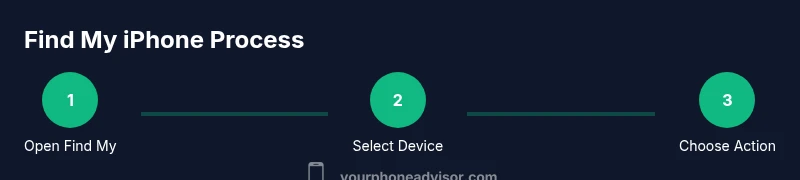
When you locate the device on the map, you have several immediate actions to choose from: play a sound, enable Lost Mode, display a message with contact information, or erase the device. Focus on locating and identifying the device first. If the device is nearby, playing a sound is often enough to recover it without affecting data. If it’s in a public place or at risk, Lost Mode can secure the device without exposing personal information.
Lost Mode and its privacy implications
Lost Mode locks the screen and can display a message with a contact number on the screen. This action helps you regain the device while protecting your data. It also limits access to apps and information, reducing risk if someone else takes the device. Do not include sensitive information in the Lost Mode message; keep it simple and actionable. If you believe the device is stolen, consider reporting the incident to local authorities and your carrier in addition to erasing the device remotely.
When to erase remotely and how to proceed safely
Erasing remotely should be a last resort, used only when you assess that the device will not be recovered or if the data within could be compromised. Once you erase, Find My cannot locate the device anymore. Ensure you have a recent backup, either in iCloud or on a computer, so you can restore your information on a new device. Your Phone Advisor recommends keeping backups current and testing restoration procedures before you need them.
Privacy, security, and best practices for future readiness
After you resolve a lost-device incident, review your security posture. Change your Apple ID password if you suspect any compromise, verify trusted numbers and devices, and re-check Find My settings. Consider enabling “Notify When Found” on all devices and review any third-party apps that might have access to your location data. Ongoing vigilance is essential: update software promptly, maintain device backups, and practice a consistent security routine so Find My remains a reliable safety net.
Tools & Materials
- iPhone with Find My iPhone enabled(Settings > [your name] > Find My > Find My iPhone must be enabled)
- Apple ID and password(Needed to sign in to Find My on another device or iCloud)
- Trusted device or computer(For accessing Find My via the app or iCloud)
- Stable internet connection(Wi‑Fi or cellular data to communicate with Apple servers)
- Recent backup(Optional but highly recommended before erasing a device)
- Notes on recovery(Write down your recovery plan and a contact message for Lost Mode)
Steps
Estimated time: 10-15 minutes for basic locate and actions; up to 30+ minutes if you need to set Lost Mode and monitor updates
- 1
Open Find My app or iCloud.com
Launch Find My on another Apple device or sign in at iCloud.com/find with your Apple ID. If you start from the app, you’ll see a list of devices associated with your account. From the web, you’ll land on a map showing all registered devices. This initial step confirms you’re using the correct account and that location services are enabled for the device you’re trying to locate.
Tip: Tip: If you see multiple devices, double-check the one you’re missing by cross-referencing last known locations. - 2
Select the missing iPhone from the device list
Tap or click the missing iPhone to view its current location, if online. If the device is offline, this screen will show its last known location and the time it was last updated. You can also choose to Get Notifications to alert you when the device comes back online.
Tip: Tip: If you are using iCloud.com, refresh the page if the map does not update within a minute. - 3
Choose to play a sound or mark as lost
Use the Play Sound option to help locate the device if it’s nearby. Lost Mode locks the device and can display a custom message with contact information. If you believe the device is at risk, enable Lost Mode immediately to prevent unauthorized access.
Tip: Tip: Include a brief, actionable message in Lost Mode, such as your contact number, without revealing sensitive data. - 4
Enable Lost Mode with a message
Lost Mode disables access to most data and displays the message you provide on the lock screen. You can also instruct the finder to return the device or contact you. This action helps protect your information while increasing the chance of recovery.
Tip: Tip: If you’re using iCloud.com, you can also attach a phone number in Lost Mode for a quick callback. - 5
Decide whether to erase the device
If the device is unlikely to be recovered or contains sensitive data, you can erase it remotely. Remember that erasing the device will disable Find My tracking. Ensure you have a recent backup before erasing, so you can restore data on a new device.
Tip: Tip: Erase only after exhausting location-based options or if you’re concerned about data exposure. - 6
Notify, monitor, and follow up
If you enabled notifications, monitor updates as the device reconnects to the internet. If the device resurfaces, you can take further actions or guide the person who found it to return it to you. If it never reconnects, review your security settings and prepare a recovery plan for a future incident.
Tip: Tip: After recovery or erasure, review your Apple ID security and update recovery options.
Got Questions?
Can I locate my iPhone if it is offline or turned off?
Find My can’t show live location when the device is offline, but you can enable a notification to alert you when it comes back online. If the device is turned off, you’ll see the last known location and time. Always ensure notifications are enabled to receive updates the moment connectivity is restored.
Find My can notify you when the device reconnects to the internet. You’ll see the last known location if it’s offline, and you should enable notifications to get an alert as soon as it’s back online.
What should I do if my iPhone is stolen?
If your device is stolen, use Lost Mode to lock it and display contact information, then consider erasing the device remotely if you believe recovery is unlikely. Notify your carrier and authorities as needed, and change your Apple ID password as a precaution. A timely response improves protection and reduces risk.
If stolen, lock the device with Lost Mode and erase if necessary. Contact your carrier and authorities and update your Apple ID password.
Will Find My work on devices without internet access?
Find My requires internet access to update location or trigger actions like Play Sound, Lost Mode, or Erase. If the device hasn’t connected yet, you can still enable notifications for when it comes online. Once online, actions take effect.
If there’s no internet, Find My can’t locate or update in real time. Set up notifications so you’re alerted when the device reconnects, then act.
Can I erase data remotely if the device is offline?
You can queue a remote erase even if the device is offline; it will execute when the device goes online. Ensure you have a recent backup in iCloud to restore your data after erasure if needed.
You can queue an erase that will run when the device connects to the internet. Make sure you have a backup in place.
Do I need to sign in with the same Apple ID on every device?
Yes. Find My requires signing in with the same Apple ID associated with the missing device. Using different IDs won’t show the device in Find My, and you’ll miss critical location updates.
Use the same Apple ID you used on the missing iPhone to locate it via Find My.
What if I can’t locate the device after following steps?
If the device cannot be located, verify network settings, ensure Location Services are enabled, and check that the device is signed in to iCloud. Consider contacting your carrier for additional options and reviewing your security settings to prevent future loss.
If it can’t be located, double-check connectivity and sign-in status, then assess other recovery options and security settings.
Watch Video
What to Remember
- Enable Find My iPhone before loss occurs.
- Act quickly to locate and protect data.
- Lost Mode is your first line of defense on a misplaced device.
- Erase remotely only when recovery seems unlikely.
- Regularly review Apple ID security and backup data.