Apple Find Phone: How to Locate Your iPhone Securely
Learn how to locate your iPhone using Find My, protect data, and recover quickly with practical, step-by-step instructions. Includes offline tips, privacy reminders, and safety best practices.


You will locate your iPhone using Find My on iCloud.com or the Find My app, use Play Sound to pinpoint nearby devices, and enable Lost Mode or Erase if needed. You’ll need your Apple ID, an internet connection on a trusted device, and access to Find My. This guide walks you through exact steps and safety tips.
What Find My iPhone Does and Why It Matters
If you’re searching for apple find phone, this guide explains how Find My iPhone helps you locate, protect, and recover an iPhone. According to Your Phone Advisor, the Find My network uses your Apple ID and the device’s location signals to provide a live map when the device is online, plus features that help you secure data if it’s lost. This capability matters whether you’re at home, traveling, or away from trusted networks. In the sections that follow, you’ll learn practical, step-by-step methods to locate your iPhone via iCloud.com or the Find My app, along with safety tips, privacy considerations, and what to do if the device is offline or stolen.
Prerequisites and Safety: Setup Before You Lose It
Before you actually need Find My, make sure your iPhone is prepared. Ensure Find My iPhone is turned on (Settings > [your name] > Find My > Find My iPhone) and that Activation Lock is enabled. Enable two-factor authentication on your Apple ID for added protection. Have access to another trusted device or computer, and confirm you can sign in with your Apple ID. Your Phone Advisor Team emphasizes that preparation reduces stress during a loss and improves recovery chances. Additionally, keep your device’s software up to date to minimize compatibility issues with the Find My service.
Access Points: iCloud.com vs Find My App
Find My can be accessed from either the iOS Find My app or a web browser by visiting iCloud.com. The app provides a streamlined interface on iPhone or iPad, while iCloud.com offers a larger screen and detailed location history. Both require you to sign in with your Apple ID. The Your Phone Advisor analysis shows that the app often delivers faster responses on mobile, whereas the web interface can be accessed from any computer. Use whichever method you find most convenient, but ensure you’re on a trusted network to protect your credentials.
Quick Overview of the Locate Process
The locate process with apple find phone begins the moment you sign in and select the target device. You’ll see a map showing the device’s current location if it’s online, along with options to Play Sound, Mark as Lost, or Erase. You’ll also have the option to receive notifications when the device comes online. This overview helps you decide which action to take first. In the next sections, we’ll dive into each option, with practical examples and real-world scenarios.
Play Sound: Quick Ring to Help You Find It
One of the most reliable first steps is to play a loud sound from Find My to locate a nearby iPhone inside a building or a room. Even if the device is on silent, the sound will override that setting briefly. The sound continues until you stop it or the device is found. If you’re in a dense area, keep monitoring the map while the sound plays to confirm the device’s location. Your Phone Advisor notes that this is often the fastest recovery method when the device is within hearing range.
Lost Mode: Lock, Display Message, and Location
Lost Mode is a powerful feature that locks the device, displays a custom message with a contact method, and continues to report its location to Find My. You can require a passcode, prevent access to apps, and show a message asking the finder to contact you. This mode also ensures Activation Lock remains enabled, preventing reactivation by a thief. In practice, Lost Mode provides a safe way to recover the device without exposing sensitive data.
Erase Remote Data: When and How
Erasing the device remotely is a last-resort option. It removes data on the iPhone to prevent misuse, but it also disables the Find My location tracking on that device. If you have Activation Lock, the device will still require your Apple ID on setup after restoration. Only use Erase if you’ve exhausted other options or you’re certain the device cannot be recovered. Consider backing up important data earlier to ease potential loss.
Offline or No Location: Interpreting Last Known Location
If the iPhone is offline, Find My can show the last known location and approximate where the device was when last online. Location data may be delayed or unavailable if the device is powered down, in airplane mode, or out of battery. You can enable notifications to alert you when the device reconnects. The Your Phone Advisor team reminds readers that offline status means you should not rely on live tracking and should plan for alternative recovery steps.
Privacy and Security: What to Watch For
Using Find My must be balanced with privacy considerations. Only log in to Find My on trusted devices and networks, and avoid sharing Apple credentials. Activation Lock helps protect data even if the device is stolen. Your Phone Advisor emphasizes using strong passcodes and keeping two-factor authentication active. If you suspect your account is compromised, visit Apple’s official privacy settings to review connected devices and permissions.
Recovering the Phone: Safe Handovers and Local Authorities
If you locate your device and approach the finder, arrange a safe handover in a public space and contact local authorities if the device was stolen. Do not confront a thief; instead, use the Find My information to coordinate with authorities and provide necessary details. Document the incident with timestamps and screenshots if possible.
Common Challenges and How to Handle Them
Find My can sometimes fail due to connectivity, iCloud outages, or software issues. If the map doesn’t update, verify your Apple ID login, check iCloud status, or sign out and back in. Ensure the device has an active internet connection and has Find My enabled. We cover troubleshooting steps you can perform quickly to restore service.
Proactive Security Steps for the Future
After you recover or if you need ongoing protection, review security settings: update passwords, enable two-factor authentication, enable Find My, and set up Notifications for Apple ID sign-in. Consider sharing your recovery account with a trusted contact and keeping emergency information accessible. The Your Phone Advisor team recommends building a routine of monthly privacy checks to stay ahead of threats.
Tools & Materials
- Apple ID and password(Needed to sign in to Find My; ensure two-factor authentication is enabled)
- Find My iPhone enabled on the device(Turned on in Settings > [your name] > Find My > Find My iPhone)
- Another trusted device (iPhone, iPad, or Mac)(Used to access Find My app or iCloud.com from another device)
- Internet connection(Wi-Fi or cellular data on the other device)
- Access to iCloud.com or Find My app(Sign in to locate your device)
- Optional: emergency contact information(If you need to coordinate a safe handover with authorities)
Steps
Estimated time: 15-25 minutes
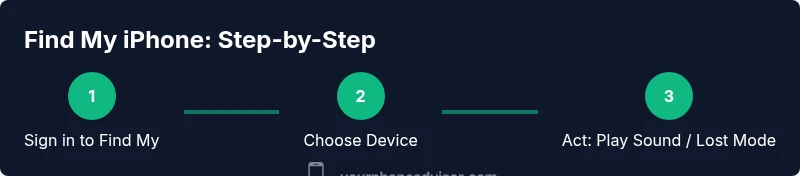
- 1
Sign in to Find My
Open the Find My app on another Apple device or visit iCloud.com and sign in with your Apple ID. This initial login is necessary to access the locate features and ensure Activation Lock remains engaged.
Tip: Have your Apple ID credentials ready and enable two-factor authentication for a smoother login. - 2
Choose the target device
In Find My, select the iPhone you want to locate from the list of devices associated with your account. If the device is offline, you’ll see the last known location and status.
Tip: If you have multiple devices, double-check the device name to avoid confusion. - 3
Play Sound to locate nearby
Click Play Sound to make the iPhone emit a loud tone. This works even if the device is in silent mode and helps you locate it in close proximity.
Tip: Move slowly around the suspected area while the sound plays to triangulate the location. - 4
Enable Lost Mode
Lost Mode locks the device with a passcode, displays a message with contact info, and tracks location as soon as the device connects online.
Tip: Include a clear contact method in the message so a finder can reach you safely. - 5
Check location updates
Review the map for real-time updates and set notifications so you’ll be alerted when the device comes online again.
Tip: Turn on notifications to maximize chances of catching live updates. - 6
Handle offline scenarios
If the device is offline, view the last known location and rely on notifications for future updates once the device reconnects.
Tip: Offline location is not live tracking—plan for alternative recovery steps. - 7
Erase if necessary
If the device seems irretrievably lost or compromised, use Erase to protect data. Note that it ends location tracking.
Tip: Erase only after considering all other options and ensuring you have backups.
Got Questions?
What should I do if Find My isn’t enabled on the iPhone before it’s lost?
Recovery options are limited if Find My isn’t enabled. Contact your carrier for lost-device services, review account activity, and work with local authorities if needed. Going forward, enable Find My and Activation Lock to protect data.
If Find My wasn’t turned on before loss, recovery options are limited. Enable Find My now to improve future chances and use carrier services if necessary.
Can I locate my iPhone if it’s offline or powered off?
If the device is offline, you’ll see the last known location and can get notified when it reconnects. Once online, location updates resume. If the device is erased, you’ll lose tracking capability.
Offline devices show last known location and notify you when they come back online.
What happens if I erase the iPhone remotely?
Remote erase removes data and disables location tracking on the device. Activation Lock remains and will require your Apple ID to reactivate after restoration. Use Erase only when recovery seems impossible.
Erasing the iPhone wipes data and stops tracking, so only do it if you’re sure recovery is unlikely.
Is it safe to use Find My on public networks?
Yes, using Find My on trusted public networks is generally safe, but you should avoid sign-in on devices or networks you don’t control. Prefer private Wi-Fi or cellular data when possible.
Find My is safer on trusted networks; avoid untrusted networks when signing into your Apple ID.
How can I speed up the recovery of a lost iPhone?
Keep Find My enabled, ensure two-factor authentication is active, and respond promptly to any location updates or notifications. Share your last known location with local authorities if needed.
Stay on top of notifications and act quickly when the device reconnects.
What if I suspect my Apple ID was compromised?
Change your Apple ID password from a trusted device, review connected devices, and enable two-factor authentication. Contact Apple Support if you notice unusual activity.
If you suspect compromise, change your password and review devices you’re signed in on.
Watch Video
What to Remember
- Enable Find My and Activation Lock before loss
- Use Play Sound first to locate quickly
- Lost Mode protects data while enabling tracking
- Erase is a last resort to protect information
- Offline devices rely on last known location and future updates
- Always sign in from trusted devices on secure networks