How to Use Find My iPhone: A Step-by-Step Guide
Learn how to locate, lock, and protect your iPhone with Find My. This Your Phone Advisor guide covers setup, step-by-step usage, troubleshooting, and privacy tips for Apple users.


The apple phone find my phone capability lets you locate and secure your iPhone from anywhere using Find My. You can view location, play a sound, enable Lost Mode, lock the device, or erase data if needed. This quick-start guide shows you how to configure and use Find My across iCloud and the Find My app.
What Find My iPhone does for you
The Find My iPhone service is your first line of defense when a device goes missing. It lets you locate your iPhone on a map, play a sound to reveal its location, display a message, and remotely lock or erase data. For the Apple ecosystem, the phrase 'apple phone find my phone' describes using Find My to locate and secure your iPhone from anywhere, even if the device is offline briefly. This capability reduces the time to reunite with your device and minimizes risk of unauthorized access.
In practice, Find My pulls location data from nearby networks and GPS, then shows it on a map in iCloud.com or the Find My app. If the device is offline, you can still view its last known location and receive a notification when it comes online again. You can also enable Lost Mode to lock the device with a custom passcode and display a message with contact details. These options help you control the situation without exposing sensitive information.
Prerequisites: setting up Find My iPhone
Before you can use Find My iPhone, you must enable it on the device and keep your Apple ID secure. Ensure Find My iPhone is turned on in Settings > [Your Name] > Find My > Find My iPhone, and enable Send Last Location so you get the device's latest coordinates before it drains. You should also enable two-factor authentication for your Apple ID to prevent unauthorized access. Finally, verify that you can access iCloud.com or the Find My app from another device. If you share your device with family members, consider setting up Family Sharing so trusted others can help locate it when needed.
How to use Find My iPhone on another device
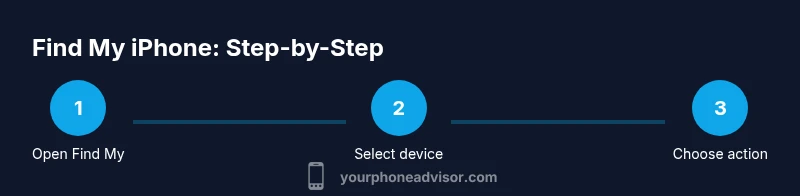
To use Find My effectively, you’ll typically access it from iCloud.com or the Find My app on another Apple device. Sign in with your Apple ID, select the missing device from the list, and view its current location on the map. If the device is online, you can choose Actions like Play Sound, Directions, Lost Mode, or Erase This Device. If the device is offline, you’ll see the last known location and can opt to receive a notification when it comes back online.
For those using Family Sharing, trusted family members can also locate devices, provided you’ve granted them access.
This process is designed to be quick and intuitive, even for new users. Keep your Apple ID credentials secure and avoid sharing access with untrusted apps.
Features you can use in Find My
Find My offers several actions to help recover or secure a missing iPhone:
- Locate: See approximate position on a map across devices signed in to the same Apple ID.
- Play Sound: Help you locate the device if it’s nearby by emitting a loud beep.
- Lost Mode: Lock the device and display a message with a contact number.
- Directions: Get navigation to the device’s last known location.
- Erase This Device: Remotely wipe personal data if you cannot recover the device.
Use Lost Mode first before opting for a full erase to preserve information you may need later.
Scenarios and best practices
When you realize a device is missing, act quickly. If the device is online, you’ll likely see it on a map and can trigger Lost Mode or a remote lock. If it’s offline, use Last Location and enable notifications so you’re alerted when it comes back online. Regularly review your Apple ID security settings, including trusted devices and two-factor authentication. Consider enabling Find My on all Apple devices you own to broaden your recovery options and to help family members locate devices too. Consistently test Find My after major OS updates to ensure compatibility and accuracy.
In daily life, keep this feature enabled for peace of mind, especially if you frequently carry devices on the go or leave them in shared environments like workplaces or classrooms.
Troubleshooting: location not updating
If Find My shows an outdated location, verify that Location Services are enabled for Find My and that the device has an active internet connection. Ensure the device isn’t in Airplane Mode and that Find My iPhone is still enabled in Settings. If the device has recently been reset or wiped, the location will no longer be trackable from that device; you’ll need to re-enable Find My after the device is set up again. If you suspect account issues, sign out and back into your Apple ID on the Find My app to refresh permissions.
For persistent problems, contact Apple Support or check Apple’s system status page to rule out service outages.
Security and privacy considerations
Using Find My is a valuable security tool, but it also requires careful handling of sensitive data. Limit who can locate your devices by using Family Sharing cautiously and review trusted devices regularly. Avoid sharing your Apple ID credentials and enable two-factor authentication to prevent unauthorized access. When you suspect device theft, do not attempt risky recoveries; contact authorities and use Lost Mode to lock the device remotely. Periodically review your Privacy settings to control what location data is shared with apps and contacts.
Family sharing and accessibility considerations
Family Sharing helps families locate multiple devices under one account, increasing recovery chances when someone misplaces a phone. Ensure each family member understands how to use Find My and has access permissions for locating their devices. For accessibility users, the Find My app supports VoiceOver and other accessibility features to help navigate the interface. If you need to manage multiple devices, consider organizing devices by owner and setting up separate notifications for each.
Next steps after securing your device
After you’ve located or secured your device, review what happened and update your security practices accordingly. Change passwords if you suspect a breach, review trusted devices, and re-enable Find My settings if you ever had to disable them temporarily. Consider setting up additional safeguards such as two-factor authentication for your Apple ID and ensuring that the latest OS version is installed to maximize Find My reliability. Finally, share the knowledge with family members so everyone understands how to respond to a missing device.
Tools & Materials
- iPhone with Find My iPhone enabled(Settings > [Your Name] > Find My > Find My iPhone; enable Send Last Location.)
- Apple ID with two-factor authentication(Used to sign in to iCloud and Find My.)
- Access to iCloud.com or Find My app on another device(Needed to view location and control the device remotely.)
- Working internet connection (cellular or Wi-Fi)(For real-time location updates and remote actions.)
- Optional: A second device for quick access(If you don’t have a spare device, you can use a browser on any computer.)
Steps
Estimated time: 15-25 minutes
- 1
Verify prerequisites
Confirm that Find My iPhone is enabled on the missing device and that your Apple ID has two-factor authentication active. Also ensure you can access iCloud.com or the Find My app from another device.
Tip: Double-check that your device has an internet connection for live updates. - 2
Open Find My on another device
Launch the Find My app or open iCloud.com and sign in with your Apple ID. This gives you access to the device list and current locations.
Tip: If you’re using a public device, sign out after use to protect your account. - 3
Select the missing device
From the list, choose the iPhone you’re trying to locate. Review the current location on the map and any available last-known data.
Tip: If there are multiple devices, verify you’ve chosen the correct one to avoid confusion. - 4
Choose an action
Decide whether to Play Sound, Get Directions, Enable Lost Mode, or Erase This Device. Start with Lost Mode if you’re uncertain about the device’s status.
Tip: Play Sound helps if the device is nearby but misplaced indoors. - 5
Handled offline devices
If the device is offline, rely on Last Location and opt to be notified when it comes back online. Lost Mode can still store a message for contact.
Tip: Keep an eye on notifications; timing matters for recovery. - 6
Post-securing steps
If recovery isn’t possible, consider Erase This Device to protect data. If you erase, you’ll remove Find My access from the device until it’s set up again.
Tip: Only erase as a last resort when data exposure is a real risk.
Got Questions?
Do I need an internet connection to locate my device using Find My iPhone?
Yes. Real-time location requires an internet connection. If the device is offline, you can see the last known location and set up a notification for when it comes back online.
You’ll need an internet connection for live updates, but you can still use last known location if the device is offline.
What happens if my iPhone is powered off or has no battery?
If the device is powered down, you won’t get live location. You can still view the last known location and receive a notification once the device powers on again.
If it’s off, you won’t see live updates, but you’ll get the last known location when it connects again.
Can I track someone else’s iPhone with Find My?
Only devices linked to your Apple ID or Family Sharing can be located. You need the owner’s consent or family-sharing permissions to access locations.
You can locate devices tied to your account or family group, not strangers’ phones.
Does using Find My cost anything?
Find My is a built-in service in iOS and iCloud; there are no separate fees to use it.
It’s free to use Find My on compatible Apple devices.
What if I erase the device—can I still locate it afterwards?
Erasing the device removes Find My access from that device until it’s set up again. Live tracking after erasure isn’t available.
Erasing removes Find My access until you set up the device again.
How can I improve privacy while using Find My?
Limit location sharing, review trusted devices, and enable two-factor authentication. Use Lost Mode to display contact information only when needed.
Limit who can see location and keep your account secure with two-factor authentication.
Watch Video
What to Remember
- Enable Find My iPhone on all devices you own
- Use Lost Mode before erasing to preserve information
- Act quickly when a device is missing
- Protect your Apple ID with two-factor authentication
- Review privacy settings after every incident