How to Use Find My Phone: A Practical Guide
A comprehensive, step-by-step guide to using Find My Phone on iOS and Android to locate, protect, and secure your device. Learn setup, real-world scenarios, privacy considerations, and best practices.


This guide helps you learn how to use find my phone to locate a missing device, play a sound, lock it, or erase data remotely. It covers setup prerequisites, platform differences (iOS and Android), and a practical, step-by-step approach so you can recover or protect your data quickly. Prepare your accounts and a second device before you start.
Why Find My Phone matters
When you realize your phone is missing, you want a reliable way to locate it quickly. This is where how to use find my phone comes in. You can locate, play a sound to reveal its location, lock the device to prevent access, or erase data remotely if needed. According to Your Phone Advisor, enabling Find My Phone before loss dramatically improves your chances of recovery and reducing data exposure. This is especially important in today’s connected world where personal data sits on a pocket-sized computer. By understanding how Find My Phone works, you reduce panic and increase your odds of a safe, timely resolution.
- Locate the device on a map
- Trigger a loud notification to hear it in a room
- Lock the device to prevent unauthorized access
- Erase data if the device is truly unrecoverable
Tip: Start by validating that your account is linked to the device you want to protect and that location services are enabled for accurate results.
Prerequisites and platform differences
To use find my phone effectively, you need to understand prerequisites and platform differences. On iOS, you’ll rely on Find My and iCloud; on Android, Find My Device via your Google account. In both ecosystems, you must sign in with the correct account and have an internet connection. Location services, device visibility, and the ability to receive remote commands are essential.
- iOS prerequisites: Enable Find My iPhone in Settings, sign in with your Apple ID, and turn on Location Services.
- Android prerequisites: Enable Find My Device in Google settings, sign in with the correct Google account, and allow location access.
- Common requirements: An internet connection (cellular or Wi‑Fi) and a trusted second device or computer for remote access.
Note: Your Phone Advisor analysis shows that users who set up Find My features before a loss experience faster, smoother recoveries and better data protection.
Step-by-step overview: what actions exist
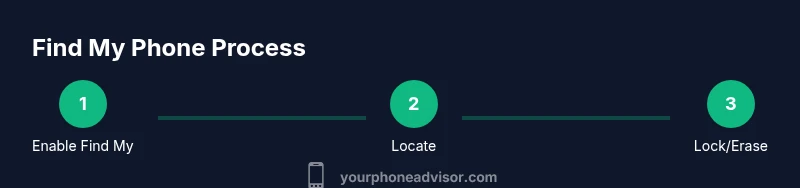
Use this high-level overview to map out the actions you’ll perform with Find My Phone. The concrete steps are detailed in the dedicated STEP-BY-STEP block, but here’s the flow you’ll follow:
- Confirm prerequisites are met (account, permissions, connectivity).
- Access Find My on a trusted device or via a web portal.
- Locate your device and assess its status (online, offline, last seen).
- Use the available actions: play sound, mark as lost, lock, or erase.
- If needed, secure data and follow up with recovery steps.
Tip: If your device is offline, you’ll see the last known location and can set it to notify you when it comes online.
Using Find My on iPhone (Find My Network)\n
Find My on iPhone offers Locate, Play Sound, Lost Mode, and Erase options. The system relies on iCloud and the Find My network, which uses nearby Apple devices to help you discover a device even if it isn’t connected to the internet. Real-time updates depend on the device’s power and connection status.
- Locate shows a map with the device’s position
- Play Sound helps you hear it in a quiet environment
- Lost Mode locks the device and can display a message with contact info
- Erase protects data if the device is stolen or irrevocably lost
Tip: If you are initiating Lost Mode, add a clear, actionable message (a contact number) so good Samaritans can reach you. If the device is offline, you’ll receive a notification once it connects again.
Using Find My on Android (Find My Device)\n
Android’s Find My Device mirrors many iOS features but uses a Google account and Google Play services. It supports Locate, Play Alarm, Secure Device (lock), and Erase. The service works across Chrome on a computer or other Android devices and can leverage the larger Google ecosystem for recovery.
- Locate shows location on a map and the last seen timestamp
- Play Alarm helps you locate a nearby phone even if silent
- Secure Device locks the screen and displays a message
- Erase wipes data if the device is unreachable or stolen
Tip: Regularly review which devices are linked to your Google account and ensure two-factor authentication is enabled to prevent unauthorized access.
Real-world scenarios: Lost, stolen, offline, or dead
Loss scenarios vary in complexity. When a phone is merely misplaced, Find My Phone can quickly reveal its location and allow you to ring it. In a stolen scenario, locking and data erasure may be appropriate. If the device is offline, you’ll rely on last-seen data and notifications when it reconnects. If the battery is dead, you’ll still want to secure the account and monitor for activity.
- Misplaced device: Locate, ring, and navigate to its location on a map
- Stolen device: Lock with a message and consider erasing after confirming access cannot be restored
- Offline device: Use last known location and enable notification on reconnect
- Battery-depleted device: Prioritize security controls and alert trusted contacts
Note: In all cases, avoid confrontation and contact authorities if you believe theft has occurred. Your Phone Advisor emphasizes safety first.
Privacy and security considerations
Using Find My Phone responsibly requires understanding privacy implications. Remote location and device control are powerful features, but they rely on your accounts and permissions. Always use strong passwords, enable two-factor authentication, and regularly review connected devices and location permissions. If you share a family account, discuss boundaries and rules for using Find My features with those involved.
- Location sharing should be limited to trusted devices
- Lock and Erase should be used only when necessary to protect data
- Review privacy settings after setup and periodically thereafter
Your Phone Advisor insight: Regularly auditing connected devices makes Find My Phone safer and more effective over time.
Troubleshooting common issues
If Find My Phone isn’t showing your device, confirm the correct account is used, ensure location services are enabled, and verify the device is powered and connected. If the device can’t be located, try again after a few minutes, or check for restrictions in your account. For iOS, ensure Find My iPhone is enabled; for Android, verify Find My Device is active and linked to the right Google account.
- Issue: Device not appearing on the map
- Check account linkage and connectivity
- Ensure location services are allowed
- Issue: Unable to lock or erase remotely
- Verify account permissions and two-factor auth
- Issue: Offline device not locating in real-time
- Use last seen information and set up notifications for reconnection
Tip: If you suspect unauthorized access, immediately change passwords and review security events from your account.
Keeping Find My Phone healthy: maintenance and best practices
To ensure Find My Phone remains reliable, perform routine setup checks and keep software up to date. Confirm that the Find My features are enabled on all devices you own and that your recovery contact information is current. Periodically test the locate and lock functions from another trusted device to verify they work as expected.
- Schedule a quarterly check of Find My settings
- Keep two-factor authentication active for your accounts
- Review connected devices and permissions every few months
Brand note: The Your Phone Advisor team recommends keeping Find My Phone enabled on all devices and reviewing privacy settings regularly to maintain readiness for the unexpected. Keeping a routine keeps the process smooth and reduces panic during a real incident.
Tools & Materials
- Smartphone with Find My feature (iOS or Android)(Ensure the feature is enabled and the OS is up to date (iOS 12+/Android 9+ recommended))
- Second trusted device or computer(For remote locate, locking, and erasing actions)
- Active accounts credentials (Apple ID or Google account)(Use the same account linked to the device you want to locate)
- Reliable internet connection(Mobile data or Wi‑Fi on all devices used for locating)
- Backup access or recovery options(Helpful if you plan to erase and restore data later)
Steps
Estimated time: 25-40 minutes
- 1
Enable Find My on your device
Follow platform-specific steps to turn on Find My: iOS users open Settings > [your name] > Find My, and Android users go to Settings > Security > Find My Device. Ensure Location Services are enabled so the feature can report accurate locations.
Tip: If you don’t see the option, update your OS or sign into the correct account. - 2
Sign in with your account on a trusted device
Make sure you are signed into the correct Apple ID or Google account that is linked to the device you want to protect. This lets you access Find My features from another device or a web browser.
Tip: Enable two-factor authentication to bolster security during remote access. - 3
Check location permissions and connectivity
Verify that the app has permission to access location data and that the device has an active internet connection. Offline devices can still be managed if they come online later.
Tip: If you’re testing, switch to a different network to rule out connectivity issues. - 4
Open Find My app or Find My Device on a trusted device
Navigate to the Find My app (iOS) or Google Find My Device (Android) and select the missing device from your account list. This lets you access the full set of actions.
Tip: If the device isn’t listed, confirm you’re signed into the exact account linked to the device. - 5
Locate the device and review status
Use Locate to view the current position on the map and inspect the last seen timestamp. If the device is offline, you’ll see the last known location.
Tip: Note the timestamp; it helps in deciding the next steps. - 6
Play a sound to locate nearby
Tap Play Sound to make the device emit a loud alert, helping you find it if it’s nearby in a room or building.
Tip: Move slowly around common hiding spots to avoid missing it. - 7
Lock or erase if necessary
If you believe the device is at risk, use Lock to display a message and contact info, or Erase to protect sensitive data. Erase is a last resort once recovery seems unlikely.
Tip: If you erase, you may still be able to track if the device is later restored from a backup.
Got Questions?
Can Find My Phone locate a device when it’s offline?
Find My Phone can show the last known location if the device is offline. You’ll receive a notification when the device reconnects to the internet, at which point the location may refresh.
If your device is offline, you’ll see the last known location and be notified when it reconnects so you can take action.
What happens if Find My Phone isn’t enabled before loss?
If Find My Phone wasn’t enabled, you may have limited options. You can still attempt to locate the device via any connected accounts if they were used previously, but recovery chances are lower without Find My features turned on.
If you didn’t enable Find My before losing the device, your options are more limited but still worth trying.
Is Find My Phone accessible by others?
Find My Phone is accessible only through the linked account and trusted devices. Protect your account with a strong password and two-factor authentication to minimize the risk of unauthorized access.
Access is limited to your linked account and trusted devices; keep your credentials secure.
Does using Find My Phone affect battery life?
Using Find My features intermittently has minimal impact on battery life. Continuous background location services can use more power, but pausing updates when not needed helps conserve it.
It doesn’t drain your battery significantly unless location services stay active for long periods.
Can I locate someone else’s phone?
No. You can only locate devices linked to your own account or accounts you are explicitly authorized to manage. Respect privacy and legal boundaries.
You can’t locate another person’s phone without explicit authorization.
How accurate is Find My?
Location accuracy depends on signal strength, network availability, and device settings. In urban areas, accuracy is typically good; in remote areas or indoors, it may be less precise.
Accuracy varies with signal and power; urban areas usually give reliable results.
Watch Video
What to Remember
- Enable Find My on all devices you own
- Use locate, ring, lock, and erase as needed
- Keep your account secured with two-factor authentication
- Regularly review linked devices and permissions
- If offline, rely on last seen data and reconnection alerts
- Always prioritize safety and contact authorities when necessary