How to Unlock a Vivo Phone When You Forgot the Password
A complete, beginner-friendly guide to regain access on a Vivo phone after forgetting the password. Learn safe recovery methods, data implications, and how to minimize loss with step-by-step actions.


If you forgot the password on your Vivo phone, you can regain access by using official account recovery options, Google account verification, or a factory reset as a last resort. Start with account-based unlocks if available, then use Google Find My Device to erase and unlock if connected to the internet. This approach minimizes risk and data loss while restoring control.
Why unlocking safely matters
According to Your Phone Advisor, regaining access to a locked Vivo device without compromising data integrity is not just about getting back in; it’s about preserving personal information, safeguarding credentials, and enabling you to restore apps and settings quickly. When a password is forgotten, the temptation is to rush to a reset. However, rushing can lead to unintended losses, including photos, messages, and app data that weren’t backed up. A careful, stepwise approach helps you choose the least destructive option first, preserves privacy, and reduces downtime. As you proceed, keep your Google account credentials handy, ensure the device is connected to the internet when required, and stay within official recovery channels to avoid triggering additional security locks. This mindset matters because modern Android devices, including Vivo, implement layered protections designed to deter unauthorized access. By following proven paths and avoiding risky shortcuts, you’ll minimize friction and protect what matters most.
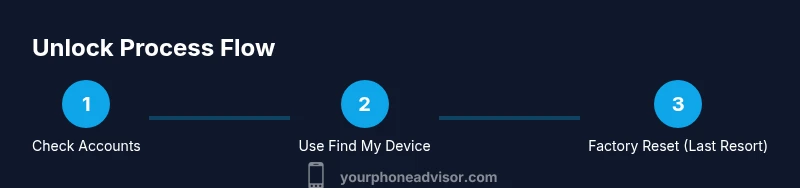
In practice, most people benefit from starting with account-based unlock options if they have previously linked a Vivo or Google account. If those options aren’t available or fail, you’ll then move to remote unlock features provided by Google, and finally to a factory reset only when other methods are exhausted. The Your Phone Advisor team emphasizes patience and data-first planning; you’ll thank yourself later when you can recover essential content and restore your preferred setup.
Vivo-specific password recovery options
Vivo devices typically offer a few formal recovery routes designed to protect user data while restoring access. The most common paths include: (1) Vivo account-based unlock options if you previously linked a Vivo account and enabled anti-theft features; (2) Google account verification or Find My Device-style services that can securely locate, lock, or erase the device if connected to the internet. It’s crucial to check whether these options were enabled before the password was forgotten because they determine how you proceed. If you can access a trusted computer or mobile device, visit the official Vivo support or your Vivo account page to see available recovery methods and linked devices. When these options work, you’ll typically regain entry with minimal data loss and a simplified reauthentication process.
Because Vivo devices are part of the broader Android ecosystem, you can often leverage Google’s account-based tools as a fallback. For example, if your device is linked to your Google account and connected to the internet, you may be able to locate the phone and unlock or erase it remotely via Google Find My Device. This method is especially valuable when you cannot recall the last password but still remember your Google credentials. If neither route is accessible, a factory reset remains the most reliable option, and this is where data loss is likely unless you have current backups. In all cases, do not attempt third-party unlock apps or suspicious “bypass” tools, as they are unsafe and may permanently damage your device.
Data backup and data loss considerations
Before attempting any unlock method, it’s essential to consider data backup and potential losses. A password Forgotten situation may necessitate actions that erase user data. If you have recent cloud backups or auto-sync enabled (photos to Google Photos, contacts to Google account, app data to the cloud), you can often recover most information after the unlock. However, offline content such as local WhatsApp media, offline game progress, and non-synced documents might be at risk. Start by assessing which data is most critical and which backups exist. If you can access the device’s storage, try to copy essential files to a safe location before initiating unlock steps. For Vivo devices tied to a Vivo cloud account or Google Drive, verify what data is included and schedule a backup refresh if possible. If a factory reset becomes unavoidable, you’ll still have options to restore data from available backups post-unlock, but you must initiate those backups beforehand whenever feasible.
In addition to backups, consider enabling password recovery options for future protection. After you regain access, set up a recovery email or phone number, verify your Vivo account on a trusted device, and activate two-factor authentication where available. These steps reduce the risk of future lockouts and provide faster recovery pathways should you forget your password again.
Understanding security features and potential blockers
Modern Vivo devices implement multiple security features designed to protect user data. When you forget the password, some actions may be blocked or require additional verification steps to prove ownership. Typical blockers include: (1) the device remaining linked to your Google account, which may require you to sign in on the browser or another device to verify ownership; (2) the need for an active internet connection to complete remote unlock or wipe requests; (3) the requirement that some unlock methods can only be used within a particular time window after the device was locked or after a certain number of failed attempts. If your Vivo phone has two-factor authentication enabled, you’ll also need access to the second factor to complete the recovery flow. Understanding these protections helps you choose the safest method and anticipate any constraints. Remember, attempting to bypass security with unverified tools can trigger permanent lockouts or data loss. Always rely on official recovery options and documented procedures to maintain the device’s integrity and your data security.
When you’re navigating these protections, keep documentation handy (proof of purchase, Vivo account email) in case you need to verify ownership with support staff. If a support ticket becomes necessary, having this information ready can expedite the process and reduce back-and-forth delays.
Common mistakes and pitfalls to avoid
People often repeat a few common missteps when trying to recover a Vivo password. One frequent mistake is attempting multiple third-party unlock tools, which can worsen security protections and risk data loss. Another is rushing to a factory reset without confirming that data backups exist; this often leads to permanent loss of local content. A third misstep is ignoring the possibility of remote unlock options, such as Google Find My Device, especially when the phone is connected to the internet and linked to your Google account. Finally, not documenting or updating recovery settings after regaining access increases the likelihood of another lockout in the future. To avoid these pitfalls, take time to verify connected accounts, confirm backup availability, and carefully follow official recovery steps before proceeding to a reset. After any successful unlock, review your security settings and ensure recovery options are enabled for future incidents.
Additionally, avoid attempting to unlock a device that isn’t yours or without proper authorization. If the device belongs to someone else or is under a work profile, contact the owner or IT administrator for approval before proceeding. This not only respects privacy and legal constraints but also prevents unintended security complications.
When to contact Vivo support or service centers
If your Vivo password remains inaccessible after trying official recovery options, contacting Vivo support or visiting an authorized service center is advisable. Explain the situation clearly, including that you forgot the password and that you have ownership proof. Be prepared to provide device serial numbers, proof of purchase, and account information used with the device. Service centers can assist with password recovery while preserving data when possible or perform a secure reset with data protection measures in place. If you are under device enrollment in a corporate or school program, coordinate with your administrator to ensure compliance with security policies. While long wait times can occur, official channels maintain warranty and data-protection guarantees not available through third-party solutions. Your patience and preparation—proof of ownership, prior backups, and knowledge of associated accounts—will help the support experience be smoother and more predictable.
Data restoration and future-proofing your device
After you regain access, immediate steps should focus on data restoration and future-proofing. Start by restoring data from backups to minimize loss. Check Google Drive, Google Photos, and any Vivo cloud services for missing files, messages, and app data. Review installed apps and verify that their data is intact; some apps may require re-authentication or re-syncing after a reset. Set up robust password recovery options, such as linking a trusted email address, phone, or authenticator app. Enable screen lock options that are easy to recover—consider using a PIN or pattern complemented by biometric authentication (where available). Finally, schedule periodic backups with automatic syncing to minimize the risk of data loss. Regularly reviewing security settings and keeping your device up to date with the latest software reduces the risk of lockouts in the future and contributes to overall device longevity.
Tools & Materials
- Google account credentials(Needed for Google-based recovery options if your device is linked to a Google account.)
- Active internet connection (Wi-Fi or mobile data)(Essential for remote unlock or erase via Find My Device / Google services.)
- A trusted device to access your Vivo or Google accounts(Used for verification or to receive security prompts.)
- Proof of purchase / ownership details(Helpful if contacting Vivo support or a service center.)
- Backup copies of important data (cloud or local)(Helps with data restoration after a reset.)
Steps
Estimated time: 60-90 minutes
- 1
Verify linked accounts and credentials
Check which accounts are linked to the Vivo device (Google and Vivo accounts). Verify you know the correct passwords and have access to the associated recovery methods (backup emails, phones, or authenticator apps). If you can sign in, you may be able to unlock directly or trigger a remote unlock without data loss.
Tip: Gather all possible credentials before attempting any unlock method to reduce back-and-forth. - 2
Attempt Google Find My Device unlock or erase
On a computer or trusted device, sign in to your Google account and open Find My Device. Select your locked Vivo device and choose Lock or Erase. If you select Lock, you may be able to set a new temporary password. If youErase, expect data loss unless backups exist.
Tip: Only use Erase if you have recent backups; otherwise you may lose local data. - 3
Check Vivo-specific recovery options
Visit Vivo’s official support pages or your Vivo account if you linked one. Look for password recovery, device find/lock, or remote unlock features. Use any option that preserves data and does not require a factory reset when possible.
Tip: Document the recovery steps taken and note any prompts shown during the process. - 4
Prepare for a potential factory reset
If remote unlock is unavailable or fails, be prepared for a factory reset via recovery mode. This will wipe data, but you will regain access. Ensure you have backups or accept data loss before proceeding.
Tip: Know the exact sequence to boot into recovery mode for your Vivo model to avoid missteps. - 5
Execute the reset and reconfigure
After the reset completes, set up your Vivo device as new or restore from backups. Reinstall apps and re-link accounts. Enable recovery options and, where possible, back up data automatically to cloud services.
Tip: Prefer a minimal upfront setup, then restore data selectively to avoid duplications. - 6
Reinstate security measures and backups
Set a new password or PIN with biometric options, and turn on Google and Vivo backup. Verify that the unlock methods are working and that you can perform a test lock/unlock to ensure the recovery options are functional.
Tip: Regularly verify backups and update recovery contact information annually.
Got Questions?
What should I do first if I forgot my Vivo password?
Start by checking for any linked accounts (Vivo or Google) and attempt to use official recovery options. If those fail, try Google Find My Device to remotely unlock or erase, keeping in mind data backup status.
First, check linked accounts and use official recovery options; if unavailable, try Google Find My Device to unlock or erase, noting any data backup you have.
Can I unlock without losing data?
Yes, if you have recent backups and a recovery option enabled, you can unlock or reset without losing important content. If backups aren’t available, you may need to perform a reset with some data loss.
You can unlock without losing data if you have backups and the recovery option enabled; otherwise some data may be lost.
Will unlocking erase all data on my Vivo phone?
Factory reset typically erases all data. If you can access remote unlock options with backups, you may avoid a full wipe. Always verify backups before proceeding with a reset.
A factory reset usually wipes data. If you have backups, you can restore afterward.
What if Find My Device isn’t enabled on my Vivo?
Without a linked account or Find My Device, you’ll likely need to reset the device via recovery mode. This emphasizes the importance of enabling recovery options in advance.
If Find My Device isn’t enabled, you may need to reset via recovery mode.
Is it possible to unlock with Google account on Vivo?
If the device is linked to a Google account and connected to the internet, Google’s Find My Device can help unlock or erase. Availability depends on account linking and device settings.
If your Vivo is linked to a Google account and online, you may unlock or erase using Find My Device.
How long does the unlock process usually take?
The duration varies with the method. Remote unlocks can take minutes to set up if everything is ready, while a factory reset may take longer to reconfigure the device and restore data.
Timing varies; remote unlocks can be quick if ready, factory resets take longer to restore data.
Watch Video
What to Remember
- Follow official recovery paths first to minimize data loss.
- Backups are critical; recover from the cloud if possible.
- Avoid untrusted unlock tools that could harm your device.
- Prepare ownership proof for support if needed.
- After regain, enable recovery options and backups for future incidents.