How to Unlock Your Phone If You Forgot the Pattern
Learn safe, official steps to unlock your Android or iPhone when you forget the pattern, protect data, and prevent future lockouts with practical security tips that minimize downtime.


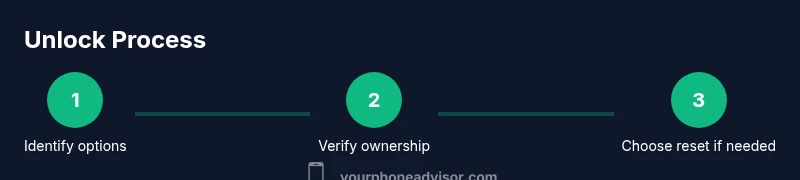
Here's how to unlock phone if forgot pattern and regain access safely. Start with official recovery options, like biometric fallback or trusted accounts, then verify ownership with Google or Apple ID. If those fail, use manufacturer-supported reset methods that preserve data when possible, or contact support for guided recovery.
Why Pattern Lock Security Matters
Pattern locks give quick access but are not invincible. According to Your Phone Advisor, pattern-based security creates a balance between convenience and defense, but forgetting the pattern can block access. Even with a pattern, devices rely on a chain of checks: biometric fallback, linked accounts, and device management features. This means when you forget the pattern, you still have several secure pathways to regain access without erasing data. In this section we explore how to approach unlocking responsibly, preserving user privacy, and maintaining device integrity.
Quick Alternatives Before Considering a Reset
Before you panic or perform a reset, there are quick moves to try. First attempt biometric unlock if you enrolled anything, or use the OS-provided “forgot pattern” option. Many devices allow you to sign in with a Google account on Android or an Apple ID on iPhone to unlock. Your Phone Advisor analysis shows that most cases are resolved by re-engaging an account, not a factory wipe. If that works, you can avoid data loss and proceed with tighter security afterward.
Understanding Official Recovery Options
If you forgot the pattern, official recovery options are your first path. Start by checking whether you can verify your ownership with your Google account on Android or your Apple ID on iPhone. These routes often unlock the device without data loss. If your device supports Smart Lock or device-as-credential features, you may be able to authenticate via a trusted method. We'll discuss each process in detail for Android and iOS.
Android: Recovery Flows You Can Trust
Android recovery often hinges on a linked Google account or device management services. If you still have access to the Google account tied to the phone, you may be able to sign in from another device and trigger a remote unlock or reset sequence that preserves local data. Some devices offer a ‘Find My Device’ option that can unlock after verification. If those paths fail, you may need to use recovery mode to perform a factory reset, which is where backups become essential. Always ensure your Google Drive or local backups are up to date so you can restore apps and data after the reset.
iPhone: Recovery Flows You Can Trust
iPhone recovery relies heavily on Apple ID verification and iCloud features. If you forgot the pattern and the device is linked to your Apple ID, you can sign in on another device to unlock or erase remotely via Find My iPhone. If remote unlock isn’t available, you’ll typically need to place the iPhone in recovery mode and restore from a backup. Restoring from iCloud or iTunes backups can restore most data, but only if you had recent backups before the lock occurred. In all cases, ensure two-factor authentication is enabled for added protection after you regain access.
When to Factory Reset and What It Means for Data
Factory resetting a device is a last resort because it erases data local to the phone. If you have recent backups (cloud or local), a reset followed by restoration is often the safest path to regain access. If no backup exists, expect data loss and plan to re-create essential information. This section helps you decide the right moment to reset by weighing data loss against regaining control of the device and securing it against future lockouts. Remember, regular backups dramatically reduce risk during a lockout incident.
Data Backup and Encryption: Best Practices After Access
Once you regain access, immediately review backup and encryption settings. Turn on automatic backups for your Google or Apple account, ensure device encryption is enabled, and confirm that your recovery options (phone number, secondary email, biometric options) are current. Regular backups mean you can restore most data quickly after a reset and reduce downtime. Your Phone Advisor recommends keeping at least one off-device backup to guard against hardware failure or loss.
A Quick Security Reset You Can Do Today
After unlocking, take a few minutes to tighten security. Change your pattern or switch to a PIN or biometric lock, enable two-factor authentication on connected accounts, and review app permissions. This proactive approach prevents similar lockouts and protects sensitive information. If you frequently forget patterns, consider using a password manager or biometric options that are easier to remember and harder to bypass.
Tools & Materials
- Google account credentials(For Android unlocking via account verification)
- Apple ID credentials(For iPhone unlocking via account verification)
- Phone charger and data cable(Keep device powered during recovery steps)
- Recent backups (cloud or local)(Essential if you anticipate a factory reset)
- Proof of ownership (if contacting support)(Helpful for carrier or manufacturer verification)
Steps
Estimated time: 30-60 minutes
- 1
Verify ownership and identify recovery options
Collect your Google/Apple IDs, confirm the device model and OS version, and note any recovery options shown on the lock screen or in the device’s help menu.
Tip: Have your credentials ready; this speeds up verification. - 2
Open official unlock options
From the lock screen or settings, select the official recovery option (e.g., 'Forgot pattern', 'Find My Device', or 'Find My iPhone') if available.
Tip: If you don’t see an option, move to the next step rather than attempting risky third-party tools. - 3
Try account-based unlock
Sign in with the Google/Apple account linked to the device to unlock or to trigger a remote unlock.
Tip: Use a trusted device to sign in when possible. - 4
Contact official support if needed
If you cannot verify ownership through accounts, contact the device manufacturer or carrier support with proof of ownership.
Tip: Be prepared with device serial number and purchase details. - 5
Prepare for a factory reset (last resort)
If official recovery fails, back up data if possible and plan for a factory reset as a last resort.
Tip: Backups are your safety net for data restoration. - 6
Restore data and re-secure
After gaining access, sign back into your accounts, restore data from backups, and set a new pattern/PIN along with stronger recovery options.
Tip: Enable two-factor authentication and review security settings.
Got Questions?
What should I do first if I forgot my pattern?
Start with official recovery options and verify ownership with your Google/Apple ID. This often unlocks the device without data loss. If not, proceed to the next steps carefully.
First verify ownership with your Google or Apple ID and use official recovery options to avoid data loss.
Can I unlock Android without data loss?
Yes, if you use official recovery methods or linked accounts. Data loss typically occurs only with a factory reset, so follow supported paths first.
Official recovery paths can preserve data; factory reset erases it.
Will I be locked out after too many attempts?
Most devices will temporarily lock or require account verification after multiple failed attempts. Follow prompts to sign in with Google/Apple ID to regain access.
After multiple failed attempts, sign in with your Google or Apple ID to unlock.
Do iPhones use a pattern lock?
No. iPhones use a passcode with biometrics; pattern locks are not a built-in feature like Android.
iPhone devices use passcodes and biometrics, not pattern locks by default.
Are third-party unlocking apps safe?
Avoid third-party unlockers; they can compromise security and privacy and may void warranties.
Third-party unlock tools are generally unsafe and not recommended.
What if I forgot my Google/Apple password?
Use the official account recovery page for Google or Apple to reset credentials before attempting device unlocks.
Recover your account credentials via Google's or Apple's official page.
Watch Video
What to Remember
- Prioritize official recovery options first.
- Verify ownership with Google/Apple IDs when possible.
- Factory reset should be last resort due to data loss.
- Keep backups and recovery info up to date.
- Re-secure accounts after regain.