How to Make Your Phone Number Private on Android
Learn practical, step-by-step ways to hide your Android number from calls and apps. This guide covers device and carrier settings for stronger Android privacy.


Want to keep your Android number private? This guide shows practical steps to hide your number for outgoing calls, limit visibility in apps, and reduce exposure when sharing contact details. You’ll learn carrier options, built-in Android settings, and safer alternatives for communicating without revealing digits. According to Your Phone Advisor Team, privacy starts with clear choices and regular checks.
Why privacy matters for your phone number
In a world where contact information travels through dozens of apps, the risk of exposing your number is higher than ever. Public digits can be harvested by scammers, telemarketers, and identity thieves who tap into old backups or cloud contacts. Even when you think your number is private, your device and services may leak it in places you least expect—group chats, backups, and contact sync across apps. The Your Phone Advisor Team notes that privacy isn’t a single switch; it’s a practice of choices across devices, networks, and apps. A practical goal is to reduce exposure: hide your number for outgoing calls, limit visibility in apps, and minimize where your digits appear. Start by clarifying who should see your number and under what circumstances. If you only need intermittent contact, a temporary or secondary number can prevent sharing your primary digits. Finally, privacy is a moving target—Android OS updates, carrier policies, and third party apps can change what’s possible, so periodic reviews are essential. By building a routine around privacy checks, you protect yourself and your contacts from unwanted exposure.
How Android handles caller ID and number visibility
Android device behavior depends on two layers: the carrier network and the device’s own software. The number visibility you see when you make a call can be controlled by a setting in the Phone app often labeled Caller ID, Show my caller ID, or Hide number and by the carrier’s configuration. Some devices expose this option under Settings → Apps → Phone Permissions; others place it under Settings → Network & Internet or SIM card settings. Because Android is diverse across brands and carriers, the exact path varies. In practice, most users can set outgoing calls to Withhold Number at the system level or choose to display their number. When you hide your number, the recipient’s caller ID will show as Private or Unavailable depending on their device and network. It’s also important to understand that certain types of calls—emergency services, carrier diagnostics, or international toll-free lines—may bypass the setting. Finally, remember that apps might still reveal a number if you have shared your contacts or enabled syncing, so privacy requires a holistic approach.
Carrier options to hide your number
Carriers often provide a simple toggle or short codes to hide your number for outgoing calls. Depending on your country and plan, you may be able to set an account-wide preference or request a temporary suppression for a specific period. Some carriers require you to enable a feature in the carrier app or through customer support, while others let you apply a per-call setting by dialing a suppression code. When you choose this option, keep in mind that some call destinations or services may still reveal the number due to caller ID overrides or network policies. If you frequently need privacy, consider creating a profile that uses suppression by default, and switch it off when you need to share your number for a specific contact. Always verify changes by placing a test call to a trusted number. Also check if your plan incurs any extra charges for caller ID suppression.
Built-in Android settings to hide your number for outgoing calls
Android provides several paths to conceal your number but the exact route depends on device and OS version. A common approach is to adjust the Phone app settings; look for a section often labeled Calls or Additional settings, then find Caller ID or Hide number. If you don’t see it there, check SIM card settings or the carrier’s own app. Some devices allow a per-call suppression by using a code, while others require a constant setting across all calls. After enabling hiding, perform a quick test by calling a friend or second line to confirm the number appears as Private or Unknown. If your device doesn’t support this feature natively, you can still withhold your number by using a third-party app or by using a secondary number service. Finally, note that changes may reset after a software update, so recheck settings after updates.
Using third-party apps and services safely
Third-party solutions can provide easier or more flexible privacy options. A popular strategy is to use a secondary number or VoIP service such as Google Voice, Burner, or similar. These services let you make calls and send texts without exposing your primary number. When considering a third party option, prioritize security and privacy reviews: choose reputable providers, read their terms, and be mindful of permissions requested by the app. If you rely on a secondary number, treat it as a separate contact point and avoid mixing it with your main address book. Also remember that some apps or services may still show your primary number if you verify it during setup, so keep your main account details separate from any temporary solutions. Finally, test both incoming and outgoing communications to ensure that the privacy behavior matches your expectations.
What to check in apps that share your number
Your number often becomes a point of identification across multiple apps: messaging platforms, social networks, banking apps, and loyalty programs. Review the privacy settings in each app to minimize how your number is used. For messaging apps, disable find by number features where possible, limit contact syncing, and disable contact imports if you don’t need them. In social media and dating apps, avoid sharing your number publicly and switch to usernames or handles when possible. For apps that require phone verification, consider using a temporary number during signup and remove it later if you can. Be mindful that some apps may still collect contact lists or verify numbers through third-party services, so read privacy policies and adjust permissions accordingly. Finally, periodically audit app permissions on your Android device to ensure only essential access remains granted.
Mistakes to avoid and risk factors
One common mistake is assuming the hiding feature works everywhere. Carrier overrides, emergency calls, app inconsistencies, and OS updates can reintroduce exposure. Another pitfall is relying on a single method; privacy should be layered, combining device settings, carrier options, and careful app permissions. Don’t forget to test after major updates or changes in your plan. Also ceasing to observe your call logs or not backing up important contacts can cause accidental sharing. If you rely on a temporary number alone, you risk losing access to some contacts who only have your original number. Finally be cautious about sharing your numbers in public places, in quotes, or in insecure chats, which can lead to unsolicited solicitations and scams.
Extra tips and best practices
Adopt a layered privacy strategy: use a secondary number for public interactions, and keep your primary number private for sensitive conversations. Consider a dedicated eSIM or dual SIM setup if your device supports it, which makes switching numbers easier. Regularly review app permissions and privacy policies, and enable device-wide security features such as secure lock screens and encrypted backups. If you are concerned about deep privacy, explore reputable privacy apps that have strong reviews and transparent data practices. Finally, schedule a quarterly privacy check to verify that settings remain aligned with your goals and to adapt to any OS or carrier changes.
Practical privacy toolkit and next steps
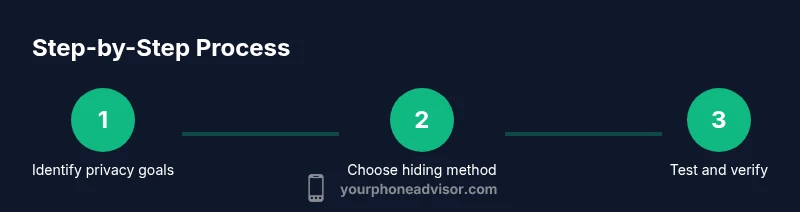
A concise checklist can help you maintain privacy without sacrificing communication. Steps: define your privacy goal, enable number hiding at system and carrier levels, test by calling a trusted number, review app permissions, consider a secondary number solution, keep OS and apps updated, and document changes so you can revert if needed. After completing the steps, keep monitoring for changes in Android updates and carrier policies. The Your Phone Advisor Team recommends revisiting these settings quarterly and updating your strategy as new privacy features arrive. With deliberate setup you can significantly reduce accidental exposure while staying connected to the people who matter.
Tools & Materials
- Android smartphone(Any modern device with latest OS updates)
- Carrier plan with caller ID options(Confirm if suppression is supported and any fees)
- Test contact (trusted person)(To verify outgoing/incoming privacy after changes)
- Access to Settings/Phone app(Needed to navigate to Caller ID / hide number)
- Optional: second line or eSIM(For permanent privacy strategy)
Steps
Estimated time: 15-30 minutes
- 1
Define privacy goal
Clarify whether you want to hide your number for all calls or only for certain contacts. This guides which options you enable and avoids over configuring.
Tip: Pro tip: write a one sentence goal before you begin. - 2
Check carrier support
Log into your carrier app or contact customer service to verify if caller ID suppression is supported and whether there are any charges. Ask whether suppression is per call or account wide.
Tip: Pro tip: confirm current policy before making changes. - 3
Enable number hiding on Android
Open the Phone app or Settings and enable the option to Hide number or Withhold ID. If not present, check SIM settings or the carrier app. Some devices require a per call toggle; test after enabling.
Tip: Pro tip: set a restore reminder in case you need to share your number again. - 4
Test the result
Make a test call to a trusted contact and verify that the recipient sees Private or Unknown. If not, recheck the path or contact support.
Tip: Pro tip: try both domestic and international destinations if you call abroad. - 5
Review app privacy settings
Go through messaging and social apps to minimize how your number is used. Disable find by number, limit contact syncing, and disable unnecessary imports.
Tip: Pro tip: perform a profile visibility check in each app. - 6
Consider alternatives for ongoing privacy
If you need ongoing privacy, assess a secondary number or VoIP option. Plan when to switch back and label the secondary line clearly.
Tip: Pro tip: keep a simple note of when each option is active.
Got Questions?
Can I hide my number on all calls on Android?
Android and carriers offer a method for most calls, but not guaranteed for all destinations or emergency services; test.
You can hide on most calls, but not guaranteed for all calls.
Will hiding my number affect emergency services?
Emergency services typically obtain your number from local systems; hiding may not apply to these calls. Check with your carrier and local policies.
Emergency calls may still reveal your number; check with your carrier.
Does hiding my number affect inbound calls?
Hiding affects outgoing calls; inbound calls reveal numbers to you just as callers can see you. This is independent of your outbound settings.
Hiding your number for outgoing calls doesn't hide your number from others calling you.
What about apps like WhatsApp or Telegram showing my number?
Many apps display your number for verification or discovery; adjust app privacy settings and use temporary numbers if needed.
Some apps may show your number; adjust settings to minimize sharing.
Are there risks with Burner or second-number services?
Secondary number services provide privacy but require careful handling and can have privacy trade-offs; pick reputable providers and review privacy terms.
Second-number apps can help privacy but read terms and permissions.
Is Do Not Disturb or call blocking relevant to privacy?
Do Not Disturb blocks unwanted interruptions; it reduces noise but does not replace hiding your number.
DND helps reduce interruptions; it doesn't hide your number.
Watch Video
What to Remember
- Hide outgoing calls where supported
- Test after each change
- Not all apps honor hiding
- Consider a secondary number as a backup