How to Make Your Phone Number Private: Step-by-Step Guide
Learn practical, privacy-focused steps to hide your phone number for calls and texts. This guide covers device settings, carrier options, per-call masking, apps, and best practices to protect your number from exposure.


You’ll learn how to make your phone number private for calls and texts, using device settings, carrier options, per-call masking, and privacy-friendly apps. You’ll also get a clear testing plan to verify privacy and avoid common leaks. Your privacy journey starts with a quick audit and targeted changes.
Why private phone numbers matter
Publicly exposed phone numbers invite unwanted calls, marketing messages, and potential privacy breaches. In a world where contacts, apps, and services sync data across devices, a single exposure can ripple across platforms. According to Your Phone Advisor, private numbers reduce exposure to spam, spoofing, and unsolicited sharing of your contact information. Keeping your number private helps preserve personal boundaries, reduces nuisance calls, and lowers the risk of social engineering attempts. Privacy isn’t about hiding your identity entirely; it’s about controlling who can see your number and when. As you plan to hide your number, consider the contexts in which you want privacy (business calls, online sign-ups, dating apps, anonymous inquiries) and tailor your settings accordingly.
- Protects you from cold calls and data brokers.
- Reduces the chance of your number being scraped from public profiles.
- Helps when you’re sharing a temporary or secondary device.
leadingParagraph":null,
noteOverflowFlag":false
Tools & Materials
- Phone with updated OS(Ensure you can access modern privacy settings in Settings > Phone or similar menus.)
- Active mobile plan with caller-ID controls(Carrier features vary by region; confirm availability with customer service.)
- Recent backup of contacts(If you change numbers or privacy methods, keep your contacts safe.)
- Access to your carrier account or customer service(You may need a PIN or account verification to apply privacy changes.)
- Trusted recipient for testing(Choose someone you can call or text to verify privacy after changes.)
Steps
Estimated time: 20-30 minutes
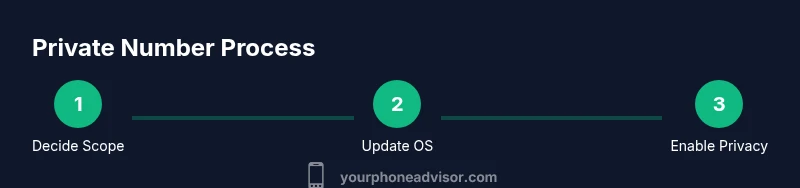
- 1
Decide privacy scope
Identify whether you want privacy for all calls, all texts, or only specific numbers. A clear scope prevents accidental exposure when you forget to re-enable privacy. If you share your device at work or with family, consider separate profiles.
Tip: Document your intended scope in a note so you don’t forget which channels require privacy. - 2
Update your device OS
Open Settings and check for software updates. Running the latest version ensures you have the newest privacy controls and bug fixes that affect caller ID behavior.
Tip: A small delay for an update is worth protecting against known privacy gaps. - 3
Enable device-level caller ID suppression
Go to the phone settings and look for an option like Show My Caller ID or Hide Number. Turn it off (iOS) or select Hide Number in your SIM settings (Android, varies by manufacturer).
Tip: If the option is missing, check if your network requires carrier-level enabling. - 4
Use per-call privacy prefixes when supported
For immediate, temporary privacy, dial a per-call suppression prefix (e.g., *67 in some regions) before the number you’re calling. Test with a trusted contact to confirm the effect.
Tip: Per-call blocking can fail on some networks; verify with a test call. - 5
Explore carrier-level controls
Some carriers offer the ability to suppress your number for all outgoing calls. Contact customer service or check the carrier app for privacy settings and any fees or limitations.
Tip: Carrier-based options are often more reliable for consistent privacy across calls. - 6
Consider a privacy-focused messaging option
For sensitive texts, you may need a separate app or service that uses its own numbering system. This avoids linking your main number to specific conversations.
Tip: Research app privacy reviews and ensure the app is reputable before installing. - 7
Test privacy with a controlled recipient
Make a test call and send a test text to a trusted contact to confirm your number shows as private. Note what they see and adjust settings if needed.
Tip: Keep records of what is visible to different recipients for your reference. - 8
Review app permissions and data sharing
Audit apps that can access your contacts, call logs, and messages. Limit or revoke permissions that could leak your number.
Tip: Regular audits help prevent ongoing data leakage from apps you rarely use.
Got Questions?
How can I hide my number for outgoing calls?
Use the device setting to suppress caller ID, or, if available in your region, use per-call blocking prefixes. Some carriers also offer a live toggle to hide your number for all outgoing calls.
Hide your number by adjusting device settings or using carrier options; test with a trusted contact to confirm.
Does hiding my number work for texts as well?
Text privacy is less consistent across apps and networks. If you need privacy for texting, consider a private-number app or a service that routes messages through an alternate number.
Text privacy is not universal; you may need a separate app to keep texts private.
Will emergency services see my number when I call 911?
Emergency services may see your caller ID regardless of normal privacy settings, depending on network policies and local regulations. Always have a backup contact method for emergencies.
Emergency numbers may bypass privacy features depending on the network.
Can I hide my number temporarily for a single call?
Yes. Use a per-call suppression method like dialing a specific prefix before the number, if your network supports it, and test beforehand.
You can block your number for one call using a per-call prefix if supported.
Is it legal to hide my number in all calls?
Privacy laws vary by country. Some regions restrict or regulate number masking. Check local rules and your carrier’s policy before using privacy features extensively.
Laws differ by location; check local regulations and carrier terms.
Why doesn’t hiding my number always work?
Some recipients’ networks or devices ignore suppression, and some apps display your number regardless of privacy settings. Always verify with a test contact.
Some networks ignore privacy settings; verify by testing with a trusted contact.
Watch Video
What to Remember
- Decide your privacy scope before dialing out
- Test privacy by calling/texting yourself to verify
- Be aware carrier and region affect masking
- Regularly audit apps that access your number
- Use private-number apps for extra layers of privacy