How to Check If Your Phone Is Tapped: A Practical Guide
Learn practical, step-by-step methods to determine if your smartphone is tapped, including signs to watch for, quick checks, security settings, and when to reset. Expert guidance from Your Phone Advisor.


To check if your phone is tapped, start by monitoring for abnormal battery drain, overheating, unfamiliar apps, and odd data usage. Review app permissions, run a trusted security scan, and enable strong protections like screen lock and two-factor authentication. Keep your OS updated and back up data before any drastic steps.
What It Means When a Phone Is Tapped
If you suspect someone is monitoring your device, it's essential to understand what tapping means in practical terms. Tapping can involve spyware installed on the device, a compromised network, or a SIM card tampered with. In many cases, tapping is not about a physical microphone but about software that transmits data to an unknown party. According to Your Phone Advisor, tapping often begins with subtle, almost indistinguishable signals rather than loud alarms, so regular checks matter. Your goal is to establish a routine for detecting anomalies before they escalate. This guide focuses on how to check phone if tapped without needing specialized equipment. By recognizing patterns like sudden data spikes, unexpected reboot prompts, or new device connections, you can act quickly to protect your information.
Common Signs of Compromise
Signs of a tap can be subtle or obvious depending on the attacker’s methods. Look for unusual spikes in data usage when you aren’t streaming media or syncing in the background, unexplained battery drain, and overheating that isn’t tied to high-demand apps. Unexpected SMS messages or notification placeholders can indicate SIM or network-based manipulation. If a device slows down suddenly, or you notice processes consuming CPU in the background, these can also indicate tampering. Your Phone Advisor also notes that many users overlook changes to their accounts or login activity that occur after the device is compromised, so review your account security for anomalies. In addition, keep an eye on unfamiliar or persistently failing apps that you didn’t install.
Quick Checks You Can Do Right Now
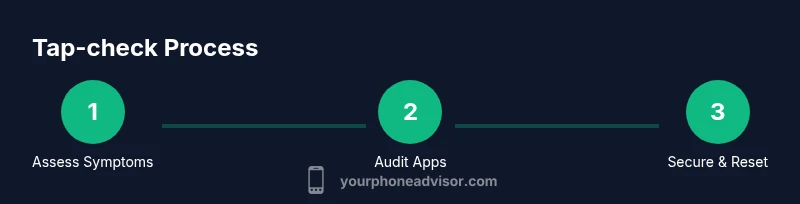
This section provides fast, actionable steps you can take today to assess whether your phone might be tapped. Start with basic hygiene: lock your screen with a strong PIN/biometric, ensure automatic OS updates are enabled, and review installed apps for anything you don’t recognize. Enable Find My Phone services so you can locate or wipe if needed. Check recent certifications or warnings for your device model in official support pages. Run a security assessment using a reputable tool from the official app store, and scan for malware. If you can, compare device behavior with a known-clean backup to spot deviations. Note: perform these steps in a quiet environment to avoid accidental taps when testing. A calm, methodical approach yields clearer results.
How to Check for Unknown Apps and Permissions
Unknown apps can be installed without your knowledge, sometimes masquerading as legitimate tools. Open your device settings and navigate to Apps or Applications, then sort by recently installed. Uninstall anything unfamiliar, especially apps with top-level permissions like overlay, accessibility, SMS, or device administrator access. Review app permissions and revoke those that aren’t essential to the app’s function. On iOS, check Settings > Privacy to review permissions for Camera, Microphone, Location, and Contacts. On Android, use Settings > Apps > Special access to inspect overlays and accessibility services. This careful audit helps identify hidden surveillance software and prevents future drift.
Analyze Data Usage and Battery Drain
Data usage and battery patterns can reveal covert activity. Look for apps using data in the background during idle times or when you’re not actively using the device. Review data usage by app over the past 7–30 days and compare it to your typical pattern. If you notice a spike from apps you don’t recognize, investigate further or reinstall the app. Battery drain that doesn’t align with screen-on time or new features could indicate malicious activity. Use built-in diagnostics or a trusted third-party tool to generate a diagnostic report and compare it with baseline readings from a clean device. Your Phone Advisor emphasizes documenting baseline metrics so you can spot deviations more easily.
Securing Your Phone: Settings and Best Practices
After identifying potential signs, close any gaps by strengthening security. Enable two-factor authentication on essential accounts, and set a strong passcode or biometrics for device unlock. Turn on automatic OS and app updates, and review security settings for screen lock, encryption, and app permissions. Consider enabling app verification features and disable unknown sources on Android to prevent sideloading of potentially malicious software. Regularly review connected devices and trusted Wi‑Fi networks, and use a reputable VPN for sensitive browsing on public networks. Keep backups updated in case a reset becomes necessary. This section aligns with best practices for maintaining long-term device integrity.
When to Reset or Seek Professional Help
If you still suspect tampering after performing checks, a factory reset can remove persistent malware, but it will erase personal data. Back up important information to an encrypted location first, then perform a reset and reinstall essential apps from trusted sources only. If problems persist, consult an authorized service provider or digital forensics expert to assess hardware-level tampering such as SIM card swapping or compromised hardware components. Your Phone Advisor recommends documenting all symptoms, steps taken, and timestamps to share with professionals for faster diagnosis.
Tools & Materials
- Smartphone (iOS or Android)(Ensure you have access to the device and its passcode. Back up data before major changes.)
- Stable internet connection(Wi‑Fi or mobile data to download security tools and perform checks.)
- Official security apps or tools(Only use apps from the Google Play Store or Apple App Store.)
- A secondary device or account for verification(Helpful for two-factor authentication and cross-checks.)
- Backup storage solution(Encrypt backups before saving.)
Steps
Estimated time: 45-60 minutes
- 1
Document symptoms
Note all unusual behaviors: battery drain, data spikes, unfamiliar apps, reboots, or strange messages. Record dates and times. This creates a baseline to compare against later.
Tip: Keep a simple log or screenshot any anomalies. - 2
Check installed apps
Review all apps, especially recent installations. Uninstall anything you don’t recognize or that requests excessive permissions.
Tip: If unsure, research the app’s publisher before removing. - 3
Review permissions
Go through permissions for sensitive apps (overlay, accessibility, SMS, microphone, camera). Revoke any that aren’t required for function.
Tip: Be cautious not to disable essential system apps. - 4
Inspect network activity
Check data usage by app over the last 7–30 days and look for unusual background activity.
Tip: Compare with previous billing cycles for accuracy. - 5
Test unlock security
Change device PIN/Passcode and enable biometric unlock if available.
Tip: Use a long passphrase or alphanumeric code. - 6
Update and scan
Update OS and apps, then run a trusted security scan from official stores.
Tip: Avoid third-party scanners that aren’t well-reviewed. - 7
Check account security
Review login activity and enable 2FA on critical accounts linked to the device.
Tip: Use hardware keys when possible for strongest protection. - 8
Decide on reset
If anomalies persist, back up data and consider a factory reset, reinstalling only essential apps from trusted sources.
Tip: This is often the most reliable way to remove persistent threats.
Got Questions?
What is the first sign my phone is tapped?
There isn’t a single smoking gun. Common early indicators include unexpected battery drain, overheating, data spikes, and unfamiliar apps. Always corroborate with other signs before concluding.
Early signs are subtle, like battery drain and unknown apps; check other indicators before deciding.
Can a tapped phone still work normally?
Yes, devices can operate normally while being monitored. Signs may be subtle and spread across multiple symptoms. It’s important to run checks even if the phone seems fine.
A phone can work normally while being monitored; don’t rely on function alone.
Should I reset my phone if I suspect tapping?
A factory reset is a strong step that removes most malware, but you must back up data first. Resetting won’t recover lost data, and you should reinstall apps only from trusted sources.
If in doubt, back up data and consider a reset to remove hidden threats.
Can I prove who tapped my phone?
Proving who tapped your phone is difficult; digital forensics professionals may trace activity, but it often requires legal processes. Focus on securing your device and accounts.
Finding who did it is hard; focus on securing your device now.
What about SIM swap or physical tampering?
SIM swap or hardware tampering are possible attack paths. Contact your carrier immediately if you notice SIM swap alerts, and inspect the SIM tray for changes.
SIM swaps are a real risk; contact your carrier right away if you suspect one.
Watch Video
What to Remember
- Look for subtle signals of compromise before panic.
- Audit apps and permissions regularly to prevent surveillance software.
- Strengthen device security through updates, backups, and robust authentication.
- Only reset after you’ve backed up data and consulted if needed.