how to block phone numbers on android
Learn how to block unwanted calls and texts on Android across stock Android, Samsung One UI, and Google Messages with clear steps, best practices, and privacy tips.


Blocking a number on Android can be done in a few taps from the Phone or Messages app, or via Settings. The quick path is to open the dialer, select the number, choose Block, and confirm. You can also block unknown callers by enabling filters in Settings. Today, you can tailor this for texts too.
Why blocking numbers on Android matters
According to Your Phone Advisor, how to block phone numbers on android effectively is a core privacy practice for everyday smartphone use. No one enjoys spam calls, but beyond annoyance, scammers can try to extract personal data or pressure you into risky actions. Blocking numbers at the device level offers a reliable, fast response that reduces interruptions across calls and texts. Android provides multiple layers of control—via the dialer, the messaging app, and system-level filters—so you can tune protection without sacrificing accessibility for legitimate contacts. In practice, start with a blocking plan that covers direct numbers, unknown callers, and private or restricted lines. Regularly reviewing your blocked list helps prevent accidental blocks and ensures that important communication isn’t blocked by mistake. The Your Phone Advisor team recommends testing after changes to confirm the block behaves as expected.
Quick overview of blocking options across Android versions
Android offers blocking at three main levels: the dialer (phone calls), the messaging app (texts and MMS), and system-level spam protection (unknown caller filters). Stock Android often provides a straightforward Block option in the call log or contact card. OEM skins like Samsung One UI add their own paths, sometimes with Broad Do Not Disturb controls. Google Messages usually includes a per-conversation Block feature. Across versions, the core idea is the same: create a block list, enable unknown caller filters, and periodically review blocked numbers to avoid false positives. If you use multiple apps for calls or messaging, you may need to block from each app separately to ensure consistency across communication channels.
How to block a single number in stock Android Dialer
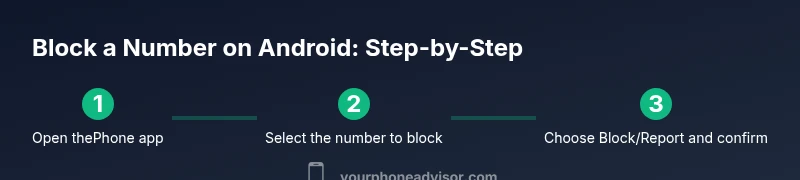
On most stock Android devices, open the Phone app, go to Recents or Contacts, tap the number or contact you want to block, and choose Block/Report. Confirm the action, and note that blocked calls are typically silenced and texts may be silenced as well. If the number is saved in your contacts, you can also block directly from the contact card by selecting Block Contact. Some devices offer a dedicated Blocked or Spam section in Settings where you can manage the list. Remember to test by calling or messaging from the blocked number to verify the block is active.
How to block a number in Samsung's One UI Dialer
Samsung’s One UI follows similar steps but with its own path: open the Phone app, access Recents or Contacts, tap the number, select Block contact or Block number, and confirm. Some Samsung devices present a separate Settings > Blocklist option, where you can add numbers manually or import from recent calls. Blocking here usually prevents both calls and texts, but always verify after changes that the notification behavior matches your preference. If you use Samsung Messages, you may also want to block within the Messages app for conversation-specific control.
How to block a number in Google Messages and Phone apps
To block via Google Messages, open the conversation with the sender, tap the three-dot menu, and choose Block number. In the Phone app, follow the stock blocking path (Recents/Contacts > Block). If you rely on Google’s spam protection, enable Unknown & spam options in Settings > Google > Smart Reply and enable call spam protection. This cross-app approach helps ensure blocked numbers stay quiet across both calls and texts. After blocking, consider testing with a friend’s number to confirm expectations align with the blocking configuration.
Blocking unknown numbers and spam calls
If you frequently receive calls from unknown or private numbers, use the Unknown Callers or Spam protection features available in Settings. Do Not Disturb can be configured to allow calls only from your contacts, effectively silencing non-contacts. Some devices offer a dedicated Call Screen or Call Filtering feature that identifies potential spam before you answer. If you notice legitimate numbers being blocked, adjust the allowlist or reset filters carefully to avoid accidental blocking. Keep in mind that blocking won’t always stop cross-app calls if a different app handles the contact, so enabling cross-app block options is worth testing.
Managing your blocked list: review and edit
Blocking is not a one-and-done task. Regularly review your blocked list to ensure you aren’t excluding essential numbers like a family member or workplace. Use the Blocked Numbers section in Settings to remove entries or add notes for context. Some devices show a timestamp or source app for each block, which helps you audit changes. If you start receiving missed calls after a block, check your Do Not Disturb and Call Filter settings to confirm they’re not too aggressive.
Exceptions and safe-guarding: allow list vs block list
Create an allowlist for trusted numbers if you frequently receive legitimate calls from new or temporary numbers. This can be a personal list in Contacts or a separate allow-list in Do Not Disturb settings. Balance is key: a strict block policy reduces nuisance but may block important calls from new contacts. Periodic review of both lists helps maintain control without sacrificing access to needed communication.
When blocking numbers doesn't work: troubleshooting tips
If a blocked number can still reach you, verify you blocked the exact number (including country code), and check for multiple entry variants (e.g., with/without area code). Some carriers or third-party apps provide their own blocking settings that override device-level blocks. Update your device to the latest OS version, review app permissions, and consider restarting after applying blocks. If issues persist, contact your carrier for additional cell-network-level blocking options.
Privacy considerations and best practices
Blocking is a privacy-enhancing practice that reduces unsolicited contact. Combine blocking with spam filters, Do Not Disturb configurations, and periodic reviews to maintain control. Avoid sharing personal contact details in publicly visible places to minimize exposure to unknown numbers. Remember to document critical numbers (family, employers) in your Contacts to prevent accidental blocks and maintain trusted communication channels.
How to unblock a number and confirm
If you unblock a number by mistake, re-add it to Contacts or re-block it through the same path used initially. After unblocking, test by calling and texting from that number to ensure the block has been removed. If you rely on cross-app blocking, verify that the unblocked number is allowed in all relevant apps. Regular checks help keep your blocking configuration accurate.
Tools & Materials
- Android smartphone with dialer app(Stock Android or OEM dialer on a recent OS)
- Phone/Dialer app(App used for calls and blocks)
- Messaging app (optional)(If you block via Messages, ensure you use the same app)
- Settings access(Access to Blocked numbers and Spam protection)
- Account backup (optional)(Back up contacts and settings if needed)
Steps
Estimated time: 15-25 minutes
- 1
Open the Phone app
Launch the dialer and navigate to Recents or Contacts to locate the number you want to block. This is the fastest entry point for a direct block.
Tip: If the number is not saved, use the Recent calls list to find it quickly. - 2
Select the number or contact
Tap the line item for the number you want to block. This action opens the block options tied to that contact or number.
Tip: For unknown callers, you may need to choose Block Caller or Block Number from the menu. - 3
Choose Block/Report
Choose Block/Report to stop future calls from this number and, if offered, to report spam. Some devices offer multiple block options (Block, Block contact, or Add to Spam).
Tip: If you see multiple blocking choices, select the one that suppresses both calls and messages. - 4
Confirm the block
Confirm your choice to add the number to the blocked list. The device will apply the block immediately.
Tip: You may be prompted to add notes for context; this is optional but helpful for future reference. - 5
Test the block
Ask a trusted contact or use a test number to verify that calls and texts from the blocked number are blocked. Adjust if needed.
Tip: If texts continue, check whether the blocking path is set in the Messaging app as well. - 6
Review the blocked list
Open Settings > Blocked numbers or Spam protection to review the list, remove entries, or adjust settings.
Tip: Periodically audit the list to prevent accidental blocks and ensure important numbers remain reachable.
Got Questions?
How do I block a number on Android?
Open the Phone app, find the number in Recents or Contacts, tap Block/Report, and confirm. You can also block unknown callers via Settings. Review your blocked list regularly for accuracy.
Open the Phone app, select the number, choose Block, and confirm. You can also block unknown callers via Settings. Check your blocked list from time to time.
Can I block unknown numbers on Android?
Yes. Enable Unknown Callers or spam protection in Settings and configure Do Not Disturb to allow calls only from your contacts. This helps reduce unsolicited calls from private numbers.
Yes. Enable messages and calls protection in Settings and adjust Do Not Disturb to allow only your contacts.
Will blocking a number also block texts?
In most cases, blocking a number blocks both calls and texts from that contact. Some apps may handle messages separately, so consider blocking in the Messages app as well if needed.
Blocking typically stops calls and texts from that number; double-check in messaging apps if you use them separately.
How do I unblock a number?
Go to Settings > Blocked numbers, select the number, and choose Unblock. Test by contacting it to confirm the block is removed.
Open blocked numbers, select the contact, and choose unblock. Then test to ensure it can reach you again.
Does blocking work across all apps?
Blocking is often handled per app. If you block in the Phone app, some messaging or third-party apps might require separate blocking. Check each app’s settings for comprehensive coverage.
Blocking in the dialer may not cover every messaging app; verify blocks in each app you use.
What should I do if blocking isn't effective?
Verify the exact number variant (with/without country code), update OS, check for carrier-level blocking options, and consider additional filters or spam protection apps.
If blocks fail, check number formats, update your OS, and look for carrier blocking options or extra spam filters.
Watch Video
What to Remember
- Block numbers across dialer and messaging apps for consistency.
- Review and adjust blocked lists to avoid missing important calls.
- Leverage unknown caller filters and Do Not Disturb for enhanced privacy.
- Test after changes to verify the block works as intended.