Block a Phone Number: A Step-by-Step Guide for Safer Calling
Learn who to block a phone number, why it matters, and how to block calls and texts across iPhone, Android, and carriers. Practical steps, tips, and safety considerations from Your Phone Advisor.


According to Your Phone Advisor, blocking a phone number is often the fastest way to stop unwanted calls and texts. Start with your device’s blocking options or your carrier’s tools, then confirm the block. This guide covers iOS, Android, and major carriers, with tips for spam risks and recurring bots.
Why blocking numbers matters
Blocking a phone number is an essential, first-line defense for personal privacy and peace of mind. For many people, the simple act of blocking a troublesome caller or texter can dramatically reduce anxiety and interruptions in daily life. If you wonder "who do you block a phone number", the answer is straightforward: you block the numbers that intrude on your time or threaten your safety. According to Your Phone Advisor, establishing a blocking habit is an effective way to reclaim control over your communications. This mindset helps you differentiate between legitimate outreach and harassment, and it lays a foundation for safer digital boundaries across calls, texts, and app-based messaging. You’ll notice that most blocking situations involve nuisance contacts, scam attempts, or persistent marketing, rather than important personal connections.
Beyond personal comfort, blocking is a privacy tool. It prevents your phone from notifying you about unwanted rings and messages, which can save battery life and reduce accidental information exposure. The more you block thoughtfully, the less you’ll be disrupted by spoofed numbers, spam rings, and repeat offenders. The goal is to create a fast, reliable routine so you don’t have to revisit settings in moments of irritation.
Platform-specific blocking: foundational concepts
Blocking controls exist at multiple layers: the device, the apps you use for messaging, and your mobile carrier. The core idea is simple: identify the source (a number or contact), then configure a block that stops future notifications. However, the exact path depends on your device and the apps you use. This section introduces the three main layers you’ll work with and what you can expect when you start:
- Device-level blocking stops calls and texts from the blocked number on the handset itself. It’s fast, private to your device, and doesn’t require extra accounts.
- App-level blocking handles numbers within messaging apps (iMessage, WhatsApp, Signal, etc.). These blocks may not apply to standard voice calls but will prevent in-app notifications.
- Carrier-level blocking provides network-side filtering, which can stop even missed calls and spam attempts before they reach your device.
iPhone (iOS) blocking basics: where to start
Blocking on iPhone is centralized and straightforward. Start by opening Settings, then scroll to Phone or Messages to access your Blocked Contacts list. You can add a contact or recent caller to the block, and you can also enable Silence Unknown Callers to automatically mute calls from numbers not in your contacts. This approach keeps unwanted activity at bay across calls and texts, and it works across most apps that rely on your device’s call and message routing. Your Phone Advisor notes that if the number is a contact, you’ll want to consider whether the block should be limited to calls, texts, or both, based on your privacy needs.
Android blocking: variations you’ll encounter
Android blocking paths vary by manufacturer (Samsung, Google, OnePlus, etc.), but the core steps are similar. In most devices, you’ll find blocking options in the Phone app under Settings (or in the Contacts app). Common routes include: Blocking a number from a recent call, adding it to Blocked Contacts, or using the Spam & Block feature to filter nuisance calls. Some OEMs provide a separate Calls & Messages safety suite. If you routinely block and still see calls, ensure the number isn’t stored as a contact with a different label or that third-party dialer apps aren’t bypassing your block.
Carrier-level blocking and extra protection
Carriers offer blocking tools that operate at the network level. These services can block calls and texts from known spam numbers before they reach your device, and some provide screens for identifying potential spam. To access these protections, you may use the carrier’s app, website portal, or customer service line. Your Phone Advisor suggests enabling any built-in spam filters or call protection features offered by your carrier, especially if you receive a high volume of robocalls. Note that carrier-based blocks may not always apply to messages from third-party apps, so combine carrier protections with device/app-level controls for best results.
Texts, group messages, and unknown senders
Blocking is most straightforward for direct calls, but texts and group chats require a bit more nuance. An individual number can be blocked, but group texts or broadcast messages from non-contacts may still appear in a separate thread. Many platforms allow you to block senders on a per-app basis, and some messaging apps offer settings to mute but not block. If you frequently interact with unknown numbers, consider enabling a smart filter or reporting spam for future improvement. If a blocked sender continues to contact you via different numbers, your privacy settings may need tighter constraints or a warning system.
Managing your block list: unblock, review, and refine
Blocking is not permanent by default. You can review your blocked numbers and unblock them when necessary. Regular audits help ensure you’re not blocking important communications, especially from people who may have changed numbers or merged contacts. To refine your approach, periodically review the blocked list in each platform, confirm that your settings align with your current communication needs, and test blocks to confirm they’re effective. This ongoing process sustains a healthier balance between privacy and accessibility.
Safety, legality, and best practices
Blocking is a personal safety tool, not a punitive action. Use it to protect yourself from harassment, scams, and nuisance calls, but avoid blocking voices from legitimate support channels unless you’ve clearly identified a risk. Remember to keep contact records for those you intentionally block for reference. If you’re experiencing persistent threats, consider additional steps like updating security settings, enabling two-factor authentication, and involving your carrier’s protection services. Your Phone Advisor emphasizes consistency and simplicity: the fewer places you block, the easier you’ll manage and maintain effective protection.
Tools & Materials
- Smartphone (iPhone or Android)(Ensure device is up to date with the latest OS version)
- Access to the device's settings(Needed to reach the blocking options (e.g., Settings > Phone))
- Optional: Carrier account access or app(Useful for carrier-level blocks or spam protection)
Steps
Estimated time: 15-25 minutes
- 1
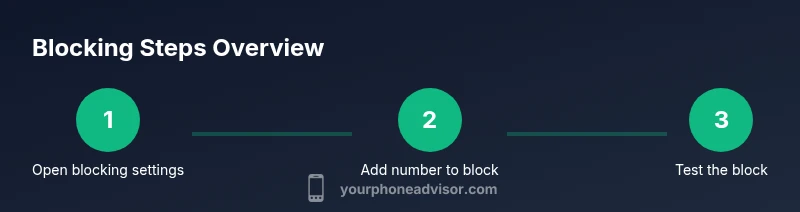
Open blocking settings
Navigate to the place you manage blocks for your device (for iPhone: Settings > Phone > Blocked Contacts; for Android: Phone app > Settings > Blocked numbers). This is the essential starting point before adding any numbers. Ensure you are signed in if your device requires it for syncing contacts.
Tip: Take a quick photo of the target screens for reference if you anticipate interruptions during setup. - 2
Add the number to block
Choose the option to add a new blocked contact and enter the number or select it from your recent calls or messages. Confirm the addition to finalize the block so future calls and texts from that number are stopped on your device.
Tip: If you’re blocking a contact, decide whether to block calls, texts, or both. - 3
Block via Messages app (if applicable)
Open the conversation with the offender, tap the contact or three-dot menu, and select block or mute. This ensures you won’t see new messages from that number in your messaging app.
Tip: Some apps offer separate per-conversation blocks; always verify both calls and texts are covered if needed. - 4
Enable carrier protections
If you want extra protection, log in to your carrier app or portal and enable spam protection or call-filter features. This layer may stop some calls before they reach your device.
Tip: Carrier features can differ by plan; enable whatever is available that targets spam and spoofed numbers. - 5
Test the block
Have a trusted contact or your own alternate number attempt to call or text from the blocked number to confirm the block is active. If it still comes through, re-check the steps or contact support.
Tip: Turn on caller ID blocking or Do Not Disturb temporarily if you still receive interruptions during testing. - 6
Review and adjust periodically
Regularly review blocked contacts to avoid blocking legitimate numbers by mistake. Update blocks if someone changes numbers or you no longer need protection from a specific contact.
Tip: Set a monthly reminder to audit your block list and adjust settings as needed.
Got Questions?
How do I block a number on an iPhone?
Open Settings > Phone > Blocked Contacts, then add the number. You can also block from the Messages app by selecting the contact and choosing Block. Test to confirm the block takes effect.
On iPhone, go to Settings, then Blocked Contacts, add the number, and test it to confirm the block works.
How do I unblock a number on my phone?
Go to your Blocked Contacts list, find the number, and choose Unblock. You may need to re-save contact information if you want future calls to come through.
Open your blocked list, select the number, and unblock it.
Will blocking stop text messages as well as calls?
Blocking typically prevents calls and texts from that number in the native app. Some third-party apps may still deliver messages, so review app-specific settings as needed.
Blocking usually stops both calls and texts in the default apps, but check apps separately.
Can blocking affect important contacts?
Blocking a number prevents future notifications from that number, but it won’t erase conversation history. If the contact is essential, you’ll need to unblock first and re-save contact details.
Blocking is reversible; unblock if you need to reconnect with someone.
Do blocking features work across all apps (e.g., WhatsApp)?
Most blocking is platform-level, but apps like WhatsApp have their own blocking controls. You may need to block within the app separately for comprehensive coverage.
Check both device settings and individual apps for blocking options.
What should I do if blocking isn’t stopping spam calls?
Enable any available spam filters in your device or carrier settings, report numbers as spam, and consider enabling 'Silence Unknown Callers' if appropriate.
If spam persists, use carrier tools and report the number to help improve filters.
Watch Video
What to Remember
- Block nuisance numbers across device, apps, and carrier layers.
- Test blocks to ensure calls and texts are actually stopped.
- Review your block list regularly to avoid missing important communications.
- Combine device-level blocking with carrier protections for best results.