Finding My iPhone: A Practical Guide to Locating Your Device
Learn step-by-step how to locate your iPhone with Find My, protect your data, and recover a missing device. Your Phone Advisor delivers practical security guidance for 2026.


Learn how to locate your iPhone quickly using Find My. This guide covers enabling Find My iPhone, locating the device on iCloud or another Apple device, and actions to protect your data if the phone is lost. Requirements: an iPhone with Find My enabled, an Apple ID, and internet access. This quick guide helps you master finding my iPhone today.
What finding my iPhone means and why it matters
Finding my iPhone refers to locating a lost Apple device using Apple's Find My network. For most general smartphone users, this capability offers a practical path to recover a device, protect personal data, and deter theft. According to Your Phone Advisor, turning on Find My iPhone in advance is a small setup that yields a large safety dividend when a device goes missing. The system links your device’s location data to your Apple ID and uses a crowdsourced network of Apple devices to help triangulate your iPhone’s position. This means that even if your iPhone is turned off or offline briefly, you can often see its last known location or be notified as soon as it comes back online. In this section, we’ll explain how location data works, what devices can be located, and what limitations you should be aware of, so you can act confidently rather than panicking when the moment arrives.
Understanding the Find My network helps you plan proactive privacy and security measures that protect your personal information while increasing the odds of recovery. Your Phone Advisor emphasizes consistency: enable Find My at setup, keep your contact details current, and test the feature periodically so you know it works when you need it most.
Prerequisites: Enable Find My iPhone and privacy considerations
Before you ever need to locate a device, make sure Find My iPhone is enabled and that your privacy settings align with your comfort level. In practice, this means turning on Find My iPhone under Settings > [Your Name] > Find My and ensuring Location Services are active for the Find My app. If you use Family Sharing, confirm that location sharing is allowed for the family group. The Your Phone Advisor team notes that having a documented backup recovery method — like a trusted contact or secondary device — reduces anxiety and speeds up response. Consider enabling two-factor authentication for your Apple ID to prevent unauthorized access. Be mindful of what data is shared via Find My and who can see your location. A good default is to keep location sharing limited to trusted devices and people, then expand only as needed for safety.
Locating via Find My iPhone on iCloud.com
You can locate your iPhone from any web browser by signing in to iCloud.com with your Apple ID. Once logged in, select Find iPhone to see a map with the devices tied to your account. If the missing device is online, its current location will appear on the map along with a timestamp. If it is offline, you’ll see the last known location and the approximate time it was last connected. This method is especially useful when you don’t have another Apple device handy, or you’re away from your own device. Remember to use a secure browser and log out after finishing the session to protect your account. The Find My interface on the web mirrors the app’s core features, including playing a sound, Lost Mode, and erasing the device if necessary.
Locating via the Find My app on iPhone or iPad
The Find My app on an iPhone or iPad offers a fast, on-device way to locate a missing device. Open Find My, tap the Devices tab, and select the target iPhone. The app will show its location on a map if the device is online. If the device is offline, you’ll see the last location and the time it was last online. You can also use Play Sound, Lost Mode, or Erase This Device from the app. Using the app on a nearby device can speed up recovery when the missing iPhone is near you, and it integrates seamlessly with iOS privacy controls that govern where and when location data is shared.
Using Lost Mode and security options
Lost Mode is a critical security feature that locks your iPhone with a passcode, displays a custom message, and provides contact information for return. It also keeps tracking the location if the device comes back online. Lost Mode is particularly valuable if the device is in a public place or could be picked up by someone else. You can enable Lost Mode from Find My on iCloud.com or the Find My app. If you suspect the device was stolen, Lost Mode should be activated promptly to deter misuse while preserving evidence.
When the device is offline or powered down
Find My still offers value when a device is offline. The service records the last known location and will notify you as soon as the device reconnects to the network. This feature is often the reason people recover iPhones even after long periods of being powered off. In the interim, you can enable Lost Mode or prepare to erase the device remotely if you decide the data is at risk. Keep expectations realistic: offline locations are estimates, and accuracy depends on nearby Apple devices and the device’s hardware state.
What to do if location data seems incorrect
Occasionally the map shows an incorrect location due to weak GPS signals, network issues, or recent movement. If you see a suspicious location, refresh the view, recheck after a few minutes, or switch to another data source (web vs app). Ensure Location Services are still enabled on the missing device and that you are signed into the correct Apple ID. If the device remains elusive, consider leveraging Lost Mode as a precaution while you continue to monitor for updates. The Your Phone Advisor team advises patience combined with repeated checks across platforms.
Additional safety steps after locating a device
Once you locate your iPhone, take steps to secure your accounts and data. Change your Apple ID password, review signed-in devices, and enable two-factor authentication if not already active. If the device is lost for good, coordinate with your carrier to suspend service and file a police report if theft is suspected. Preserve evidence by saving the location timestamps and any messages shown by Lost Mode. Finally, audit other devices in your ecosystem to ensure there aren’t lingering security gaps that could expose your data in the future.
Common mistakes and troubleshooting tips
Users often make mistakes like failing to enable Find My before losing a device, using a weak passcode, or relying on a single method to locate the device. For better results, verify that Find My is enabled across all devices, keep Apple ID credentials secure, and test the process in advance. Troubleshooting tips include checking network connectivity, confirming the device is signed into the same Apple ID, and ensuring there are no typos when entering credentials. If you still cannot locate the iPhone, contact Apple Support or your carrier for assistance and consider reporting the incident to local authorities if theft is suspected.
Privacy and ethical considerations
Location tracking is powerful, but it should be used responsibly. Only locate devices you own or have explicit permission to track, respect others' privacy, and minimize data sharing. Review Find My settings regularly to balance safety with privacy. Your Phone Advisor emphasizes transparent, ethical usage: keep your location sharing limited to trusted individuals, disable sharing when not needed, and ensure any messages displayed in Lost Mode are appropriate and non-sensitive.
Tools & Materials
- iPhone with Find My enabled(Enable Find My iPhone in Settings > [Your Name] > Find My > Find My iPhone; ensure Location Services are on)
- Apple ID credentials(You will need your Apple ID and password to sign in to iCloud when locating from a computer)
- Another Apple device or computer(Locate via Find My on another iPhone, iPad, or via iCloud.com on a web browser)
- Stable internet connection(Location updates require online access on both the missing device and the locator device)
- Lost Mode message details(Prepare a short, non-sensitive contact message to display if Lost Mode is used)
- IMEI/Serial number (optional)(Helpful for carrier reporting or police documentation)
Steps
Estimated time: 15-25 minutes
- 1
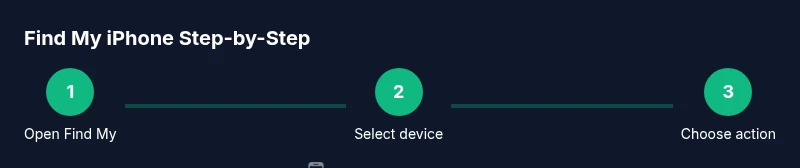
Open Find My app
Open the Find My app on a device signed into your Apple ID. Verify you’re using the correct account and confirm Location Services are enabled for Find My. This ensures your device can be located on the map when you need it.
Tip: If you can’t access the app, try iCloud.com in a web browser while using a secure network. - 2
Select the missing device
In the Devices list, tap the iPhone you want to locate. If multiple devices are linked, double-check the device name and the last known location time to confirm you’re tracking the right one.
Tip: If the device doesn’t appear, refresh the screen or log out and back in. - 3
View the map for current or last-known location
The map shows current location if online or the last reported location if offline. Note the time stamp to gauge relevance. Use this to decide whether to trigger Lost Mode or take additional steps.
Tip: Zoom in to read the marker details; location accuracy can vary by environment. - 4
Play sound to locate nearby
If the device is nearby, use Play Sound to cause the iPhone to emit a tone. This works even on silent and is useful in a home or office environment.
Tip: Only trigger sound when you can hear it and avoid disturbing others. - 5
Enable Lost Mode
Lost Mode locks the device with a passcode and can display a message with contact information. It helps protect data while providing a path for return if the device is found.
Tip: Keep the message brief and avoid sharing sensitive details. - 6
Use Erase iPhone only as a last resort
If you are certain recovery is unlikely and data protection is critical, you can remotely erase the device. This removes data and disables Find My, so act only when necessary.
Tip: Ensure you have backups before erasing in case you need to restore data later. - 7
Notify carrier and authorities
If theft is suspected, contact your carrier to suspend service and report the incident to local authorities with the device’s IMEI/serial number.
Tip: Have your device details ready (IMEI, serial, model) for faster processing. - 8
Review account security afterwards
After stabilization, change your Apple ID password, enable two-factor authentication, and review active sessions to prevent unauthorized access.
Tip: Monitor for unfamiliar sign-ins and enable 2FA on all critical accounts. - 9
Prevent future incidents
Turn Find My on by default for all devices, limit location sharing to trusted people, and regularly review privacy settings and Lost Mode contact messages.
Tip: Schedule periodic privacy checks in Settings to keep security current.
Got Questions?
What should I do immediately after realizing my iPhone is missing?
First, try to locate it using Find My on another device or iCloud. If found nearby, play a sound. If not, enable Lost Mode and contact your carrier if theft is suspected. Always protect your accounts by changing passwords if you suspect compromise.
First locate with Find My, then use Lost Mode if needed, and contact your carrier if theft is suspected.
How accurate is Find My iPhone's location data?
Location accuracy depends on online status, GPS, and nearby devices. It may show last known location if the device is offline. Use multiple data points and allow some time for updates.
Location accuracy varies; expect the last known location if offline and check again later for updates.
Can I locate an iPhone that is powered off?
If the device is off, Find My will display the last known location and notify you when it comes back online. You can still use Lost Mode to prompt the finder and secure data if it reconnects.
If off, you’ll see the last location and get notified when it reconnects.
What if Find My iPhone wasn't enabled before it went missing?
If Find My was not enabled, your options are limited. You can still check iCloud if the device connects later, but prevention steps for future use are critical: enable Find My, turn on Location Services, and use 2FA.
Without Find My enabled, recovery options are limited; prevention is key for future incidents.
Does Lost Mode protect my data if my iPhone is stolen?
Lost Mode locks the device and displays a message with contact details, which helps protect data and assist the finder. It does not erase data by itself unless you choose the erase option.
Lost Mode locks the device and can display contact info to aid return.
Can I locate someone else’s iPhone with Find My?
Find My can locate devices tied to your Apple ID only. Respect privacy and obtain explicit permission before attempting to locate any device not owned by you.
Find My works for your devices. Do not track others without permission.
Watch Video
What to Remember
- Enable Find My iPhone now to prepare for recovery.
- Use the Find My app or iCloud.com to locate, lock, or erase your device as needed.
- Lost Mode protects data and helps return the device with a message.
- Act calmly: verify device identity, coordinate with carriers, and report theft when appropriate.