Find Android: Locate, Protect, and Recover Your Phone
Explore practical steps, trusted tools, and privacy tips to locate, protect, and recover your Android device. Learn safe recovery practices from Your Phone Advisor.


Using this guide, you’ll learn how to find android devices quickly and securely. You’ll locate a lost phone with built-in tools like Find My Device, verify account access, and remotely lock or erase if needed. The steps cover safety, privacy, and practical recovery tips you can act on today. The guidance prioritizes your data and peace of mind.
Why Find Android matters
In a world where smartphones are essential lifelines, knowing how to find android devices quickly and securely is more than a convenience—it’s a safety measure. A lost device can expose personal data, photos, messages, and financial details. The ability to locate, lock, or wipe a phone remotely reduces risk and shortens exposure time. This is especially important if you travel, work remotely, or store sensitive information on your device. The concept of 'find android' isn’t just about geography; it’s about control. By understanding built-in tools and best practices, you keep your data safer while increasing your chances of recovery. You’ll learn how to leverage Google’s Find My Device, Samsung’s Find My Mobile (where applicable), and carrier-assisted options, along with privacy considerations and recovery strategies. The goal is to empower you to act decisively, minimize downtime, and protect your personal information. Whether you use a single Android device or multiple Google accounts, the guiding principle remains the same: act quickly, verify ownership, and use trusted tools to locate and secure your device. By the end, you’ll have a clear, actionable plan for find android scenarios that covers common situations, from a mislaid bag at the cafe to a stolen device in a public place.
Quick access methods for locating Android devices
There are several routes to locate an Android phone, depending on your setup and privacy preferences. Start with Google's Find My Device, which uses your Google account to show the device’s last known location and enable remote actions. If you own a Samsung device, Samsung's Find My Mobile offers similar capabilities when a Samsung account is linked. Your carrier may also provide location services, though availability varies by network and plan. For added resilience, consider enabling location sharing with trusted family members or devices, and understand how third-party apps differ in accuracy and permissions. In all cases, the goal is to establish a reliable, privacy-respecting path to find android devices while preserving control over your data.
Using Google Find My Device effectively
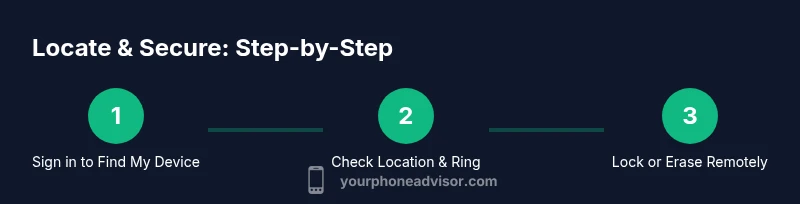
Google Find My Device helps you locate your Android device on a map, ring the phone to help you find it, lock the device to prevent access, or erase data if recovery seems unlikely. To use it, sign in with the Google account linked to the missing phone and open the Find My Device interface. Ensure location permissions are enabled, and verify the device shows as online. If the device is offline, you’ll still see its last known location and can prepare a protective response for when it comes online. Remember to communicate clearly if you recover the device, and avoid attempting unauthorized access to someone else’s phone.
Alternatives and privacy considerations
If you don’t rely solely on Google Find My Device, you can explore Samsung Find My Mobile for Samsung devices, carrier-provided locate services, or trusted third-party apps that offer extra layers of privacy controls. Each option has trade-offs between accuracy, privacy, and the speed of response. Privacy considerations include minimizing data sharing, reviewing permission settings, and ensuring you only enable location services when necessary. Always balance the urgency of locating a device with respect for others’ privacy and data protection practices. Your strategy should prioritize safety without enabling broad surveillance or risky app permissions.
Securing your account and device after loss
After you locate or secure your device, focus on protecting your accounts and data. Change your Google account password and enable two-factor authentication if you haven’t already. Review recently signed-in devices and revoke access where needed. Update recovery options for your accounts, including alternate emails and phone numbers. Consider enabling screen lock, biometric authentication, and a strong device PIN. If the device is yours but compromised, monitor linked services (payments, email, and cloud apps) for unusual activity. The goal is to close gaps that could let an attacker access your information in the future.
Dealing with a stolen device: legal and safety steps
If you suspect a theft, prioritize personal safety and contact local authorities. Do not confront the thief. Provide the police with the device’s last known location and any identifying information. Notify your carrier to suspend service and prevent SIM swapping or fraudulent charges. Report the incident to your financial institutions if payment apps were accessible on the device. Returning to the device once recovered should involve updating security settings and reviewing what data was accessible. Your Phone Advisor emphasizes a calm, methodical response that reduces risk and improves the chance of recovery.
Common mistakes and how to avoid them
Common mistakes include panicking and disabling location services, attempting to unlock a device you don’t own, or failing to sign in with the correct Google account. To avoid these, verify ownership, stay prepared with recovery options, and maintain a routine for checking account security settings. Regularly review permissions and update your security measures, especially after a loss or theft. Consistency is key: secure your data, recheck permissions, and keep recovery information current.
Tools & Materials
- Google account access(Ensure you can sign in to the Google account linked to the Android device)
- Trusted device or computer(A device you control to access Find My Device securely)
- Internet connection(Reliable data connection on both sides for location and remote actions)
- Device name and last known location info(Any helpful details that speed recovery)
- Updated recovery options(Backup email and phone number for account recovery)
Steps
Estimated time: 15-40 minutes
- 1
Prepare your accounts and devices
Confirm you can sign into the Google account linked to the missing Android device and identify any other devices where location sharing is enabled.
Tip: Update recovery options before a loss happens to speed up recovery. - 2
Open Find My Device and sign in
Visit the Find My Device page and sign in with the Google account associated with the missing device. Verify that location access is allowed for the device.
Tip: Use a trusted computer or phone to avoid credential phishing. - 3
Check the map and last known location
View the device’s position on the map and review the last known location to determine your next steps.
Tip: If no location appears, rely on the last known point and prepare a rapid response. - 4
Use remote actions (ring, lock, erase)
Choose Ring to locate by sound, Lock to prevent access, or Erase to protect data if recovery seems unlikely.
Tip: Locking first can deter data exposure if the device is nearby but unattended. - 5
Consider offline and alternative routes
If the device is offline, use last known location and set up alerts for when it reconnects or is powered on.
Tip: Don’t rely on a single method; combine location data with account monitoring. - 6
Secure accounts after recovery or loss
Change passwords, enable two-factor authentication, and review connected apps once the device is recovered or reported missing.
Tip: Enable biometric locks and strong PINs on the device.
Got Questions?
What is Find My Device and how does it work?
Find My Device is a Google service that helps locate your Android phone, ring it, lock it, or erase data remotely. It relies on location permissions and an active Google account linked to the device.
Find My Device is a Google service that can locate, ring, lock, or erase your Android phone remotely, assuming location sharing is enabled.
Can Find My Device locate a phone that is offline or powered off?
If the device is offline, Find My Device can show the last known location and queue actions to take when it comes back online. Location accuracy decreases without a live connection.
If offline, you’ll see the last known location and can queue actions for when it reconnects.
What if I can’t access my Google account?
Use Google account recovery options on the sign-in page, verify identity, and reset credentials. If you still can’t access the account, try another trusted device or contact Google support for assistance.
If you can’t access your Google account, use recovery options or contact support for help regaining access.
Is it safe to wipe my device remotely?
Remote wipe protects your data if the device is lost for good, but it’s irreversible. Consider locking first and erasing only after you’re sure recovery is unlikely.
Remote wipe is a last resort to protect data; lock first, then erase if recovery seems unlikely.
Does Find My Device work on non-Google Android phones?
Find My Device primarily supports Google-linked devices. Samsung devices often work with Find My Mobile. Third-party services may offer alternatives, but results vary by manufacturer and permissions.
Most non-Google devices use manufacturer services; check compatibility with your brand.
What about third-party tracking apps?
Third-party options exist but require careful permission management and trust. Use them only from reputable developers and avoid apps that request excessive access.
Be cautious with third-party tracking apps and limit permissions to protect privacy.
Watch Video
What to Remember
- Enable Find My Device for every Android you own.
- Act quickly to locate, ring, lock, or erase as needed.
- Secure your Google account with 2FA and updated recovery options.
- Check both location data and last known location for accuracy.
- If theft is involved, contact authorities and your carrier promptly.