Blocking Unwanted Phone Calls: A Practical How-To
Learn practical, device-agnostic strategies to block unwanted phone calls across iOS, Android, and carriers. Step-by-step setup, best practices, privacy tips, and troubleshooting to keep your calls legitimate and spam-free.


By the end of this guide, you will know how to block unwanted phone calls across iOS, Android, and carriers using built-in tools, carrier features, and trusted apps. Start with built-in blocking on your device, add your most frequent spammers to a block list, enable Do Not Disturb exceptions, and avoid blocking legitimate numbers. This step-by-step approach reduces spam while preserving essential calls.
Why blocking unwanted phone calls matters
Blocking unwanted phone calls is not just about peace of mind; it’s a practical safeguard for privacy, security, and productivity. The constant ping of unsolicited calls wastes time, drains battery, and can lead to accidental disclosures of sensitive information. The Your Phone Advisor team emphasizes a layered approach: use device-level controls, carrier filters, and reputable apps in concert. When you reclaim quiet moments, you also reduce the risk of social-engineering attempts that rely on persistence and urgency. This section helps you understand the stakes and how a steady routine of checks makes blocking effective without erasing legitimate communications.
Understanding call sources and filter limitations
Calls come from a range of sources, including robocalls, spoofed numbers, telemarketing, and legitimate services that you may not expect every day. Spoofing makes a number appear familiar, which is why layered filtering matters. A simple block list can reduce obvious spam, but smarter filters examine call patterns, frequency, and context. The strategy is not to block everything from unknown numbers, but to create a tiered system: trusted numbers always ring, unknown numbers are screened or silenced, and known spam is blocked automatically. Keep a running note of which calls are missed and adjust settings accordingly.
Built-in call blocking on iOS with practical steps
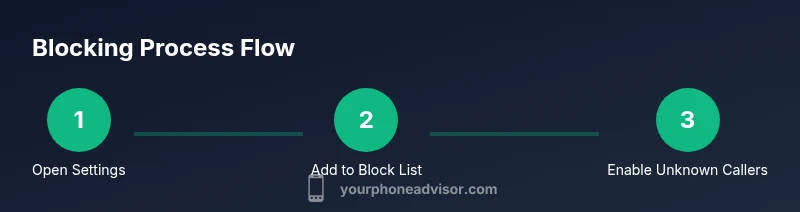
iOS provides robust, low-friction blocking options. Start by opening Settings, then Phone, and review Blocked Contacts to manage your list. Enable Silence Unknown Callers to mute calls from numbers not saved in contacts, and consider enabling Call Blocking & Identification for additional protection. These settings persist across apps and updates, helping you maintain a clean communication channel without external tools. Regularly update your block list as new spam patterns emerge.
Blocking on Android: options that fit most devices
Android users have a wide spectrum of blocking controls due to manufacturer variations. In most phones, open the Phone app, tap Menu > Settings > Blocked numbers, and enable options like Block unknown callers or Block private numbers. Some devices offer built‑in spam detection that flags suspicious calls in real time. If your device lacks strong native filtering, you can rely on carrier features or trusted third‑party apps while staying mindful of permissions and data access.
Carrier-level protection: extending your shield beyond the device
Carriers often provide optional spam filters and call-screening services that work even when device-based filters miss a call. These features can block a wider range of spam and sometimes identify spoofed numbers. Access carrier tools via your account portal or dedicated apps, and enable default spam protection, customizable blocklists, and whitelists for urgent contacts. Remember that some services have fees or vary by plan, so review options with your carrier.
Third‑party apps and careful whitelisting
Third‑party call‑blocking apps can offer stronger filtering, caller‑ID, and community-wide blacklists. When selecting an app, prioritize transparent permissions, reputable publishers, and clear privacy policies. Use a measured approach: maintain a small whitelist of trusted numbers, enable automatic blocking for known spam signatures, and periodically review blocks to avoid false positives. Avoid apps that require full access to your contacts or call history unless you trust the vendor and have a clear privacy policy.
Best practices for avoiding legitimate calls being blocked
To prevent disruption of legitimate communications, maintain a clearly defined allowlist and use time-based Do Not Disturb exceptions for urgent contacts. Periodically test changes by placing calls from trusted numbers and from typical spam sources to confirm correct behavior. Document changes so you can revert if you miss important calls, and keep your system and apps updated to guard against new spoofing tactics.
Safety, privacy, and data considerations when blocking
Blocking is a privacy safeguard, but it isn’t a substitute for safe digital behavior. Limit app permissions to what’s necessary (access to contacts, call logs, and notifications). Prefer apps from official stores and review privacy settings regularly. If you share a device, establish user profiles with separate block lists to reduce cross‑account confusion and protect personal numbers.
Troubleshooting common blocking issues
If blocking isn’t working as expected, start with a quick audit: confirm you haven’t accidentally blocked a legitimate number, verify Do Not Disturb rules, and ensure your OS and apps are up to date. Reboot the device after applying changes, and if calls persist, contact your carrier for guidance or reset network settings as a last resort. Testing after each change helps identify which setting caused the issue.
Authority sources and ongoing protection
Staying current matters in call blocking. Refer to authoritative guidelines for policy and best practices at major organizations to complement device and carrier controls. This section consolidates trusted references to help you maintain effective protection as threats evolve.
Tools & Materials
- Smartphone with latest OS updates(Ensure your device is running the most recent security patches.)
- Access to built-in settings or carrier portal(You may need login credentials from your carrier.)
- A list of numbers you want to block/whitelist(Keep it handy during setup.)
- A trusted third-party call-blocking app (optional)(Review permissions before installation.)
Steps
Estimated time: 30-45 minutes
- 1
Open device blocking settings
Access the blocking controls on your device to start the configuration. Knowing where these controls live helps you customize rules without risking essential calls. This initial step sets the stage for the rest of the setup.
Tip: If you can’t locate it, use your device’s search in Settings and type 'block' or 'spam'. - 2
Review your current blocked list
Scan the existing blocked numbers to separate known scam sources from legitimate contacts. Clearing any outdated entries reduces the risk of mistakenly blocking someone you need to reach you.
Tip: Export or write down important numbers before deleting entries. - 3
Add top spam numbers to block list
Incrementally add the numbers you’ve identified as spam from recent calls or messages. Building a growing block list is an ongoing defense against recurring robocalls.
Tip: Block only the numbers you are sure are spam to minimize false positives. - 4
Enable Silence Unknown Callers (if available)
Turn on a filter that silences calls from numbers not in your contacts. This reduces interruptions from new scam numbers while keeping known contacts reachable.
Tip: Be aware some legitimate services may rely on unknown numbers; adjust whitelist if needed. - 5
Turn on Block Unknown/Private numbers (Android) or Private/Unknown (iOS)
Enable options that block calls from private or unknown numbers to further reduce unsolicited interruptions. This creates a second layer beyond the block list.
Tip: Test with a trusted test number to ensure essential calls aren’t blocked. - 6
Enable carrier spam filters
Log in to your carrier portal or app and enable spam filtering and call-screening. This helps catch spoofed or advanced spam that slips through device-level filters.
Tip: Check for any plan-specific fees or feature limitations. - 7
Set up a temporary Do Not Disturb exception list
Configure Do Not Disturb to allow calls from favorite or urgent contacts during specific times. This safeguards critical communication while blocking noise.
Tip: Keep the exception list short to maximize effectiveness. - 8
Consider a trusted third‑party app (optional)
If you need stronger filters, pick a reputable app and review permissions carefully. Integrate it with your block/allow lists rather than replacing native controls.
Tip: Only install apps from official stores and read privacy policies. - 9
Test, observe, and adjust
Place test calls from blocked numbers and trusted contacts to verify behavior. Use a 24–72 hour window to fine-tune rules and minimize missed calls.
Tip: Document changes so you can revert if needed. - 10
Schedule regular reviews
Periodically review blocked numbers, whitelist updates, and new spam patterns. Regular upkeep keeps protection current as scammers evolve.
Tip: Set a monthly reminder to review settings.
Got Questions?
What is call blocking and why is it recommended?
Call blocking prevents unwanted calls from reaching your device by leveraging device settings, carrier services, and third-party apps. It helps reduce scams, interruptions, and potential privacy risks while preserving important calls from trusted numbers.
Call blocking helps stop unwanted calls and keeps important numbers reachable. It combines device, carrier, and app controls for best results.
What can I block on iPhone or Android?
You can block known spam numbers, unknown or private callers, and specific contacts. Both platforms offer built-in tools, while carriers and apps provide additional layers of protection.
You can block suspicious numbers, unknown callers, and add trusted contacts; use carrier tools and apps for extra protection.
Does the Do Not Call Registry help with blocking calls?
The Do Not Call Registry is a resource to reduce telemarketing calls, but it does not stop all robocalls. Combine registry enrollment with device and carrier blocking for broader protection.
Enrolling helps, but you still need device and carrier filters for comprehensive protection.
Will blocking affect emergency calls or essential services?
Blocking settings can be adjusted to allow important calls. Use whitelists and Do Not Disturb exceptions for urgent contacts to prevent missing critical calls.
You can configure exceptions so emergencies aren’t blocked.
How do I unblock a number?
Open the blocking settings, locate the number in the blocked list, and choose unblock. If you’ve used a carrier filter or third‑party app, remove it from those lists as well.
Go to blocked lists and remove the number; check any carrier or app lists too.
Are call-blocking apps safe for privacy?
Choose apps with clear privacy policies and limited permissions. Prefer reputable publishers and review data access settings regularly.
Select trusted apps with transparent privacy practices and limit permissions.
Watch Video
What to Remember
- Block at multiple levels: device, carrier, and app.
- Whitelisting is essential to protect legitimate contacts.
- Regularly review and adjust settings to match changing spam tactics.
- Protect privacy by vetting app permissions and updates.