Where Your Phone Number Is Located: A Practical Guide
Learn exactly where your phone number is located on iPhone and Android, how to verify it, and best practices for privacy and recovery. This step-by-step guide covers Settings paths, SIM/eSIM info, carrier portals, and troubleshooting tips.


Knowing where your phone number is located helps you verify identity, troubleshoot messages, and manage privacy. This guide shows exactly where to look on iPhone and Android, including Settings menus, SIM/eSIM sections, and carrier portals. You’ll confirm the primary number, handle multiple lines, and learn actions if the number isn’t listed. By understanding its location, you can protect your data and stay up to date.
Why knowing where your phone number is located matters
According to Your Phone Advisor, understanding where your phone number is located is foundational for privacy and device management. Your number is not just a string you share; it anchors many identity checks, backup processes, and service settings. If you ever need to verify ownership during a SIM swap, set up a new device, or troubleshoot a message delivery problem, knowing its location makes those tasks faster and less error-prone. Clear visibility also helps you avoid sharing the wrong number with strangers or apps that request contact details. In short, your number’s location is a practical security and usability lever you should know how to operate.
Beyond immediate use, knowing where the number is stored helps you prepare for changes like upgrading devices, switching carriers, or adding a secondary line. When you can quickly locate the number in Settings, you reduce the risk of identity confusion or misdirected support requests. This is especially true for people who manage multiple lines, eSIMs, or business accounts. Viewers who know where the number is located can quickly confirm it during support calls, reducing downtime and frustration.
How phone numbers are stored on modern devices
Modern smartphones organize numbers in several places that often overlap. The primary entry is the SIM or eSIM that carries the active telephone line; this is usually the source of the number shown to others when you call or text. Some devices also store a secondary number for dual-SIM setups or eSIM profiles. Cloud-backed settings in your Apple ID or Google Account can sometimes reflect the number associated with your account, which helps when you switch devices. Carrier apps and portals keep a record of your line(s) and can be a fallback if the device doesn’t display the number clearly. Understanding these layers helps you locate the number even if one source is blank or inaccessible.
If privacy or security concerns arise, remember that your number may appear differently in apps or carrier portals. Always verify through multiple trusted sources before making changes. This layered approach also helps you spot discrepancies (for example, a number that doesn’t match your SIM’s line) and resolve them with your carrier quickly.
Finding your number on iPhone (iOS)
On iPhone, the most straightforward path is usually Settings > Phone > My Number. This entry shows the primary line’s number as stored on the device. If you use an eSIM or have multiple lines, you may also see a secondary number listed under Cellular Plans or Settings > Cellular. If the number isn’t displayed, you can check Settings > General > About, where the device sometimes lists the number under “Phone Number” or similar wording. In some versions, you may need to go to Settings > Cellular > Cellular Plans to view the eSIM’s line. Always cross-check with your carrier app to confirm which line is active.
If you recently swapped SIMs or activated a new plan, your device may require a restart to refresh the number display. If the number still doesn’t appear, contact your carrier to confirm the correct line for the device.
Finding your number on Android devices
Android paths vary by manufacturer, but the common route is Settings > About phone > Status or SIM Card Status. In many devices, you’ll find the number labeled as “My phone number” or under “SIM status.” For dual-SIM devices, you may see multiple entries; ensure you identify the active line. If the number isn’t shown, check Settings > Network & internet > SIM cards or Settings > Connections > SIM Card Status, depending on the Android version. Some manufacturers require you to view the number via the carrier app or the SIM card’s physical packaging.
If you’re using a Google account, you might also see the number reflected in Google Voice settings or in the account’s profile. Use the carrier app to verify which line is associated with your device and to confirm the correct number for calls and messages.
Alternative places to locate your number
If the device settings don’t display a clear number, try the following alternatives: check the SIM packaging (the printed number is often listed there), open your carrier’s official app or online portal (where lines are listed), and review any emails or SMS from your carrier that reference your account details. If you recently activated eSIM, the number might be listed in the cellular plan details within the device or the carrier app. Finally, you can contact customer support with your device’s IMEI/ESN to verify the active line.
Security and privacy considerations when sharing your number
Your number is a sensitive personal identifier. Only share it with trusted contacts or apps, and prefer masked or process-driven sharing when possible. Review app permissions to ensure you’re not exposing your number to unnecessary services. If you suspect your number has been exposed or misused, update privacy settings in your device and carrier accounts, and consider adding two-factor authentication for services that use your number for verification. Regularly audit who can see or contact you through messaging apps and social platforms.
A proactive approach keeps your data safer. When you share your number, do so with clarity about why it’s needed and for how long. If you’re in a high-risk environment (business, public devices), use temporary or alternate contact methods and periodically review your sharing settings. Your privacy depends as much on how you manage visibility as on the number itself.
Troubleshooting: what to do if you cannot find your number
If you still cannot locate your number after checking Settings and the carrier app, start with a clean reboot of the device. If the number remains missing, compare the device’s time and date settings—incorrect settings can sometimes affect how network details display. Contact your carrier’s support for a definitive answer on which line is active on the device. If you’re using a multi-SIM setup, ensure the correct SIM is selected as the default line for calls and messages. As a last resort, request a replacement SIM or eSIM profile from the carrier and reconfigure the device.
],
toolsMaterials({
items
Tools & Materials
- Smartphone with active SIM/eSIM(Power on and ensure the device has network service)
- Access to Settings app(iOS or Android path depending on device)
- Carrier account access (web/app)(Needed to verify or cross-check numbers remotely)
- SIM packaging or carrier app(Useful for cross-checking the printed number or plan details)
Steps
Estimated time: 25-35 minutes
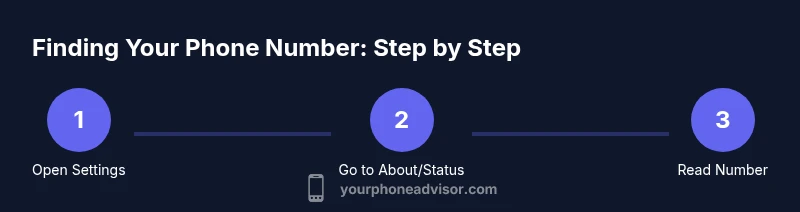
- 1
Open the Settings app
Launch the device Settings from the home screen or app drawer. This is the first step to access the number information. Ensure the device is connected to a network for any sync updates.
Tip: If Settings won’t open, try restarting the device. - 2
Navigate to the correct section
On iPhone, go to Settings > Phone to locate My Number; on Android, go to Settings > About phone > Status or SIM Status. If you have multiple lines, look for cellular plans or SIM card entries.
Tip: Use the search function within Settings if available. - 3
Read the number displayed
Check the My Number or Phone Number field for the active line. If you use an eSIM or dual-SIM setup, locate the primary line and note any secondary numbers as well.
Tip: Cross-verify with the carrier app for accuracy. - 4
Check the SIM/eSIM details
Open Cellular Plans (iOS) or SIM cards section (Android) to view the number linked to each plan. Confirm which line is active for calls and messages.
Tip: If the number isn’t listed, check with your carrier. - 5
Look in the carrier app/portal
Open your carrier’s app or website and navigate to plan details or device management. The number is usually listed under lines or SIMs. This is helpful if the device display is incomplete.
Tip: Sign in with the account associated to the line. - 6
Check the SIM packaging or account emails
If you have the physical SIM packaging, the number is often printed there. Carrier account emails or invoices may also include the phone number for that line.
Tip: This method is useful when device menus fail to show the number. - 7
Verify and document
Record the number or save it to your contacts for quick reference in the future. If you have multiple lines, label them clearly (e.g., Primary, Work, Personal).
Tip: Keep a backup note in a secure place. - 8
If problems persist
If you still cannot locate your number, contact customer support or visit a store with ID and device details. They can confirm the correct line and update your settings if needed.
Tip: Carry your IMEI/ESN and SIM information for faster service.
Got Questions?
Can my phone have more than one number on a single device?
Yes. Dual-SIM devices can host two lines, often labeled Primary and Secondary. An eSIM and a physical SIM can each carry a different number. Make sure you know which line is active for calls, texts, and data when sharing or troubleshooting.
Yes. Many devices support more than one number, especially dual-SIM phones.
What if I can’t find my number in Settings after a reset?
If the number isn’t visible after resetting, check the carrier app and the SIM card status. Sometimes a device reset clears cached data; you may need to reinsert the SIM or re-activate the eSIM. If unresolved, contact your carrier.
If you still can’t see it, check the carrier app or contact support.
Is my phone number the same as my Google/Apple ID?
Not necessarily. Your Google/Apple ID may be linked to a recovery or contact number, but the device's line number is managed by your SIM/eSIM and carrier. They can be different and should be verified separately.
They aren’t always the same; verify each one separately.
Why does my number show differently in various apps?
Some apps pull numbers from your device or account settings differently, or may use the number on your SIM or chosen line. Cross-check with Settings and the carrier app to confirm consistency.
Apps can pull numbers from different sources; verify with the device settings.
What should I do if I suspect my number is compromised?
Immediately update privacy settings, enable two-factor authentication where available, and consider requesting a new SIM or temporary number from your carrier. Monitor for unfamiliar messages or verification prompts.
If you suspect compromise, act fast and contact your carrier.
How often should I check where my number is located?
Periodically confirm your number, especially after device changes, SIM swaps, or when adding a new line. A quick monthly check helps prevent mismatches during important verifications.
Regular checks help you stay in control of your number.
Watch Video
What to Remember
- Check Settings first to locate your number quickly
- Verify both SIM and eSIM entries if present
- Use carrier/app portals for confirmation
- Protect your number to avoid unwanted sharing