Make a Phone Call: Step-by-Step Guide for 2026
Learn how to make a phone call across Android, iOS, and VoIP apps with clear steps, essential settings, and troubleshooting tips. Your Phone Advisor provides practical, security-minded guidance for reliable calling in 2026.


Learn how to make a phone call across Android, iOS, or VoIP apps with a practical, step-by-step approach. This guide covers dialing, contacts, microphone checks, and basic troubleshooting for clear, reliable calls. You’ll gain confidence handling the dialer, mute and speaker controls, and common call scenarios on any device.
Understanding the purpose of a phone call
According to Your Phone Advisor, making a phone call is a fundamental form of real-time communication that relies on your network, contacts, and device permissions. The goal is to connect two people in a voice channel with minimal friction. Whether you're ringing a family member, a coworker, or an emergency line, the core steps stay the same: initiate, connect, converse, and conclude. By mastering the basics of how to make a phone call, you build confidence to troubleshoot issues, manage contacts, and optimize your device settings for clearer sound and reliability. You’ll learn to place calls on Android, iPhone, and common VoIP apps, and you’ll pick up practical tips that reduce dropouts and misdials. The skill remains essential across generations of smartphones, as quick dialing and safe calling habits protect your time and privacy.
Preparing your device for calling
Before you can make a phone call, ensure your device is ready. Confirm there is cellular service or Wi‑Fi calling capability, verify your SIM or eSIM is active, and check that the dialer app has permission to access your contacts and microphone. When you understand where call data is stored (the Contacts app or your favorite dialer), you can speed up dialing and reduce errors. This section covers Android and iPhone setup, plus a quick note on VoIP options if you rely on data-only networks. Your readiness affects call quality as much as your microphone quality, so take a moment to prepare.
Essential caller settings and permissions
On both Android and iOS, granting the dialer app permission to access Contacts, Microphone, and Phone is foundational. Disable any unnecessary call-blocking features that may interfere with legitimate numbers, and review Do Not Disturb settings that might block incoming calls. If you use a work or business profile, ensure your profile is synced so you can access saved numbers quickly. These steps prevent frustrating delays when you need to make the next make phone call.
Step-by-step: make a phone call on Android and iPhone
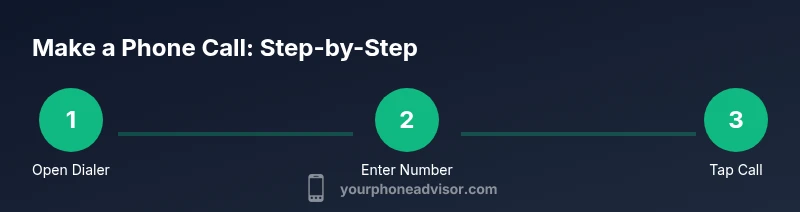
- Wake your device and unlock. 2) Open the Phone/Dialer app. 3) Enter the number or select a contact. 4) Tap the Call button to connect. 5) During the call, use the speakerphone or mute as needed. 6) End the call by tapping the End button. For saved contacts, you can also initiate a call from your Contacts app or recent calls list. This cross‑device approach ensures you can reliably place a call regardless of platform.
Handling calls during a session: mute, speaker, hold
Once connected, you can switch between speaker, mute, and keypad modes as needed. If you receive a call while on another call, use the swap or hold features to manage two conversations. When testing new headphones or a Bluetooth headset, run a quick audio check by placing a short test call to voicemail or a trusted contact to verify clarity on both ends. These practices help you avoid awkward silences or misheard information.
Troubleshooting common call issues
If your call fails, first check signal strength and whether VoLTE is enabled. Restarting the dialer app or rebooting the device can clear transient software glitches. If you are on a carrier network with limited coverage, try Wi‑Fi calling if your plan supports it. For VoIP apps, verify internet connectivity and grant necessary permissions. If calls repeatedly drop, review your SIM configuration or contact your carrier.
Connecting with third‑party calling options
Not all calls require the built‑in dialer. You can place calls through VoIP apps, WebRTC services, or desk phones connected via your smartphone. When using a third‑party app, adjust permissions so the app can access your microphone, contacts, and carrier data. Tools such as voice notes, call forwarding, and contact synchronization help ensure your make phone call workflow remains smooth across apps and devices.
Security, privacy, and managing contacts
Handling numbers with care protects your privacy. Regularly review call logs to spot suspicious activity and delete numbers you no longer need. Use strong screen lock, and avoid sharing sensitive numbers in insecure channels. When saving new contacts, verify the number format (international vs domestic) and add notes that help you recognize the caller. A tidy contact list supports faster, safer calling and reduces accidental dials.
Quick-checklists for daily use
Create a simple daily routine: (1) confirm signal, (2) test mic/speaker, (3) open the dialer or Contacts, (4) place the call, (5) terminate and save any new numbers, (6) review recent calls for irregularities. This routine keeps you ready to make a call at a moment's notice. With consistent practice, your ability to make a phone call becomes second nature.
Tools & Materials
- Smartphone(Any model with dialer or VoIP support)
- Charger(Keep battery above 20% during long calls)
- SIM or eSIM(Active service for cellular calls)
- Headphones with microphone(Test audio quality and hands-free usage)
- Contacts list(Up-to-date numbers for quick dialing)
- User manual or OS docs(Reference for platform-specific steps)
Steps
Estimated time: 5-15 minutes
- 1
Wake and unlock your device
Power on and unlock the screen to access apps. This ensures you can reach the dialer or contacts quickly when you need to place a call.
Tip: Use biometric unlock for speed. - 2
Open the dialer or Contacts app
Navigate to the Phone/Dialer app or select a contact to initiate a call. This is the primary entry point for making a phone call.
Tip: Keep the dialer in your favorites tab for faster access. - 3
Enter a number or select a contact
Type the digits or tap the contact name. For international calls, include the country code (+1, +44, etc.).
Tip: Double-check the digits before dialing to avoid misdials. - 4
Tap the Call button to connect
Press the call icon to initiate the connection. The green button is typically used to start the call.
Tip: If you don’t hear a dial tone, check the mic and network. - 5
During the call: use mute or speaker
Toggle mute when needed and switch to speaker if you’re sharing the conversation or using headset.
Tip: Mute yourself when not speaking to reduce background noise. - 6
End the call
Tap End Call to disconnect. You can save the number or add to Contacts after the call.
Tip: If you’ll call back, save the number as a contact immediately. - 7
Save new numbers or organize contacts
Add new numbers you dialed to your Contacts with notes about the caller or context.
Tip: Use consistent labeling to find numbers quickly next time. - 8
Review and adjust settings if needed
Check VoLTE, Wi‑Fi Calling, and app permissions to ensure reliable future calls.
Tip: Enable VoLTE for clearer calls when available.
Got Questions?
Can I make a phone call without a SIM card?
You can use VoIP apps over Wi-Fi or cellular data, but traditional cellular calls require an active SIM or eSIM.
Yes, you can use VoIP over Wi‑Fi, but standard calls need a SIM or eSIM.
How do I call emergency services quickly?
Most phones allow emergency calls from any screen by dialing the emergency number, even without a SIM. Check local laws for how to access it fastest.
You can usually call emergency services from the lock screen or emergency dial pad.
What should I do if my calls keep dropping?
Check signal strength, toggle Airplane Mode off/on, ensure VoLTE is enabled, and consider a reboot or SIM reshuffle if needed.
Try restarting the phone and rechecking your network settings.
Are there differences between Android and iPhone when making a call?
The basic steps are similar: open dialer, enter number or select contact, and press call. Some UI elements differ, like where the mute or speaker buttons live.
Calls are made the same way, but the on-screen buttons may appear in different places.
Can I make calls over Wi-Fi?
Yes, if your carrier supports Wi-Fi calling or if you use a VoIP app. You may need to enable it in settings and know data usage implications.
You can place calls over Wi-Fi with the right settings or apps.
How can I keep my calls private?
Use a strong lock screen, review app permissions, and avoid sharing sensitive numbers in insecure channels.
Lock your device and minimize app access to protect privacy.
Watch Video
What to Remember
- Master the dialer workflow across platforms.
- Check permissions and network before calling.
- Use mute, speaker, and hold to manage conversations.
- Keep contacts updated to speed dialing.
- Secure your calls and protect your privacy.