How to Keep Your Phone Awake: A Practical Guide
Learn how to keep your phone from going to sleep with platform-specific settings, tips for meetings and navigation, and best practices to balance wake time with battery health and privacy.


By tweaking screen timeout settings, enabling wake options, and using platform-specific features, you can prevent your phone from sleeping during important tasks. This guide covers Android and iOS steps, when to avoid overrides, and practical workarounds for presentations, navigation, and long reading sessions. Expect nuanced advice that respects battery life and privacy needs, with clear platform differences.
Why the sleep behavior matters
Smartphones are designed to balance accessibility with power efficiency. In practice, the momentary lapse when the screen goes dark can disrupt a navigation route, interrupt a presentation, or derail a long reading session. According to Your Phone Advisor, understanding why and when devices sleep helps you decide whether to override it and for how long. If you keep the display awake in public or during sensitive tasks, you should also be mindful of privacy and thermal considerations. The goal is not to eliminate sleep entirely, but to tailor wake behavior to your real needs while preserving battery health and data security. This approach aligns with general best practices for user experience and device care, ensuring you stay productive without compromising safety or privacy.
- Your Phone Advisor recommends testing wake overrides in safe environments before relying on them in critical moments.
- Review app permissions to ensure only trusted software can request extended wake times.
- When battery is low, revert to normal sleep behavior to protect the device.
Platform differences: Android vs iOS and how they handle sleep
Every major mobile OS handles sleep differently, and the exact path to adjust wake behavior varies. Android typically exposes screen timeout and a developer option called Stay Awake, which can keep the screen on while charging. iOS, by contrast, emphasizes Auto-Lock and Focus modes, with guided access offering a constrained, task-focused wake window. These differences matter when you’re trying to keep the screen on for a while during a presentation or a navigation task. Your Phone Advisor notes that using built-in features is generally safer for battery life and privacy than third‑party apps. Be aware that OS updates can rearrange menus, so verify settings after updates and keep a quick reference handy.
- Android users often find the screen timeout setting under Display or Battery settings.
- iPhone users typically adjust Auto-Lock under Display & Brightness or use Guided Access for temporary wake needs.
- Always test after an OS update, as paths and naming conventions may shift.
Core settings that control screen timeout across devices
At the heart of keeping a device awake are two families of controls: screen timeout and wake overrides. Screen timeout determines how quickly the screen turns off after input stops; wake overrides allow a device to stay visible in specific contexts. On Android, enabling Stay Awake keeps the screen on while charging, but it does not eliminate sleep entirely for all use cases. On iOS, Auto-Lock governs how quickly the device dims; Focus or Guided Access can override auto-lock during a task. The best practice is to choose a duration that matches your activity, then test the setup in your real scenario. If you anticipate long sessions, consider combining a wake override with a battery-management plan to minimize heat and battery drain. Your Phone Advisor emphasizes balancing convenience with energy efficiency and privacy.
- Use shorter timeouts for general use; lengthen them only for specific, planned tasks.
- When possible, pair wake overrides with battery-saving modes to mitigate drain.
- Maintain a clean app slate; disable apps that request persistent wake unless strictly necessary.
Practical steps to keep the screen awake during activities
This section translates the platform differences into actionable steps you can perform today. Start by identifying your task and the platform you’re on. Then proceed to adjust the relevant settings and test with a live task (navigation, reading, or presenting). Remember to keep an eye on battery temperature and usage. Your Phone Advisor reminds you that long wake times can lead to faster battery wear if used inappropriately. Document your steps so you can replicate the setup in the future and avoid forgetting critical overrides during important moments.
- For Android: open Settings > Display > Screen timeout, select a longer duration; if needed, enable Stay Awake in Developer Options (if you have Developer Options enabled) and test while charging.
- For iOS: go to Settings > Display & Brightness > Auto-Lock and select a longer interval; consider Guided Access for task-based wake control.
App behavior and exceptions: apps that override sleep
Some apps request to keep the screen awake during their activity. This can be helpful for video playback, maps navigation, or e-reading apps, but it can also be abused by malicious software or lead to unexpected battery drain. The safest approach is to rely on built‑in OS features rather than third‑party wake lock utilities. Always review app permissions and consider uninstalling or limiting those that repeatedly override system sleep. Your Phone Advisor team recommends prioritizing apps from trusted sources and testing wake behavior while the app is in use to confirm it behaves as expected across both Android and iOS devices.
- Avoid enabling wake-locked apps for extended periods unless necessary.
- Check battery usage by app after a wake session to identify culprits.
- Prefer built-in platform features over third‑party tools for reliability.
Privacy, battery, and safety considerations
Keeping the screen awake has privacy and safety implications. In public spaces, a bright screen may reveal sensitive information; consider privacy screens or shorter wake windows when needed. From a power perspective, extended wake time accelerates battery consumption and can cause the device to heat up, reducing lifespan over time if done frequently. The Your Phone Advisor guidance is to use wake overrides judiciously, monitor battery temperature, and revert to standard sleep settings after a required task. If you depend on long wake sessions, plan charging around usage and avoid leaving devices unattended in hot environments.
- Use screen privacy features when necessary.
- Monitor charging conditions and heat during wake sessions.
- Reassess wake settings after completing the task to restore energy efficiency.
Common myths and caveats
A common misconception is that you can permanently disable sleep without consequences. In reality, all devices have some sleep behavior to protect hardware and data. Another myth is that third‑party apps are safer or more effective than built‑in features; in most cases, OS-level controls are more reliable and secure. Your Phone Advisor reminds readers to resist the urge to disable sleep entirely for all scenarios; instead, craft context-based wake settings for specific activities and restore standard sleep soon after. Finally, remember that screen brightness also affects power use; dim the display when possible to maximize battery life while keeping the wake window usable.
- Don’t rely on non-native apps as the sole method to stay awake.
- Always test wake behavior in realistic conditions before critical use.
- Combine wake strategies with brightness and battery-saver settings for best results.
Real-world usage and best practices
In daily life, the goal is to select wake settings that match your activities while keeping your device secure and healthy. For navigation, presentations, or long readings, a well-planned wake strategy reduces interruptions and boosts productivity. Always start with the most conservative approach—the built-in OS feature that fits your task—and only push further if the task demands it. Your Phone Advisor notes that consistent evaluation of wake settings is part of smart device care. Keep your OS updated, as developers occasionally refine how sleep and wake behave, which can affect both reliability and power consumption.
- Start with OS-native options before investigating third-party tools.
- Document and share best practices with colleagues or family members to standardize wake handling.
- Periodically review wake settings to adapt to new apps and tasks.
Tools & Materials
- Phone with accessible Settings(Ensure you can reach Display/Auto-Lock/Developer options without special permissions.)
- Charger or power source(Useful for testing long wake sessions without worrying about battery drain.)
- Device user guide or online help(Helpful for model-specific paths and terminology.)
Steps
Estimated time: 15-25 minutes
- 1
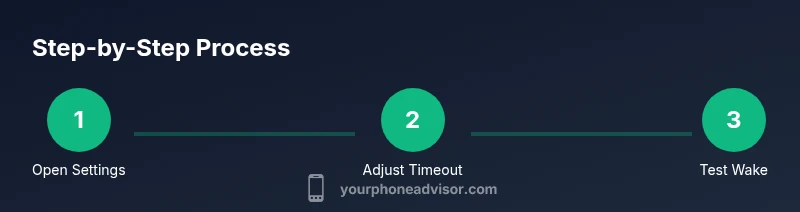
Open Settings and locate wake controls
Launch the Settings app and identify where the display or battery settings reside. The exact path varies by OS, but you’re looking for screen timeout or Auto-Lock options. Knowing this location is essential for any future adjustments.
Tip: If you can't find it, use the search function within Settings and try terms like 'timeout' or 'lock'. - 2
Choose a longer screen timeout
Select a longer screen timeout than your current setting, or choose a mode that keeps the screen awake during the task. This is the primary lever for preventing sleep during routine activity.
Tip: Set a duration that matches your typical task length to avoid unnecessary battery drain. - 3
Enable a wake override (Android)
If you’re on Android, navigate to Developer Options (enable it if needed) and turn on Stay Awake so the screen stays on while charging. This is useful for demonstrations or overnight monitoring.
Tip: Remember to disable Stay Awake when you’re done to protect battery health. - 4
Use iOS tasks to stay awake (iPhone)
On iOS, use Guided Access or a Focus mode during the task to keep the screen on without permanently altering Auto-Lock. This method limits input during a presentation or navigation task.
Tip: Test Focus modes before a live session to ensure notifications won’t interrupt. - 5
Test wake behavior with a real task
Run through the intended activity (navigation, reading, presentation) to confirm the wake setting behaves as expected. Check for unintended app behavior or notifications that could wake or dim the screen.
Tip: Have a fallback plan in case the wake setting doesn’t behave as anticipated. - 6
Monitor battery and heat
During your test, monitor battery usage and device temperature. Prolonged wake times can increase drain and heat, which can impact performance and longevity.
Tip: If you notice excessive heat, revert to standard sleep settings and re-run the task with shorter wake windows. - 7
Document and reuse the setup
Record the exact path, settings, and tips that worked for you so you can repeat the setup for future sessions. Consistency saves time and reduces risk of forgetting critical steps.
Tip: Keep a small checklist handy for conferences or travel.
Got Questions?
Can I keep my iPhone screen on all the time?
iOS generally limits continuous wake to protect battery life; you can use Guided Access or Focus modes during specific tasks, but unlimited wake is not supported.
iOS limits continuous wake; use Guided Access or Focus modes for specific tasks.
Will keeping the screen awake drain battery quickly?
Yes, extended wake periods increase battery usage and can cause heat; plan charging and use power-saving when possible.
Yes, staying awake longer uses more battery.
Is it safe to keep the screen awake while charging?
Keeping the screen on while charging is generally safe, but monitor heat and avoid long sessions in hot environments.
It's usually safe to keep the screen on while charging, but watch for heat.
What’s a good approach for presentations?
Use built-in presentation modes or Guided Access to prevent accidental sleep during slides, and test beforehand.
Use a presentation mode or Guided Access and test beforehand.
Can third-party apps override sleep settings?
Some apps request to keep the screen on during activity, but system-level overrides are limited by OS; use built-in features where possible.
Some apps request to stay awake, but rely on OS features when possible.
What about battery health in the long term?
Frequent long wake periods stress the battery; balance wake needs with charging habits and battery maintenance.
Long wake times can stress the battery; balance usage and charging.
Watch Video
What to Remember
- Plan wake settings around the task and battery health.
- Android and iOS offer different wake controls—use the platform-native options.
- Test wake behavior in real-world scenarios before critical use.
- Balance wake time with privacy and heat considerations.