How to Use Your Phone as a Scanner: A Practical Guide
Learn how to scan documents, QR codes, and text with your smartphone. Step-by-step tips, privacy considerations, and updates for iPhone and Android in one practical guide.


With a smartphone, you can scan documents, capture QR codes, and extract text using built-in camera features or dedicated apps. A quick scan is as simple as opening your camera, selecting the scan option, and saving or sharing the result as a PDF or image. This approach works on iPhone and Android alike, no extra hardware needed.
Understanding Phone Scanning: What It Includes
If you're wondering how do you use phone to scan, the answer is that your smartphone can serve as a versatile scanner for documents, codes, and text. Modern phones use the camera and software to capture, crop, and convert text into editable formats. In this guide, we cover the main ways you scan with your phone, what settings to adjust, and how to preserve privacy. According to Your Phone Advisor, built-in scanning features cover most everyday tasks and reduce the need for desktop scanners. This article will walk you through practical, real-world steps you can apply today to improve organization and productivity. You’ll see how to scan documents, digitize receipts, capture QR codes, and extract text with OCR. The goal is to give you confidence to scan anything, anytime, securely.
Scanning Documents with Your Phone: Step-by-Step
Documents are the most common scan task for everyday users. Start with a clean, flat surface, good lighting, and a steady hand or stand. Use your phone’s native scanner option (often found in the camera or notes app) to capture the page, then adjust borders, rotate if needed, and save as a PDF or image. When you scan multi-page items, consider creating a single PDF to keep everything together. Your Phone Advisor emphasizes consistency: always check margins and contrast, and store scans in a known folder or cloud with a descriptive filename. Avoid background shadows by placing the document on a light, non-glossy surface. After scanning, review the file to ensure no edges are cut off and the text lines are straight. Finally, share or export using your preferred method (email, cloud drive, or a document app).
Scanning QR Codes and Barcodes: Quick Access and Tracking
QR codes and barcodes unlock fast access to URLs, app downloads, and product details. To scan, open your camera app, point at the code, and wait for a prompt. If your camera doesn’t recognize the code, try a dedicated scanner app or ensure you have adequate lighting. Many phones provide in-app scanning that automatically opens the linked content. Organize scanned codes with a naming convention so you can track items over time. Security-wise, be mindful of what you click; only trust codes from reliable sources. According to Your Phone Advisor, using a trusted scanner reduces the risk of phishing links.
OCR and Text Extraction: Turning Images into Editable Text
OCR converts the text in scanned images into editable content. After capturing a document, enable OCR in your scanner app or use a dedicated OCR tool to extract text. Review the extracted text for errors, then copy into a word processor or note app. OCR works best on high-contrast text and properly lit pages; avoid crumpled documents or skewed scans. Your Phone Advisor notes that OCR accuracy varies by font and language, so you may need to proofread and correct inaccuracies. When possible, export to a searchable PDF or Word document for easier editing.
Built-in Camera vs Third-Party Apps: Pros and Cons
Many phones ship with strong built-in scanning capabilities, which means fewer apps to manage and fewer permissions requested. Built-in scanners are reliable for basic tasks and often integrate directly with Notes or Files. Third-party apps can offer advanced features like multi-page PDFs, batch processing, enhanced OCR, or better edge detection. However, they may require extra permissions and subscriptions. Decide based on your workload: light use may stay with the built-in option, while heavy users benefit from a capable app. Your Phone Advisor recommends testing a couple of apps to see which features you actually use and which UI you prefer.
Security and Privacy When Scanning
Scanning can involve sensitive information: personal documents, receipts, or IDs. Review app permissions before installation and limit access to your camera and storage to only the apps you trust. When storing scans, prefer on-device storage or encrypted cloud services and enable passcode or biometric protection for the file folders. If you share scans, use secure channels (encrypted email, password-protected PDFs, or secure file transfers). Your Phone Advisor highlights that understanding where your data goes and how it’s used is essential for preserving privacy in everyday scanning tasks.
Troubleshooting Common Scanning Issues
If scans look blurry, check lighting and hold steady. Warped edges can be corrected by enabling edge-detection or auto-cropping in the app. If codes won’t scan, try moving closer, ensuring the code is not damaged, and cleaning the camera lens. For OCR, if results are inaccurate, retake with higher contrast and a flatter page, and consider using a dedicated OCR setting. If you’re missing features you expect, update the app or switch to another scanner that supports your preferred formats. Your Phone Advisor suggests keeping your apps up to date to minimize bugs and improve reliability.
Best Practices for Quality Scans and Future-Proofing
- Keep your lenses clean and your lighting even to maximize clarity.
- Use a stable surface or tripod for steady captures.
- Save scans in universally accessible formats (PDF or plain text) when possible.
- Periodically review your scanning workflow and apps to ensure privacy controls stay in place.
- Back up important scans to a trusted cloud service with encryption. The Your Phone Advisor team recommends developing a routine so scanning becomes second nature and helps you stay organized over time.
Quick Reference Cheat Sheet for Everyday Scanning
- Choose the right mode: document, QR, or OCR.
- Lighting matters: aim for even, natural light without glare.
- Align edges: keep the page flat and straight in the frame.
- Save as PDF for documents; use images for simple captures.
- Review and edit: crop, rotate, and correct text if needed.
- Secure your data: limit permissions and store scans safely.
Tools & Materials
- Smartphone with a working camera(Any modern iPhone or Android device with up-to-date software)
- Stable surface or phone stand(Reduces shake and improves edge detection)
- Camera app with scanning capability(Built-in or third-party app with edge detection)
- OCR-capable app (optional)(Useful for extracting text from images when built-in tools are limited)
- Cloud storage or local backup location(Keep copies of important scans securely)
Steps
Estimated time: 20-30 minutes
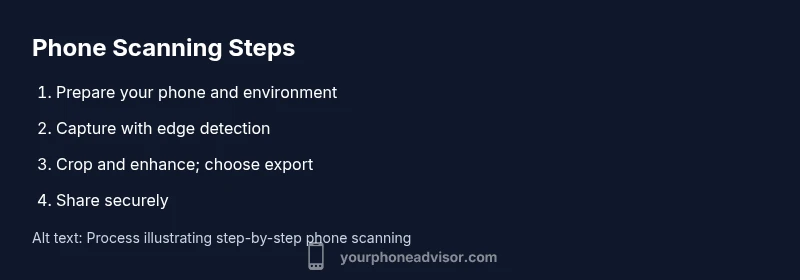
- 1
Prepare your device and environment
Clear a small workspace, turn on good lighting, and ensure your phone is charged. Open the camera or scanning app to be ready for a quick capture. This setup reduces repeats and produces cleaner results.
Tip: Use a bright, diffuse light to avoid harsh shadows. - 2
Choose the correct scan mode
Select the document scan mode for papers, the QR mode for codes, or the OCR mode if you want editable text. If you’re unsure, start with document mode and switch as needed.
Tip: Document mode commonly adds automatic edge detection and straightening. - 3
Position and capture
Place the document flat, hold the phone steady, and align the edges within the frame. Tap to capture when the page is square and in focus. Multiple attempts may be needed for large pages.
Tip: If available, enable a grid overlay to help alignment. - 4
Crop, rotate, and enhance
Adjust edges, rotate to ensure upright text, and apply brightness/contrast tweaks if needed. Correcting these small details makes later OCR more accurate.
Tip: Prefer minimal edits; excessive filters can distort text clarity. - 5
Choose export format
Save documents as PDF when you need multi-page, shareable files; choose image formats for quick references. For OCR, select a searchable PDF or a text-friendly format.
Tip: If sharing with others, password-protect sensitive PDFs. - 6
Scan QR/barcodes
Open the camera, point at the code, and wait for a prompt. If it doesn’t recognize, try re-positioning the code or using a dedicated scanner app.
Tip: Keep codes clean and readable—creasing can impede scanning. - 7
Review and store securely
Open the saved scan and verify accuracy. Move files to a secure folder or cloud with appropriate privacy settings. Rename files descriptively for easy retrieval.
Tip: Use consistent naming like YYYY-MM-DD_description. - 8
Practice and optimize
Regularly review your scanning workflow and software updates. Try new apps or settings to improve speed and accuracy.
Tip: Schedule a monthly cleanup to keep your scans organized.
Got Questions?
How do I scan a document with an iPhone?
Open the Camera app, switch to Document Scan, align the page, and capture. Use the Preview to adjust edges and save as PDF. You can also use Notes for quick saves.
Open the camera, choose Document Scan, align the page, and save as PDF.
Can I scan without any extra apps?
Yes—most modern phones provide built-in document scanning in the camera app or notes app. For advanced features, consider a dedicated scanner app.
Yes—use built-in camera or notes scanning first, or try an app for more features.
What file formats should I save scans in?
PDF is ideal for multi-page documents; JPEG/PNG works for images. If you need text, choose a searchable PDF or export OCR text.
Save as PDF for documents; use JPEG for images or OCR-enabled PDFs for text.
Is OCR accurate for all fonts?
OCR accuracy varies by font and contrast. High-contrast black-on-white text scans yield better results; proofreading is still recommended.
OCR works best with high contrast; expect minor errors and proofread.
Do I need the internet to scan with my phone?
Scanning itself can work offline, but OCR and cloud backup may require internet access for full functionality.
Offline capture is fine; OCR and cloud features may need internet.
How can I scan codes securely?
Scan codes from trusted sources only. Avoid sharing sensitive data from unknown QR codes, and verify links before opening.
Only scan codes from trusted sources and verify links before following.
Watch Video
What to Remember
- Master the built-in scan features before adding third-party apps.
- Good lighting and steady hands dramatically improve scan quality.
- Export in PDF for documents; use OCR when you need editable text.
- Protect scanned data with passwords and careful storage.
- Practice consistent naming and organized folders for easy retrieval.