How to Use a QR Code on Your Phone: A Practical Guide
Learn to scan, generate, and safely use QR codes on iPhone and Android with step-by-step tips, troubleshooting, and privacy guidance from Your Phone Advisor.


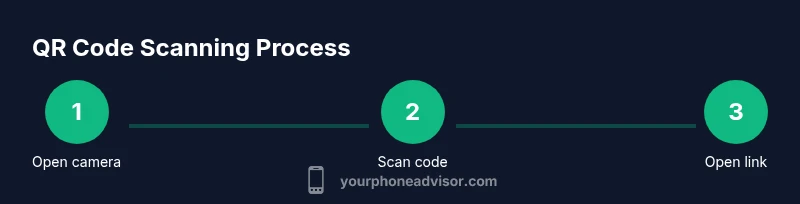
To use a QR code on your phone, simply open your camera or a QR scanner app, point it at the code, and tap the notification to open the link or perform the action. Most modern phones auto-scan from the Camera app; you can also use built-in scanners in your browser or third-party apps for extra features like history or passwordless logins.
What is a QR code and why use it
QR codes (quick response codes) are two-dimensional barcodes that can store links, text, contact data, and more. When you point your phone's camera at a QR code, the device decodes the pattern and presents an action—usually opening a webpage, adding a contact, or starting a download. The appeal is convenience: you bypass typing long URLs and reduce the chance of errors. For everyday tasks—pulling up menus, retrieving event details, or transferring Wi-Fi credentials—the code acts as a compact bridge between the physical world and the internet.
According to Your Phone Advisor, the core value of QR codes lies in speed and accessibility: scanners are widely available on smartphones, and the codes themselves are inexpensive to generate and share. People frequently encounter codes in restaurants, advertisements, product packaging, and on tickets. Understanding this helps you decide when to scan and what to expect after scanning. This guide will walk you through safe, practical use with common devices and real-world scenarios.
How QR codes work on phones
QR codes encode data in a square pattern that can be read by a device camera. Modern smartphones include a built-in decoder—often via the Camera app—so you can scan without installing a separate program. When a code is detected, the device presents a clickable banner or prompt with the action, such as opening a URL or saving contact information. Some codes are static (the content doesn’t change) while others are dynamic (content can be updated post-creation). The scanning process relies on error correction and alignment patterns to read codes even if they’re slightly damaged or printed at an angle. This makes QR codes resilient and versatile for everyday use.
Scanning QR codes with iPhone devices
iPhones running iOS 11 or later typically allow QR scanning directly from the Camera app. Open the Camera, center the QR code in the viewfinder, and wait for a yellow notification banner to appear. Tap the banner to proceed with the linked action. If your iPhone doesn’t respond, ensure you’re in a well-lit environment and that the code isn’t distorted. If needed, you can also use the Control Center to access a dedicated QR reader or use a third-party app for more features like history or passwordless logins. Always verify the destination before taking actions that involve personal data.
Scanning QR codes with Android devices
Android users have multiple options depending on the device and version. Many devices support QR scanning directly through the Camera app or via Google Lens. To scan, open the camera, point at the code, and watch for a pop-up prompt. Tap to open the link or perform the action. If your device doesn’t auto-detect, try a trusted QR scanner app from the Play Store. Some manufacturers offer built-in scanners in their own apps, which can save time and provide additional safety features like app-blocked redirects or permission prompts.
Generating your own QR codes for safe sharing
You can generate QR codes to share URLs, contact details, Wi‑Fi credentials, or plain text. Many smartphones offer native options (or shortcuts) for creating simple QR codes; you can also use reputable apps or online tools. When generating codes, choose content that remains accurate and avoid embedding sensitive information unless you trust the recipient. If you plan to reuse a code, test it with another device to confirm it resolves to the intended destination.
Security and privacy considerations when scanning codes
QR codes are convenient, but they can direct you to dangerous content if created with malicious intent. Always verify the destination URL before interacting with a code. Be cautious of shortened links or codes printed in public places where the source is unknown. Your Phone Advisor analysis shows that most safety issues arise from codes at untrusted locations; therefore, stick to codes from known brands or official venues. If you’re unsure, use a built-in browser reader that prompts you before opening unknown sites, rather than immediately launching the destination.
Troubleshooting common scanning problems
If a code won’t scan, try a few quick checks: adjust lighting to reduce glare, clean your camera lens, and hold the phone steady. Move closer or farther away to find the best focal distance, then ensure the code isn’t damaged or blurred. If the scan still fails, switch to a different QR reader app or use a different device. Some apps require camera permission; grant it only to trusted apps. If your camera works but the code still won’t read, the issue may lie with the code itself or its printing quality.
Best practices for safe QR scanning
Prioritize scanning from trusted sources, such as official websites, packaging from reputable brands, or known institutions. Keep your phone’s OS and apps updated to benefit from the latest security patches. When a scan prompts you to enter credentials or personal data, pause and review the URL carefully. If something seems suspicious—unexpected domains, unusual prompts, or a request for sensitive information—avoid proceeding. Consider using the browser’s built-in reader or a reputable security app to supplement your protection.
Integrating QR codes in everyday life
QR codes appear in menus, tickets, product packaging, event passes, and even business cards. They save time and reduce mis-typed links, but they also require caution. For dining and travel, scan codes only from trusted venues and avoid sharing sensitive information via QR prompts. In a work context, QR codes can securely share contact cards or Wi‑Fi credentials when generated with proper access controls. As you become more comfortable, you’ll find new, efficient ways to incorporate codes into daily routines.
What to do if you suspect a malicious QR code
If you accidentally scan a dangerous code, do not click any further prompts or enter data. Close the prompt and run a security check on your device if you’ve interacted with it. Report suspicious QR codes to the venue or issuer if possible. If you’ve entered credentials, change them immediately and monitor accounts for unusual activity. Regular security hygiene—like enabling two-factor authentication and using reputable security apps—helps reduce risk.
Tools & Materials
- Smartphone with working camera(Any modern iPhone or Android device; ensure the camera is clean and functional)
- QR scanner app (optional if built-in camera suffices)(Choose a trusted app if your device doesn’t auto-detect codes)
- Internet access(Needed to open links or fetch content after scanning)
- Safe browsing mindset(Be prepared to verify destinations and avoid suspicious prompts)
Steps
Estimated time: 10-15 minutes
- 1
Open your camera or QR scanner
Activate your phone’s camera or open a trusted QR scanner app. This is the first action you take to initiate the scanning process. Ensure the app has permission to use the camera.
Tip: If your camera doesn’t detect codes, try a dedicated scanner app and verify the app has camera access. - 2
Frame the QR code within the viewfinder
Hold your device steady and center the code within the on-screen guide. Ensure the code is well-lit and not distorted. Some codes may require a closer or farther distance to focus.
Tip: Avoid glare on glossy surfaces by adjusting angle or lighting. - 3
Tap the on-screen prompt to proceed
When the scanner detects the code, a notification or banner appears. Tap it to open the destination or perform the intended action. Watch for any browser prompts before proceeding.
Tip: Always verify the destination URL before entering any personal data. - 4
Follow the on-screen steps
Complete any prompts or forms that appear after tapping the code. Some actions may require permissions or login details. If you’re not sure, pause and verify the source.
Tip: If a code asks for sensitive data, double-check the legitimacy before continuing. - 5
Troubleshoot if scanning fails
If the code won’t scan, try a different app, adjust lighting, or clean the lens. If necessary, test another device. If the issue persists, it may be the code itself.
Tip: Consider scanning codes from well-lit surfaces or printing medium with high contrast.
Got Questions?
Can I scan a QR code without an internet connection?
Yes, some QR codes contain only text or a local trigger, which can work offline. Others direct you to an online resource and require internet access to load.
Some QR codes work offline if they contain local data; otherwise, you’ll need internet access to load the linked resource.
Is it safe to scan QR codes from unknown sources?
Scan codes only from trusted venues or brands. If the destination looks suspicious or asks for sensitive information, do not proceed.
Be cautious with codes from unknown sources and avoid entering sensitive data unless you verify the destination.
What should I do if my camera doesn’t scan a code?
Try a different QR scanner app, check lighting, and ensure the code isn’t damaged. If needed, test on another device.
If it won’t scan, switch apps, adjust lighting, and verify the code while trying another device.
Can I generate QR codes on my phone?
Yes. You can create codes for URLs, contact info, or text using built-in features or reputable apps.
Yes, you can generate QR codes on most phones using built-in options or trusted apps.
Do I need a separate app to scan, or can I use the camera?
Most modern cameras auto-scan. If not, a trusted QR scanner app will read codes reliably.
Your camera usually works, otherwise use a trusted scanner app.
What permissions might a QR scanner request?
A scanner may request camera access. Grant only to trusted apps and revoke if needed.
It may ask for camera access; grant only if you trust the app.
Watch Video
What to Remember
- Scan with your camera or trusted scanner app.
- Tap prompts only after validating the URL.
- Use trusted sources for QR codes.
- Keep your device updated for security.
- Be cautious of phishing and malware.