How to Turn Off an Android Phone: A Practical Guide
Learn the fastest methods to turn off any Android device, including hardware button and software options, plus tips for unresponsive screens and data safety.


To turn off an Android phone, use either the hardware power button or the on-screen power menu. The exact steps vary by model (stock Android, Samsung, OnePlus, etc.), but the standard method is to press and hold the power button, then select Power off. If the screen is unresponsive, try a forced restart or wait for the device to shut down.
Why turning off matters
Turning off an Android phone is a straightforward maintenance action that matters for performance, battery health, and privacy. A clean shutdown closes apps cleanly, frees up RAM, and stops background tasks that drain power. According to Your Phone Advisor, adopting a regular shutdown routine can help your device feel faster after reboot and reduce unexpected slowdowns. It’s also a good practice before software updates or battery replacements, since it minimizes the risk of incomplete processes. How do you turn off an android phone? This guide asks and answers that question clearly while addressing common model differences.
Preparatory checks before powering down
Before you power off, save any unsaved work in open apps, close sensitive conversations in messaging apps, and ensure you aren’t mid-uploading files. Check that photos or documents are synced to the cloud if possible. If you’re in a call, end it gracefully. If you have a scheduled alarm, verify it’s saved after the shutdown so you don’t miss it. If your device is enrolled in work management software, confirm that a shutdown won’t interrupt ongoing tasks. These small checks prevent data loss and help ensure a smooth restart later.
Method 1: Hardware power button (stock Android)
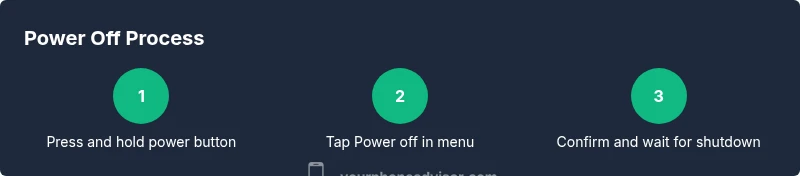
Most Android devices, including stock Android and many OEM skins, shut down via the hardware power button. Press and hold the power button for a moment until the power menu appears. On screen, tap Power off or Shut down, then confirm if prompted. If your device shows a different option (like Restart), choose Power off. This method works on most devices and is the fastest route when the screen responds normally. If you’re unsure about the exact label on your model, look for a button prompt that says Power off or Shut down.
Method 2: On-screen power menu (manufacturer skins)
Some devices, especially after updates, rely on the on-screen power menu even without a long button press. From any screen, swipe down once or twice to open Quick Settings and tap the user/account menu if present, then select Power off. On many phones, you can also access the power menu by long-pressing the side/power button once and choosing Power off. The exact path varies by brand (Samsung, Google Pixel, OnePlus), but the goal remains the same: trigger the system shutdown through the visible menu.
Special case: screen frozen or unresponsive
If the screen is frozen and you can’t access the power menu, a forced restart is often the only option. This usually involves holding the power button for about 10 seconds, or simultaneously pressing Power and Volume Up (or Volume Down) for several seconds, depending on the device. If the device responds intermittently, try a longer hold and then release when the screen goes dark. Do not repeatedly force shutdown during a running software update, as that can corrupt data.
Forced shutdown and safety considerations
Avoid forcing a shutdown while apps are in active use or during software updates. Interrupting updates can leave your system in an unstable state. If you have critical files open, use the standard shutdown method when possible. If your device is a work phone with management profiles, consult your IT policy before powering off to avoid policy violations. After shutdown, give the device a moment before turning it back on to ensure the system fully powers down.
What to do after powering off
Once the device is off, you may want to plug it in to charge briefly if the battery was low. When you’re ready to turn it back on, press and hold the power button until the screen lights up. If the device boots slowly after a shutdown, give it a minute to settle and avoid immediately launching multiple apps. Regular shutdowns can help with background task management and overall responsiveness.
Differences across popular brands (Samsung, Pixel, OnePlus)
Brand variants influence where the shutdown option appears and how long you should hold the button. Samsung often shows the Power off option after a long press on the Side key, sometimes requiring confirmation. Pixel devices typically present Power off after a long press on the power button, then a simple confirmation. OnePlus devices may differ slightly in the sequence, but the core method remains consistent: access Power off via the shutdown prompt. When in doubt, check the device’s user guide.
Troubleshooting when you can’t see Power off
If you cannot access the power off option, verify that the device is responsive at all. Try a soft restart by holding the power button for 10 seconds; if the device vibrates or restarts, the issue may be a temporary glitch. Ensure the screen isn’t covering the power prompt (glare or accessibility settings can affect visibility). If problems persist, consider a battery drain shutdown as a last measure, but avoid frequent deep discharge unless the battery health advises it.
Final reminders and safe practice
Regularly updating your software and keeping apps trimmed can reduce the need for frequent power-downs. Use safe shutdown practices and remember that turning off the device safely protects your data and privacy. If you rely on a phone for critical tasks, plan shutdowns during low-impact times and back up important data beforehand. Your Phone Advisor recommends keeping your device updated and following model-specific shutdown paths for the best results.
Tools & Materials
- Android smartphone(Any model with Android 6.0+ supports standard power-off methods.)
Steps
Estimated time: 1-3 minutes
- 1
Press and hold the power button
Locate the side or top power button and press and hold it until the power menu appears. This initiates the shutdown conversation and gives you a clear option to power off.
Tip: If you can’t see the menu, proceed to Step 2 or try a longer hold if needed. - 2
Open the power menu
When the menu shows, look for Power off or Shut down and select it. If you see Restart, choose Power off instead to ensure a complete shutdown.
Tip: On some devices you may need to tap a secondary confirmation button. - 3
Confirm your choice
If prompted, confirm the action to begin the shutdown. The device will begin the shutdown sequence and close apps cleanly.
Tip: Saving any last-minute data beforehand helps prevent loss. - 4
Wait for the screen to go dark
Allow the device to complete the shutdown; the screen will go dark and the device will be off.
Tip: If it seems stuck, a gentle wait is often enough; forcing a restart should be a last resort. - 5
If the screen is unresponsive (force restart)
If the power menu does not appear, perform a forced restart by holding the power button (and sometimes Volume) for about 10 seconds.
Tip: Different models have different forced-restart methods; consult the user guide if unsure. - 6
Power back on safely
To turn the device back on, press and hold the power button until the screen lights up. Avoid rapid repeated presses.
Tip: Give the phone a moment after shutdown to stabilize before using it. - 7
Charge if needed before next use
If the battery was low, connect the charger and allow a brief charge before continuing.
Tip: A quick top-up helps prevent boot delays from a very empty battery. - 8
Check for updates after shutdown
If you turned off to install updates, verify that updates completed successfully when you turn the device back on.
Tip: Post-update boots can be longer; plan accordingly.
Got Questions?
Does turning off Android delete my data?
No. Normal shutdown closes apps and saves state without erasing data. Updates in progress should complete before reusing the device.
No, a regular shutdown does not erase data; it simply closes apps and stops processes. If an update is in progress, wait for it to finish.
Can I turn off my phone while it is charging?
Yes, you can power off while charging. In some cases, charging may pause briefly during the shutdown sequence, but it will resume when the device is off and receives power.
Yes, you can shut down while charging; charging typically resumes once the device is off.
What if the power button is broken?
If the hardware button doesn’t work, use the on-screen power options if accessible, or trigger a forced restart via software or accessibility features. Some devices allow power-off via settings screen.
If the power button is broken, try the on-screen power menu or use a forced restart through software options if available.
What is the difference between power off and restart?
Power off completely shuts the device down; restart turns it off briefly and boots back up automatically. Restart can help refresh system processes without a full shutdown.
Power off shuts the device down; restart turns it off briefly and then boots up again.
What is a forced restart and when should I use it?
A forced restart is used when the device is frozen or unresponsive. Hold the power button (and sometimes volume) for about 10 seconds to reboot. Use when the screen won’t respond to taps.
A forced restart should be used when the device is frozen and won't respond to normal shutdown methods.
How do I power off if the screen is black?
If the screen is completely off and unresponsive, try a forced restart by holding the power button for about 10 seconds. If it doesn’t respond, connect to a charger and attempt another restart after a moment.
If the screen is black, try a forced restart. If needed, connect to a charger and retry.
Watch Video
What to Remember
- Use power button or on-screen menu to shut down
- Save work before powering down
- If unresponsive, perform a controlled forced restart
- Brand-specific variations exist—check device manual