How to Phone Without Power Button: On-Screen Solutions
Learn practical, step-by-step methods to power, wake, and reboot your phone without the physical power button. Includes iOS and Android tips, safety notes, and troubleshooting.


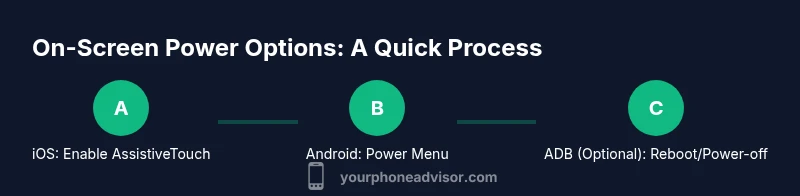
To power a phone without pressing the hardware power button, use on-screen alternatives: iPhone's AssistiveTouch to lock the screen and access the on-screen shutdown, and Android's Accessibility Power Menu to bring up the power options. If those aren’t available, you can enable USB debugging and use ADB to reboot or shut down from a computer. Always follow manufacturer guidance.
Why powering your phone without the power button is relevant for everyone
The phrase to keep in mind is how to phone without power button. When the hardware button stops working, you still need reliable ways to wake, lock, and power down your device. Modern smartphones offer robust on-screen controls and software-based shutdown options that let you perform essential functions without touching the physical button. This guide explains why these alternatives exist, when they’re most useful, and how to use them safely across the two largest ecosystems: iOS and Android. You’ll also learn about advanced options for power cycling, potential risks, and how to decide whether a repair is the best long-term solution. By understanding these methods, you’ll reduce frustration, extend device usefulness, and protect your data if the button fails unexpectedly.
Quick note on terminology and scope
Throughout this guide, you’ll see references to power, wake, lock, restart, and shut down. These actions are often implemented differently on iOS and Android, but the underlying goal remains the same: control your device without the physical switch. We’ll cover everyday on-screen methods first, followed by advanced options for power cycling when screens become unresponsive, and finish with practical upkeep tips to minimize future button failures.
System-level safeguards: why built-in on-screen controls matter
On-screen power controls are not a workaround; they are a designed feature set. They give you a safe, supported way to wake the device, lock the screen, or shut down when the hardware button is unavailable. Using the software options helps prevent damage from repeated button presses, avoids accidental wake-ups, and preserves your warranty by staying within manufacturer-supported features. This section explains the rationale for relying on software power controls and how they interact with accessibility features designed for users with button malfunctions.
iPhone vs Android: overview of on-screen power options
iPhone and Android approach the problem with different tools. On iOS, AssistiveTouch provides a customizable on-screen button that can simulate hardware actions, including locking the screen and triggering the shutdown process when available. On Android, an Accessibility Menu or a dedicated Power Menu can expose a full power-off and reboot sequence from on-screen taps. These built-in features are designed to be reachable even when the physical buttons fail, and they adapt to most user needs and accessibility requirements. This section sets the stage for practical, device-specific steps that follow.
Step-by-step approach for iPhone users (AssistiveTouch and Settings paths)
For iPhone users, the most reliable path without the power button starts with enabling AssistiveTouch, then using the on-screen menu to lock or shut down. If you only need to wake or lock the screen, AssistiveTouch can simulate a press of the side button. If you need a full shutdown, iOS also offers a software-based shutdown path in Settings on many models. Remember, enabling these features is free and does not require third-party apps. This section focuses on practice-friendly, low-risk methods that work on most modern iPhones.
Step-by-step approach for Android users (Accessibility Menu and Power Menu)
Android devices vary by manufacturer, but almost all support an Accessibility Menu that includes a power option. Turning this on gives you a large on-screen control pad to perform key hardware actions, including powering off or rebooting. This is especially helpful when the power button is physically broken or sticky. We’ll outline the typical navigation path and provide device-agnostic instructions you can adapt to your exact Android version and UI.
Remote power control options (ADB and developer options)
If you’re comfortable with a computer, enabling USB debugging and using the Android Debug Bridge (ADB) can offer powerful alternatives for power management. Commands like reboot or power-off (where supported) can be issued from a connected computer, which can be a lifesaver when the screen is unresponsive. We’ll outline prerequisites, typical commands, and safety tips to avoid data loss or device bricking.
When to repair vs. rely on software workarounds
Software-based workarounds are excellent in the short term, but a failing power button is a hardware issue. If you notice increasing resistance, misfires, or inconsistent wake/shutdown behavior, plan a repair or button replacement. This section helps you weigh the cost, the downtime, and the potential for further damage, so you can decide when it’s time to fix the button.
Data safety and privacy when using on-screen controls
Security and privacy considerations matter, especially when you’ll be using accessory tools or computer-based commands. Ensure that you only enable USB debugging on trusted devices, disable it after use, and use official recovery methods whenever possible. This portion emphasizes best practices for protecting data integrity during power operations and outlines how to avoid inadvertently triggering data loss.
Tools & Materials
- Smartphone (iPhone or Android)(Identify OS to follow appropriate steps)
- AssistiveTouch (iPhone built-in feature)(Enable in Settings > Accessibility > Touch)
- Android Accessibility Menu or Power Menu(Enable in Settings > Accessibility (path varies by device))
- USB cable(Use the correct connector (USB-C, micro-USB, or Lightning))
- Computer with ADB installed (optional)(Needed if you plan to issue reboot/power-off commands via USB debugging)
- Patience and a charged battery(Some steps require device to be awake and responsive)
Steps
Estimated time: 20-60 minutes
- 1
Identify your OS and device model
Confirm whether you are using iPhone or Android and note your model. This determines which on-screen options are available and where to find them in Settings. Knowing the OS helps you avoid trying a method that won’t apply to your device.
Tip: If you’re unsure of your OS version, check Settings > About phone. - 2
Enable AssistiveTouch on iPhone
Open Settings > Accessibility > Touch > AssistiveTouch and toggle it on. The on-screen button will appear, letting you access several hardware-like actions without pressing the physical button.
Tip: Customize the AssistiveTouch menu to include Lock Screen and other frequently used actions. - 3
Practice locking the screen with AssistiveTouch
Tap the on-screen AssistiveTouch button, then choose Lock Screen. This simulates pressing the side button to lock the device without physical interaction.
Tip: Practice a few times while your device is awake to build confidence. - 4
Power off via Settings on iPhone (when available)
If your iPhone allows, go to Settings > General > Shut Down to trigger the on-screen shutdown slider. This avoids using the hardware button entirely.
Tip: If you don’t see Shut Down, use AssistiveTouch to lock and rely on the on-screen controls to wake/shut down via Settings. - 5
Enable Android on-screen Power Menu
In Settings > Accessibility (or similar), enable the Accessibility Menu or Power Menu. This exposes a large on-screen pad that includes Shutdown and Reboot options.
Tip: If your device has a different path, search Settings for 'Power Menu' or 'Accessibility Menu.' - 6
Access the on-screen Power Menu and perform a shutdown or reboot
Launch the on-screen Power Menu and select Shutdown or Reboot. Use this when the hardware button is nonfunctional or unresponsive.
Tip: Use Reboot to refresh software state if you’re troubleshooting performance issues. - 7
Optional: enable ADB for remote power control
If you’re comfortable with developer tools, enable USB debugging and install ADB. Connect your phone to a computer and run commands like adb reboot or adb shell reboot -p to power off.
Tip: Disconnect USB safely after use and disable USB debugging to prevent misuse. - 8
Test wake and power actions after setup
With the device responsive, test waking, locking, and powering off using the on-screen methods. This confirms your setup works reliably when the hardware button is unavailable.
Tip: Document which method works best for your device for quick reference.
Got Questions?
Can I turn off an iPhone without using the power button?
Yes. If supported by your model, you can shut down via Settings > General > Shut Down. You can also use AssistiveTouch to lock the screen and access on-screen shutdown options. The availability of the shutdown option varies by iOS version and model.
Yes. On some iPhones you can shut down from Settings, or use AssistiveTouch to lock and access on-screen shutdown options.
How do I reboot an Android device without the power button?
Use the Android Accessibility Menu or Power Menu to initiate a reboot. If your device supports it, you can also run reboot commands via ADB when USB debugging is enabled.
Use the on-screen power menu on Android, or connect via USB and run ADB reboot when debugging is enabled.
What if my screen is unresponsive but I need to power off?
Try using the on-screen shutdown option from Settings (if available) or via the Accessibility Menu. If the screen remains unresponsive, use ADB or contact support for hardware service.
If the screen won’t respond, try the on-screen shutdown or ADB commands; otherwise seek hardware support.
Will using on-screen power options affect my data?
Power options themselves do not erase data. However, if the device encounters an unsafe shutdown, data loss can occur in rare cases. Always try a safe shutdown method first.
Using on-screen power options won’t erase data, but avoid forced shutdown if you can.
Should I repair the power button or keep using software workarounds long-term?
If the button is flaky or completely nonfunctional, pursue a repair or replacement. Software workarounds are useful short-term, but hardware repair provides a reliable long-term solution.
Consider repair if the button reliability is poor; software workarounds are temporary fixes.
Are there security risks with enabling ADB or on-screen menus?
Enabling USB debugging can expose the device to risk if used in insecure environments. Disable it when not in use and use trusted computers only.
USB debugging can be risky; enable only on trusted devices and disable when not needed.
Watch Video
What to Remember
- Enable on-screen controls (AssistiveTouch or Android Power Menu) to replace the power button.
- Use Settings-based shutdown when available to safely power off without hardware input.
- Consider ADB as a last resort for remote power management with caution.
- Regularly test your setup to ensure you can wake, lock, and power down reliably.
- Plan for button repair if software workarounds become inconvenient or unreliable.