How to Restart Your Phone: Quick, Safe, Step-by-Step
Learn how to restart Android and iPhone devices safely with practical steps, troubleshooting tips, and OS-specific guidance. Discover when to soft reboot vs. force restart, and what to do if your phone won’t turn on.


To restart your phone, press and hold the power button until the power menu appears, then tap Restart. If the screen is unresponsive, perform a force restart: on Android, press and hold Power + Volume Down for 7–10 seconds; on iPhone, use the appropriate combo (side button + volume). Ensure at least 20% battery before reboot to prevent an abrupt shutdown.
Why Restarting Your Phone Helps
Restarting can clear temporary memory, stop stuck processes, and reinitialize services that can degrade performance. When devices slow down, apps crash, or networks behave oddly after updates, a restart often resolves the issue. It’s a simple, safe first step before more drastic actions like factory resets. According to Your Phone Advisor, a practical restart can improve responsiveness without risking your data. Keeping your device on the latest OS and avoiding prolonged battery drain supports smoother restarts. The main idea is to reset the software state while preserving user data. If you're new to this, think of it as rebooting a computer to clear the cache and refresh system services. This approach applies to both Android and iPhone devices bound to your typical daily tasks.
Soft Reboot vs. Hard Reboot: What’s the Difference
There are two broad restart approaches: a soft reboot (a normal restart through the OS) and a hard reboot (a force restart using hardware buttons). A soft reboot closes apps and restarts core services without touching your data. It’s ideal for occasional glitches, app crashes, or slowdowns. A hard reboot forcibly restarts the device when the screen is frozen or the OS stops responding. This can interrupt ongoing processes and may briefly affect unsaved data, so it should be used only when the device won’t respond to a regular restart. For both Android and iPhone, a gentle restart should resolve most minor issues, while a force restart is a last resort. If you need more context, see Android Help and Apple Support for official guidance.
Restarting an Android Phone: Step-by-Step
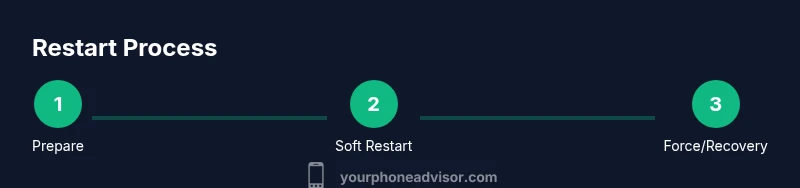
- Prepare the device: ensure it’s charged to at least 20% and close background apps you don’t need. This reduces the risk of data loss during the restart.
- Perform a soft restart: press and hold the Power button until the power menu appears, then select Restart. If your device offers a direct Restart option, use it.
- If the screen is unresponsive: try a force restart by holding Power + Volume Down for 7–10 seconds, or follow device-specific instructions from your OEM. This forcibly reboots the phone while attempting to minimize data loss.
- Consider Safe Mode if issues persist: in Safe Mode, third‑party apps are disabled, helping you identify problematic software. Access methods vary by device; check your manufacturer’s guidance.
- After reboot: observe performance, re-open apps, and verify connectivity. If issues recur, check for system updates and app updates. Pro tip: back up important data regularly in case a more drastic step is needed.
Restarting an iPhone: Step-by-Step
- Check battery level and charge if needed to avoid mid-restart shutdown. A reboot is easier when the device isn’t close to empty.
- Soft restart (iPhone with iOS): press and hold the Side button and either Volume button until the slider appears, then slide to power off. After it shuts down, press the Side button to turn it back on.
- If the screen is frozen: perform a force restart for iPhone 8 and later by quickly pressing Volume Up, then Volume Down, then press and hold the Side button until the Apple logo appears.
- Recovery options if reboot fails: connect to a computer with iTunes/Finder and use a software recovery option if needed. This is more advanced and typically used when the device won’t boot.
- After restart: sign back in, re-enable apps, and check for updates. If problems persist, consult Apple Support for guidance.
When Your Phone Won’t Respond: Alternative Methods
If the device remains unresponsive, start with basic checks: ensure the battery is charged, try a different charger, and remove the case if it overheats. Some issues require longer charging times before a restart makes sense. If the screen is off but the device is warm, give it a few minutes to cool before attempting another restart. A stale cache or stuck background process is often the culprit, and a restart can clear that state. Your goal is to regain control without risking data loss. See official guidance from Google and Apple for device-specific nuances.
Safe Modes and Recovery Options
Safe Mode on Android temporarily disables third-party apps, allowing you to determine if a recent installation caused glitches. To enter Safe Mode, method varies by device; typically, hold power, then tap and hold Power Off until Safe Mode appears. On iPhone, Safe Mode isn’t a traditional option, but Recovery Mode via Finder/iTunes can restore software when standard restarts fail. Recovery often requires a computer and a wired connection. In both ecosystems, these options help isolate issues without performing a full factory reset.
Post-Restart Steps: What to Check
After a restart, perform a quick health check: confirm Wi‑Fi/cell connectivity, open a few apps to ensure stability, inspect battery usage, and verify storage space. Check for pending OS or app updates, as updates often fix bugs that caused instability in the first place. If the device operates more smoothly, you’re likely past the hiccup; if not, schedule a deeper check or service appointment. Regular maintenance, including updating software and clearing cache occasionally, can prevent recurring restart issues. Your Phone Advisor emphasizes keeping software current for long‑term reliability.
Common Pitfalls and How to Avoid Them
Common mistakes include restarting too frequently (which can disrupt ongoing tasks), rebooting while updates are installing (risking corrupted system files), and ignoring app-level issues that mimic reboot needs. Avoid relying on force restarts as a daily habit; they should be rare. Never perform a reset if you suspect hardware failure unless you’ve exhausted software solutions. Lastly, back up data before major steps to prevent accidental loss. By following best practices, you can minimize risks during restarts.
Quick Troubleshooting Checklist
- Ensure battery is above 20% and device is not overheating.
- Try a soft restart first; opt for a force restart only if unresponsive.
- For Android, use Power + Volume Down; for iPhone, use the appropriate hardware combo.
- If issues persist, check for updates or enter Safe Mode/Recovery as appropriate.
- Back up data regularly and consider professional service if problems continue.
Appendix: OS-Specific Resources
For official guidance on restarting and recovery, consult: Google Android Help (https://support.google.com/android/) and Apple Support (https://support.apple.com). If problems persist after following restart steps, these resources offer device-specific instructions and safety considerations. Additionally, reputable outlets like major tech publications provide practical how-to guides and troubleshooting tips for various models and OS versions.
],
toolsMaterials":{"items":[{
stepByStep
estimatedTime
Estimated total time: 15-30 minutes
Tools & Materials
- Fully charged battery or charger(Keep battery at least 20% before restarting to prevent mid-restart shutdown.)
- Access to power button and/or OS restart option(Some devices offer Restart in the power menu; if not, use hardware button combos.)
- USB-C/Lightning cable (optional)(Useful if performing recovery steps that require a computer connection.)
- SIM tray tool (optional)(Only needed if you intend to perform hardware-level resets that involve SIM removal on some models.)
Steps
Estimated time: Estimated total time: 15-30 minutes
- 1
Prepare the device
Ensure the battery is charged to at least 20% and close unnecessary apps to minimize data loss during restart. This reduces the chance of apps refreshing mid-restart and helps the system reboot cleanly.
Tip: Having a charged battery is the best safeguard against a restart failing mid-way. - 2
Try a soft restart
Press and hold the power button (and follow your device’s on-screen prompts) to choose Restart. If your OS provides a direct Restart option, select it for a clean reboot.
Tip: A soft restart is the safest first attempt and preserves data. - 3
Force restart if unresponsive
If the screen is frozen, perform a force restart. Android: Power + Volume Down for 7–10 seconds. iPhone: use the appropriate side/volume combo until the Apple logo appears.
Tip: Only use force restart when the device won’t respond to normal restart. - 4
Check Safe/Recovery modes
If issues persist, boot into Safe Mode (Android) or Recovery Mode via Finder/iTunes (iPhone) to diagnose software conflicts. This helps isolate problematic apps or corrupted system files.
Tip: Safe/Recovery modes help identify if software is causing the problem. - 5
Post-restart verification
After reboot, open a few apps, test connectivity, and check for pending updates. Confirm battery status and storage availability are normal.
Tip: Updates often fix restart-related bugs and improve stability. - 6
If problems persist
Back up essential data and consider professional service if the device still misbehaves after restarts, as persistent issues may indicate hardware faults.
Tip: A professional evaluation can prevent further damage and data loss.
Got Questions?
What is the difference between a soft restart and a force restart?
A soft restart uses the normal reboot path through the OS and preserves data. A force restart forcibly reboots the device when it’s unresponsive and may affect unsaved data. Use soft restart first, force restart only as a last resort.
A soft restart uses the standard reboot path and keeps data safe; a force restart is for frozen devices and can risk unsaved work.
What should I do if my phone won’t turn on after restarting?
If the phone won’t power up, ensure it’s charged for at least 15-20 minutes, then try a force restart. If it still won’t start, check the charger, ports, and consider professional diagnostics.
If it won’t turn on, charge for 15 minutes, try a force restart, and if needed seek service.
How often should I restart my phone?
Restart as needed to resolve glitches. Routine daily restarts aren’t necessary; frequent restarts can interrupt ongoing tasks. Keep software updated for better stability.
Restart only when you notice issues, not on a strict daily schedule.
Can restarting fix overheating or battery drain?
Restarting can help clear processes that may cause temp spikes, but chronic overheating or battery drain usually requires further diagnostics like battery health checks and app management.
Restart can help with temporary spikes, but ongoing overheating needs deeper checks.
What if my device is frozen during an update?
If a device freezes during an update, avoid force restarting repeatedly. Wait if possible, or force restart after a timeout, then verify the update status when the device restarts.
Don’t panic if an update stalls; try a safe restart after giving it time.
Where can I find official restart guidance for my device?
Refer to official sources like Android Help and Apple Support for model-specific restart instructions and safety considerations.
See Android Help or Apple Support for your device’s exact restart steps.
Watch Video
What to Remember
- Restart first to fix glitches
- Know soft vs. force restart differences
- Android and iPhone have distinct restart methods
- If reboot fails, use Safe/Recovery modes or professional help