How to Clean Your Phone for Free: A Step-by-Step Guide
Discover zero-cost ways to clean your phone—free storage optimization, privacy hygiene, and safe physical cleaning tips from Your Phone Advisor to keep devices fast and secure.


This guide helps you clean your phone for free using built-in tools and safe, no-cost methods. You’ll optimize storage, tighten privacy, and refresh performance without paid apps. From managing apps and caches to backing up data and physically cleaning the device, follow these steps to keep your phone fast, secure, and clutter-free.
Why cleaning your phone for free matters
A clean phone isn’t just about a tidy home screen. It directly impacts performance, battery life, privacy, and overall user experience. Over time, apps accumulate cache, duplicates multiply, and storage fills with media you don’t actually need. A free, repeatable cleaning routine uses your device’s built-in tools and common-sense habits to keep things running smoothly without buying anything extra. According to Your Phone Advisor, regular maintenance helps devices feel faster and more secure, even on older hardware. By focusing on storage, app hygiene, and privacy, you can dramatically reduce slowdowns and battery drain while keeping personal data safer. Establish a simple cadence—monthly quick checks and quarterly deep clears—to sustain long-term gains without spending a dime.
Quick Wins: Free fixes that make a difference
Even without specialized software, some high-impact actions take just minutes and deliver noticeable results. Start by checking how much space is used and which apps or media are largest. Then trim your notification load to reduce background activity and free up system resources. These two free wins unlock immediate speed improvements and set the stage for deeper maintenance later. Your Phone Advisor recommends tackling storage first, then privacy controls, so you can experience tangible benefits fast.
Free storage management: Get more space without spending
Free storage management hinges on identifying space hogs and offloading what you don’t need. Use the phone’s built-in storage dashboard to see what’s taking up room—apps, photos, videos, and cached data. Move or back up large media to free cloud storage or a local backup, delete duplicate files, and clear caches for apps with heavy temporary files. If your device supports a “Free up space” tool, run it and review results. The goal is to reclaim gigabytes of usable space by prioritizing essential data and removing redundancy.
Privacy and security hygiene on a budget
A clean phone also means a more private one. Review app permissions—especially location, microphone, and contacts—and revoke permissions that aren’t essential. Check installed apps for recent activity and remove or disable any that you don’t recognize. Turn on built-in privacy protections, such as app tracker opt-out options and system-wide privacy dashboards. Clear browser data, including cookies and cached passwords, to reduce tracing and improve security without paying for premium software. Regular privacy checks help prevent data leakage and keep your device safer.
App and notification hygiene
Uninstall apps you rarely use; even dormant apps can quietly consume storage, RAM, and data. For the remaining apps, disable auto-update in the store or restrict background activity where possible to curb resources. Review notifications and silence those that aren’t essential, which reduces wakeups and energy use. This keeps the user experience snappy and improves battery life. A focused app set also lowers the chance of intrusive ads and data collection, supporting a cleaner phone overall.
Safe physical cleaning tips
Power off your device before cleaning and avoid spraying liquids directly onto the phone. Use a dry or slightly damp microfiber cloth to wipe the screen, then finish with a dry microfiber cloth to lift any remaining moisture. For ports and crevices, use a soft brush or cotton swab gently; never insert liquids into ports. Keep cleaning touches light and avoid excessive moisture that could reach internal components. Physical cleaning is a small but important part of a free maintenance routine that complements digital hygiene.
Building a free maintenance routine
Consistency matters more than intensity. Schedule a 15–20 minute monthly maintenance session focusing on one or two goals—e.g., free up space and review permissions. Each quarter, do a deeper clean by reviewing app data, backups, and privacy settings. Document what you do and when you do it so you can measure improvements over time. A simple, repeatable routine makes it easier to keep your device clean for free and reduces the likelihood of service interruptions.
Tools & Materials
- Microfiber cloth(Lint-free; dry or lightly dampened with water)
- Soft brush(Non-metal; used for dusting ports and speaker grills)
- Cotton swabs(For crevices around buttons/ports)
- Backup option (cloud storage account)(Free tier works; use to move photos/files off the device)
- Compressed air (optional)(Short bursts for stubborn dust; avoid direct spray at ports)
Steps
Estimated time: 60-90 minutes
- 1
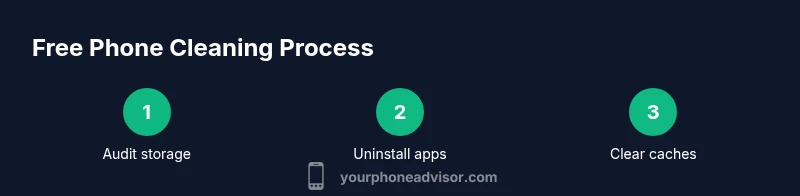
Audit storage usage
Open Settings > Storage and review what’s consuming space. Identify large apps, old media, and duplicates. Decide what to delete, offload, or back up to cloud storage. This first step establishes the scope of your free clean.
Tip: Back up important files before removing apps to prevent data loss. - 2
Uninstall unused apps
Go through your app list and remove apps you haven’t used in the last month. Removing unused software frees up storage and reduces background services that drain RAM and battery.
Tip: If you’re unsure about an app, move it to a folder and revisit later instead of full deletion. - 3
Clear caches for top space hogs
For apps that consume a lot of temporary data, clear their cache via Settings > Apps. This can reclaim significant space without deleting data you need.
Tip: Do not clear data for apps you rely on; clearing data may sign you out. - 4
Move photos/videos to free cloud storage
Back up large media to a free cloud tier and delete local copies if you’re comfortable. Keeping media off the device can dramatically increase available space.
Tip: Ensure photos are synced before deletion to avoid losing memories. - 5
Manage notifications
Review notification settings and disable nonessential alerts. Fewer wake-ups improve speed and battery life.
Tip: Group similar notifications to reduce clutter and system strain. - 6
Update OS and apps
Install the latest stable OS version and update apps to benefit from performance and security improvements. Updates can fix bugs that slow devices.
Tip: Turn on automatic updates if you want ongoing optimization without manual checks. - 7
Physically clean the device
Power off the phone, wipe the screen with a dry microfiber cloth, then finish with a lightly damp cloth if needed. Dry thoroughly before use.
Tip: Avoid liquids near ports; never spray directly on the device. - 8
Set a monthly maintenance reminder
Create a recurring reminder to perform a quick 15–20 minute cleanup and review essential settings. A consistent habit yields long-term benefits.
Tip: Keep a simple checklist to streamline every monthly pass.
Got Questions?
Is it safe to clean my phone with alcohol wipes?
Yes, use 70% isopropyl alcohol on a microfiber cloth and avoid ports. Do not saturate.
Yes, with care. Wipe the screen with a damp microfiber cloth and avoid ports.
How often should I perform a free phone cleaning?
Aim for a monthly quick clean and a quarterly deep clean using built-in tools.
Clean regularly—monthly quick checks and quarterly deep clean.
Can cleaning apps help?
Some apps offer storage cleanup, but rely mainly on built-in tools and manual review.
Apps can help, but trust built-in tools and manual checks first.
Will cleaning affect warranty?
Basic cleaning using device settings and approved methods does not void warranty.
Normal maintenance with built-in tools is safe and warranty-friendly.
Does cleaning include cleaning hardware ports?
Gently dust ports with a soft brush; never insert liquids into ports. If in doubt, skip it.
Be gentle with ports and avoid liquids.
Watch Video
What to Remember
- Audit storage first and delete unnecessary apps.
- Back up photos and files to free cloud storage.
- Never spray liquids on the screen or openings.
- Create a monthly free maintenance habit.