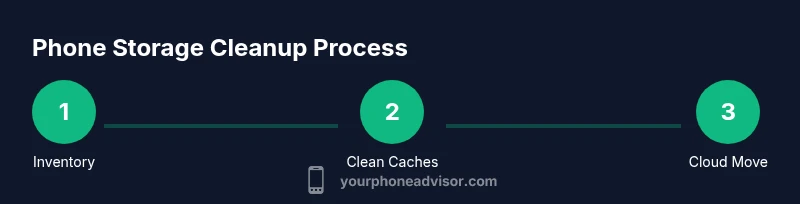
How to Clean Phone Storage
Learn practical, actionable steps to reclaim space on your smartphone—clear caches, manage apps, offload photos, and set up ongoing cleanup to keep your device fast. Your Phone Advisor guides you through a thorough, sustainable storage-cleaning routine.


By following these steps, you will reclaim storage on your phone, speed up performance, and reduce clutter. Start with a quick cleanup plan and then schedule ongoing maintenance. According to Your Phone Advisor, a disciplined cleanup routine saves time and keeps your device running smoothly.
Understanding What We’re Cleaning and Why
Phone storage is a finite resource that powers every app, photo, and document you use daily. The biggest culprits are photos and videos, app caches, downloaded files, and offline media that you’ve stored locally. When space runs low, apps can slow down, updates fail, and you may miss important files. This section explains what tends to eat storage and why a deliberate cleanup matters. The goal isn’t to delete memories or essential apps, but to remove duplicates, old files, and cache waste while preserving your important data. As Your Phone Advisor notes, a planned approach beats guesswork: identify your largest space hogs, then tackle them in order. A tidy phone leads to faster launches, quicker backups, and more room for new content.
2026-02-04
Tools & Materials
- Phone and charger(Keep powered during the cleanup to avoid interruptions)
- File manager or storage settings(Built-in tools are fine; add a cloud backup app if desired)
- Cloud backup access (optional but recommended)(Google Photos, iCloud, OneDrive, or another service)
- Internet connection(Wi‑Fi preferred to avoid data overages during backups)
Steps
Estimated time: 40-60 minutes
- 1
Inventory and Back Up
Begin with a quick inventory of what’s on your phone: photos, videos, apps, downloads, and messages. Back up critical data to the cloud or a computer before deleting anything, so you don’t lose irreplaceable files. This creates a safety net and helps you make confident decisions during cleanup.
Tip: Backups should be completed before permanent deletions; verify a sample file is accessible after backup. - 2
Check Storage Usage
Open Settings to view a breakdown of storage usage. Compare categories like Photos, Apps, Media, and System. This reveals where you should focus first and how much space you can reclaim with targeted actions.
Tip: Sort by size to quickly spot the largest offenders; start with the biggest category. - 3
Clear App Caches
Cache files help apps load faster but can pile up. On Android, clear cache per app in Settings > Apps > [App] > Storage > Clear Cache. On iOS, caches are managed by apps; you can offload unused apps to reclaim space without data loss.
Tip: Prioritize apps that generate large caches (web browsers, social media, maps). - 4
Offload or Uninstall Unused Apps
Remove apps you rarely use. Offload on iOS preserves data, while Android users can uninstall or disable apps. This immediately frees space and reduces background activity that consumes storage.
Tip: If you rely on an app occasionally, offload instead of full deletion to preserve settings and data. - 5
Sort and Delete Duplicates in Media
Review your photo and video libraries for duplicates and low-value shots. Delete blurry bursts, screenshots, and screenshots with poor quality. Consider exporting high-value moments to cloud storage and keeping a lean local gallery.
Tip: Use cloud backup to maintain memories while freeing up device space. - 6
Move Photos and Videos to Cloud
Enable automatic backup to a cloud service and then remove local copies. Services like Google Photos or iCloud offer optimized storage options, letting you keep memories without consuming device space. Ensure backups are complete before removing local versions.
Tip: Confirm that backup is complete by checking a sample photo on the cloud app after upload. - 7
Clean Downloads and Offline Content
Search the Downloads folder and purge old files. Review podcasts, offline maps, e-books, and offline documents. Delete what you don’t need and re-download later if necessary. This can reclaim substantial space without affecting active apps.
Tip: Delete files by date to remove the oldest items first; keep only what you’ll use soon. - 8
Review Attachments in Messages and Email
Large attachments, especially in conversations, silently consume space. Delete or archive old attachments and consider changing retention settings for messages. Email attachments can also add up—save essential items and remove the rest from local storage.
Tip: Android users can use a messaging app’s built-in search for large media to accelerate cleanup. - 9
Automate Cleanup and Schedule Maintenance
Set a monthly reminder to review storage, back up new content, and purge outdated files. Enable automatic backups for photos and documents where possible and consider enabling intelligent storage features offered by the OS. A routine cadence prevents space from creeping back.
Tip: Pair cleanup with a backup cycle to avoid accidental data loss.
Got Questions?
Is it safe to clear app caches?
Yes. Clearing caches removes temporary data, which apps can regenerate. Your personal data and app settings remain intact; you may need to sign back in to some apps.
Clearing caches is generally safe and helps reclaim space; you may need to sign back into some apps afterward.
Will clearing storage delete my data?
Clearing caches and downloads typically does not remove your personal data. However, deleting files you’ve saved locally will remove those copies unless backed up.
Clearing storage usually won’t delete your personal data, but deleted files won’t be recoverable unless backed up.
How often should I clean phone storage?
Aim for a monthly cleanup if you use your phone heavily, or quarterly if you manage space carefully and rely on cloud backups.
A monthly cleanup is a good habit if you store lots of media locally; otherwise, a quarterly check may suffice.
Should I reset my phone to reclaim space?
A factory reset is a last resort when storage is full and you cannot reclaim space through ordinary cleanup. Back up everything first, then reset, and selectively restore needed apps.
Only consider a factory reset if other cleanup methods fail; back up first.
What’s the best way to back up photos?
Choose a cloud backup with automatic sync (e.g., Google Photos or iCloud) and/or local backups to a computer. Verify backups by accessing a sample photo on the destination.
Use automatic cloud backup and verify that your photos are accessible after backup.
Can I stop apps from downloading automatically?
Yes. Review app store settings to disable automatic downloads for apps and media; enable it only for items you truly want.
Disable automatic downloads if you don’t want apps or media installed without your consent.
Watch Video
What to Remember
- Identify largest space hogs first
- Back up before deleting anything
- Leverage cloud storage to reduce local copies
- Offload or uninstall unused apps
- Establish a recurring cleanup routine