Why Your Phone Has No Bars: Ultimate Troubleshooting Guide
Effective, step-by-step troubleshooting for when your smartphone shows no bars. Covering carrier outages, SIM issues, network settings, and safe hardware checks to restore signal quickly.


Most often, no bars on your phone come from a carrier outage, a mis-seated SIM, or a software glitch. Start by toggling Airplane mode, re-inserting the SIM, and rebooting the device. If signals remain weak, check for carrier outages in your area and reset network settings before seeking help.
Understanding No Bars: What It Means
If you’re wondering why phone has no bars, you’re not alone. The absence of signal can feel urgent, especially when you rely on a device for work or safety. Signal bars indicate the phone’s connection to the nearest cellular tower, but the exact meaning of “no bars” varies by device and network. In practice, you may see a hollow cell icon, emergency calls only, or a message that data isn’t available. The core idea is that the radio cannot establish a usable link to the carrier’s network. According to Your Phone Advisor, most no-bars issues stem from simple, solvable causes such as temporary carrier outages, a mis-seated SIM, or a software glitch. Start with the lowest-friction checks before diving into hardware, and treat software settings as the likely culprit first. If you still don’t see any bars after performing the following steps, the issue may require carrier support or a hardware inspection. Begin by recognizing that signal behavior is affected by distance to towers, physical obstacles, and your current network mode. Indoors with walls, you may lose signal even in a city with good coverage. Conversely, outdoors on the edge of a cell area you may briefly gain and lose bars as you move. The good news is most problems are temporary and solvable with a methodical approach. This guide uses practical steps you can perform without tools. It also clarifies when to call your carrier or schedule a repair. Remember to respect safety rules and avoid attempting to modify internal components yourself. By staying systematic, you’ll often recover signal quickly and avoid costly delays. Your Phone Advisor’s guidance emphasizes software-first checks before hardware conclusions.
Quick Diagnostics You Can Do Without Tools
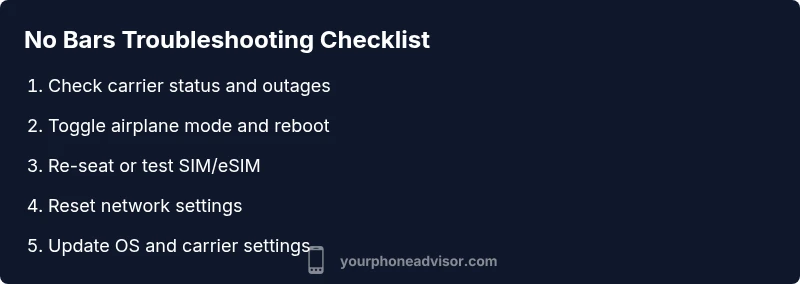
Start with 60-second tests that don’t require any tools. These checks eliminate the most common and harmless causes, letting you confirm whether the problem is pervasive or device-specific. If your phone has no bars, the simplest steps often restore service. - Check for outages: Open your carrier’s status page or social outage notices. Carrier-wide disruptions are the most frequent reason for sudden loss of service. - Toggle Airplane mode: Turn Airplane mode on for 15–30 seconds, then turn it off. This refreshes the phone’s radio and can recover a shaky connection. - Reinsert or swap the SIM: Power off, remove the SIM card, wipe gently with a clean microfiber cloth, reinsert, and reboot. If you have a second SIM or eSIM, test with that to differentiate SIM vs device. - Verify roaming and network mode: Ensure you’re not locked to a technology your carrier doesn’t support in your current location (for example, forced 3G on a 4G-only network). - Restart the device: A full reboot clears transient software glitches that may block bars from appearing. - Reset network settings (last resort before a factory reset): This resets all wireless preferences to defaults and commonly resolves misconfigurations. If you still have no bars after these steps, document the scenario (time, location, apps affected) and contact your carrier or a service center for further diagnostics.
Carrier Outages, Roaming, and Network Settings
Carrier outages or roaming configurations are the most frequent systemic causes of no bars. In Your Phone Advisor analysis, the majority of cases involve temporary network problems or misaligned settings rather than a malfunctioning device. Start by confirming account status (active plan, no suspensions) and ensure there’s no local outage in your area. If you recently traveled, roaming settings could block service until you re-enable the local network. Some carriers require manual updates to enable new bands when you cross borders. Keep an eye on SMS from the carrier about maintenance windows and known issues. Your phone’s modem firmware and the carrier’s configuration interact to provide service. If either side is out of date or corrupted, you may see emergency calls only or a pale icon. Updating carrier settings and system software often resolves the issue. If the problem is geography-based—only in certain rooms or floors—consider using Wi‑Fi calling as a temporary workaround while you troubleshoot.
SIM Card, eSIM, and Hardware Checks
The SIM card is a tiny, powerful gateway to your network. A mis-seated SIM, dirt on the contacts, or a damaged SIM can cause immediate loss of bars. Power down, remove the SIM tray, inspect for any visible damage, and reseat the card carefully. If you have an eSIM, verify it’s active and assigned to the correct line. Try the SIM in another phone to identify whether the card or the device is at fault. If the problem follows the SIM, request a replacement from the carrier. If the issue remains with the device, it may be related to the antenna or the cellular radio module, which should be examined by a professional service technician.
OS Updates, Reset Procedures, and Safety
Software updates often include modem improvements that affect signal handling. Check for pending OS updates and install them, as well as any carrier configuration updates. Before performing a factory reset, attempt a targeted reset of network settings; this preserves most data while correcting misconfigurations. Always back up your important information before any reset. Do not attempt to open the device’s chassis or repair internal components yourself; radio hardware is sensitive and can cause injury or void warranties. In many cases, a simple update or reset resolves the no-bars issue without service charges.
Preventive Practices to Reduce Future No-Bars Issues
- Keep your OS and carrier settings up to date to maintain compatibility with the network and new bands. - Consider carrying an extra SIM or eSIM profile when traveling to reduce downtime. - When signal is weak, use Wi‑Fi calling to stay connected and conserve battery life. - Protect the device from moisture, excessive heat, and drops that could affect the antenna assembly. - Periodically test your signal in multiple locations to identify whether issues are location-based or persistent.
Quick Recap and Next Steps
If you’ve followed these steps and still see no bars, contact your carrier’s support line or visit a service center. Provide a concise report including device model, OS version, recent changes, and the original symptoms. The Your Phone Advisor team recommends documenting outages and testing in diverse environments to determine whether the issue is localized or systemic. If you suspect hardware failure after all software remedies, seek a professional diagnostic.
Steps
Estimated time: 30-45 minutes
- 1
Check for outages
Visit your carrier’s status page or outage map and note any regional issues that could affect service. If there’s a known outage, you may need to wait until it’s resolved.
Tip: Bookmark the outage page for quick checks in the future. - 2
Toggle Airplane mode and reboot
Enable Airplane mode for 30 seconds, then disable it. If needed, perform a full device reboot to refresh all radios.
Tip: A quick reboot resolves many software hiccups. - 3
Re-seat or test SIM
Power off, remove the SIM tray, inspect the SIM for dust or damage, and reinsert carefully. If available, test with a second SIM or a known-good eSIM profile.
Tip: Use a clean microfiber cloth on the SIM contacts. - 4
Reset network settings
On iOS or Android, reset network settings to default to fix misconfigurations. This will remove saved Wi-Fi networks and Bluetooth devices, so reconfigure afterward.
Tip: Back up data before performing resets. - 5
Update software and carrier settings
Check for OS updates and carrier configuration updates. Install any available updates and reboot.
Tip: Manufacturers push updates to improve reception and stability. - 6
Test location and alternate device
Move to a different location indoors/outdoors to see if signal improves. If another device shows bars, the issue may be network-related; if not, the device could be defective.
Tip: Test at multiple locations to differentiate location vs device issues. - 7
Seek professional help
If the bars still won’t appear after all steps, contact your carrier or visit a certified service center for a hardware diagnosis.
Tip: Warranty or service plans may cover antenna or modem replacements.
Diagnosis: Phone shows no bars or extremely weak signal in typical locations
Possible Causes
- highCarrier outage or maintenance
- highSIM card seating or fault
- mediumSoftware misconfiguration or corrupted settings
- lowDevice hardware issue (antenna/radio)
Fixes
- easyCheck carrier outage status and wait if needed
- easyRe-seat or replace SIM/eSIM profile and reboot
- easyReset network settings, then test
- easyUpdate OS and carrier settings to latest version
- mediumIf unresolved, test in another device or contact support
Got Questions?
Why does my phone show No Service instead of bars?
No Service typically means the phone cannot reach any carrier signal due to outages, SIM issues, or deep software problems. Start with outage checks, SIM reseating, and network resets before assuming a hardware fault.
No Service usually means the device can't reach any network. Start with outages, reseat SIM, and reset network settings before assuming hardware damage.
Will software updates fix no bars?
Yes. Updates can fix modem firmware and carrier configuration issues that affect signal. Install the latest OS and carrier updates, then reboot and test.
Yes. Updates often improve signal handling; install them and test.
Is it safe to open my phone to inspect the antenna?
No. Opening the chassis can void warranties and pose safety risks. Have a certified technician inspect antennas and radios if hardware issues are suspected.
No, it's not safe to open the device yourself; seek professional help.
If SIM works in another device, what does that mean?
If the SIM works in another device, the issue is likely with the original phone’s radio or antenna rather than the SIM itself.
If it works in another phone, the problem is probably the original device’s hardware or settings.
How long should I wait after an outage before calling support?
If an outage is reported, wait until it’s resolved. If service doesn’t return after the window, contact support with details of your device and location.
Wait for the outage window to pass; if still no service, contact support with details.
Does Wi‑Fi calling help when I have no bars?
Yes. Wi‑Fi calling can keep you connected when cellular bars are missing. Enable it in settings and use a stable Wi‑Fi connection as a temporary workaround.
Wi‑Fi calling can help when cellular service is down; enable it in settings.
Watch Video
What to Remember
- Check carrier status first and test basic steps.
- Differentiate location vs device issues with cross-location testing.
- Update software and carrier settings before hardware repairs.
- Escalate to professionals if hardware faults are suspected.