Why Your Phone Won't Connect to the Network: Troubleshooting Guide
Urgent, step-by-step help to diagnose and fix why your phone won't connect to the network. From basic toggles to carrier outages and SIM checks, get back online fast with clear, proven steps.


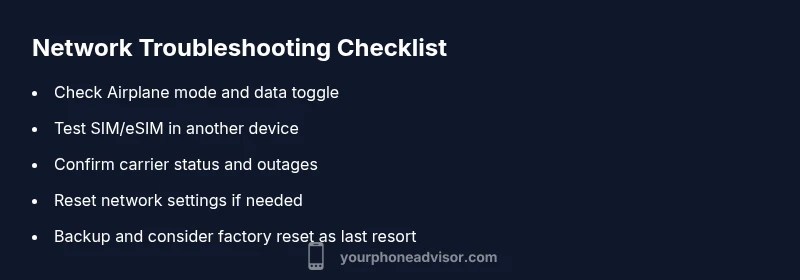
If your phone won’t connect to the network, the most likely culprits are a temporary carrier outage, a misconfigured setting, or a faulty SIM/eSIM. Start with quick wins: turn on Airplane mode for 30 seconds, then reboot, ensure cellular data is enabled and roaming is allowed. If it persists, test with another SIM and reset network settings as a last resort.
Why this happens and what you should know
When you’re trying to connect to cellular service, several factors can block the connection. The keyword here is reliability: carriers can have brief outages, settings can accidentally disable data, and the SIM/eSIM can become misprovisioned. If you’re wondering why phone won’t connect to network, start by ruling out simple issues you can fix in minutes. In most cases, the problem is user-configured or a temporary service interruption rather than a hardware failure. Your Phone Advisor recommends a structured approach: confirm basic toggles, test another SIM, inspect carrier status, and only then dive into deeper settings. By following a disciplined flow, you can restore service quickly without guessing.
Your Phone Advisor may use real-world patterns to guide you: most connectivity problems fall into a few categories, and addressing those quickly often yields a fast win. It’s normal to feel frustrated when you’re offline, but a calm, methodical check is the fastest path back online.
Steps
Estimated time: 45-60 minutes
- 1
Check basics and re-test
Confirm the phone’s Airplane mode is off and mobile data is enabled. Verify you’re not in a weak coverage area and that you’re connected to the correct network type (4G/5G). Try toggling the setting off and on to refresh the radio.
Tip: A simple reboot can flush transient network errors. - 2
Toggle airplane mode and reboot
Turn on Airplane mode for 30 seconds, then turn it off. Reboot the device afterwards to reset the radio stack. This often clears stuck connections without complex changes.
Tip: If you’re using a dual-SIM phone, test each SIM slot separately. - 3
Inspect SIM/eSIM and provisioning
Remove and reinsert the SIM, or switch to an eSIM if available. Check that the SIM is active in your carrier’s app or portal. If another device with the same SIM works, the issue is likely device-related.
Tip: Clean the SIM contacts gently with a soft cloth; a dirty contact can mimic a failed SIM. - 4
Test carrier status and service
Visit your carrier’s status page or app to confirm there are no outages in your area. If there is an outage, your phone will likely reconnect once service is restored.
Tip: Sign up for outage alerts if your carrier offers them. - 5
Reset network settings
Reset all network-related settings back to default. This clears erroneous APN or roaming configurations that block connectivity. You’ll need to re-enter Wi‑Fi networks and VPNs afterward.
Tip: Back up important Wi-Fi passwords before resetting. - 6
Advanced checks and last resort
If the problem persists, back up data and perform a factory reset as a last resort. If the reset doesn’t resolve it, a hardware issue may be present; contact a service center.
Tip: A factory reset wipes personal data—ensure a backup first.
Diagnosis: Phone won't connect to network
Possible Causes
- highCarrier outage or account suspension
- highAirplane mode enabled or cellular data off
- mediumFaulty or misprovisioned SIM/eSIM
- mediumIncorrect network settings (APN, roaming disabled)
- lowHardware issue (antenna, modem) or SIM tray damage
Fixes
- easyToggle Airplane mode on, then off; reboot the device
- easyCheck that cellular data is on and roaming is enabled; reselect network
- easyTest with a known-good SIM or temporarily swap SIMs if possible
- easyReset network settings (or APN settings) to default
- mediumIf issues persist, contact your carrier to verify account status, coverage, and provisioning; consider a hardware check
Got Questions?
Why won't my phone connect to the network after a system update?
System updates can reset or alter radio settings. Start with toggling airplane mode, rebooting, and re-enabling cellular data. If the problem persists, check for a carrier outage and reconfigure APN settings before considering a reset.
After an update, radio settings may change. Try toggling airplane mode and reboot, then recheck cellular data. If it continues, check carrier status and APN settings.
Could a faulty SIM card cause no network?
Yes. A damaged or misprovisioned SIM can prevent network access. Test with another SIM or in another device to confirm. If the issue follows the SIM, contact your carrier for a replacement.
A bad SIM can block service. Try another SIM to confirm, then contact your carrier if the issue is SIM-related.
Is a factory reset a good idea for network problems?
Factory reset should be a last resort due to data loss. Back up first, then wipe the device. If the issue remains after reset, the cause is more likely hardware-related.
Only use a factory reset after backing up. If unresolved, consider hardware diagnostics.
Will turning off data roaming help solve issues?
Turning roaming off is unlikely to fix a local network issue unless you’re roaming. Ensure roaming is enabled only if you travel outside your home network. It can prevent unexpected charges but not generally fix a standard outage.
Roaming should be used only when traveling; it doesn't fix local outages but can prevent charges.
Why can I connect to Wi‑Fi but not cellular data?
Wi‑Fi working while cellular is down usually points to carrier issues or radio settings. Follow the diagnostic flow: check outages, SIM, and APN. If Wi‑Fi and data settings are correct, the problem is likely with the cellular modem or carrier provisioning.
If Wi‑Fi works but cellular doesn’t, check outages and SIM first—problem may be carrier-related or a modem issue.
How long should I wait for service to restore after a carrier outage?
Carrier outages vary; monitor carrier status pages and alerts. If service remains down beyond typical outage windows, contact customer support for troubleshooting or replacement SIM options.
Outages vary; keep an eye on status pages and contact support if service hasn’t returned after a reasonable period.
Watch Video
What to Remember
- Start with simple fixes and test with another SIM.
- Check carrier outages before diving into settings.
- Reset network settings only after backing up data.
- If unresolved, seek carrier or manufacturer support promptly.