Why Do My Phone Have No Signal? Quick Troubleshooting Guide
Experiencing no signal on your phone? This urgent, practical guide from Your Phone Advisor walks you through quick checks, a diagnostic flow, and step-by-step fixes to restore reliable coverage fast.


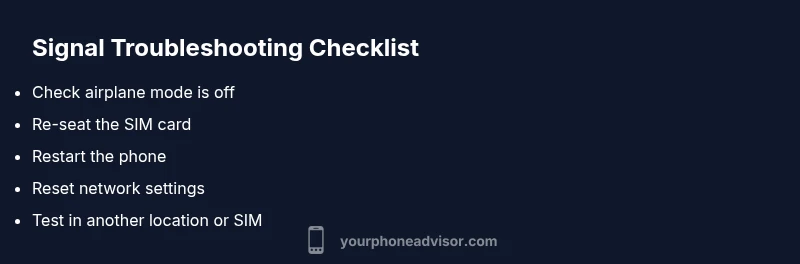
No signal is usually fixable with simple steps. First, toggle airplane mode off, restart your phone, and reseat the SIM. If the issue remains, reset network settings and check for any carrier outages. If nothing helps, contact your carrier or visit a store for hands-on support.
Why signal drops happen
If you ask, "why do my phone have no signal?" the short answer is that most cases come down to a few common, fixable causes. Location and environment matter: basements, elevators, or dense urban canyons can weaken reception. Software glitches can misreport signal, while a loose SIM or outdated carrier settings can cut you off entirely. Hardware faults are rarer but possible, especially after drops or water exposure. By understanding the typical culprits, you can triage quickly and prevent prolonged outages.
Quick checks you can run right now
Before diving into deeper fixes, perform these fast checks:
- Make sure Airplane Mode is off and turn it back on, then off again.
- Reboot your device to refresh its radio.
- Remove and reinsert your SIM card; if possible, test with a different SIM.
- Check for a carrier settings update in the phone’s settings and install any available updates.
- Move to a different location (higher floor or outdoors) to see if signal improves.
- Confirm your account isn’t suspended or restricted by the carrier. These steps cover the majority of transient no-signal issues and don’t require specialized tools.
Common culprits by scenario
Many no-signal cases fit into specific scenarios:
- Indoor drop: Thick walls or interference can block signals; outdoors or near windows often helps.
- Carrier outage: A temporary outage affects many users; check the carrier’s status page or outage maps.
- SIM or network misconfiguration: A damaged SIM, swapped devices, or incorrect APN/settings can sever connectivity.
- Roaming and plan restrictions: If you’ve crossed borders or hit a plan limit, service can be throttled or blocked.
- Device hardware fault: Issues with the antenna or other radio hardware are less common but require service if suspected. Evaluating by scenario helps determine which fixes are worth pursuing and which steps to skip.
iOS vs Android signal troubleshooting
Both major platforms share core steps, but there are platform-specific options:
- iOS: Reset Network Settings under Settings > General > Transfer or Reset iPhone > Reset > Reset Network Settings. Update carrier settings via Settings > General > About. Consider removing and re-adding the eSIM if used.
- Android: Reset Network Settings under Settings > System > Reset options > Reset Wi-Fi, mobile & Bluetooth. Update Google Play Services if required and check for system updates. If you use an eSIM, re-provision it from your carrier’s app or settings.
In both cases, ensure your device’s software is up to date and that roaming is correctly configured for your region.
When roaming and carrier concerns
If you’re traveling or you recently switched carriers, roaming settings and SIM compatibility come into play. Ensure your plan supports roaming in the current country, and verify that your device is unlocked if you’re using a local SIM. Contact the carrier to verify that your account is in good standing and that there are no blocks on your line. They can also re-provision the service on their side if needed.
Hardware considerations: SIM, antenna, and water damage risk
A damaged SIM or a faulty SIM tray can cause persistent no-signal issues. Inspect the SIM for scratches and ensure it sits properly in the tray. If you’ve dropped the phone or exposed it to moisture, the internal antenna could be affected. In such cases, professional diagnostics may be required, as DIY hardware fixes can void warranties or create additional damage.
Proactive prevention and safety tips
- Keep your phone software and carrier settings updated to minimize radio glitches.
- Use the carrier’s outage map to anticipate and react to regional service disruptions.
- Store a spare SIM (if compatible) and keep a basic backup plan for emergencies.
- Avoid opening the device’s internals unless you’re trained; improper handling can cause more harm than good.
- If symptoms persist after all steps, seek official support to avoid compromising your device.
Summary of first-line fixes and when to escalate
Start with quick checks, then apply network resets if needed. If none of the steps restore service, there’s a high chance the issue is with carrier infrastructure or a hardware problem. In those cases, escalating to Your Phone Advisor’s recommended path (carrier support and device diagnostics) will save you time and frustration.
Steps
Estimated time: 25-45 minutes
- 1
Check airplane mode
Open the quick settings and ensure airplane mode is disabled. If it was on, turn it off and observe whether signal returns. A restart after toggling can help radio reinitialize.
Tip: If your issue is location-based, try toggling mode in multiple spots (indoors, near a window, outdoors). - 2
Inspect the SIM
Power down, remove the SIM card, and inspect for visible damage. Reinsert carefully, ensuring the tray is fully seated. If possible, test with a spare SIM to rule out the SIM card as the culprit.
Tip: Handle SIM with clean hands and avoid touching the metal contacts. - 3
Restart and refresh
Restart the device to reinitialize radio software. This simple step resolves many transient glitches that cause dropped signals.
Tip: Give it a full minute after boot before testing signal again. - 4
Update network settings
Check for carrier settings updates in the device settings and install any available. If your OS allows, run a software update to ensure the modem firmware is current.
Tip: After updating, reset network preferences if signal is still unstable. - 5
Test different networks
If possible, select another network manually or toggle automatic network selection. In some cases, roaming restrictions or regional limits affect service.
Tip: Note any differences with 4G vs 5G; some regions have slower fallback options. - 6
Escalate to carrier or hardware diagnosis
If the problem persists after all steps, contact your carrier for outage checks or request device diagnostics from a certified technician.
Tip: Document times and locations of outages to share with support for faster resolution.
Diagnosis: Phone shows No Service or very weak signal in multiple locations
Possible Causes
- highAirplane mode enabled or radio off
- highSIM card issue or mis-seated SIM
- highCarrier outage or maintenance in the area
- mediumOutdated carrier settings or software radio glitch
- lowDevice hardware fault (antenna or modem)
Fixes
- easyToggle airplane mode off, then back on; restart device
- easyRemove and reinsert SIM or try a known-good SIM in the same device
- easyCheck for and install carrier settings update; update firmware if available
- easyReset network settings, then reconfigure mobile data settings
- mediumTest with another SIM or another phone to isolate hardware vs account issue
- easyIf problems persist, contact carrier for outage confirmation or arrange device diagnostics
- hardIf hardware suspected, seek authorized repair or service center
Got Questions?
What should I check first if my phone has no signal indoors?
indoors, start with airplane mode, a quick reboot, and reseating the SIM. Then verify network settings and carrier status. Often, the fix is a simple toggle or update.
First, toggle airplane mode off, restart, and reseat the SIM. If that doesn’t help, check carrier settings and outages.
Why does my signal come and go while I’m in the same room?
RF conditions can fluctuate due to building materials, interference, or network handoffs. Try moving closer to a window, check for a carrier outage, and test with another device.
Signal can fluctuate due to building materials and network handoffs; test in different spots and via another device if possible.
Can a faulty SIM card cause no signal?
Yes. A damaged or poorly seated SIM can result in No Service. Reinsert or replace the SIM to confirm.
A faulty or loose SIM can cause no signal; reseat or try a known-good SIM.
Is it safe to reset network settings?
Resetting network settings is safe but will remove saved Wi-Fi networks and Bluetooth pairings. It often resolves radio glitches when other steps fail.
Resetting network settings is usually safe and can fix radio issues, but you’ll need to reconnect Wi‑Fi and Bluetooth afterward.
When should I contact my carrier for no-signal issues?
Contact your carrier if outages exist, if you’re roaming and issues persist, or if a hardware diagnosis shows no obvious software cause.
If there’s an outage or repeated no-signal behavior after all steps, contact your carrier for support.
Watch Video
What to Remember
- Check quick settings first to rule out simple causes
- Use the diagnostic flow to isolate outages and hardware issues
- Carrier outages are common; verify with your provider
- If unresolved, seek authorized repair or carrier service