Why is my phone dying so fast? An urgent, practical troubleshooting guide
Urgent, practical steps to diagnose and fix battery drain. Learn quick checks, common culprits, and fixes to extend your phone’s life today.


Based on our quick assessment, battery drain is usually caused by high screen-on time, many background apps, and aging batteries. Start by enabling Battery Saver, closing unused apps, updating OS, and turning off unnecessary features like location and push notifications. If the drain persists, check app permissions and rogue startups, then consider professional battery testing.
Why is my phone dying so fast? A practical lens
If you’re asking why is my phone dying so fast, you're not alone. This symptom often arises from a mix of long screen time, background processes, and aging battery health. According to Your Phone Advisor, many users experience rapid drain when a few top culprits stay active in the background, even when you’re not actively using the device. The good news is that most drains are addressable with a short diagnostic pass and targeted fixes. By understanding how power is spent, you can reclaim several hours of usable life without buying a new battery.
Start with the basics: quick checks you can do now
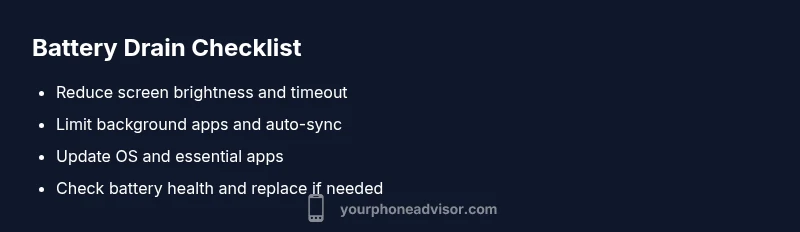
Begin with the simplest checks, because they solve most cases quickly. Enable a power-saving mode if available, reduce screen brightness, and shorten screen timeout. Close apps you aren’t using, and check for lingering background activity. Update your operating system to the latest version, as updates often include power management improvements. Disable nonessential features like push email, location services, and always-on display if you don’t need them. Finally, review your most power-hungry apps and consider removing or restricting them temporarily to test impact.
Common culprits: screen-on time, apps, and battery health
Three broad factors drive rapid drain: (1) screen-on time (SOT) is the biggest consumer; (2) apps running in the background or starting on boot; (3) battery health and charge cycles. High SOT can be reduced by lowering brightness, enabling adaptive brightness, and using dark mode where appropriate. Power-hungry apps—navigation, messaging with rich media, or games—should be checked for updates or alternatives. Aging batteries lose capacity over time, causing disproportionate drain under normal use. Your Phone Advisor analysis shows how these patterns typically interact to accelerate drain, especially on devices older than a few years.
How to test battery health and identify rogue apps
A structured test helps pinpoint the root cause. Start by running a battery health check if your device supports it (or use built-in diagnostics). Note your battery percentage drop over a fixed interval with the phone idle vs. active. If you can reproduce heavy drain while performing a simple task, the culprit is likely software. Examine which apps consume the most power in the last 24 hours or 7 days in the battery usage screen. If a single app dominates, try updating, limiting its background activity, or uninstalling it to assess impact.
Fixes you can implement today: step-by-step actions
Apply practical fixes in order of ease and impact: (1) enable Battery Saver and reduce refresh rates; (2) turn off unnecessary features (GPS, Bluetooth, background fetch); (3) update apps and OS; (4) review and restrict background activity for top offenders; (5) consider limiting push notifications and email fetch intervals; (6) if battery health is degraded, plan for a professional battery test or replacement. Small changes add up to meaningful gains in a day or two.
When to seek professional help and what to expect
If your device still dies quickly after trying the basics, you may be facing aging hardware or a faulty battery. A technician can run definitive battery diagnostics, verify charging circuitry, and replace the battery if necessary. Seek professional help sooner for devices under warranty or if you notice swelling, unusual heating, or corrosion around the charging port. Document the symptoms and fixes you’ve tried to speed up the service.
Prevention: long-term habits to extend battery life
Adopt habits that reduce wear over time. Use charging between 20% and 80% when possible, avoid frequent full discharges, and keep software up to date. Limit apps that run in the background and disable nonessential permissions. Monitor your battery health periodically and replace the battery before it becomes a performance bottleneck. The Your Phone Advisor team emphasizes consistent maintenance to prolong life and performance.
Steps
Estimated time: 30-45 minutes
- 1
Open Battery Settings
Navigate to Settings > Battery to see a breakdown of usage and health. Note which apps appear most demanding and whether Battery Saver is available and active.
Tip: Enable Battery Saver early to extend life during heavy usage. - 2
Reduce screen impact
Lower screen brightness, enable adaptive brightness, and shorten screen timeout. Consider enabling dark mode if supported by apps and system.
Tip: Small brightness changes can have a big effect over a day. - 3
Triage apps in the background
Go to Settings > Apps > Battery and restrict background activity for top culprits. Uninstall or disable apps that you don't use regularly.
Tip: Some apps push notifications even when idle; adjust their permissions. - 4
Update and optimize
Update OS and essential apps. Updates often include power efficiency improvements and bug fixes that reduce drain.
Tip: Set apps to update automatically only on Wi-Fi to save data and energy. - 5
Check connectivity features
Limit GPS, Bluetooth, and background syncing if you don’t need them constantly. Disable push email fetch if not urgent.
Tip: Location services can be a silent drain; review by app. - 6
Assess battery health
Run a battery health check if available or visit a service provider for diagnostic tests. If capacity is significantly reduced, plan for replacement.
Tip: Swollen batteries are dangerous—seek professional help immediately.
Diagnosis: Phone drains rapidly even with moderate use
Possible Causes
- highHigh screen-on time and brightness
- highBackground apps consuming power
- mediumAging battery with reduced capacity
- lowSoftware issues after an update
Fixes
- easyEnable Battery Saver and reduce screen brightness
- easyClose or disable power-hungry background apps
- easyUpdate OS and apps to the latest version
- mediumTest battery health and consider replacement if needed
- hardReset settings or perform a clean OS reinstall as a last resort
Got Questions?
Why does my battery drain faster after a software update?
Software updates can introduce new features that consume more power or reveal existing inefficiencies. Check for subsequent patch notes and update apps to fix known issues. Reboot after updates to ensure changes take effect.
Updates can change power use. If battery drains faster after an update, check for app updates and reboot to apply changes.
Do apps running in the background really drain battery?
Yes. Background processes can wake the device, fetch data, and push notifications, which consume power. Review background activity in settings and restrict or uninstall power-hungry apps.
Background apps do drain battery. Limit those that you don’t need running all the time.
Should I always disable location services to save power?
Disabling location helps, but not always practical. Use precise location only when needed and grant location access per app. Consider using device-wide location settings for power-conscious options.
Turn off location when you don’t need it, and limit apps with location access.
Is battery replacement worth it for an old phone?
If the battery health is significantly degraded and the phone otherwise meets your needs, replacement can extend its life at a lower cost than buying a new device. Compare replacement cost with a new phone’s benefits.
Battery replacement can be cost-effective if the device otherwise meets your needs.
How can I check battery health on iPhone vs Android?
iPhone shows Battery Health in Settings > Battery. Android devices vary by manufacturer—check Battery or Diagnostics sections in Settings. If health is poor, consider replacement or professional evaluation.
Many phones show health in Settings; check there or consult your manufacturer’s docs.
Why does my phone get hot and drain battery fast?
Heat accelerates chemical reactions inside the battery, increasing wear and accelerating drain. Keep the device out of direct sun, remove heavy cases during charge, and close heat-generating apps.
Overheating can drain battery faster; cool the device and reduce heavy tasks while charging.
Watch Video
What to Remember
- Identify and reduce top power drivers quickly
- Update software to fix drain issues
- Prioritize battery health testing when changes fail
- Apply daily habits to slow aging
- Seek professional help for hardware issues