When to Change Your Phone Battery: A Practical Guide
Learn clear signs your battery needs replacement, how to check health on iPhone and Android, replacement options, costs, and tips to extend life. Your Phone Advisor walks you through safe, practical steps for a healthy device.


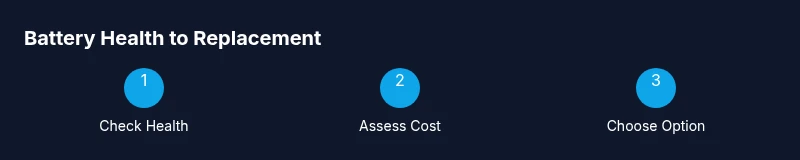
Change your phone battery when you notice rapid drain, unexpected shutdowns, swelling, or significantly longer charging times. Start by checking battery health in Settings or using a diagnostic tool, then assess whether replacement is cost-effective compared to a new device, especially considering your device’s age and planned usage.
Why battery health matters
Battery health directly affects a phone's performance, reliability, and longevity. When the battery can no longer hold a full charge, you may experience slower apps, unexpected shutdowns, and reduced resale value. According to Your Phone Advisor, understanding battery health helps you decide whether to repair or replace, optimizing both safety and cost. A degraded battery can also impact features like peak performance mode and battery optimization settings, leading to a cycle of reduced efficiency if left unattended. Keeping track of health helps you plan ahead for replacements and stay within your budget.
Signs you may need a replacement
Look for rapid battery drain that isn’t explained by heavy app use, unexpected shutdowns even when the gauge shows some charge left, and longer times to reach a full charge. Swelling or bulging of the device is a critical safety warning and requires immediate action. If you notice inconsistent battery calibration, apps closing mid-use, or the phone becoming unusually warm under normal load, it could indicate aging cells. These signs aren’t always irreversible, but they typically warrant a battery health check and a cost assessment for replacement.
How to check battery health on iPhone and Android
On iPhone: go to Settings > Battery > Battery Health to view Maximum Capacity and Peak Performance Capability. On many Android devices, navigate to Settings > Battery > Battery Health or Diagnostics, or use a reputable third-party app for a deeper read. In both ecosystems, if the health metric is poor or the device experiences frequent shutdowns, consider replacement options. Note that software updates can influence battery reporting, so running a fresh battery diagnostic after an update can provide a clearer picture. Regular checks help you decide before performance issues escalate.
Replacement options: OEM vs third-party
OEM replacements (web or in-store) usually preserve the device’s warranty status and original performance characteristics, but can be pricier. Third-party batteries can be cheaper, but quality varies, and some providers may void warranties or offer limited guarantees. If your device is still under warranty, check the manufacturer’s policy on battery service, as many brands offer free or discounted replacements under certain conditions. For older devices, a reputable service center can offer a balanced option between cost and reliability.
Cost considerations and when it's worth it
DIY replacement kits for common phones can be affordable, often in the tens of dollars, but require careful handling to avoid damage. Professional battery replacement services typically range more widely, depending on model and region. When the battery replacement price approaches or exceeds the cost of a newer model with improved efficiency and features, it may be time to upgrade. Remember to factor in potential downtime without a phone and any data-transfer needs when weighing replacement versus upgrade.
Extending battery life to delay replacements
Adopt practical habits to stretch battery life: reduce screen brightness, enable adaptive brightness, limit background app activity, and disable power-hungry features when not needed. Use fast charging sparingly to minimize heat, and avoid charging from 0% to 100% too often; keeping the charge between roughly 20% and 80% can reduce wear. Temperature matters—high heat accelerates chemical aging, so avoid leaving the device in hot cars or direct sunlight. These steps won’t repair aging cells, but they can delay the next replacement and improve daily experience.
Step-by-step: how to replace a phone battery yourself (where allowed) or prepare for service
- Power off the device and disconnect any peripherals to prevent short circuits. 2) Open the back cover or frame using appropriate tools, taking care not to crack glass or pry connectors. 3) Disconnect the battery connector safely with a non-metallic tool, then lift out the old pack. 4) Clean contacts and inspect for swelling or damage before installing a new battery. 5) Reconnect the battery and reassemble the device, ensuring seals and screws are secure. 6) Power on and run a battery health test to confirm proper operation. 7) Calibrate the new battery by charging to 100% and then using normally until around 20%, then charging again. 8) Dispose of the old battery at an approved recycling center. 9) If you’re unsure, seek professional service—missteps can cause permanent damage or safety risks.
Safety and warranty considerations
Swollen batteries pose a real fire hazard and require immediate attention; do not puncture or press on swollen cells. If your device is under warranty or Apple/Samsung care, check eligibility for free or discounted service before attempting DIY replacement. Work in a clean, dry environment and follow manufacturer-recommended procedures. If you notice heat, smoke, or a persistent odor after replacement, seek professional help immediately.
What to do with a dying battery: recycling and data safety
Backup your data regularly so you don’t lose information during a battery replacement or device upgrade. When the battery reaches end-of-life, recycle it through an approved facility rather than throwing it in the trash. If you replace the battery, perform a factory reset only if you’re handing the device to another user and have already backed up data. This protects your privacy and helps ensure a smooth transition.
Authoritative sources
- Official guidance on device batteries: https://support.apple.com
- Consumer protection tips: https://www.ftc.gov
- Battery basics and safety: https://www.nist.gov/topics/batteries
Tools & Materials
- Replacement battery compatible with your phone model(Check exact model number and vendor reputation; prefer OEM or reputable third-party suppliers)
- Screwdriver set (Torx/Phillips)(Phone-specific sizes; avoid using improvised bits that could strip screws)
- Plastic opening tools and spudger(Non-conductive, to avoid short circuits)
- Adhesive strips or tape(For resealing the battery and back cover; ensure compatibility with your device)
- Suction cup(Helpful for prying stubborn screens without damage)
- Nitrile gloves(Keeps oils from fingers off internal components)
- Isopropyl alcohol wipes(For cleaning contacts and surfaces prior to installation)
- Anti-static mat or wrist strap(Reduces risk of electrostatic discharge)
Steps
Estimated time: 1-2 hours
- 1
Power off and prepare
Power down the device completely and remove the SIM tray to access internals. This reduces risk of short circuits during disassembly. Gather tools and work in a clean, dry area.
Tip: Keep track of all screws by size and location; take photos as you go. - 2
Open the casing
Carefully separate the back cover or screen frame using plastic tools. Work slowly to avoid bending or cracking. If adhesive is stubborn, apply gentle heat with a hairdryer or specialized tool.
Tip: Do not pry with metal tools; they can damage delicate connectors. - 3
Disconnect the battery
Locate and disconnect the battery connector from the motherboard. Use a non-metallic tool to avoid sparking. Ensure all cable ties and shields are static-free before removal.
Tip: Work in a well-lit area and avoid bending any flex cables. - 4
Remove the old battery
Lift the old battery gently; if it sticks due to adhesive, use a controlled application of isopropyl-alcohol-soaked tools or pull tabs if present. Do not puncture or crush the cell.
Tip: Dispose of the old battery properly at a recycling facility. - 5
Inspect and prepare
Inspect battery compartment for corrosion, swelling, or debris. Clean contacts and remove grime to ensure a solid connection with the new battery.
Tip: If swelling is present, stop and seek professional service immediately. - 6
Install the new battery
Place the new battery, reconnect the connector firmly, and reassemble shielding and cover. Confirm that all clips snap into place and screws are tightened to manufacturer torque specs.
Tip: Do a quick visual check for any loose wires before final closure. - 7
Power on and test
Power the device on and monitor boot behavior. Run a quick battery test and observe charging behavior. If the device doesn’t boot, recheck connections.
Tip: Calibrate the battery by charging to 100% and using normally to 0-5% once or twice. - 8
Data and reset considerations
If giving the device to another user, back up data and consider a factory reset. If you’re keeping the device, reconfigure settings and reinstall apps as needed.
Tip: Backups before replacement prevent data loss from any unexpected issues. - 9
Dispose responsibly
Take the old battery to an approved recycling facility or retailer that accepts used batteries. Do not discard in household trash.
Tip: Verify local regulations for battery recycling in your area.
Got Questions?
What are the clear signs that my phone battery needs replacement?
Common signs include rapid battery drain, unexpected shutdowns, swelling, and unusually long charging times. If these occur, run a health check and compare to your device’s age and usage to decide on replacement.
If you notice fast draining, random shutdowns, swelling, or long charging times, you likely need a battery check and possibly a replacement.
Can I replace a phone battery myself?
DIY replacement is possible for some phones with accessible internals and proper tools, but it carries safety risks and may affect warranties. If you’re unsure, a professional service is safer.
DIY replacement is possible for some models, but it can be risky. If you’re not confident, seek professional service.
Will replacing the battery affect water resistance?
Opening the device can impact water resistance; only reseal with correct materials and manufacturer guidance. Professional replacements often preserve the seal better.
Opening the device can reduce water resistance, so consider professional service to maintain seals.
How much does it cost to replace a smartphone battery?
Costs vary by model and service type. DIY kits can be economical, while professional replacement prices can differ by region and device. Compare these against the price of a new device.
Costs depend on model and service; compare DIY and professional options against buying a new phone.
Should I replace my battery if the phone still works?
If the device dies suddenly or performance suffers, replacing the battery can prevent data loss and improve reliability. It’s often worth addressing early rather than waiting for a failure.
Even if it still works, sudden shutdowns or poor performance are signs to consider replacement.
How long does a replacement battery last?
A replacement battery’s lifespan varies by usage, charging habits, and device design. With good care, you can maintain healthy performance for a couple of years.
With proper care, a replacement battery can last several years, depending on usage.
Watch Video
What to Remember
- Assess battery health before replacement.
- Choose OEM or reputable replacements for safety and warranty.
- Weigh replacement cost against upgrading to a newer model.
- Recycle old batteries properly and protect data.