Why Do Phone Chargers Stop Working? A Practical Troubleshooting Guide
Learn why phone chargers stop working and how to diagnose and fix common issues—from cables and ports to software glitches. This step-by-step guide helps you get back to reliable charging fast.


Most charging problems stem from a worn cable, a dirty or damaged port, or a weak adapter. Start with a simple test: unplug, try a known-good charger and cable, and inspect the port for lint or corrosion. Re-seat connections, then reboot the device and retry charging. If it still fails, move to more advanced checks.
Why Chargers Stop Working
Charging problems are rarely mysterious. If you're asking why do phone chargers stop working, the answer is usually a mix of physical wear, debris, and connection issues. The Your Phone Advisor team has found that the most common failures happen at three points: the cable, the charging port, or the power source. Start with a quick visual check and simple tests to rule out obvious culprits. Also consider whether software or battery health might be contributing, especially if charging fails only after a system update or a long period of use. By isolating each component, you can identify the underlying cause without discarding your device or expensive replacements. In many cases, replacing a frayed cable or cleaning a port can restore full charging functionality and extend battery life for several months to years. This approach keeps you in control and minimizes downtime while keeping safety top of mind, a principle emphasized by the Your Phone Advisor team.
Common Culprits (Cables, Adapters, Ports)
Cables wear out first; the flex point near the connector is particularly vulnerable. If the cable has visible creases, kinks, or frayed insulation, replace it. Adapters can fail from heat exposure or poor construction, especially if you often charge through a surge protector or a cheap third-party brick. Charging ports collect lint, dust, or corrosion, especially if the phone sits on a desk or in a pocket. To spot these, wiggle the connector gently, inspect for discoloration, and check if charging stops when you move the plug slightly. For each culprit, describe how to spot signs and what to do next. Remember to test with a known-good charger to confirm whether the issue travels with the cable or stays with the device.
Quick Checks You Can Do Right Now
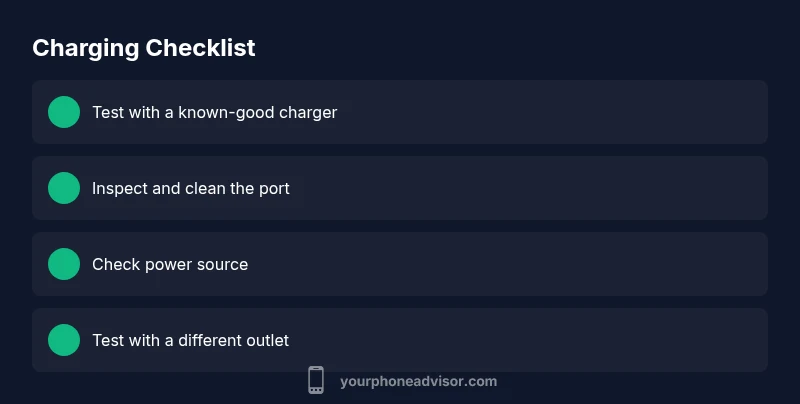
Before you disassemble anything, run through a fast checklist to rule out obvious faults. Use a charger and cable that you know work with another device. If the device charges, the problem may be the charger or port on the first device. Plug into a different wall outlet or a powered USB port to rule out a weak power source. Ensure the cable connections are snug and not loose. If the phone charges while off but not when on, this hints at a software setting or background process that interferes with charging.
Cleaning and Maintenance Safely
A clean port is critical for a reliable connection. Power off the device before cleaning. Use a soft-bristled brush or a can of compressed air to remove lint and dust from the port; never use metal objects that can bend pins or cause short circuits. If you see corrosion, stop and seek professional help rather than attempting deep cleaning. Keep charging areas dry and free from moisture, and avoid leaving devices on soft surfaces that shed fibers into the port. Regular, gentle cleaning can prevent most port-related failures and extend the life of both cable and device.
Software, Battery Health, and Settings
Software can interfere with charging, especially after updates or in power-saving modes. Check for a pending OS update and install it, then reset charging-related preferences if your device has a battery or device care section. Battery health matters; as cells age, charging efficiency drops and the device may display a “slow charging” message or refuse to charge beyond a certain percentage. If battery health is poor, a replacement may be the most cost-effective fix. Always back up data before major software changes or battery replacement.
When to Seek Professional Help
If you cannot identify the culprit after a thorough at-home check, or if the port shows visible damage, seek professional service. A tech will test the charger circuitry, port pins, and battery health with calibrated equipment. Professional replacement is often safer and more cost-effective than repeated DIY fixes, especially for newer models with sealed batteries. The Your Phone Advisor team recommends visiting an authorized service center if you’re unsure about performing inspections beyond basic cleaning.
Steps
Estimated time: 45-60 minutes
- 1
Gather a known-good charger and cable
Collect a charger and cable that are known to work with another device to avoid chasing a faulty accessory. This helps you confirm whether the problem is with the charger or the device itself.
Tip: Prefer OEM or certified accessories to reduce risk. - 2
Test charging with the known-good setup
Connect the charger and cable to the device and observe the charging indicator. If it starts charging, the issue lies with the original accessory. If not, proceed to the next checks.
Tip: Try several outlets in case the wall socket is the issue. - 3
Inspect the charging port
Use a bright light to inspect the port for lint, dust, or bent pins. If you see debris, clean gently with a soft brush or compressed air. Avoid metal objects which can cause damage.
Tip: Do not insert anything that could bend the pins. - 4
Check for software interference
Restart the device and check charging behavior in safe mode (if available). Update the OS, and review any battery optimization settings that might prevent charging during certain states.
Tip: Back up data before performing major updates. - 5
Try a different power source
Plug the charger into another outlet or a powered USB port. If charging starts, the original outlet or power strip may be the culprit.
Tip: Avoid surge-protected or low-power strips for critical charging. - 6
Evaluate battery health and adapter quality
If charging remains inconsistent, evaluate battery health and consider replacing the cable, adapter, or battery if advised by a technician.
Tip: Battery replacement should be done by a professional for safety. - 7
Seek professional assistance
If the issue persists after all steps, contact an authorized service center for a thorough diagnostic, especially if the device is still under warranty.
Tip: Keep receipts and warranty information handy.
Diagnosis: Phone won't reliably charge or charges intermittently
Possible Causes
- highWorn or frayed charging cable
- highDamaged or dirty charging port (lint, dust, corrosion)
- mediumFaulty wall adapter or USB power brick
- lowSoftware issue preventing charging
- lowBattery health nearing end of life
Fixes
- easyTry a different charger and cable that you know works
- easyInspect and clean the charging port safely with a soft brush or compressed air
- easyReplace the wall adapter with a certified charger
- mediumUpdate software and reset charging preferences if available
- hardIf battery health is degraded, consider replacement or professional service
Got Questions?
Why does my phone charge sometimes and then stop?
Intermittent charging is usually caused by a loose connection, debris in the port, or a faulty cable. Check and replace cables, clean the port safely, and test with a known-good charger. If it persists, consider software or battery health issues.
Intermittent charging is usually from a loose connection, debris in the port, or a bad cable. Try a different charger and clean the port, then test again.
Can a dirty charging port cause charging to fail completely?
Yes. Lint or corrosion can block the connection, making charging unreliable or impossible. Clean the port carefully and retest with a known-good charger.
A dirty port can stop charging; clean it gently and try again with a good charger.
Does battery health affect charging?
Battery health impacts charging efficiency and health; aging cells may charge slowly or stop charging at certain levels. If the battery health is degraded, replacement may be necessary.
Yes, old batteries can affect charging; replacement may be needed.
Is charging via a computer USB port safe?
Charging from a computer USB port is possible but usually slower and may supply less power than a wall outlet. Use a wall charger for faster and steadier charging when possible.
USB ports on computers work, but they’re slower; use a wall charger for speed.
When should I replace my charger?
Replace when the cable shows visible wear, the connector feels loose, or the charger overheats. Always opt for certified accessories to avoid safety risks.
Replace a worn or overheating charger with a certified one.
What should I do if software updates don’t fix charging?
If updates don’t help, reset charging settings or perform a factory reset as a last resort after backing up data. If the issue remains, seek professional service.
Software usually helps, but if it doesn’t, consider a reset and professional service if needed.
Watch Video
What to Remember
- Test with a known-good charger first
- Inspect and clean ports safely
- Use certified accessories to avoid damage
- Software and battery health can affect charging
- Seek professional help when in doubt