Where Are My Downloads from My Phone? Find & Organize
Learn where downloaded files live on Android and iPhone, how to access them, move them, and keep your files organized. This guide covers locating, organizing, and securing downloads across platforms.


Goal: Find exactly where your phone stores downloaded files and how to access or relocate them. This guide covers both Android and iPhone paths, common storage locations, and how to organize downloads for easy future access. You’ll learn step-by-step how to locate, open, move, rename, and back up downloads, plus quick tips to stay organized and secure.
Where downloads live on mobile devices
Downloads are stored in different locations depending on your device, app, and browser. On Android, many apps route files to a system Downloads folder, but some apps save directly to their own folders within internal storage. On iPhone, Safari and most apps save to the Files app, typically under On My iPhone or iCloud Drive. The exact path isn't always obvious because apps can manage their own internal downloads, and cloud syncing can move files out of view. The practical approach is to learn the common default folders, then use the device-wide search when needed. This lets you locate almost any downloaded file, from PDFs to media, receipts to installation packages.
Android: locate downloads quickly
"Android" devices typically store downloads in a standard Downloads folder. Start by opening the Files app or a browser’s built-in downloads page. Look under Internal storage or /sdcard and navigate to Download or Downloads. If you cannot find it there, use the search bar to locate by file type (pdf, mp4, jpg) or by a known filename. Some apps save to their own folders (e.g., AppName/Downloads), so you may need to explore a couple of locations. Remember that cloud-synced files can appear in cloud apps rather than device storage, depending on your settings.
iPhone: locate downloads quickly
On iPhone, most downloads go to the Files app. Open Files and check locations like On My iPhone and iCloud Drive, then browse the Downloads or Recently Deleted folders. Safari downloads show up in the Downloads folder, while other apps may keep files in their own app-specific directories. Use the Files search to locate items by name or extension, and consider enabling iCloud Drive for automatic syncing across devices.
Organizing downloads across platforms
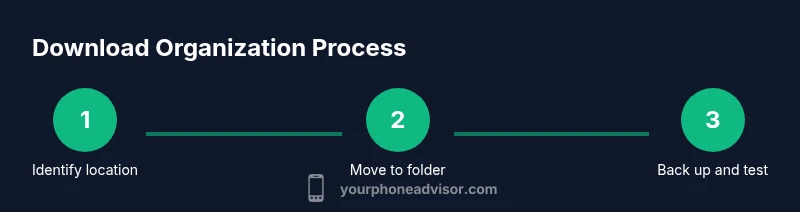
Create a central organization system that works across both platforms. Common strategies include a top-level “Downloads” folder with subfolders by type (Documents, Images, Media, Receipts) and a naming convention (YYYY-MM-DD_description.ext). Regularly back up important files to cloud storage (iCloud, Google Drive, OneDrive) or a computer, and avoid leaving sensitive documents in public locations. Consistency makes future retrieval faster and reduces clutter.
Troubleshooting common issues when locating downloads
If you can’t find a file, start with a device-wide search by filename or extension. Some apps save to private folders or require you to export/download again. Check the app’s own settings for a default save location, and ensure you have permission to access the storage area. If a file was downloaded in a private or incognito session, it may be harder to locate later. For missing items, review your cloud backups or the trash/recently deleted area in the Files app.
Security and privacy considerations for downloaded files
Downloads can carry risks, especially from unknown sources. Always scan files with a trusted antivirus on Android, and avoid opening executable or suspicious files. On iPhone, iOS security features help sandbox downloads, but you should still verify sources and keep your device updated. Regularly review permissions for each app that saves files and avoid saving sensitive documents in unsecured folders.
Best practices and quick routines to stay organized
Set a weekly reminder to tidy downloads, rename files with a clear format, and move them to corresponding folders. Use cloud backups to protect important items, and enable automatic syncing for critical folders. If you frequently download from multiple apps, duplicate workflows (one folder for each app) to reduce search time and improve access speed. By maintaining a simple, consistent structure, you can always locate what you need within seconds.”
Tools & Materials
- Smartphone with internet access(Essential in most cases to browse and access files)
- File manager app (Android Files / iOS Files)(Use built-in app to locate and manage downloads)
- Cloud storage account (optional)(Backup and sync important files (e.g., iCloud, Google Drive))
- Computer with USB cable or cloud sync(Transfer or back up files to a computer)
- Email or messaging app (optional)(Share or back up sensitive files securely)
Steps
Estimated time: 20-25 minutes
- 1
Open the right app
Start by opening the app that saved the file. On Android, downloads from browsers typically land in the Downloads folder; on iPhone, Safari downloads may appear in the Files app. Opening the source app narrows your search path and reduces confusion.
Tip: If you can’t find it, try the system search for the file name. - 2
Check the default downloads folder
Locate the standard Downloads folder in the Files or My Files app. This is the default location for many apps and browsers. Confirm by browsing or using the search feature for common extensions like .pdf, .jpg, or .zip.
Tip: Use the filter by type (documents, images, videos) to speed up the search. - 3
Use search to pinpoint files
If you know the file name or type, leverage the built-in search in the Files app or the device-wide search. On Android, you can search in the Downloads folder or in the Files app; on iPhone, search in Files and in Safari's download list.
Tip: Search by file extension to catch misnamed items. - 4
Move files to a dedicated folder
Create a named folder (e.g., Downloads/Archived or Documents/Receipts) and move relevant files there. This prevents clutter in your Downloads folder and makes future retrieval easier.
Tip: When moving, preserve the original file if you might need it later. - 5
Rename for clarity
Rename files to a clear, consistent format (date_description.ext). This helps you recognize items without opening them. For example: 2026-03-30_PayrollStub.pdf.
Tip: Use hyphens instead of spaces for easier cross-device compatibility. - 6
Back up important downloads
Sync or back up critical files to cloud storage or a computer. If you lose the device, you’ll still have access to essential data. Ensure backups run automatically for ongoing protection.
Tip: Enable automatic backups for new files in cloud storage settings. - 7
Audit and prune regularly
Every few weeks, review downloaded files and remove duplicates or clutter. This keeps storage lean and reduces search time for future access.
Tip: Set a monthly reminder to tidy downloads. - 8
Verify security of downloaded files
Be mindful of downloaded files from unknown sources, which may contain malware. Scan with a trusted antivirus app on Android or use iOS security features.
Tip: Avoid opening executables from unknown sources.
Got Questions?
Where do Android downloads usually go?
Most Android browsers save files to the Downloads folder by default. Some apps may place downloads in the app-specific directory. Use the Files app or system search to confirm.
On Android, try the Downloads folder in your Files app and use search if you can't find it.
Where do iPhone downloads go?
Safari and most apps save downloads to the Files app, typically under On My iPhone or iCloud Drive. You can also search within Files for the exact filename or type.
On iPhone, use the Files app to locate downloads, checking On My iPhone and iCloud Drive.
How can I change the default download location on Android?
Some browsers let you choose a default path, and you can move files after download. System-wide default locations are app-dependent.
You can usually pick a default download folder per browser, then move files as needed.
How do I recover a deleted download?
Check the Trash/Recycle bin in your Files app or browser, then restore the item. If not found, check cloud backups if enabled.
Look in the Files app's Recently Deleted or Trash, then restore if available.
What about downloads from private browsing?
Downloads from private or incognito modes may be limited or hidden. They typically appear in the browser's download list but may not be accessible afterward.
Private browsing downloads can be harder to locate after you close the session.
Is there a universal way to search all files?
Use your device's global search to locate files by name or extension, or search within the Files app for precise results.
Use the system search to locate downloads by filename or type.
Watch Video
What to Remember
- Know where to look first: Android uses Downloads; iPhone uses Files.
- Use built-in search to quickly locate files by name or type.
- Move and rename for future ease of access.
- Back up important files to cloud or computer.
- Regular tidy saves time and reduces clutter.