Troubleshooting: phone won't scan qr code
If your phone won't scan qr code, learn practical fixes for camera, lighting, permissions, and apps. This step-by-step guide helps you diagnose and resolve common QR scanning issues fast with tips from Your Phone Advisor.


Most often, a phone won't scan QR codes due to a camera issue, poor lighting, or a blocked lens. Start with a clean lens in good light, then retry with another QR code. If it still fails, update the camera app or use a trusted QR scanner, and check for software updates or permissions.
Why QR scanning can fail on phones
According to Your Phone Advisor, most QR scan problems begin with the camera pathway rather than the code itself. The Your Phone Advisor team found that small issues—like a dirty lens, poor lighting, or glare—account for the majority of failed scans. In many cases, the remedy is quick and practical: fix the camera condition, improve the environment, and retry. Always consider privacy and security when scanning unknown codes, and avoid codes from dubious sources. By understanding these common causes, you can approach fixes with confidence rather than fear of data leakage.
Quick checks you can do right now
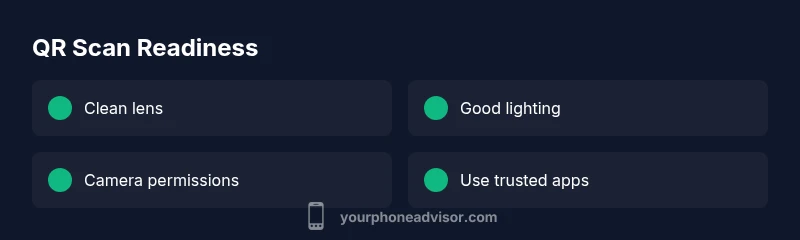
Before you dive into deeper settings, run a few fast checks. First, inspect the camera lens for fingerprints or smudges and wipe gently with a microfiber cloth. Second, improve ambient lighting—stand near a natural light source or move to a well-lit area. Third, verify that the QR scanning app has camera permission enabled in the system settings. Fourth, test with a different QR code to see if the problem is code-specific. If you notice that the camera app works but the scanner fails, the issue is likely tied to the scanning app rather than the device camera itself.
Understanding lighting and lens quality
Lighting and lens quality are often the culprits. Dim light reduces autofocus accuracy, while glare can wash out contrast, making codes unreadable. Clean the lens, avoid filming reflections, and position the code at a 45-degree angle if glare is present. Use brighter environments and let the camera focus on the code for a moment before scanning. If you still struggle, try moving the code closer or farther away to find the optimal focus range for your device.
App vs. system camera: how to distinguish
If one app scans successfully but another does not, the issue is likely app permissions or software rather than hardware. Check every QR scanner's permissions, and compare behavior with your device's built-in camera app. Clearing cache or reinstalling the app can also help, especially after a recent update. If the built-in camera can read codes but a third‑party app cannot, the problem likely lies with that particular app’s configuration.
Damaged or low-contrast codes
Not all QR codes are created equal. A damaged, distorted, or low‑contrast code can fail to scan even on high‑end phones. Try codes from reliable sources, or generate a fresh code using a trusted generator. If you must rely on a printed code, ensure it's not damaged and is large enough for the camera to read. When codes fail repeatedly across devices, the issue may be the code itself rather than the hardware.
Step-by-step quick-fix mindset
When a scan fails, work through a small checklist rather than random fiddling. Start with basic lens cleaning and lighting, then verify permissions, followed by app updates. If none of these fix it, test a different device or a different QR generator. This structured flow reduces frustration and speeds up resolution. Remember that consistency beats guesswork with QR codes.
When to seek professional help
If your camera focuses but still won't scan, or if you notice hardware issues (like a blurry image or camera failure in other apps), professional help may be needed. A technician can inspect the camera module or perform a broader device diagnostic. Your Phone Advisor recommends contacting official service centers when the device is under warranty or if data risk is present. A professional check can save time and prevent data loss.
Prevention: keep QR scanning reliable
Preventive steps reduce future failures. Keep software up to date, maintain camera hardware, and limit background apps that may interfere with camera performance. Use reputable QR apps and avoid scanning from suspicious sources. Regular device reboots can help stabilize camera performance on many devices. Additionally, enable automatic updates for your camera and scanning apps to minimize recurrence.
Steps
Estimated time: 15-25 minutes
- 1
Test with another QR code
Open a known-good QR code (e.g., a website share link) and attempt to scan. If it works, the original code may be faulty or damaged. If it fails again, move to the next step.
Tip: If you can't access a second code, ask for a fresh code from the source. - 2
Clean the lens and improve lighting
Power off briefly, wipe the lens with a clean microfiber cloth, and scan under bright, indirect light. Avoid reflections from screens or glass. Re-center the code and hold the phone steady.
Tip: A small shift in distance (about 6-12 inches) can make a big difference. - 3
Check app permissions
Go to your phone’s settings and confirm that the QR scanning app has camera access. If permissions were revoked, re-enable them and retry. Some devices require you to grant permission on the first scan prompt.
Tip: If permissions keep resetting, try reinstalling the app. - 4
Update software and apps
Update your device OS, the camera app, and the QR scanner app to the latest versions. Restart after updates and test scanning again. Updates often fix autofocus and decoding issues.
Tip: Enable automatic updates for future resilience. - 5
Try a different scanning method
If you have a built-in scanner, try it; if not, install a reputable third-party scanner. Some apps preserve better focus in challenging lighting. Compare results across apps.
Tip: Choose apps from trusted developers to protect data privacy. - 6
Evaluate the code source
If the problem occurs only with one code, verify its quality—low contrast, distortion, or printing errors can prevent scanning. Generate a fresh code from a trusted source and test.
Tip: For printed codes, ensure the print size is large enough for your camera.
Diagnosis: Phone won't scan QR code
Possible Causes
- highCamera lens dirty or smudged
- highPoor lighting or glare
- mediumIncorrect app permissions or disabled camera
- lowOutdated camera or QR scanning app
- lowCode is damaged or low contrast
Fixes
- easyClean the camera lens with a microfiber cloth
- easyIncrease ambient lighting and avoid glare
- easyCheck camera permissions for the app used to scan
- easyUpdate the camera app and any QR scanner app
- easyTry a different QR code to rule out code problem
Got Questions?
Why won't my phone scan QR codes at all?
Most issues are environmental or permissions-based. Check lens cleanliness, lighting, and ensure the scanner app has camera access before exploring more complex fixes.
Most QR scan failures are environmental. Check the lens, lighting, and camera permissions first.
Can a damaged QR code cause scanning to fail?
Yes. A damaged or low-contrast code may fail to scan even on a good phone. Try a fresh code from a trusted source or generate a new one.
A damaged code can fail to scan; try a new one from a trusted source.
Does scanning require internet access?
Decoding a QR code is typically offline, but some apps fetch additional data after scanning. If the code is blank or directs to a web link, internet access may be required to complete the action.
Decoding is usually offline, but follow-up actions may need internet.
What should I do if one app scans but another doesn’t?
Check permissions for the non-working app, update it, and compare behavior with the built‑in camera or another scanner. A reinstall often resolves app-specific issues.
Check permissions and updates; reinstall if needed.
Is there a difference between front and rear cameras for scanning?
Rear cameras generally scan better due to higher resolution. Use the back camera for QR codes when possible, and ensure you have space to steady the device.
Rear cameras usually scan better; use the back camera when possible.
When should I seek professional help?
If the camera focus is inconsistent across apps or codes, or you notice hardware issues like persistent blur, contact a service center, especially if your device is under warranty.
Seek professional help if focus is inconsistent or hardware seems faulty.
Watch Video
What to Remember
- Start with lens cleaning and lighting improvements
- Check app permissions before deeper fixes
- Update software to resolve decoding issues
- Test multiple codes and apps to isolate the cause
- Seek professional help if hardware appears faulty