Phone Is Going Straight to Voicemail? Immediate Troubleshooting Guide
An urgent, practical guide for when your phone goes straight to voicemail. Follow a logical diagnostic flow, quick checks, and step-by-step fixes with expert tips from Your Phone Advisor.


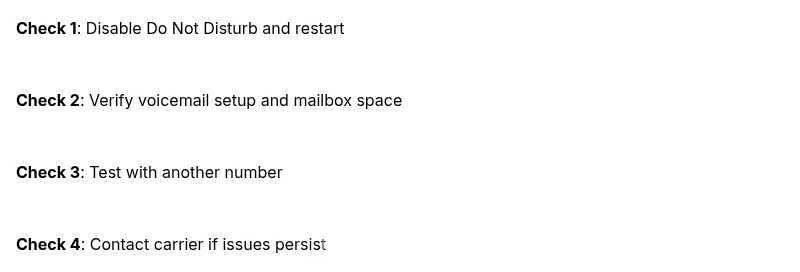
Most likely, phone calls are routing to voicemail due to Do Not Disturb, network issues, or an unconfigured voicemail box. Start with a quick 2-minute check: disable Do Not Disturb, restart your phone, and ensure voicemail is set up and not full. If calls still go to voicemail, test with another number and contact your carrier for next steps.
Why the Issue Happens when the Phone Is Going Straight to Voicemail
When a call goes directly to voicemail, it usually means the device, the carrier network, or the voicemail service is not routing the connection correctly. This can be caused by temporary settings like Do Not Disturb or Focus modes, a misconfigured voicemail box, or a carrier-side problem affecting how calls are connected. According to Your Phone Advisor, the most common culprits are on-device settings and voicemail setup, which you can test quickly before escalating the issue. If you notice this pattern across multiple numbers, it’s more likely a network or carrier issue. Stay calm and follow a systematic check: you can usually fix most cases without visiting a store.
- Quick tip: keep a log of the steps you take and the results to share with support.
Quick Checks You Can Do Right Now
Start with the simplest fixes first. These checks address the most frequent causes and can be completed in just a few minutes. Power off the phone, turn it back on, and verify that Do Not Disturb or Silence Unknown Callers is not enabled. Ensure Airplane Mode is off and you have a stable cellular connection. Check that the voicemail box is configured and not full. If you rely on Visual Voicemail, verify its settings and permissions. Then try placing a call from another number to see if the issue persists. Your Phone Advisor notes that consistency across numbers often points to a carrier/network issue rather than a single contact.
Carrier and Network Considerations
If the on-device fixes don’t resolve the problem, the issue may lie with the carrier or the network. Check for any service outages in your area and verify your account status (paid/unpaid, restrictions, or voicemail plan). Sometimes, network upgrades or provisioning delays can cause temporary voicemail routing anomalies. Checking SIM seating and attempting a network reset (without losing data) can help determine if the issue is SIM or network-related. Your Phone Advisor analysis shows that many voicemail routing problems resolve after a quick carrier refresh or a SIM re-seat.
Device-Specific Pathways to Fixes
Android and iOS devices handle voicemail differently, so follow the device-specific steps. On iPhone, ensure that Voicemail and Visual Voicemail are enabled, and that Silence Unknown Callers is disabled if you expect calls from unfamiliar numbers. On Android, clear the Phone app cache, check the Voicemail app settings, and confirm that there are no conflicting call-forwarding rules. If you recently installed a software update, there can be a temporary glitch that a simple reboot or a reset of network settings fixes.
When to Seek Professional Help and How to Prevent Recurrence
If none of the steps restore normal call routing, contact your carrier for a network check or voicemail provisioning review. Schedule a visit to a carrier store if necessary, as there may be account-level settings or provisioning errors that require their tools to resolve. To prevent future issues, periodically review voicemail settings, keep your OS updated, and avoid enabling multiple call-forwarding rules unless you specifically need them. Regularly rebooting your device can also help maintain reliable call routing.
Steps
Estimated time: 25-40 minutes
- 1
Check Do Not Disturb and Silent Modes
Open Control Center/Settings and confirm Do Not Disturb is OFF. If you use Focus modes, ensure they aren’t blocking all calls. Then restart the phone to apply changes.
Tip: Tip: After disabling DND, test a call from another number immediately. - 2
Review Voicemail Setup
Go to the Phone app, open Voicemail, and confirm the mailbox is set up. Delete old messages if space is limited and verify you can access voicemail from a different line.
Tip: Tip: If you see a 'Mailbox not set up' alert, complete the setup wizard. - 3
Test Network and SIM Health
Toggle Airplane Mode on, then off to refresh network connections. Remove and reinsert the SIM card if possible, then restart the device.
Tip: Tip: If you have an eSIM, ensure it’s active and the correct plan is selected. - 4
Check Call Forwarding and Carrier Settings
Ensure call forwarding isn’t routing all calls to voicemail. Review carrier settings to confirm voicemail is active and not disabled by plan changes.
Tip: Tip: Temporarily disable any carrier apps that modify call behavior. - 5
Cross-Device and Cross-Number Test
Place a test call from a different phone to see if the issue is isolated to one number or affects all calls. If the issue is universal, it’s likely network-related.
Tip: Tip: Log results to identify patterns (time of day, location, SIM used). - 6
Escalate if Problem Persists
If the problem remains after all steps, contact your carrier for a network check or provisioning fix. You may need a technician visit if hardware-related issues are suspected.
Tip: Tip: Document all steps and outcomes to share with support.
Diagnosis: Phone calls go straight to voicemail without ringing
Possible Causes
- highDo Not Disturb, Focus, or Silent mode enabled
- mediumVoicemail box not set up, full, or misconfigured
- lowCarrier/network issues or SIM problems
Fixes
- easyDisable Do Not Disturb/Focus, clear any silent mode settings, and restart the device
- easyVerify voicemail is configured, not full, and accessible from another line; reset mailbox if needed
- mediumCheck for carrier outages; reseat or replace the SIM; reset network settings if problems persist
Got Questions?
Why does my phone go straight to voicemail even with good signal?
This typically points to a on-device setting like Do Not Disturb or an unconfigured voicemail mailbox, sometimes coupled with a carrier issue. Start with quick checks on DND and voicemail setup, then test with another number to confirm. If the problem persists, escalate to your carrier for a network check.
Usually it's a settings or voicemail setup issue. Check DND and voicemail configuration, then test with another number; if it still fails, contact your carrier for a network check.
Can Do Not Disturb cause calls to go directly to voicemail?
Yes. Do Not Disturb can route or silence incoming calls, sending them straight to voicemail. Disable DND or adjust allowed callers, then re-test.
Yes, DND can send calls to voicemail. Turn it off or adjust allowances and test again.
What if the voicemail box is not set up?
If the mailbox isn't set up, or it’s full, callers may be sent to voicemail immediately. Set up the mailbox, delete old messages to free space, and verify access from another line.
If voicemail isn’t set up or is full, configure it and remove old messages to free space.
Could this be a carrier outage or account issue?
Yes, outages or account problems can affect call routing. Check carrier service status and your account, and contact support if you suspect provisioning issues.
Carrier outages or account problems can affect routing. Check status and contact support if needed.
Is resetting network settings a safe fix?
Resetting network settings can resolve many connection issues but will remove saved networks and passwords. Use as a last resort after other fixes fail.
Reset network settings if other steps fail, but note you’ll need to rejoin Wi-Fi networks afterward.
How can I prevent voicemail routing problems in the future?
Regularly update your OS, review voicemail settings, monitor call-forwarding rules, and check for carrier notices about outages. A quick monthly check helps avoid surprises.
Keep software updated and review voicemail and call-forwarding settings to prevent future issues.
Watch Video
What to Remember
- Diagnose in order: on-device settings, voicemail setup, then carrier issues
- Test with multiple numbers to isolate the problem
- If unresolved, involve the carrier for network provisioning
- Prevent future issues with regular updates and voicemail checks