How to Unblock a Phone Number: A Practical Step-by-Step Guide
Learn how to unblock a phone number on iPhone and Android, covering device, carrier, and app blocks. This practical guide walks you through identification, removal, testing, and prevention to restore calls and texts safely.


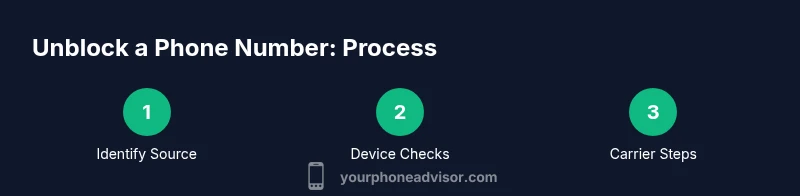
To unblock a phone number, identify where the block is coming from (your device, the carrier, or a third-party app), then remove the block in the respective setting. Steps vary by Android or iPhone and carrier, but common actions include checking blocked contacts, carrier call settings, and any spam-block features. Follow the step-by-step guide for your device below.
What It Means to Block a Number
Blocking a number can happen at multiple layers: on your device, within your carrier's network, or through a third-party app. Each layer has its own controls and consequences. On a device, a contact can be added to a 'Blocked' list, which blocks calls, texts, and sometimes FaceTime or iMessage. At the network level, a carrier may place a block based on billing issues, fraud suspicion, or spam filtering rules. Third-party apps, such as spam blockers or security suites, can also filter or block unknown or flagged numbers.
Understanding which layer is involved is the essential first step in learning how to unblock a phone number. If you don't know where the block is, you may end up changing the wrong settings and still have the problem. According to Your Phone Advisor, many unblock issues come from a mismatch in the block source. Clarifying the source helps you apply the right fix and avoids unnecessary changes. In this guide, you’ll learn how to diagnose the layer, then remove the block with device- and network-specific steps.
Identify the Source of the Block: Device, Carrier, or App
To unblock effectively, you need to confirm where the block sits. Start by asking: Is the number blocked only on your device or also on other lines? Do you see an error message when you call, such as 'Number not in service' or 'Call Failed'? If others can reach you, the block is likely at the device or app level; if you cannot reach any service, the carrier could be involved. Check your device's blocked contacts list first, then examine Do Not Disturb or Focus modes, which sometimes filter calls. If those aren’t the cause, log in to your carrier portal and inspect any blacklist or spam-block settings. Finally, review any third-party blocking apps you’ve installed. Knowing the source allows you to jump straight to the right menu and avoid trial-and-error.
Unblock on iPhone: Step-by-Step
Your iPhone has several entry points to unblock a number. First, open Settings > Phone > Blocked Contacts and swipe left on the number you want to unblock, then tap Unblock. Next, ensure Do Not Disturb or Focus modes aren’t filtering calls by turning off Silence Unknown Callers or adjusting allowed contacts. Finally, check Messages and FaceTime settings if the person is blocked there as well. If the block is not visible in these menus, you may need to reset network settings or sign out and back into your Apple ID to refresh carrier blocks. After each action, test by calling and texting the number to confirm the unblock took effect.
Unblock on Android: Step-by-Step
Android devices vary by manufacturer, but most share common paths. Start by opening Settings > Apps & notifications or Settings > Apps, then locate the Phone or Messages app and open its permissions. Look for a Blocked Contacts list or Call Blocking, and remove the number from the block. If you use a third-party caller ID or spam blocker, open that app and whitelist the number. Verify the DND/Do Not Disturb settings are not filtering the caller. Finally, reload the messaging app to apply changes and send a test call or text. Different Android skins may place these options under different menus, but the general steps remain the same.
Carrier-Level Blocks: When the Network Blocks You
If a block is at the carrier level, unblocking usually requires action on your account page or direct contact with customer care. Sign in to your carrier portal and review call and text blocking settings, fraud protection, and any temporary suspensions due to billing questions. If a block persists, contact customer service and provide your account information, the blocked number, and a recent usage history to help resolve the issue. In some cases a carrier may whitelist a number after verifying your identity. Your Phone Advisor analysis shows that carrier blocks often clear within a few hours once the reason is addressed, but some hold may last longer in rare cases.
Third-Party Blocking Apps and Spam Filters
Some people rely on spam blockers or security suites that automatically block unfamiliar numbers. If you installed such an app, open it and remove the number from its blocklist or disable the filter temporarily to test. Also check any integrated spam protection in your messaging app and adjust settings to allow your contact. Be mindful that these apps may classify numbers as suspicious based on frequency or profile; if you rely on them, make sure you know how to re-enable protections after testing. Always keep software updated to ensure blocks aren’t caused by outdated databases.
Testing and Verification: Confirm the Unblock Is Working
After removing a block, always test in multiple ways. Try calling, texting, and using any chat features with the number across different times of day. If you still see failures, try another SIM card or another network (Wi-Fi calling if supported) to determine whether the problem is device, network, or account-related. If messages fail to deliver, check delivery reports in your messaging app and verify that the recipient can receive SMS/MMS from your number. Document each test result so you have a clear history if you need to escalate to your carrier.
Common Pitfalls and How to Avoid Them
Common mistakes include assuming a single setting blocks all communications, failing to check carrier-level blocks, not testing after changes, and ignoring Do Not Disturb or Unknown Callers configurations. Another pitfall is relying on a third-party app without understanding rules; many apps block by default and require manual whitelisting. To avoid these issues, create a simple checklist: check blocked lists on device and apps, review carrier settings, perform multiple tests, and re-check after each adjustment. Keeping a log helps identify repeat patterns that hint at the root cause.
Prevention: How to Avoid Blocking Your Own Calls in the Future
Proactively manage blocks by maintaining a clean blocked list, disabling aggressive spam filters for trusted numbers, and regularly auditing Do Not Disturb settings. Consider adding your own number to trusted contacts and asking key contacts to opt for opt-in messaging channels (SMS or messaging apps) with whitelists. If you frequently switch devices or carriers, create a quick-reference guide for unblocking steps and ensure you have account access ready. Regular software updates and security settings help reduce accidental blocks and improve overall phone performance.
What to Do If You Still Can’t Unblock
If none of the above resolves the issue, you may be dealing with a more complex network or account problem. Gather your device model, OS version, carrier name, and the blocked number; contact your carrier's technical support or visit a company store with your ID and proof of address. You may need to escalate to a supervisor or file a formal complaint if the block persists without a clear reason. In some cases, temporary outages or system maintenance could be the cause. Your Phone Advisor recommends documenting all attempts and timelines to support a clear escalation path.
Tools & Materials
- Smartphone (Android or iOS)(Any model with calling/SMS and internet access)
- Carrier account login or portal access(Needed to check carrier-level blocks)
- Access to blocked numbers lists (device, carrier, or app)(Where the block is stored)
- Stable internet connection(For portal changes or app updates)
- Third-party blocking app (optional)(If you use one, you may need to adjust within app)
- Proof of identity (optional for carrier support)(Useful if asked during escalation)
Steps
Estimated time: Estimated total time: 25-40 minutes
- 1
Identify the block source
Determine whether the block is on the device, in a third-party app, or at the carrier level. Look for error messages and note when the issue occurs. This clarifies which settings to target first.
Tip: Start with the most common local blocks (blocked contacts or DND) before contacting the carrier. - 2
Check device blocked list
Open your phone’s blocked contacts list and remove the number if present. This step is essential on both iPhone and Android as a first line of defense against inadvertent blocks.
Tip: After removing, re-launch the dialer and messaging apps to apply changes. - 3
Review Do Not Disturb/Focus settings
Ensure DND or Focus modes aren’t filtering calls from that number. Temporarily disable them or customize allowed contacts for testing.
Tip: If it helps, set DND to allow calls from all contacts during testing, then narrow to exclude potential problem numbers later. - 4
Check third-party blocking apps
Open any spam-filter or security app and inspect its blocklists. Add the number to the allow/whitelist if appropriate or disable the filter for testing.
Tip: Remember to re-enable protections after testing to maintain security. - 5
Inspect carrier block settings
Log in to your carrier account and review call/SMS blocking, fraud protection, and any temporary suspensions. Remove any blocks on that number if you confirm legitimate use.
Tip: If you’re unsure, contact customer service for a guided unblock rather than guessing. - 6
Test after each adjustment
Make one change at a time and test by calling and texting the number. This helps isolate which action resolved the issue.
Tip: Keep a small log of results to avoid repeating steps. - 7
If needed, contact carrier support
If the block persists, reach out to your carrier with account details and the blocked number for targeted troubleshooting.
Tip: Provide screenshots or exact error messages to speed up resolution. - 8
Ask the recipient to try alternative channels
Suggest that the other party uses a different number or messaging channel to verify if the issue is one-way or mutual.
Tip: This helps determine whether the problem lies with their line or your account. - 9
Keep a unblock log for future reference
Document each attempted change, test result, and timestamp. It creates a trail that helps when escalating to support.
Tip: A clear log reduces back-and-forth and speeds up resolution.
Got Questions?
Why is my number blocked even after I unblock it?
Blocks can reside at the device, carrier, or app level. If changes don’t take effect, re-check each layer and test again. Sometimes multiple layers must be cleared to restore service.
Blocks may be on the device, carrier, or app; re-check each layer and test again if issues persist.
How long does unblocking take after changing settings?
Most changes take effect immediately, but some carrier blocks can take a few hours to process. If it’s not resolved, contact support.
Most changes are immediate, but some carrier blocks can take a few hours.
Can I unblock a number without contacting my carrier?
Yes, if the block is device- or app-based. If the issue persists after device changes, carrier involvement may still be required.
Yes, start with device and app settings; carrier contact may be needed if it’s network-level.
Will unblocking restore voicemail from blocked numbers?
Voicemail behavior depends on where the block was. Device blocks usually stop voicemails from blocked numbers; network blocks may differ.
Voicemail behavior depends on where the block was. Check both device and network settings.
What if unblocking still doesn't work?
Review all settings again, verify account status with the carrier, and consider escalating to a supervisor if needed.
If it still doesn’t work, recheck all settings and escalate with your carrier.
Is it safe to unblock a number from a spam-blocking app?
Only unblock from trusted apps; understand why it was blocked and ensure you’re not re-exposing yourself to spam.
Only unblock if you trust the app and understand why it blocked the number.
Watch Video
What to Remember
- Identify the block source first.
- Block removal steps vary by device and carrier.
- Test thoroughly after each adjustment.
- If needed, escalate to carrier support with documentation.
- Prevent future blocks with mindful settings.