How to Now Phone Number: A Safe Quick Guide
Learn how to locate your current phone number on Android or iPhone with simple, secure steps. Quick checks, tips, and troubleshooting to avoid confusion for everyday phone use.


To how to now phone number, you’ll locate your own number on Android and iOS with a few quick checks. Start in Settings > About phone > Status on Android, or Settings > Phone > My Number on iPhone. If that doesn’t show it, check the Contacts app for a 'Me' card, or try a call/text to a trusted contact to confirm. You can also verify via your carrier app or account.
Why knowing your phone number matters
According to Your Phone Advisor, knowing your own number reduces friction during troubleshooting, SIM changes, and when contacting support. Your number is used to verify accounts, set up family plans, and share contact details with trusted friends or services. Being able to locate it quickly saves time and minimizes confusion across devices. This skill is especially helpful when you’re switching carriers or traveling and need to authoritatively provide your number for activation or refunds.
In this guide, you’ll learn why it matters, how to locate it on Android and iPhone, what to do if it’s not visible, and best practices for keeping a current reference handy. The Your Phone Advisor team emphasizes practical, privacy-preserving methods that work across smartphones and carriers.
Quick checks you can perform on any device
Most smartphones store your number in a few standard places. Start with Settings and the Contacts app, then try your carrier’s official app or website. If you recently swapped SIM cards or activated eSIMs, re-check to ensure the correct line is active. A quick call or text to a trusted contact is a reliable cross-check. Follow the steps below to systematically locate your number, without exposing it in insecure apps. Your safety and privacy remain a priority, and this routine works on Android, iOS, and hybrid devices.
Tip: If you’re in a hurry, use the carrier app as a fast alternative to scrolling through menus.
How to find your number on Android devices
Android devices vary by manufacturer, but most share a consistent pattern. Start by opening Settings, then navigate to About phone or About device. Tap Status or SIM status to reveal your number. If you have dual SIMs, repeat the check for each line. Some devices hide the number behind an additional layer, such as a SIM card manager. If you still don’t see it, open the Contacts app and look for the entry labeled 'Me' or 'My Card' – this often shows the current number.
This method covers most mainstream Android phones (Samsung, Google Pixel, OnePlus, and others). If your device uses a carrier-based launcher, you may need to open the Carrier app to view account details.
How to find your number on iPhone devices
On iPhone, the quickest path is Settings > Phone > My Number. This field displays the number associated with your active SIM. If it’s blank or incorrect, check the Contacts app for the 'Me' card, which stores the number for the device. For devices using eSIM, ensure you’ve selected the correct profile under Settings > Cellular > Cellular Plans. If you still can’t locate your number, sign in to your Apple ID or carrier account to confirm the line attached to the device.
Remember that iOS settings can differ slightly between iOS versions, so if you don’t see the expected path, use the search bar in Settings to find 'My Number' quickly.
When the number isn’t visible in Settings
There are several reasons a number might not appear in the standard Settings screens. The SIM may be inactive, the eSIM profile isn’t assigned to your line, or the device is in airplane mode. First, toggle airplane mode off and back on to refresh network state. If you swapped SIMs, ensure the new card is activated by your carrier. Some devices require a short reboot after SIM changes. If none of these steps reveal a number, contact your carrier’s support line to verify line activation and request a re-provisioning of the number to the current SIM or eSIM.
Keeping a backup reference of your number in a secure note or a trusted contact helps avoid future issues.
Verifying your number securely and avoiding scams
If you’re uncertain whether you’ve found the right number, verify through official channels only. Avoid exposing your number in apps or services that don’t require it. Use your carrier’s official app or website to confirm the number linked to your account. You can also call a trusted friend to confirm the number that appears on their end. For added privacy, avoid sharing your number in public forums and disable any number-sharing features you don’t actively use. The goal is accurate information without compromising personal data.
Practical tips to keep your number handy for the future
Create a private, secure note or a dedicated 'Me' contact in your Contacts app. Regularly verify that the number on your device matches the one on your carrier account, especially after changes like SIM swaps or device resets. If you use multiple devices (phone, tablet with cellular data), check each line’s number separately and keep a log. Finally, consider enabling security measures that prevent unauthorized changes to your number, such as carrier PINs or two-factor authentication tied to your account.
What to do if you recently changed numbers and can’t locate the old one
If you’ve changed numbers, your device may still reference the previous line in some apps or backups. Update settings wherever required and check the new number in Settings > Cellular. If you use cloud backups, ensure your new number is reflected in your accounts (Google, Apple ID). If you must, contact your carrier for guidance on updating the number across services and devices, and ask for a quick transfer of services to the new line.
Tools & Materials
- Smartphone (Android or iOS)(Any model running the latest OS recommended)
- Stable internet connection(Wi-Fi or mobile data for accessing settings and carrier apps)
- Access to Settings, Contacts, and Phone apps(Needed to navigate to number info)
- SIM card ejector tool (or paperclip)(Needed if you plan to physically inspect the SIM tray)
- Carrier account login (optional)(Helpful to verify number if the device lacks a SIM)
Steps
Estimated time: 15-25 minutes
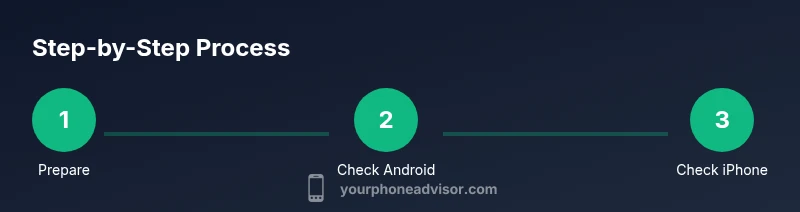
- 1
Prepare your device
Power on your device and confirm it has network access. This ensures you can pull up number details from settings or your carrier app.
Tip: Make sure you are signed in to the device with your own account - 2
Open Android settings for the number
Navigate to Settings > About phone > Status (or SIM status) and look for My phone number. If you have dual SIMs, check both lines.
Tip: If you can't find it, search the Settings bar for 'My number' - 3
Open iPhone settings for the number
Go to Settings > Phone > My Number, which displays the current SIM line. On some iPhones, you may need to update the Contacts 'Me' card.
Tip: Ensure you’ve selected the correct SIM if you have eSIM and physical SIM - 4
Check the Contacts app
Open Contacts and look for the entry labeled 'Me' or 'My Card' that lists your number. This is often the quickest way on older devices.
Tip: If there is no 'Me' card, proceed to the carrier app - 5
Use Carrier or Phone apps
Open your carrier’s app to view the number associated with your account. Some devices show it under Account > Personal info.
Tip: Sign in securely and avoid sharing login details - 6
Verify with a caller test
Call or text a trusted contact to confirm the number shown on the other end matches yours. This helps confirm accuracy if settings don’t reflect it.
Tip: Use a trusted contact to avoid miscommunication - 7
Record your number securely
Add your number to a trusted note or contact card for quick reference in emergencies or future changes.
Tip: Keep this info private and backed up - 8
Troubleshoot if the number still isn't visible
If you still see nothing, contact your carrier to confirm activation or request a new SIM/ESIM linked to your line.
Tip: Avoid attempting to modify network settings beyond standard steps
Got Questions?
How do I find my phone number on Android if the settings path varies by brand?
Different manufacturers customize Android, so try Settings > About phone > Status; if unavailable, check Settings > SIM card or Contacts 'Me' card. The method works for most major brands.
On Android, try Settings > About phone > Status or check Contacts for a 'Me' card.
What about iPhone users?
On iPhone, go to Settings > Phone > My Number to see the current line. If blank, check the Contacts app for the 'Me' card or verify in your Apple ID account.
In iPhone settings, look for My Number, or check the Contacts card.
Why isn't my number showing after a SIM swap?
Sometimes the number isn’t attached to the new SIM yet. Ensure the SIM is active and wait a few minutes or contact the carrier to re-provision the line.
If you swapped SIMs, the number may take a moment to update; contact your carrier.
Can I find my number without a SIM?
Without a SIM, the number may not appear in device settings. Check the SIM packaging or log into your carrier account online.
If you have no SIM, check your carrier account for the number linked to your profile.
Is it safe to share your number?
Share your number only with trusted contacts and avoid posting it publicly. Review app permissions and be mindful of where you paste it.
Only share with trusted people and avoid public posts.
How can I verify which number is linked to my account?
Check your carrier’s account or your email/Apple ID/Google account security settings to confirm the number attached to your profile.
Check your carrier account for the number linked to your profile.
Watch Video
What to Remember
- Know where to find your number in Settings on Android and iPhone.
- If Settings hides it, use the Contacts app or carrier app instead.
- A quick call or text confirms the correct number.
- Keep a private copy of your number for emergencies.
- Your Phone Advisor recommends verifying via official apps and avoiding public sharing.