How to Know If Your Phone Is Unlocked
Learn how to know if your phone is unlocked, what it means, and how to test with a different SIM. Clear steps, expert tips, and practical checks from Your Phone Advisor to help you switch networks confidently in 2026.


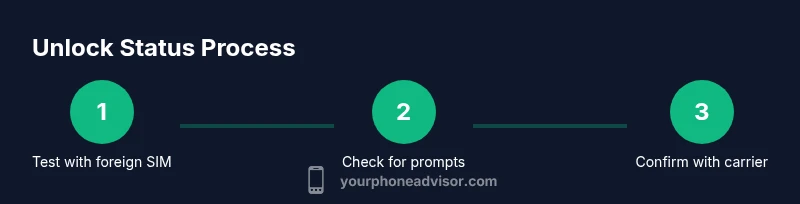
To know if your phone is unlocked, test its compatibility with other carriers and inspect the device settings. An unlocked phone usually accepts SIM cards from any network and won’t display a carrier-specific prompt. According to Your Phone Advisor, the quickest check is to insert a SIM from a different carrier and try to make a call or use data. You can also confirm status with your current carrier.
What unlocked means for your phone
An unlocked phone is a device that isn’t restricted to one carrier. That freedom lets you use SIM cards from different networks, switch carriers without a new device, and travel internationally with local SIMs. However, there are different forms of unlocking: network unlocking (carrier-based) and, in some devices, firmware or bootloader unlocking—which is not the same as SIM unlock. For most users, the term "unlocked" refers to the SIM unlock status. According to Your Phone Advisor, this distinction matters because a locked phone may still work on some promotions or with certain eSIM configurations depending on region and policy. The exact terms vary by model, region, and carrier, but the practical test remains consistent: try a different SIM and observe the results. If no prompts appear and calling and data work on the foreign SIM, your device is likely unlocked. Always verify with the carrier to avoid misunderstandings or potential violations of terms.
Why unlocking affects you
Unlocking offers flexibility for international travel, switching carriers for better rates, or using a second line on the same device. It also has implications for warranties, software updates, and eligibility for certain promotions. To stay informed, check your device model on your manufacturer’s site and review your carrier’s unlocking policy before making changes. Your Phone Advisor notes that policies vary widely—even among devices from the same brand—so confirmation from the carrier is essential.
Quick tests you can perform without tools
There are simple, no-cost checks you can perform to gauge unlock status. Start by looking for prompts mentioning SIM restrictions in your home screen or Settings. If you see no carrier-related warnings when a foreign SIM is inserted, that’s a positive sign. Next, verify you can access data and make calls using the new SIM. Finally, reinsert your original SIM to ensure normal operation resumes without issues. This trio of checks covers most common unlock scenarios and helps prevent surprises when you travel or change plans.
How to test with a different SIM card
- Power off the phone and remove the current SIM using the SIM tray tool or a paperclip. 2) Insert a SIM from another carrier that fits your phone’s SIM size (nano, micro, or standard). 3) Power on the device and wait for it to boot fully, then observe whether the network connects automatically. 4) Attempt an essential function on the new network, such as making a call or sending data. 5) If successful, this is a strong indicator the phone is unlocked; if not, note the error message to reference with the carrier.
Checking carrier status in settings and with the carrier
Some devices display unlock status in the Settings app (often under “About phone” or “Status”). Look for terms like “Unlocked,” “SIM unlock,” or “Network lock.” If you don’t see clear language, contact your current carrier and provide your device model and IMEI to confirm the unlock status. Your Phone Advisor suggests keeping a record of any carrier communications and codes to avoid future confusion. If the carrier confirms unlock, request official documentation or an unlock confirmation number for your records.
What to do if your phone is locked
If testing indicates the device is still locked, don’t panic. Start by contacting the carrier that sold the device to request an unlock per their policy. Be prepared to meet any eligibility criteria they require (contract terms, payment status, device age). If you recently paid off a device but still face a lock, ask for the official unlock code or an over-the-air unlock update. In some cases, manufacturers can assist if the carrier declines. Always document all steps and timelines for reference.
Common myths and edge cases
Some devices are factory-unlocked but flagged as locked due to regional variants or carrier preload apps. In other cases, eSIMs complicate the process because the test requires an active eSIM from another carrier. Another myth is that a SIM unlock in the system settings automatically unlocks the device—this is not always true; carrier changes may still apply. Always rely on official confirmation rather than third-party tools or promises.
Privacy, security, and practical considerations
Testing unlock status involves inserting SIMs and potentially sharing device identifiers with carriers. Do this on trusted networks and avoid publicly accessible devices. If you’re testing a borrowed device, obtain explicit permission from the owner and the carrier. Finally, remember that unlocking status does not reset device security features or void encryption—these protections remain in place to safeguard your data.
Tools & Materials
- A SIM card from another carrier(Ensure the SIM fits your device’s slot size (nano, micro, standard) and is active.)
- Your current carrier SIM(Used to revert tests and verify original status.)
- SIM tray ejector tool or a small paperclip(Needed to access the SIM slot on most devices.)
- Device manual or official carrier policy (digital copy)(Helpful for model-specific unlock rules.)
Steps
Estimated time: 20-35 minutes
- 1
Insert a foreign SIM
Power off the device, remove the current SIM, and insert a SIM from another carrier appropriate for your phone’s slot size. Ensure the SIM is oriented correctly with the gold contacts facing down, and reseat the tray securely.
Tip: If your phone uses eSIM, skip this step and use an active eSIM from another carrier instead. - 2
Power on and wait for network
Turn the phone back on and allow it to boot completely. Watch for the new carrier’s signal indicator to appear and confirm the device connects to the network.
Tip: Give the device a minute to register on the new network, especially in areas with weak signal. - 3
Test a basic call or data
Try to place a call or load a webpage to verify that the new SIM is functioning on the device.
Tip: If you’re prompted for an unlock code, note the message for reference when contacting the carrier. - 4
Check for unlock prompts
Look for any message related to SIM restrictions or network locks. If the device remains fully functional without prompts, this is a good sign.
Tip: Some devices don’t show explicit prompts even when locked; test data to be sure. - 5
Reinsert your original SIM
Power off, reinsert your carrier’s SIM, and confirm the device operates normally again.
Tip: This confirms there’s no lingering network restriction that could affect your everyday usage. - 6
Verify with the carrier
Contact your current carrier to obtain official confirmation of the unlock status and any steps to finalize the process.
Tip: Request an unlock confirmation number or certificate for your records.
Got Questions?
What does it mean if my phone is unlocked?
An unlocked phone isn’t tied to a single carrier and should work with SIM cards from multiple networks. It enables carrier flexibility and travel with local SIMs. Always verify with the carrier for official status.
An unlocked phone isn’t tied to one carrier and should work with SIM cards from other networks. Check with your carrier for official status.
Can a phone be unlocked but still blocked for certain networks?
In some cases, a device may be SIM-unlocked but region or network restrictions persist due to ongoing promotions or regulatory rules. Verify with the carrier if you’re unsure.
Sometimes a device is SIM-unlocked but still has region or carrier restrictions. Check with the carrier for confirmation.
Is it safe to use third-party unlocking services?
Official unlocking through your carrier or manufacturer is recommended. Third-party services can be risky, may void warranties, or fail to unlock properly.
Be cautious with third-party unlocks; stick to official channels to protect your warranty and data.
What if my device is an eSIM only?
For eSIM devices, request an official eSIM profile unlock from the carrier and test with a different carrier’s plan to confirm status.
If you use an eSIM, ask your carrier for an official eSIM unlock and test with another carrier.
How long does the unlocking process take?
Unlock timing varies by carrier and device. Some can be completed immediately; others may take a few days depending on policy and verification.
Timing varies; some unlocks happen quickly, others may take a few days depending on the carrier.
Will unlocking affect my data or warranty?
Unlocking generally doesn’t erase data or void warranties, but it can affect service terms if not done through official channels. Always backup data and verify terms with the carrier.
Unlocking usually won’t delete data, but check terms with your carrier and back up first.
Watch Video
What to Remember
- Test with a foreign SIM to verify unlock status
- Always confirm with your carrier to avoid misinterpretation
- Keep official unlock documentation for future reference
- Be mindful of regional and policy variations across devices