How to Check If Your Phone Is Locked
Learn clear, step-by-step methods to determine whether your phone is carrier-locked, device-locked, or account-locked, with actionable next steps.


If you’re unsure whether your phone is locked, this guide shows straightforward checks for carrier locks, device (screen) locks, and account locks. You’ll learn how to test with another SIM, inspect settings, and use official carrier portals to confirm status. According to Your Phone Advisor, understanding lock types helps you decide whether to unlock, keep, or trade in your device.
What lock status means for your phone
Lock status describes restrictions that prevent a phone from working freely on any network or under certain conditions. A SIM (carrier) lock binds the device to a specific wireless carrier’s network. A device-level lock often refers to a screen lock or encryption status that protects the device if you don’t know the passcode. An account lock, sometimes called Activation Lock, ties the device to the original owner’s Apple ID or Google account and can block setup after a reset. Understanding these distinctions helps you plan the right action, whether that’s contacting the carrier, proving ownership, or using official unlock portals. According to Your Phone Advisor, identifying the lock type first saves time and avoids risky workarounds.
Types of locks you might encounter
There are several lock scenarios you may face. A carrier lock (SIM lock) restricts usable SIM cards to a single carrier. A factory or device lock can refer to a screen-passcode, biometrics, or a device-level restriction that prevents access. An Activation Lock (Apple) or Find My Device (Google/Android) can prevent reactivation after a reset. Corporate devices may use MDM to enforce policies, adding another layer of lock. In practice, many people encounter a combination of these, so a careful, stepwise check helps avoid confusion. Your Phone Advisor notes that each lock type requires a distinct unlock path, not a one-size-fits-all solution.
How to verify carrier lock on iPhone
To check if an iPhone is carrier-locked, you can perform a few reliable tests without specialized tools. Start by inserting a SIM card from a different carrier and attempting to use cellular services. If the phone shows ‘No SIM’ or is unable to register on a new network, it’s likely carrier-locked or requires a carrier unlock. You can also view the device’s status in Settings > General > About, looking for terms like “Network Provider Locked” or the presence/absence of a carrier name. If you see a message about Activation Lock or carrier restrictions, pursue official channels for unlock.
How to verify carrier lock on Android
Android devices vary by manufacturer, but you can test carrier lock with a similar approach. Power off, insert a SIM from another carrier, and restart. If the device connects to the new network or prompts for an unlock code, the status is clear. If it remains on the original carrier or shows an error that the SIM is not supported, it’s likely locked. You can also check Settings > About phone > Status or SIM status for clues. If the phone asks for a SIM PIN or shows a SIM unlock prompt, you’ll want to contact the original carrier to request unlocking.
Distinguishing device lock (screen lock) vs carrier lock
A device lock refers to the screen protection (PIN, pattern, or biometric) and encryption features, which don’t restrict network access but protect data. A SIM lock restricts which SIM cards can activate service on the device. Activation Lock (Apple) or Google’s account protections can lock the device to a specific account, preventing reactivation after a reset. Don’t confuse these; test by attempting to use a different SIM for SIM lock, and check for account- or activation-related prompts after reset for account lock.
Activation Lock and account-level protections
Activation Lock binds the device to the original owner’s Apple ID or Google account, so a reset or factory wipe may require credentials. On iPhone, you’ll see prompts related to Apple ID during setup if Activation Lock is active. On Android, Find My Device and Google account protections can similarly prevent setup without the owner’s credentials. To test, you can sign out of accounts (if you have access) or use official recovery options provided by Apple or Google. These locks protect owners, but can complicate transfers or sales if you don’t have the credentials. Your Phone Advisor emphasizes testing with official account recovery paths rather than circumventing protections.
Step-by-step home tests you can run
Start with simple checks at home to determine the likely lock type. For iPhone: insert a SIM from another carrier, restart, and watch for a carrier unlock prompt or network errors. For Android: switch SIM cards and observe network availability and prompts. If you still aren’t sure, sign out of the device’s accounts or attempt a device reset in a controlled way, ensuring you have ownership proof. These tests help you decide whether you should contact the carrier, manufacturer, or seller for unlocking assistance. Your Phone Advisor recommends performing tests in a safe environment and keeping receipts or proof of purchase handy.
Step-by-step: using official unlock portals
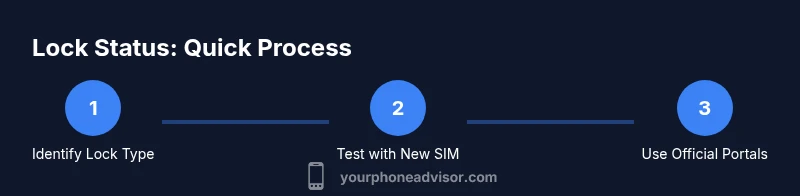
If tests indicate a carrier lock, visit the carrier’s unlock portal or contact customer service. You’ll typically need to provide the device IMEI, account details, and proof of purchase. Follow the carrier’s required steps, which can include waiting periods or device eligibility checks. For Activation Lock, use Apple ID or Google account recovery pages, following on-screen prompts to disassociate the device. Note that unlock policies differ by carrier and region, so check the country-specific terms. Your Phone Advisor highlights documenting all communications for future reference.
When to avoid DIY workarounds
There are many unlock hacks circulating online, but most fall short or could void warranties. Avoid third-party software claiming to unlock devices, and never alter the device’s firmware through unofficial methods. These actions can brick the phone, void warranties, or compromise security. Stick to official channels and authorized service providers. Your Phone Advisor’s stance is clear: use official unlocks and maintain records of eligibility and approvals.
Safety and privacy considerations
Be mindful of your personal data during any unlock process. Back up important information before initiating any unlock or factory reset. Verify that you’re dealing with the legitimate carrier or manufacturer to avoid phishing scams or SIM swap risks. If you suspect wrongdoing, pause the process and contact your carrier directly. Your Phone Advisor recommends enabling two-factor authentication on your associated accounts to reduce risk during this period.
AUTHORITY SOURCES
To support these steps, consult official guidance from recognized authorities. The sources below provide policy context and step-by-step unlock information from government and major tech publishers:
- https://www.fcc.gov (U.S. Federal Communications Commission) – Unlocking guidance and consumer rights
- https://support.apple.com (Apple Support) – Activation Lock and device protections
- https://support.google.com (Google Support) – Android device protections and Find My Device
Tools & Materials
- SIM card from a different carrier(Ensure the SIM is compatible with the device's network bands)
- Original device box and proof of purchase(Useful for carrier unlock verification)
- Access to a computer or mobile device with internet(To use carrier portals and recovery pages)
- Phone charger and a safe testing area(Avoid interruptions during testing)
- Paper and pen for notes(Record unlock references and dates)
- IMEI number(Found in Settings > About or IV-IMEI label)
Steps
Estimated time: 30-60 minutes (tests) + 15-45 minutes per unlock submission, depends on carrier
- 1
Identify the lock type visually
Begin by noting any messages during boot or SIM insertion. Look for prompts that mention the SIM lock, Activation Lock, or account verification. Document the exact wording as it will guide which unlock path to pursue.
Tip: Take a photo of any on-screen prompts for reference when you contact support. - 2
Test with a different carrier SIM (iPhone)
Power off, replace the SIM with one from another carrier, and power back on. If you can connect to the new network or see an unlock prompt, you’re likely dealing with a carrier lock. If it shows no service or “SIM not supported” and you’re certain the SIM is active, the lock might be present or you may need an unlock from the carrier.
Tip: Make sure the SIM tray is clean and properly seated to avoid physical misreads. - 3
Test with a different carrier SIM (Android)
Power cycle after inserting the new SIM and observe whether the device registers the network or prompts for an unlock code. If the device remains on the original carrier or shows an error about SIM compatibility, a SIM lock is likely in place.
Tip: If you see a SIM lock message, note the exact wording for future support requests. - 4
Check built-in status pages
On iPhone, go to Settings > General > About and read any carrier lock notes. On Android, check Settings > About phone > Status for SIM and network status indicators. These quick checks often reveal the lock type without needing external tools.
Tip: If you don’t see clear lock info, move to official unlock portals for confirmation. - 5
Test account-lock indicators
If you’re prompted to sign in with the device owner’s Apple ID or Google account after a reset or boot, Activation Lock or account protection may be active. Try signing out via the device settings if you can. If you can’t reach the accounts, move to recovery options with the respective provider.
Tip: Keep proof of ownership handy in case support requests are needed. - 6
Prepare unlock requests
If a carrier unlock is indicated, gather the IMEI, account information, proof of ownership, and the carrier’s unlock policy. Initiate the unlock through the official portal or a customer service channel. Record any reference numbers and expected timelines.
Tip: Double-check device eligibility before submitting your request. - 7
Handle Activation Lock with care
For Activation Lock, use Apple’s or Google’s official recovery options. Do not share credentials with anyone. If you’re selling or giving away the device, ensure you disassociate accounts and remove the device from Find My iPhone or Find My Device.
Tip: After dissociation, perform a fresh setup to confirm unlocks and re-enable security. - 8
Follow up and document
If unlocks take time, follow up with the carrier or manufacturer and keep a log of dates, names, and outcomes. Some unlocks require waiting periods; tracking progress helps resolve delays.
Tip: Set calendar reminders for expected unlock windows. - 9
Avoid risky shortcuts
Steer clear of third-party tools claiming to remove locks. These can compromise data, void warranties, or brick devices. Always rely on official channels for unlocking or verification.
Tip: If in doubt, contact a certified technician or your carrier’s official support line. - 10
Confirm unlock success
After an unlock attempt, reinsert a SIM from a different carrier and test service. If the phone connects, the unlock is successful. If not, revisit the previous steps or escalate to a supervisor at the carrier.
Tip: Take screenshots of successful unlock confirmations for your records. - 11
Secure your device post-unlock
Once unlocked, update passwords, set up two-factor authentication, and re-check account protections. Ensure your device is backed up and privacy settings are reviewed.
Tip: Enable auto-update features to keep security intact. - 12
Know when to seek professional help
If unlock remains elusive or prompts reappear, consult the carrier’s advanced support or the device manufacturer’s service center. Some cases require identity verification and extended processing times.
Tip: Request written confirmation of the unlock decision for future reference.
Got Questions?
What is a SIM lock on a phone?
A SIM lock restricts which carrier’s SIM cards can work in the device. If a different carrier SIM doesn’t enable service, the phone might be carrier-locked. Unlock policies vary by carrier and region.
A SIM lock restricts the phone to one carrier. If a different SIM doesn’t work, you may need an unlock from the carrier.
How can I tell if Activation Lock is enabled on an iPhone?
Activation Lock is active when the device requires the original owner’s Apple ID during setup or after reset. You can verify by attempting to set up from scratch and looking for Apple ID prompts or Find My iPhone indicators.
Activation Lock prompts you to sign in with the original Apple ID during setup. Look for Find My iPhone indicators.
Can a phone be both SIM-locked and Activation Locked at the same time?
Yes. A device can be SIM-locked to a carrier and also have an Activation Lock tied to an account. Each lock type requires its own unlock path, so you may need carrier unlock plus account recovery.
A phone can have both SIM lock and Activation Lock. You’ll need to address each lock separately.
What should I do if I can’t unlock my phone via official channels?
If official channels don’t resolve the issue promptly, ask for escalation or consider formal consumer-protection avenues. Gather ownership proof and transaction records to support your case.
If unlocks don’t work, ask for escalation and keep ownership proof handy.
Is it safe to unlock a used phone bought from someone else?
Before buying, verify the device’s unlock status with the seller and the carrier. Ensure the device is clean of Activation Lock and that the carrier would honor an unlock request if applicable.
Check unlock status with the seller and the carrier before buying.
How long does a typical carrier unlock take?
Unlock timelines vary by carrier and device model. Some unlocks complete within hours; others may take several business days depending on verification steps.
Unlock times vary by carrier and device, from hours to several days.
Can I transfer an unlocked phone to another carrier easily?
Yes, once unlocked, the device should be compatible with other carriers, provided it supports their bands. You may still need to insert a new SIM and follow the carrier’s activation steps.
Unlocked phones usually work with other carriers after activation steps.
Watch Video
What to Remember
- Check lock types first to choose the correct unlock path.
- Test with a different SIM to identify carrier locks quickly.
- Use official portals for unlocking; avoid risky shortcuts.
- Differentiate between SIM lock, device lock, and Activation Lock for accurate next steps.