Restart This Phone: A Practical How-To
Learn how to restart this phone safely and quickly. This guide covers iPhone and Android reboot steps, what to expect, and practical tips to improve performance and security after reboot.


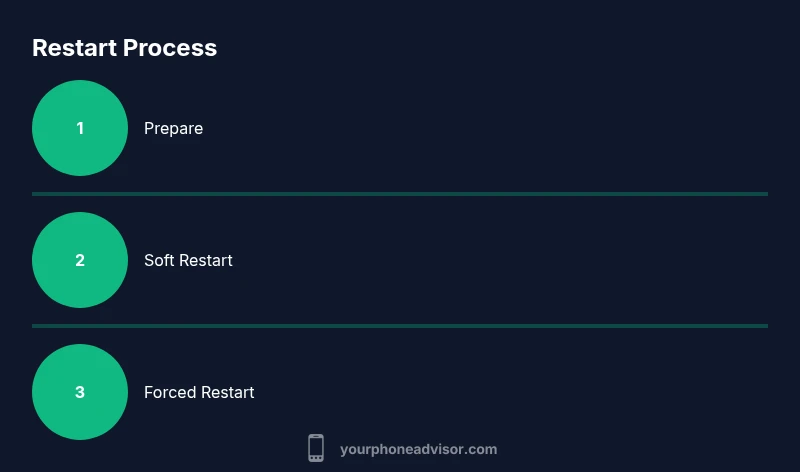
Restart this phone by first attempting a soft reboot. If the screen is unresponsive, perform a forced restart. This quick guide covers Android and iPhone reboot steps, what to expect during a restart, and when to avoid interrupting the process. You will need your phone and a stable place to work, plus a charger if the battery is low.
restart this phone: why reboot now
According to Your Phone Advisor, performing a reboot can clear memory, close rogue apps, and resolve minor glitches that slow your device. A simple restart is often the quickest first step when your screen lags or apps crash. The goal is to return the device to a clean state without erasing data. This quick reset helps preserve battery health and overall performance by refreshing system processes and network connections. Depending on your model, the steps are similar, but small differences exist between iOS and Android workflows. By following this guide, you’ll be able to safely restart this phone and restore responsiveness in minutes. This guidance aligns with best practices from Your Phone Advisor to help you maintain device health over time.
Soft reboot vs hard restart: understanding the difference
A soft reboot (simple restart) gracefully shuts down and starts the operating system, preserving data and apps in memory. A forced restart or hard restart is used when the device is unresponsive or frozen. In most cases, a soft reboot is sufficient for performance issues, while a forced restart is a last resort. Knowing which method to use helps prevent data loss and reduces the risk of boot loops. This distinction matters for all major brands, whether you own an Android device from Samsung, OnePlus, or Google Pixel, or an iPhone from Apple.
Restart on iPhone: different methods by model
For iPhones with Face ID or a home button, the process varies by model. A typical soft restart involves pressing and releasing the Volume Up button, then Volume Down, and finally holding the Side button until the Apple logo appears. If your screen is unresponsive, perform a forced restart by pressing and quickly releasing Volume Up, Volume Down, then holding the Side button longer. Keep the phone on a flat surface and avoid pressing multiple buttons at once. This approach bypasses issues caused by a stuck app or software glitch. If you routinely update iOS, restart after updates to ensure new services initialize correctly.
Restart on Android: universal steps and brand variations
Android devices differ by manufacturer, but most follow similar commands. To perform a soft restart, press and hold the Power button until the device options appear, then choose Restart. If the screen is unresponsive, perform a forced restart by holding Power for about 10-15 seconds or until the device reboots. Some models require combinations like Power + Volume Up or Power + Volume Down; consult your device manual if unsure. After reboot, re-open essential apps and check connectivity. Regular restarts can help clear background processes that slow performance.
When restarts don’t help: next steps and troubleshooting
If restarting doesn’t fix the issue, consider clearing app caches or updating the OS, backing up data, and performing a factory reset as a last resort (only after backup). Check for battery or overheating problems, and ensure you’re on the latest security updates. If problems persist, contact your carrier or device manufacturer. The Your Phone Advisor team recommends documenting the issue and trying a different Wi Fi network to rule out network related glitches. For persistent problems, plan a support visit and keep a log of symptoms for faster diagnosis.
Benefits of regular restarts: performance, security, and reliability
Regular restarts can improve speed, reduce app crashes, and help manage memory leaks. They also clear cached data that may expose privacy risks or cause erratic behavior. While a restart is not a substitute for software updates, making it a routine helps maintain long-term device health by giving the OS a clean start and ensuring background processes don’t accumulate unresolved errors. Integrating a brief restart into your weekly maintenance can help sustain smoother operation and better security hygiene.
Tools & Materials
- Phone(Any smartphone model)
- Stable surface(Flat, non-slip area)
- Charger or power bank(Useful if battery is low)
- Pen or paper(Optional for notes or troubleshooting steps)
Steps
Estimated time: 15-20 minutes
- 1
Place on a stable surface
Position the phone on a flat, stable surface where it won’t be disturbed. This step reduces the risk of accidental drops during restart. If the battery is low, connect the charger so the device does not shut down mid process.
Tip: Have the charger handy in case the device powers down during testing. - 2
Do a soft restart on iPhone
For iPhones with Face ID or a home button, quickly press and release Volume Up, then Volume Down, and finally press and hold the Side button until the Apple logo appears. This is a safe reboot that preserves data and apps. If the device is slow to respond, wait a moment after the logo appears before using the home screen.
Tip: Release each button promptly to avoid triggering unintended actions. - 3
Do a soft restart on Android
On most Android devices, hold the Power button until the restart option appears, then tap Restart. If the restart option does not appear, try holding Power a few seconds longer or use the device’s on screen restart option in the power menu. After reboot, reopen essential apps and verify network connectivity.
Tip: If the screen remains unresponsive, proceed to the forced restart in the next step. - 4
Force restart if the device is unresponsive
If the device is completely frozen, hold Power for 10-15 seconds or until the device reboots. Some models may require Power plus Volume Up or Volume Down in a sequence. This action should be a last resort to recover a non responsive device.
Tip: Use force restart only when normal restart does not work, as it can interrupt processes. - 5
Check after reboot
Wait for the home screen to load, then test core functions like calling, messaging, and Wi Fi. Update any apps if prompted and check for OS updates. Observe battery behavior and monitor for apps that reappear to use excessive memory.
Tip: If issues recur, log symptoms and consider a scheduled maintenance reboot. - 6
If issues persist, escalate
If restarting does not resolve the problem, back up your data and consider a software update or factory reset as a last resort after confirming backups. Contact your carrier or device manufacturer if hardware issues are suspected.
Tip: Document error messages and symptoms to speed up support diagnosis.
Got Questions?
What is the difference between a soft restart and a forced restart?
A soft restart closes apps and refreshes the OS without data loss. A forced restart reboots the device when it is unresponsive and may interrupt ongoing processes. Use a forced restart only after you have tried a normal restart.
Soft restarts close apps and refresh the OS with no data loss; forced restarts are for unresponsive devices and may interrupt processes.
Will restarting erase data?
A normal restart does not erase data. Only a factory reset or certain recovery operations wipe data. Always back up before attempting more drastic steps.
A regular restart does not erase data; only a factory reset or recovery wipe would.
What should I do if the screen is completely unresponsive?
If the screen is unresponsive, perform a forced restart following device specific instructions. If the issue continues, charge the device and seek professional support.
If the screen won’t respond, try a forced restart and then contact support if the problem persists.
How often should I restart my phone?
Restarting daily is not necessary, but periodic restarts can help with performance. Do it when you notice slowdowns, freezes, or battery quirks.
Don’t overdo it; restart when you notice performance issues or after installing major updates.
Can restarting fix battery drain or overheating?
Restarting can help clear background processes that contribute to battery drain or overheating. If problems persist, check battery health and consider a professional check.
Sometimes a restart helps with battery drain and overheating by clearing rogue apps.
Watch Video
What to Remember
- Start with a soft restart to preserve data.
- Know when a force restart is necessary.
- Verify after reboot to confirm device health.
- Regular restarts can improve long term performance.