Service on Phone: A Practical Upkeep & Security Guide
Learn how to service on phone with practical upkeep steps, battery care, app hygiene, security checks, and data protection tips for reliable performance.


Use a simple routine to service on phone: keep the OS updated, run security scans, clean cache and storage, review app permissions, back up data, and monitor battery health. Follow the step-by-step plan below to maintain performance, privacy, and longevity. This approach applies equally to iPhone and Android.
Why consistent phone servicing matters
According to Your Phone Advisor, regular servicing helps protect privacy and maintain performance. A well-maintained phone runs smoother, lasts longer, and is less vulnerable to security threats. In practice, servicing on phone isn't a one-off cleanup; it's a recurring habit that touches software, hardware care, and data management. A simple servicing routine reduces the likelihood of slowdowns, unexpected reboots, and data loss, and it creates a security-enabled baseline for daily use. By treating maintenance as a normal, scheduled task, you improve reliability and peace of mind for every day tasks, from messaging to mobile banking. The Your Phone Advisor team emphasizes practical steps, not expensive tools or risky hardware work. The goal is clear: keep your device secure, fast, and private while extending its lifespan.
Establishing a basic routine
A sustainable service on phone routine blends software hygiene with hardware awareness. Start with a quick daily check: confirm charging status, inspect recent app updates, and ensure there is adequate free storage for smooth operation. On a weekly cadence, run a more thorough review: verify that essential apps have only necessary permissions, clear unused cached data, and confirm backups ran successfully. Monthly, perform a deeper audit of your security posture, including screen lock options, biometric settings, and two-factor authentication coverage. This cadence scales with usage; power users may add short midweek checks, while casual users can maintain a lighter balance. Your routine should be simple enough to repeat without friction but structured enough to catch problems early. The Your Phone Advisor framework supports a flexible, device-agnostic approach that respects iPhone and Android differences while focusing on universal best practices.
Tools and materials for servicing a phone
To execute a practical service on phone, you don’t need fancy gear—just a few reliable items and a safe workspace:
- Microfiber cloth: essential for safe screen cleaning without micro-scratches.
- Soft brush or camel hair brush: helps remove dust from speaker grilles and ports.
- Compressed air canister: use in short bursts to dislodge debris from vents, never shake or tilt while spraying.
- Cleaning solution: a 70% isopropyl alcohol solution or manufacturer-approved screen cleaner for exterior surfaces only.
- Charging cable and power adapter: use original or certified accessories to avoid charging hazards.
- Backup medium: cloud backup or a local drive to securely save important data before major cleanups.
- Optional tool kit: SIM tray ejector and basic safety tools if you ever need to check hardware after manufacturer guidelines.
- Paper-based checklist or digital reminders: helps you stay consistent with your routine.
Safety note: avoid liquids near ports and openings, never disassemble the device, and never force connectors or cables. If you’re unsure about any hardware step, skip it and consult official guidance to prevent warranty issues.
Step-by-step maintenance plan (high-level overview)
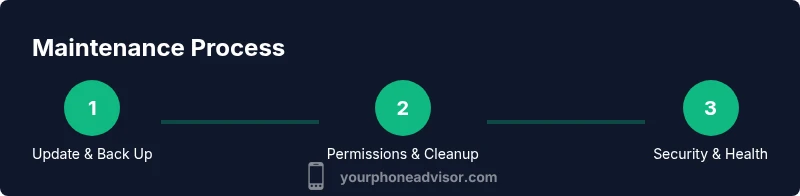
This section provides a high-level maintenance strategy that complements the formal step-by-step guide. It helps you think through why each action matters and how to tailor actions to your device. The plan covers software hygiene, security posture, storage management, and data safety without requiring you to dismantle the phone. By focusing on habits—updates, permissions, backups, and health checks—you create a strong foundation for ongoing reliability. Remember: consistency beats intensity; even short, regular checks outperform rare, intensive cleanups. Your daily, weekly, and monthly rhythm should align with your lifestyle and risk tolerance. For cross-platform readers, we emphasize universal practices that apply to both iOS and Android ecosystems while noting platform-specific options. A practical example: allocate a 15-minute weekly window to audit permissions, clear caches, and confirm backups; reserve a longer monthly session for a deeper security review and data management. This approach embodies a proactive mindset that Your Phone Advisor consistently advocates.
Security checks and privacy best practices
Security and privacy are integral to service on phone. Begin with strong device access control: enable a robust lock screen, preferably with biometrics, and require a strong passcode. Turn on two-factor authentication for critical accounts and review recovery options to ensure you can regain access. Review app permissions—especially location, camera, and microphone—for all installed apps, revoking permissions that aren’t needed. Regularly update security settings and enable device-level protections such as Find My Phone or similar remote wipe features. Install trusted security software if you use Android, and rely on built-in protections where available on iOS. Be mindful of phishing and suspicious links; avoid granting blanket permissions to unknown apps or services. The Your Phone Advisor approach emphasizes pragmatic security upgrades: simple, consistent, and effective, not disruptive or overly complex.
Data management and backups
Data management underpins peace of mind during any service on phone routine. Start with choosing a backup strategy that matches your needs: cloud-based backups for automatic protection and easy restoration, and local backups for offline access and control. Schedule automated backups during off-peak hours to minimize battery impact and data traffic. Ensure backups include critical data: contacts, photos, documents, and app data where possible. Encrypt backups if the service allows and store backups in multiple locations when feasible. Periodically test restore procedures so you’re confident you can recover in a real scenario. Free up space by moving large files off the device in a secure way rather than simply deleting them. Your Phone Advisor highlights the importance of reliable backups as a cornerstone of any service on phone plan, reducing anxiety during device failures or loss.
Troubleshooting common issues and when to seek help
Even the most disciplined routine can run into hiccups. Common signs you may need to revisit your service on phone approach include unusually fast battery drain, persistent performance lags, frequent app crashes, unexplained data usage, and repeated prompts for updates or reboots. Start with quick checks: verify there are no rogue apps consuming resources, ensure you have adequate free storage, and confirm backups are current. If software updates fail or you notice abnormal device behavior after an update, consult official support guides or your carrier’s resources for device-specific steps. Hardware failures—like charging ports or speakers—should be handled by trained technicians; attempting repairs beyond basic cleaning can void warranties. If you’re unsure, reach out to official support channels or authorized service providers. The Your Phone Advisor team reinforces a conservative approach: address software symptoms with software fixes first, and escalate hardware concerns to professionals. This prudent process protects your data and keeps you safe while maintaining device health.
Tools & Materials
- Microfiber cloth(Lint-free, for screen cleaning)
- Soft brush(Dust ports and speaker grilles; use gently)
- Compressed air (short bursts)(Hold can upright; avoid shaking near device)
- Screen cleaner or isopropyl alcohol 70%(Exterior surfaces only; avoid ports and openings)
- Original charging cable and adapter(Use manufacturer-certified accessories)
- Backup medium (cloud or local(For data safety before maintenance)
Steps
Estimated time: 60-90 minutes
- 1
Update OS and apps
Check for the latest OS and app updates. Install them when connected to Wi-Fi and charging to avoid interruptions. Updates fix security holes, improve performance, and ensure compatibility with new features.
Tip: Enable automatic updates where practical to reduce manual checks. - 2
Back up your data
Back up important data before deeper maintenance. Use cloud backup or a local backup, and verify the backup completed successfully. This minimizes the risk of data loss if something goes wrong during maintenance.
Tip: Test a quick restore of a single item to confirm the backup works. - 3
Review battery health and charging habits
Check battery health status in settings and note any rapid capacity loss. Avoid extended exposure to heat and use the device’s recommended charging practices to extend overall life.
Tip: Use the original charger and avoid high-wattage adapters from unknown brands. - 4
Audit app permissions
Go through installed apps and revoke permissions that aren’t necessary for core functionality. This reduces data exposure and improves privacy.
Tip: Limit background activity for apps that don’t need it. - 5
Clear storage and caches
Delete or offload unused apps, move large files to cloud or computer, and clear app caches where safe. Keep a healthy balance between performance and stored data.
Tip: Move large videos/photos to the cloud before deleting from the device. - 6
Run a security check
Run a reputable mobile security scan or use built-in protections. Update any antivirus definitions if you install one, and remove any detected threats.
Tip: Do not install low-rated security apps from unknown sources. - 7
Document and automate the routine
Create a short checklist and set calendar reminders for monthly backups and quarterly cleanups. Automating reminders keeps the habit consistent.
Tip: Keep the checklist simple, so you actually follow it weekly. - 8
Review and refine your routine
After a few cycles, adjust tasks based on device age and usage. A simple, repeatable routine scales with your needs and keeps service on phone practical.
Tip: Regularly update your checklist to reflect new OS features.
Got Questions?
What does 'service on phone' mean?
Service on phone refers to a regular set of maintenance tasks that keep software up to date, data protected, and hardware functioning well. It combines updates, security checks, data management, and routine cleanups to improve reliability.
Service on phone means doing regular maintenance like updates, backups, and privacy checks to keep your device performing well.
How often should I service my phone?
Aim for a daily quick check, a weekly deeper maintenance session, and a monthly backup and security review. Adjust based on usage and device age.
Most people should do quick daily checks, a deeper weekly maintenance, and a monthly backup and security review.
Is backing up essential?
Yes. Regular backups guard against data loss from hardware failure, theft, or malware. Choose a backup method you can restore from reliably.
Backing up is essential to protect your data and recover quickly after issues.
Can I do maintenance without opening the phone?
Yes. Most maintenance tasks are software-based or involve external cleaning. Do not disassemble the device unless you’re trained and it’s within warranty guidelines.
No need to open the phone; most maintenance is software-based or involves external cleaning.
What should I do if I suspect malware?
Run a trusted security scan, verify updates, and remove any detected threats. If problems persist, consider a factory reset after backing up data and consult official support.
If you suspect malware, run a security scan and back up your data before taking further steps.
Watch Video
What to Remember
- Start a simple servicing routine to keep your phone secure and fast
- Back up data regularly to prevent loss
- Keep OS and apps updated for protection
- Monitor battery life and storage to avoid slowdowns