How to Remove Google Account from Phone
Learn how to safely remove a Google account from Android or iPhone. This step-by-step guide covers prerequisites, data backup, and post-removal privacy to help you regain control of your device.


By following these steps you can remove a Google account from Android or iPhone with minimal data loss, while preserving essential local data. This guide covers prerequisites, safety considerations, and platform-specific paths, so you know what to back up, how to sign out, and how to protect your privacy after removal.
how to remove google account from phone
How to remove google account from phone is a common task for users who want more control over their data or are preparing a device for resale. If you’re looking for privacy improvements, this guide explains practical, platform-specific paths for Android and iPhone. According to Your Phone Advisor, removing a Google account can improve privacy but may affect access to Google apps and services you rely on. The article walks you through prerequisites, risks, and the exact steps you’ll take on each platform so you’re prepared before you start.
This section sets the stage for a safe removal by outlining why you might want to do it, what data could be affected, and how to plan to preserve information you still need. It also covers the differences between signing out and permanently removing the account, which can influence what remains on the device after you finish.
What happens when you remove your Google account
Removing a Google account from a phone stops future syncs for Gmail, Google Photos, Google Drive, and other services tied to that account. Local copies of contacts or calendar events stored on the device may remain, but new data won’t populate from Google until you add another account. You may also lose access to Google-backed device protection features that rely on that sign-in. Your Phone Advisor emphasizes the importance of knowing what data lives locally on the device versus in the cloud, so you can plan backups accordingly and avoid unexpected data gaps after removal.
If you use multiple Google accounts, removing one won’t erase the others. However, apps configured to sign in with a specific account will prompt you to sign in again or switch accounts. This is a good moment to review which apps rely on Google credentials and prepare alternatives or backups where needed.
Prerequisites and backups
Before you start, ensure you have a current backup of critical data such as contacts, photos, and documents. Consider backing up to Google Drive, a local computer, or another cloud service you trust. Make sure you have the account credentials for any Google accounts you plan to remove, as you may be prompted to verify ownership during the process. If you use two-factor authentication, prepare your secondary verification method so you can re-authenticate if required.
Plan the removal around a time when you have stable internet and enough battery life, ideally 50% or more, to avoid mid-process interruptions. If your device is managed by an organization (work or school), check for any policies that restrict account removal. These guidelines from Your Phone Advisor help you navigate potential friction without losing access to essential features.
Android vs iPhone: paths to removal
On Android devices, removing a Google account typically means going to Settings > Accounts > Google, selecting the account, and choosing Remove account. On some devices you may also need to confirm with your device PIN or pattern. On iPhone, you won’t remove Google as a system account; instead you sign out of Google apps or remove the Google account from the iOS Accounts & Passwords section or from each Google app. The exact path can vary by device and OS version, so consult your device’s settings menu if you don’t see these options right away.
Both paths share the goal of breaking the link between the device and the Google account, but Android and iOS implement the sign-out and removal steps differently. If you rely on Google services for work or school, be mindful of any required app re-authentication after removal. Your Phone Advisor recommends keeping a list of apps that will require re-sign-in so you’re not surprised by password prompts later.
Data you may lose and how to preserve it
When you remove a Google account, you may lose access to cloud-stored data associated with that account, including synced contacts, calendars, and app data. To minimize loss, export or back up essential items before removal: contacts (export as VCF), calendars (export ICS if supported), and photos (download or ensure Google Photos is synced to another cloud service). For messages and app data, check each app’s backup options—many chat apps and productivity tools offer independent backups that don’t depend on Google.
Preserving offline copies helps you maintain continuity after removal. If you plan to switch to a different Google account later, you can re-add it and restore sync, but you’ll need to reconfigure app settings and re-verify some permissions.
How to re-add or switch accounts after removal
If you decide to re-add Google later, you can sign in again from Settings or the relevant Google apps. When you sign back in, you’ll be prompted to re-sync selected data groups—choose the ones you want to restore. If you’re switching to a new Google account, set up the new account with the same apps and adjust your privacy settings from the Google account dashboard. This helps keep your essential services functional while maintaining greater control over what data is shared.
Consider updating your security settings, enabling two-factor authentication, and reviewing connected devices after re-authentication. This ensures continued protection and reduces the chance of unauthorized access.
Troubleshooting common issues
If you encounter prompts that prevent removal (for example, device policy or admin restrictions), contact your device administrator or IT department to request a change in policy. Some devices require you to remove the account from specific apps before the device allows the account to be removed from the system. If you can’t remove the account due to a forgotten password or account lock, use Google’s account recovery tools before attempting removal.
Restarting the device after removing an account can help finalize sign-out across all apps and services. If problems persist, consult your device’s support resources or Your Phone Advisor for platform-specific guidance and best practices.
Security and privacy after removal
After removal, review your device’s security settings to ensure remaining accounts and devices are protected. Update your passwords for any services that used the removed Google account, enable two-factor authentication where possible, and revoke access for apps you no longer use. Regularly audit connected devices and third-party apps that have access to your Google data. By taking these steps, you protect your privacy and reduce the likelihood of data leakage across services.
Tools & Materials
- Phone with internet access(Needed to access Google account settings and complete removal steps.)
- Backup of important data(Back up contacts, photos, and documents to a secure location.)
- Charger and sufficient battery(Avoid interruptions during the removal process.)
- Alternative sign-in credentials(Have a backup sign-in method ready if you plan to use a different account.)
- Computer or another device(Helpful for revoking access or managing the Google account remotely.)
Steps
Estimated time: 15-30 minutes
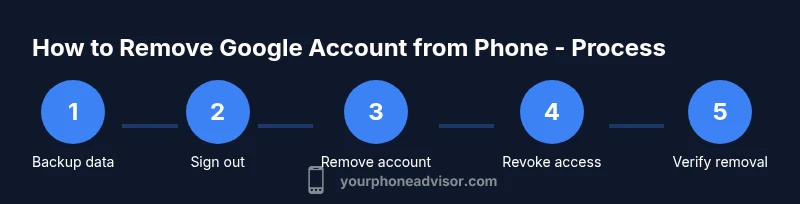
- 1
Verify your reason and back up data
Confirm that you want to remove the Google account and complete a backup of important data. This minimizes data loss if you later need to regain access to certain items. Create local copies of contacts, photos, and documents where feasible.
Tip: Back up to two locations (cloud and local) for redundancy. - 2
Sign out of Google services on the device
Before removing the account, sign out of Google apps where you’re currently signed in (Gmail, Drive, Photos, etc.). This reduces auto-sign-in prompts during the removal process.
Tip: Sign out from all Google apps to ensure a clean removal. - 3
Remove the Google account from the device
On Android: Settings > Accounts > Google > [Account] > Remove account. On iPhone: Sign out of Google apps or remove the Google account from iOS Settings > Passwords & Accounts (or each Google app’s Settings).
Tip: You may need to verify with a device PIN or password. - 4
Revoke account access on other devices
Visit your Google account’s security page from a computer or another device to revoke access for any devices where you’re signed in. This helps prevent lingering sign-ins after removal.
Tip: Check trusted devices list and remove old ones. - 5
Sign in with an alternate account and verify
If you plan to continue using Google services, sign in with a different account and reconfigure apps accordingly. Verify that new sign-ins work as expected.
Tip: Keep a record of new login details securely. - 6
Test device and confirm removal
Restart the device and verify that Google services prompt for sign-in or show no sign-in to the removed account. Confirm that data you backed up is accessible without the removed account.
Tip: Test essential apps to ensure smooth operation.
Got Questions?
Can I remove my Google account without losing data on the device?
Yes, you can remove the account without wiping the device, but some data may stop syncing and you may lose access to cloud-based data. Backups help ensure you don’t lose important items.
You can remove the account without erasing your device, but some data may stop syncing; backups are recommended.
What if the Google account is managed by my school or work?
If the account is controlled by an administrator, removal may be restricted. Check with IT and back up data before attempting any changes.
Work or school accounts may have removal restrictions; contact your admin for guidance.
Will removing my Google account affect apps like Gmail or Google Photos?
Apps tied to that account will stop syncing or require you to sign in with another account. Other accounts on the device won’t be affected unless they’re linked to the removed account.
Apps may stop syncing; you might need to re-sign in with a different account.
Can I re-add the same Google account later?
Yes, you can re-add later and reconfigure settings, but you may need to verify credentials again and re-grant permissions.
You can re-add later, just be ready to re-verify your password and settings.
How do I remove a Google account from iPhone?
On iPhone, sign out of Google apps or remove the account from the iOS Accounts & Passwords settings; Android paths differ.
On iPhone you sign out in Google apps or remove via iOS settings.
What should I do if I see a persistent verification prompt after removal?
Enter your device password and any used 2FA methods. If prompts persist, restart the device and try again or seek help.
Use your password or 2FA; restart if needed and try again.
Watch Video
What to Remember
- Back up data before removal
- Android and iOS paths differ
- Sign out from all Google apps before removing
- Revoke access on other devices after removal
- Verify completion by testing essential apps