How to Remove Gmail Account from Your Phone
Learn a clear, step-by-step method to remove a Gmail account from Android or iPhone, protect your privacy, and prevent unwanted syncing across apps today.


To remove a Gmail account from your phone, start by signing out of the account in each Google app, then remove the account from the device settings. Repeat for any secondary profiles or apps that rely on the account so data stops syncing. This prevents unwanted syncs and frees up storage on Android and iOS.
What happens when you remove Gmail from your phone
Removing a Gmail account from your phone disconnects Google services tied to that account. Gmail messages remain in the cloud, but local copies may be removed depending on how apps are configured. Contacts, calendars, and app data synced with that account may stop updating on the device. You might also see prompts to sign in again for certain apps. Always consider data you rely on that lives in that account before proceeding.
Before you start: backups and privacy considerations
Before removing, back up critical data like emails, contacts, calendars, and Drive files. Use Google Takeout for a full export, or rely on device backups (iCloud for iOS or Google One/backup on Android). Understand that removing the account can affect sign-ins to other apps and services, so plan accordingly. It’s also a good time to review which apps have access to your Google account and revoke access if needed.
Step-by-step overview for Android and iOS
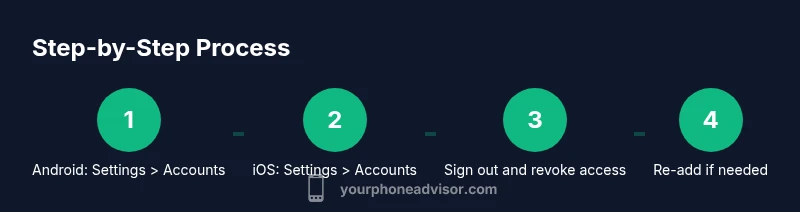
The removal process differs by platform but shares common goals: disconnect the account from the device, sign out in apps, and revoke access where possible. On Android, you typically remove the Google account from Settings and then sign out of Google apps. On iPhone, you’ll remove the Gmail account from Settings > Passwords & Accounts and sign out from the Gmail app if installed. Always verify after completing steps that the account no longer syncs data.
Android removal flow: start to finish
- Open Settings and go to Accounts or Users & accounts, then tap Google. Tap the Gmail account you want to remove. Tip: Some devices group multiple Google accounts under one entry. 2) Tap Remove account, confirm, and choose whether to keep or remove device data related to that account. Tip: You may need to enter your device password. 3) Open Gmail (or other Google apps) and sign out if prompted. Tip: For complete sign-out, disable Sync for that account in Accounts settings. 4) Visit your Google account security page on a browser and remove the device from the list of trusted devices. Tip: This prevents future sign-ins from that device.
iPhone removal flow: start to finish
- Open Settings, scroll to Mail (or Passwords & Accounts), select the Gmail account, and choose Delete Account. Confirm deletion. Tip: Deleting the account from iOS removes only the account from the device, not the email in the cloud. 6) Open the Gmail app (if installed) and sign out or remove the account. Tip: If the app remains signed in, it may still request access to the account. 7) On a computer or browser, go to myaccount.google.com/security and review devices; remove the iPhone from the list to revoke access. 8) Reboot the device and re-add the account later only if needed. Tip: Re-adding should be done with careful re-authentication.
Edge cases: work profiles, device administrators, and locked devices
Some work or school devices use managed profiles that restrict removing Google accounts. If you encounter a policy block, contact your IT administrator. If the device is locked, unlock first and perform the steps. For devices with biometric locks, prefer signing out using the device’s security features to avoid re-locking issues.
Re-adding a Gmail account after removal
If you need to re-add the Gmail account, go to Settings > Accounts (Android) or Settings > Passwords & Accounts (iOS), and choose Add Account > Google. Sign in with the Gmail credentials, re-enable syncing as needed, and review app permissions. After re-adding, verify that contacts, calendars, and emails begin syncing again. Consider enabling two-factor authentication for added security.
Quick reminders and best practices
Always back up before removing an account. Keep your Google password secure and ready for re-authentication. Review app permissions so you know which apps can access your data. If you rely on multiple Google services, re-add accounts thoughtfully to minimize data loss and avoid duplicate sign-ins.
Tools & Materials
- Phone with internet access(Wi-Fi or cellular data to complete sign-out and account removal)
- Google account password(Needed if you’re removing the account from Android settings)
- PIN, pattern, or biometric lock(Needed to unlock device during steps)
- Backup method (Google Takeout or iCloud/iTunes)(Back up emails, contacts, and files before removal)
- A secondary device or computer(Use for verifying sign-out and revoking access)
Steps
Estimated time: 30-40 minutes total (15-20 minutes per device)
- 1
Open Settings and access Accounts
On Android, go to Settings > Accounts or Users & accounts. Tap Google to view linked accounts. This places you in the right pane to select the target Gmail account.
Tip: Device menus vary; if you don’t see 'Accounts', try 'Accounts and backup' or 'Users & accounts'. - 2
Choose the Gmail account to remove
Tap the account you want to remove to view its synchronization options. Confirm you’re removing the correct address, especially if you manage multiple Google accounts.
Tip: If there are multiple Google accounts, mark which one you’ll remove to avoid deleting the wrong one. - 3
Remove the account from the device
Select Remove account and confirm the action. You may be prompted to enter your device password or use biometrics. This disconnects the account from the device.
Tip: Choosing to remove also clears associated local data like calendar events on that device. - 4
Sign out from Google apps and disable Sync
Open Gmail and other Google apps to sign out if prompted. Go back to Settings > Accounts and turn off Sync for that account if available.
Tip: If you rely on offline emails, avoid clearing data for apps you still use offline. - 5
Revoke device access from Google account security
In a browser, visit myaccount.google.com/security and review Your devices. Remove the device to revoke access tokens.
Tip: Revoke access only if you want no future sign-ins from that device. - 6
On iPhone, remove the Gmail account from Settings
Go to Settings > Mail (or Passwords & Accounts) and delete the Gmail account. Confirm deletion; this removes the account from the device but not from cloud.
Tip: Deleting on iPhone may still leave the account in Google services; sign out in apps as well. - 7
Sign out from Gmail app on iOS (if installed)
Open the Gmail app and sign out or remove the account from the app’s settings.
Tip: If the app prompts for re-authentication later, you’ll need the password handy. - 8
Re-add or switch accounts securely
If you plan to use Gmail again on the device, add the Google account back via Settings and re-enable syncing with caution.
Tip: Enable 2FA and review app permissions during re-adding.
Got Questions?
Will removing Gmail delete my emails on the phone?
Removing the Gmail account from the device may remove locally stored emails and data tied to that account. Email messages remain in the cloud and can be accessed by signing in again. Back up before removal to preserve offline copies if needed.
Removing the Gmail account may remove local emails, but cloud copies stay safe until you sign back in.
Will apps stop working after removal?
Apps that rely on Google sign-in will prompt you to sign in again or may lose access to that account’s data. You may need to re-authenticate or switch to a different account.
Some apps may ask you to sign in again after removal.
Is a factory reset needed to remove Gmail?
A factory reset is not required. You can remove the Gmail account through Settings and revoke access without wiping the device.
No factory reset is needed to remove a Gmail account.
Can I remove Gmail without losing device data?
Yes, you can remove the account without factory reset, but some locally stored data may be affected. Backing up first minimizes risk.
You can remove without losing device data, but back up first.
How do I re-add Gmail after removal?
To re-add, go to Settings > Add account > Google, sign in with the Gmail credentials, and re-enable sync. Review app permissions during setup.
To re-add, sign in again in Settings and re-enable syncing.
Should I back up before removing Gmail?
Yes. Back up emails, contacts, calendars, and files so you can restore data if needed after removal.
Backing up before removal is strongly advised.
Watch Video
What to Remember
- Back up data before removing the account.
- Remove from device first, then revoke access if needed.
- Android and iOS have distinct removal paths; follow device prompts.
- Re-add accounts securely if you plan to use Gmail again.