How to Remove Email Accounts from Your Phone
Learn how to remove an email account from your phone safely on iOS and Android with clear steps, practical tips, and privacy safeguards for both platforms.


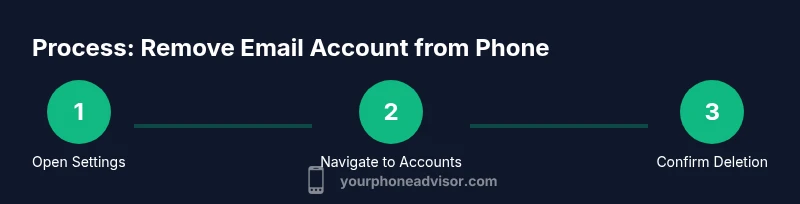
To remove an email account from your phone, open your device’s settings and locate the account you want to delete. The steps differ slightly by platform: on iOS go to Settings > Mail > Accounts, then select the account and confirm Delete Account; on Android go to Settings > Accounts, choose the email type, and Remove account. After removal, restart your device and verify no data remains syncing.
Why removing an unused email account matters
Keeping multiple email accounts on a single device can create security and privacy risks. Each active account increases the surface area for phishing attempts, credential reuse, and data leaks if the phone is compromised. Your Phone Advisor analysis shows that lingering accounts may keep old messages, calendar entries, and contacts accessible through apps that still sync in the background. Moreover, unused accounts can clog search results, drain battery, and consume storage through cached messages and app data. By removing accounts you no longer use, you simplify password management, reduce potential notification noise, and lessen the chances of accidental sign-ins. This is particularly important on shared devices or family phones where guests might access old accounts. When deciding which accounts to remove, consider how often you access them, whether they’re tied to business data, and how easy it will be to re-add them if needed in the future.
Different platforms have different paths, but the core goal remains the same: remove the account cleanly, ensure no apps are left signed in, and verify the device isn’t silently syncing with that account anymore.
What to back up before removing an account
Backing up data ensures you don’t lose access to important emails, contacts, or calendar entries that you may need later. Before you remove anything, export or sync copies from the old account to a secure location. For example, on many services you can download a copy of your emails via an export feature or forward essential messages to another address. If you use a calendar with shared events, consider exporting calendar data or sharing a read-only copy to another account. Also confirm whether any apps on your phone rely on this account for sign-in; disabling or removing the account could affect app access and offline data. Your Phone Advisor recommends keeping a minimal set of trusted accounts on a single device to maintain control over updates and permissions.
- Check whether the account is linked to any apps that store data locally.
- Consider a temporary disablement of syncing instead of full removal for long-term accounts.
- If the account is part of a corporate device, consult IT before removal to avoid policy conflicts.
iOS: removing an email account from iPhone or iPad
On iOS devices, email accounts are managed via the system settings. The removal process is straightforward but may vary slightly with iOS versions. Start by opening the Settings app and navigating to Mail (or Passwords & Accounts on older iOS), then select Accounts. Tap the account you want to remove, followed by Delete Account. Confirm the action when prompted. Depending on the device, you might receive prompts about removing related contacts or calendars; reviewing these prompts helps prevent unintended data loss. After removal, it’s a good practice to restart the device to ensure all syncing processes terminate and any residual credentials are cleared from active sessions. If you use an exchange or corporate account, you may see an additional prompt related to device management; follow your device’s prompts or contact your administrator if unsure.
Android: removing an email account from Android devices
Android handles accounts by type (Google, Exchange, IMAP, etc.). The general path is Settings > Accounts (or Users & accounts) > [Account type] > Remove account. You may be asked to confirm with your password or device PIN. Some accounts can be removed directly from the app (Email, Gmail) as a shortcut; however, removing from Settings ensures a thorough sign-out across apps. After removal, reboot your device to terminate background services and verify that no further syncing occurs. Note that some manufacturers (Samsung, Google Pixel) customize the Settings UI; the labels might read slightly differently, but the core steps remain the same.
Special cases: multiple accounts and data considerations
If you have several accounts on the same device, you can remove them one by one or apply a policy to remove all non-essential accounts at once. For business devices, corporate profiles or MDM (mobile device management) policies may trigger additional steps or restrictions. In such cases, removing an account could affect access to corporate apps or data stored in the cloud; consult your IT department before proceeding. When dealing with IMAP or Exchange accounts, you may want to disable calendar and contact syncing individually to preserve access to messages while removing other data. If you rely on third-party email apps, ensure you understand whether removing the account from the system also signs you out of that app or if you can keep access in the app but disable syncing.
Aftercare: security, privacy, and verification
Once the removal is complete, review the device for any remaining references to the old account. Open apps that previously signed in with that account to confirm you’re signed out, and check push notifications to ensure you’re not receiving from that account anymore. If you use two-factor authentication, update recovery options and ensure that your backup email or phone number is current. It’s also wise to perform a quick data sweep: search your device for the old email address to ensure no cached data remains and re-check your accounts list after a reboot. Finally, if you removed a work account, document the change for future audits and security reviews. Your Phone Advisor emphasizes verifying that the account is fully removed from both system settings and any installed apps.
Troubleshooting: common issues and quick fixes
If the account won’t delete, verify you’re using the correct credentials and that the device isn’t under an admin policy restricting removal. Restarting the device can clear transient glitches that block removal. On Android, if the Remove account option is greyed out, you may need to remove through the specific app or disable device security features temporarily. If you still see reminders or sign-in prompts after removal, re-check the accounts list and the sync settings for individual apps. For iOS, if a prompt asks to keep data on the device, consider keeping a local copy only if you’re sure you won’t need it, then retry the removal. If issues persist, contact your device’s support channel or your service provider.
Final checks: ensuring a clean removal across services
After completing the removal steps, perform a final round of checks. Log out of the account on any connected apps, wipe cached data related to the account, and confirm that no future emails will arrive for that address on the device. If you plan to re-add the account later, keep track of the login details and security settings to restore access quickly. Your Phone Advisor recommends testing by sending a test email to the removed account from another address to confirm no automatic syncing occurs. Finally, reassess which accounts you want active on the device to maintain a lean, secure, and user-friendly setup.
Tools & Materials
- Phone with internet access(Essential for following the steps and confirming removal across apps.)
- Account credentials (email address and password)(Needed to confirm removal on some devices or prompts.)
- Backup method (cloud or computer)(Optional but recommended for preserving important mail data.)
- Stable Wi-Fi or cellular connection(Helpful to prevent interruptions during removal and sync checks.)
Steps
Estimated time: 5-10 minutes
- 1
Open Settings
Launch the Settings app on your phone to access account management. Opening Settings first ensures you reach the central control panel rather than hunting through individual apps.
Tip: If you’re using a device with a search feature, try searching for 'Accounts' to jump directly to the right menu. - 2
Find the account type
On iOS, go to Mail or Passwords & Accounts; on Android, go to Accounts or Users & accounts. Identify the specific email account you want to remove from the list.
Tip: Knowing the account type (Google, Outlook, Exchange, IMAP) helps predict the exact path. - 3
Select the account
Tap the account you want to delete to reveal its removal options. This step isolates the target so accidental removal of other data is avoided.
Tip: If the account is part of a work profile, be aware that removal could affect corporate access. - 4
Choose Remove/Delete
Tap Delete Account (or Remove account) and confirm when prompted. This will sign you out and stop syncing from that account.
Tip: You may be asked whether to delete data from the phone; review prompts carefully to avoid losing needed data. - 5
Restart the device
Rebooting clears lingering sessions and ensures the account is fully removed from all services on the device.
Tip: A quick restart can resolve any residual background syncing that might still occur. - 6
Verify removal and recheck apps
Open key apps (mail, calendar, contacts) to verify you’re signed out. Check notification settings to ensure no further alerts are tied to the removed account.
Tip: If you still see signs of the account, revisit Settings > Accounts and check each app’s sign-in status.
Got Questions?
Will removing an email account erase emails from my phone?
Removing the account signs you out and stops syncing. Local copies may remain temporarily, but they won’t sync with the server after removal. Your cloud-stored emails remain in the service.
Removing the account signs you out and stops syncing. Local copies may stay briefly, but they won’t sync with the server after removal. Cloud emails stay in the service.
Do I need the password to remove the account?
In many cases you can remove without re-entering the password, but some devices or services may prompt you for the account password to confirm the action.
Some devices will ask for the account password to confirm removal; others won’t need it.
What about accounts synced with Google or iCloud?
Removing the account stops it from syncing, but other linked services may still be active if signed in with different credentials. Reconnect or re-add only if you need access later.
Removal stops syncing. Other services stay the same unless you sign out or remove those accounts too.
Will removing the account affect notifications?
Yes, you’ll stop receiving email push notifications from that account on the device. You may need to reconfigure notification settings for other accounts.
Notifications from that account will stop after removal; you can adjust other accounts separately.
What should I do if the account reappears after reboot?
Some devices re-sync after a reboot if the account is still configured in one of the apps. Check all apps and re-remove if necessary, then disable auto-sync for that account.
If it comes back after reboot, repeat the removal and disable auto-sync for that account.
How can I re-add an account later?
You can re-add the account through Settings > Accounts (or Mail) and follow the service’s prompts to sign in again with your credentials.
You can re-add the account from Settings when you need access again.
Watch Video
What to Remember
- Remove unused accounts to reduce security risk
- Back up data before removal
- Sign out from apps and verify after removal
- iOS and Android paths differ, but the goal is the same
- Restart your device to finalize the process