How to remove ads from my phone: a practical guide for 2026
Learn proven steps to remove ads from your phone, minimize adware, and tighten privacy with built-in tools and trusted apps. A Your Phone Advisor guide for Android and iOS.


By following these steps, you can remove intrusive ads from most phones. You’ll identify ad sources, uninstall adware, adjust browser and app permissions, and use reputable blockers or privacy settings. The approach works for Android and iOS, and takes about 30–45 minutes for most devices. This guide from Your Phone Advisor keeps you safe and informed.
What counts as ads on phones and where they come from
Ads on phones show up in three main forms: in-app ads that appear inside free apps, browser-based ads that ride along your browsing, and push or banner notifications that interrupt your screen. Some ads are legitimate marketing from apps you installed; others are adware bundled with a free download. According to Your Phone Advisor, understanding the source is the first step toward effective removal. When you ask how to remove ads from my phone, you’re really asking which layer is injecting the content and what controls you can exercise. This section helps you categorize intrusions and set realistic expectations for the rest of the guide. Across Android and iOS, the principle is the same: isolate the source, uninstall or disable the offending component, and tighten privacy settings to prevent future occurrences.
Android vs iPhone: where ads come from and how they behave
Android devices frequently encounter ad-supported apps that bundle ad libraries or adware features. Free games and utility apps often rely on ads for revenue, and some apps push notifications aggressively. iPhone users experience ads mainly through in-app promotions and occasionally via Safari or third-party browsers; iOS emphasizes sandboxing, but some malicious apps can still slip through. Your Phone Advisor notes that the best approach differs between platforms: Android users can usually uninstall offending apps and reset ad preferences in Google settings; iOS users should limit ad tracking and review app permissions. In both ecosystems, watch for telltale signs: sudden battery drain, unexpected prompts to install software, or new icons and banners you don’t recognize. A methodical cleanup reduces ad exposure and speeds up the improvement you’ll notice.
Android-focused steps overview
Android devices are particularly prone to adware in free apps due to monetization models. Start by auditing recently installed apps and permissions. Look for apps that push ads or request broad access. If you identify a suspect, uninstall it or disable notifications to test results. Next, check Google settings for ad personalization and consider resetting your Advertising ID. Clearing caches for known culprits can also reduce lingering banners. Finally, pair cleanup with a reputable ad blocker or privacy-focused browser to minimize ad networks. Some ads may persist if an app embeds a core ad network; in that case you should replace the app with a privacy-respecting alternative.
iOS-focused steps overview
iOS users see ads primarily through apps and browsing, but Apple’s privacy design helps limit intrusion. Begin by reviewing all installed apps and removing those that aggressively push ads or request broad permissions. Enable 'Limit Ad Tracking' and reset the Advertising Identifier. In Safari, enable a content blocker and turn on 'Block Pop-ups'; clear cookies and site data regularly. Keep iOS and apps updated to benefit from privacy hardening. If ads persist, consider alternatives to free apps or purchase ad-free versions when available.
Improve browser privacy and reduce ad-tracking
A large portion of mobile ads come from web traffic and trackers. Use private or incognito modes when appropriate, enable anti-tracking features in your browser, and install reputable content blockers. Regularly clear cookies and history, especially after visiting sites known for aggressive ads. Consider switching to privacy-focused search engines and avoid extensions or add-ons from unknown sources. These steps help reduce cross-site tracking and improve overall browsing experience.
Privacy controls built into Android and iOS
Both major platforms offer privacy controls that reduce ads. On Android, review all app permissions, disable overlays, and turn off personalized ads in Google settings. On iOS, limit ad tracking, review app permissions, and enable content blockers in Safari. Enabling these controls helps prevent aggressive ad behavior and lowers the likelihood of ad networks collecting data about your activity.
Caution with third-party tools: scams to watch for
Third-party tools can promise to remove ads, but many originate from questionable sources or request excessive permissions. Always rely on reputable developers and store-signed apps. Read reviews, check permissions, and avoid apps that request broad access or access to your notifications and overlays. If an offer sounds too good to be true, it probably is.
If ads persist: deeper actions and last-resorts
If you still see ads after cleanup, consider deeper steps such as backing up data and performing a factory reset as a last resort. Before reset, ensure you have a full backup of photos, contacts, and essential data. After reset, reinstall apps selectively and restore data carefully to minimize reintroduction of adware. If you suspect device compromise, consult a professional service.
Authoritative sources and further reading
For trusted guidance on mobile security and privacy, refer to established sources such as the Federal Trade Commission and national security standards. You can also explore articles from major publications for consumer guidance and best practices.
Tools & Materials
- Phone (Android or iOS)(Any model; ensure OS updated)
- Stable internet connection(Wi-Fi or mobile data)
- Official app stores access(Google Play Store or Apple App Store)
- Backup method(Cloud backup or local backup to PC)
- Trusted ad blocker or content blocker(From reputable developers only)
- Malware scanning app(Use well-known security vendors)
Steps
Estimated time: 40-75 minutes
- 1
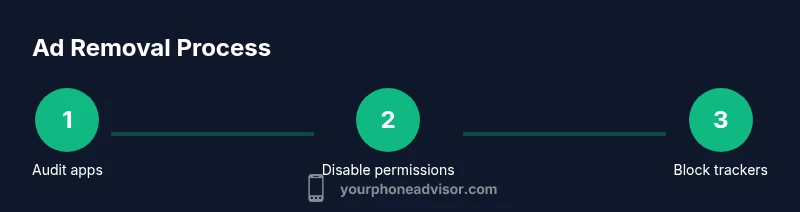
Audit apps and sources
Survey your installed apps and recent downloads to spot potential adware. Note apps that push ads or request broad permissions. This identifies the true culprits before you start removing.
Tip: Use Settings > Apps to view install date and permissions. - 2
Uninstall suspicious apps
Remove apps that exhibit aggressive ads or questionable behavior. If unsure, disable and observe changes before a full uninstall.
Tip: If you’re unsure, uninstall the app to test affect on ads. - 3
Review permissions and overlays
Check apps for overlay/popup permissions and notification access. Revoke overlays and unnecessary notifications for risky apps.
Tip: Limit overlays by toggling off for untrusted apps. - 4
Reset ad personalization / Advertising ID
Reset your Advertising ID on Android or limit ad tracking on iOS. This reduces targeted ad delivery.
Tip: Resetting is quick; you may lose some ad-recommendation history. - 5
Clear caches and cookies
Clear app caches and browser data to remove tracking data that fuels ads.
Tip: Do this for each browser you use for a thorough clean. - 6
Install reputable blockers
Choose a trusted ad blocker or content blocker and enable it in the browser of choice.
Tip: Avoid blockers with excessive permissions or dubious reviews. - 7
Update the OS and apps
Keep your OS and apps up to date; updates include privacy and security improvements.
Tip: Turn on automatic updates to stay protected. - 8
Run a malware scan if needed
If ads persist, scan with a reputable security app to detect potential malware.
Tip: Follow the app’s guidance to remove any threats. - 9
Monitor and adjust
Continue to monitor for new ads and adjust settings as needed. Regular maintenance helps sustain an ad-free experience.
Tip: Set a monthly privacy checklist.
Got Questions?
What exactly is adware on a mobile device?
Adware on mobile devices is software that displays ads, often bundled with free apps or downloaded from untrusted sources. It can slow performance and compromise privacy. Removing or disabling these apps and tightening privacy settings usually resolves the issue.
Adware is software that shows ads on your phone, often bundled with free apps. Removing the offending apps and updating privacy settings usually fixes it.
Can ads be completely removed from iPhones?
Ads can often be reduced significantly on iPhones by limiting ad tracking, removing problematic apps, and using content blockers in Safari. Full removal depends on app behavior and browsing patterns.
You can greatly reduce ads on iPhone by limiting ad tracking and using content blockers.
Are ad blockers safe to use on mobile?
Choose blockers from reputable developers and avoid those asking for broad permissions. While many blockers are safe, some shady apps can compromise privacy or performance.
Use trusted blockers from reputable developers to stay safe.
Will resetting my device erase data?
A factory reset will erase data and restore the device to its original state. Back up important data before proceeding. This should be a last resort for persistent adware.
A factory reset erases data and should be backed up first.
How often should I review my privacy settings?
Review privacy settings monthly or after installing new apps. Regular checks help catch adware and keep ads at bay.
Review your privacy settings every month or after adding new apps.
What if ads come from legitimate apps?
Some legitimate apps show ads as part of free plans. If ads are persistent or disruptive, consider upgrading to a paid version or removing the app.
If legitimate apps are too disruptive, consider paid versions or alternatives.
Watch Video
What to Remember
- Identify ad sources before taking action.
- Uninstall adware-heavy apps first.
- Tighten browser and system privacy settings.
- Use reputable blockers and avoid unknown tools.
- Regularly review app permissions.