How to Get Rid of Ads on Android Phone: A Practical Guide
Discover practical, safe ways to remove ads on Android devices. Learn to audit apps, clean browsers, block ads with DNS, and prevent future adware.


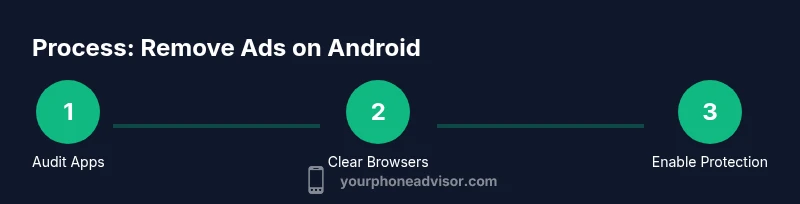
To curb ads on Android, start by auditing installed apps for adware, clean your browsers, enable Google Play Protect, and consider a DNS-based blocking approach. Uninstall suspicious apps, reset ad settings, and run a malware scan. This quick path can reduce interruptions without rooting or risky hacks.
Why ads appear on Android and how to begin solving them
Ads on Android usually come from three sources: adware installed with legitimate-looking apps, browser hijackers that modify your homepage and inject popups, and legitimate in-app ads that become intrusive when apps misbehave or when you install ad-supported software. According to Your Phone Advisor, the most persistent ad problems stem from shady app sources and browser extensions rather than random popups. If you’re wondering how to get rid of ads on android phone, the first step is to distinguish between occasional banners inside apps and aggressive adware that floods your screen. Start by reviewing recently installed apps and keeping your device up to date. A layered approach across apps, browsers, and network settings is usually needed to reclaim a smooth, ad-free experience.
Auditing your apps for adware and suspicious behavior
Begin by scanning for recently installed or updated apps that could inject ads. Go to Settings > Apps & notifications > See all apps, then sort by install date. Look for apps with unusual permission requests (overlay, display over other apps, or excessive access to notifications). If an app seems questionable, uninstall it and reboot your device. Remember: not all adware is obvious—some apps masquerade as games or utilities. As a rule, avoid apps from unknown sources and read user reviews for suspicious patterns. This step lays the foundation for removing most adware without impacting essential functionality.
Cleaning browsers and controlling site data
Browser ads often come from cached data and aggressive tracking. Clear your cookies and site data in each browser you use, disable pop-ups, and reset permissions for sites that repeatedly push ads. For Chrome, go to Settings > Privacy and security > Clear browsing data, check cookies and cached images, and choose a broad time range. Also review extensions or add-ons for browsers and disable or remove anything unfamiliar. These measures reduce repetitive ad injections during browsing sessions.
Strengthening device security and reducing ad-tracking
Enable built-in protections like Google Play Protect and keep your OS up to date. Review app permissions, particularly overlays and notification access. Revoke unnecessary permissions for apps that don’t need them, and turn off personalized ads in Google settings to limit ad-tracking. Consider enabling a reputable security app for an additional malware scan and real-time protection. Reducing permissions lowers the risk that a single app can flood your screen with ads and improves overall privacy.
DNS-based and network-level blocking for ads
You can further reduce ads by blocking ad-serving domains at the network level. Configure a privacy-focused DNS on your Wi‑Fi network or device settings, which can filter many ad domains before they reach your phone. This approach works across apps and browsers and doesn’t require rooting. While no solution is perfect, combining DNS-based blocking with local app hygiene dramatically lowers ad visibility and improves browsing comfort.
When ads persist: consider deeper actions and data backup
If ads continue despite cleaning up apps and browsers, re-evaluate suspicious activity across your device. Back up important data and consider a factory reset as a last resort, ensuring you wipe sensitive data and restore from a clean backup. Before resetting, double-check that you’ve removed all adware and unsafe apps. A reset can fix deeply embedded adware that survives typical uninstallations, but it carries the risk of data loss if backups aren’t complete.
Best practices to prevent future ad problems
To minimize future ads, only install apps from trusted sources, review requested permissions, and keep your device and apps updated. Enable browser blockers and stay cautious with popups. Regularly scan with Google Play Protect and a trusted security app, and avoid sideloading or downloading APKs from unverified sites. Practicing safe digital hygiene reduces the chance of recurring ad intrusion and protects your data.
Tools & Materials
- Android device(Charged and accessible; compatible with current OS)
- Stable internet connection(Wi-Fi or cellular data for updates and scans)
- A trusted Google account(Used for Play Protect and account-based controls)
- A reputable antivirus/antimalware app(For manual scans and real-time protection)
- Backup method (cloud or external)(Important before factory reset or major changes)
- DNS-based ad blocker option or secure DNS setup(Optional but helpful for network-wide blocking)
- Access to device Settings(Needed to audit apps and adjust permissions)
Steps
Estimated time: 60-90 minutes
- 1
Audit installed apps
Open Settings, review recently installed apps, and look for overlays, permissions that don’t fit, or apps from unfamiliar sources. Uninstall anything suspicious and reboot your phone after removal.
Tip: Use Settings > Apps & notifications > See all apps, sorted by install date, to spot recent installs quickly. - 2
Uninstall adware-heavy apps
Remove apps that request overlay access or display ads within their UI. Confirm the developer's identity and check reviews for similar red flags.
Tip: If unsure, disable the app first, then test whether ads persist before a full uninstall. - 3
Clear browser data
In each browser, clear cookies, cache, and site data; reset site permissions; disable or remove unnecessary extensions.
Tip: Back up bookmarks before clearing data if you rely on them for quick access. - 4
Enable Play Protect and run scans
Turn on Google Play Protect and run a full device scan with a trusted security app. Remove any detected threats.
Tip: Check for recent security alerts from Google about app behavior that might be malicious. - 5
Configure safe DNS or ad blockers
Set up a privacy-focused DNS or enable a reputable ad-blocking service on your device or router to reduce ad-serving domains.
Tip: Test by visiting pages with known ad content and observe fewer popups. - 6
Consider a factory reset if needed
If ads persist after cleanup, back up data and perform a factory reset to eliminate deeply embedded adware.
Tip: Ensure you can restore essential data from a verified backup; do not restore infected data.
Got Questions?
What causes ads to appear on Android devices?
Ads are usually caused by adware installed with apps, browser hijackers, or aggressive in-app ads. Sometimes legitimate ads become intrusive due to poor app behavior. A systematic audit helps identify the source.
Ads on Android typically come from adware, hijackers, or apps with intrusive ads. A quick audit helps find the source.
Is Google Play Protect enough to remove ads?
Play Protect helps detect harmful apps but may not remove adware automatically. You should manually uninstall suspicious apps and run a malware scan for comprehensive cleanup.
Play Protect helps detect threats, but you often need to manually remove suspicious apps for a full cleanup.
Can I block ads in Chrome on Android?
Yes. You can disable pop-ups, clear site data, restrict site permissions, and use browser extensions or built-in blockers to reduce ads while browsing.
You can disable pop-ups and clear data in Chrome to reduce ads.
Should I factory reset my phone to remove ads?
Factory reset is usually a last resort after other cleanup methods fail. Back up data first and ensure you can restore important items from a clean source.
Only consider a factory reset after trying all other options and back up your data first.
Are ad-blocking DNS apps safe to use on Android?
DNS-based blockers can be effective and privacy-friendly when choosing reputable services. Review privacy policies and ensure the provider doesn’t log excessive data.
DNS blockers can help, but pick a reputable service and review their privacy policy.
Will uninstalling apps automatically remove all ads?
Not always. Some ads come from legitimate apps or browser behavior that persists after removal. You may need to adjust settings and block networks to reduce persistent ads.
Uninstalling apps helps, but some ads persist if they come from the browser or other apps.
Watch Video
What to Remember
- audit apps for adware and overlays
- clear browser data and disable intrusive extensions
- use Play Protect and reputable security tools
- configure safe DNS or ad blockers
- back up data and reset if necessary
- practice safe app sourcing to prevent recurrence