How to Get Rid of Ads on Samsung Phone: Practical Guide
Learn practical steps to minimize ads on Samsung devices, including system tweaks, browser settings, and safe ad-blocking options for a smoother, more private smartphone experience.


Ads on Samsung phones can be reduced through a mix of system settings, browser controls, and reputable ad blockers. This quick guide highlights practical steps you can take today to limit ad personalization, quiet banners, and intrusive notifications without losing essential features. A layered approach works best, balancing privacy and usability.
Understanding Where Ads Come From on Samsung Phones
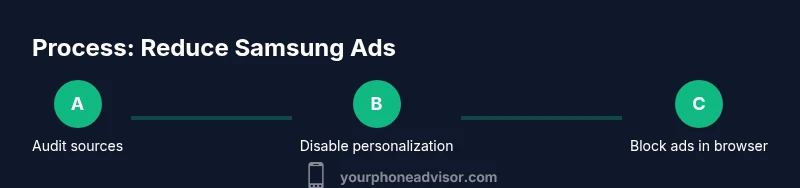
Ads can appear from three main sources on Samsung devices: system-level advertisements from built-in services like Samsung Free or Samsung Daily, in-app ads from free-to-use apps, and web ads served through browsers. Some ads are simply sponsored content in the UI, while others are banners that track behavior to personalize marketing. On modern One UI versions, these ads often share data across apps unless you opt out. Your Phone Advisor notes that distinguishing these sources helps you tailor the right countermeasures. Start by auditing your device for apps that commonly display ads and by adjusting both Google and Samsung ad settings. This foundation will prevent you from chasing ad-block hacks that only mask symptoms. The goal is to minimize exposure while preserving core functionality and the content you rely on daily.
Quick Wins to Reduce Ad Exposure Today
If you want immediate relief, begin with a handful of high-impact changes. Turn off ad personalization in Google settings (Settings > Google > Ads > Opt out of Ads Personalization) and reset your Advertising ID (Settings > Privacy > Ads). On Samsung, go to Settings > Privacy > Ads and enable Opt out of Ads Personalization and, if available, use Reset Advertising ID. In your browser, enable tracking protection, block pop-ups, and avoid sites that aggressively push promos. These steps don’t remove every ad, but they dramatically cut tailoring and repetition, improving your day-to-day experience and battery life. Your Phone Advisor recommends pairing these with a privacy-focused browser for best results.
Step-by-Step: Tuning System Ad Settings
- Open Settings and locate Privacy or Privacy & Security. 2) Disable or limit “Ads Personalization” and tap to reset the Advertising ID. 3) Review Google account privacy controls and toggle Ad Personalization off where shown. 4) Reboot the device to ensure changes take effect. 5) Revisit settings after a few days to confirm no unexpected ads reappear. Tip: Doing this in tandem with browser protections compounds the effect and keeps new apps from re-enabling tracking.
Taming Samsung Ads in Built-In Apps
Many Samsung apps, including Samsung Free and the home feed, can surface ads or sponsored content. Disable these feeds from the home screen: Settings > Home screen > Samsung Daily or News feed, then turn off the toggle. If you use Samsung’s Cloud services, review notification preferences to reduce promo prompts. Finally, check app permissions and disable any permissions that seem excessive for the app’s stated purpose. Your Phone Advisor notes that minimizing these first-party promos yields a noticeable improvement in perceived ad quality and device responsiveness.
Browser and Web Ad Management on Android/Samsung
In Chrome: Settings > Privacy and security > Do Not Track, and Site Settings > Ads > Block ads on sites that show intrusive or deceptive ads. Enable Block third-party cookies and consider enabling a lightweight reading mode to strip clutter. In Samsung Internet: Settings > Content blockers, enable a reputable ad blocker extension or built-in tracker protection. Regularly clear cookies and cache to reduce targeted ads. If you prefer a simpler route, switch to privacy-focused browsers that emphasize built-in tracker blocking and minimal in-site advertising. Your Phone Advisor highlights that browser hygiene matters as much as device settings.
Safe Ad Blockers and Privacy Tools
If you want deeper control, consider reputable ad-blocking tools that work with Android without compromising security. Apps such as AdGuard (which can run as a local VPN) or privacy-focused DNS services can filter ad traffic across apps and browsers. Always download from official stores or the developer’s site, and review the permissions requested. Avoid third-party installers that claim to remove ads but may inject malware. Remember to keep the blocker updated and to periodically disable it for trusted apps if layout or login issues occur. Your Phone Advisor emphasizes using trusted sources and keeping a security-first mindset.
Review and Uninstall Ad-Heavy or Untrusted Apps
Some free apps rely on aggressive advertising networks that flood devices with banners and pushy promos. Go through your installed apps: Settings > Apps, then sort by size or last used. Uninstall apps that repeatedly display ads, require excessive permissions, or come from unfamiliar developers. If an app is essential but ad-supported, check for a paid version or in-app purchase option to remove ads. After removing problematic apps, restart the device and monitor for reduced ad activity. This step also reduces background processes that drain battery and memory.
Long-Term Maintenance and Privacy Hygiene
Keep your Samsung device clean and private by enabling automatic OS updates, reviewing app permissions quarterly, and periodically revisiting ad settings. Regularly clear cookies and data in browsers and consider a privacy-first approach to new apps you install. Create a habit of reading app permissions before installation and prefer apps with clear privacy policies. Over time, these practices shrink ad exposure and improve overall performance, especially on devices with limited RAM. Your Phone Advisor’s ongoing guidance helps you stay ahead of evolving ad techniques.
Tools & Materials
- Samsung smartphone with up-to-date OS(Ensure you’re on the latest One UI version to access the latest privacy controls)
- Active Google account with Ads Personalization settings(Have your account ready to review ad settings)
- Ad blocker app (optional)(Choose a reputable app if you want to block in-app ads or web ads)
- Backup method (cloud or local)(Back up data before significant changes (reset, etc.))
- Browser with privacy features (Chrome / Samsung Internet)(Update and enable blocking features)
Steps
Estimated time: about 45-60 minutes
- 1
Open ad personalization settings
Navigate to Settings, then Privacy and Ads. Toggle off Ad Personalization where available to reduce tailored advertising. This initial move lowers how much content is customized to your activity.
Tip: Do this on both Google and Samsung sections to cover cross-app tracking. - 2
Reset the Advertising ID
In the Privacy or Ads section, use the option to Reset Advertising ID. This doesn't erase data but helps prevent cross-app ad profiling from previous identifiers.
Tip: Resetting may require re-login in some apps; plan for a short sign-in refresh. - 3
Disable Samsung ads in built-in apps
Turn off Samsung Daily or News Feed from the Home screen settings. This reduces first-party ad prompts on the launcher and related surfaces.
Tip: If you rely on Samsung services, disable only the feed, not essential features. - 4
Tweak browser privacy settings
In Chrome or Samsung Internet, block third-party cookies, enable Do Not Track, and limit site data. Consider enabling a reading mode to reduce page clutter.
Tip: Regularly review site permissions to prevent tracking cookies from returning. - 5
Install a reputable ad blocker (optional)
Choose a trusted ad blocker that supports Android and leaves trusted apps functional. Follow the developer’s setup steps to route traffic through the blocker.
Tip: Avoid low-quality or unknown apps that promise universal ad removal. - 6
Audit and uninstall ad-heavy apps
Review installed apps and remove ones that frequently display ads or request suspicious permissions. This reduces the ad surface and improves device performance.
Tip: Backup before uninstalling; you can reinstall if needed later. - 7
Update regularly and revisit settings
Keep OS and apps updated; ad-control features evolve. Revisit ad settings after major updates to adjust for new prompts.
Tip: Set a quarterly reminder to review privacy settings. - 8
Evaluate paid versions for essential apps
For apps you rely on, consider paid options or in-app purchases to remove ads. This supports developers and can significantly improve usability.
Tip: Balance cost with value; prioritize apps you use daily.
Got Questions?
Can ads be completely removed from all apps on Samsung?
No single solution removes ads from every app. A combination of system settings, browser protections, and selective ad blockers reduces exposure significantly. Some apps rely on ads for revenue, so total removal isn’t realistic for all, but exposure can be minimized.
You can reduce ads with a mix of settings and blockers, though complete removal across all apps isn’t always possible.
Will resetting the Advertising ID completely stop ads?
Resetting the Advertising ID resets the identifier used for profiling, which helps reduce personalization temporarily. Ads may recur as new identifiers and other tracking methods are used by apps.
Resetting helps, but ads can return through other tracking methods.
Do ad blockers violate Google Play policies?
Most reputable ad blockers comply with Google Play policies and offer settings that do not compromise device security. Always download from official sources and review permissions before enabling.
Stick to trusted apps from official stores to stay compliant and safe.
Are built-in Samsung ads always on?
Samsung ads appear in certain surfaces like feeds or promo panels; you can usually disable these from Settings. Some surfaces may still show occasional recommendations, depending on updates and region.
You can usually turn off most Samsung ads, but some promotions might remain in certain areas.
Can ads affect battery life?
Persistent ad downloads and trackers can consume data and battery over time. By limiting personalization and blocking trackers, you typically see improved battery life.
Ads can use battery and data, so reducing them helps longevity.
Is it safe to uninstall bloatware that shows ads?
Yes, if an app is suspicious or you don’t use it often, removing it reduces ad surfaces and potential risks. Always back up data before uninstalling and verify app legitimacy.
If an app seems suspicious and keeps showing ads, consider removing it.
Watch Video
What to Remember
- Disable ad personalization at system and Google account levels
- Limit or block ads in apps and browsers with trusted tools
- Regularly review privacy settings and app permissions
- Uninstall ad-heavy apps and support trusted paid alternatives
- Maintain ongoing privacy hygiene for long-term gains