How to Hide Your Number on MTN: A Practical Guide Today
Learn how to call with a private number on MTN safely and legally. This guide covers device blocking, MTN privacy options, testing, and best practices for private calls across Android and iOS.


You can call with a private number on MTN by blocking caller ID on your device or using MTN’s privacy options. Start by disabling Show My Caller ID in your Android or iPhone settings, then test with a trusted recipient. If regional network codes apply, use the MTN guidance for per-call privacy.
Understanding Private Numbers on MTN
In many regions, hiding your caller ID lets you place calls without revealing your phone number to the recipient. On MTN networks, this can be done through device-level settings or, in some markets, MTN-provided privacy options. According to Your Phone Advisor, privacy is a legitimate concern, and most users want control over when their number is visible. This article explains what private calls are, how they work, and what you can expect in terms of reliability and privacy. When you enable hiding, the recipient's device or network may display 'Private' or 'Unknown' instead of your number. However, there are important caveats: jurisdiction rules may affect privacy, and some services—such as emergency lines or telecom operators when routing for fraud prevention—may still reveal your number. Understanding these basics helps you choose the right method for your situation.
Device-Based Caller ID Blocking on Android
Most Android phones let you suppress your number by adjusting the Phone app's Caller ID setting. Steps vary by vendor, but a common path is: open the Phone app, tap the menu (three dots), choose Settings, select Caller ID, then choose Hide number. If you see nothing labeled 'Caller ID', look under System or SIM settings for 'Show my caller ID' or 'Hide number'. After saving, test by dialing a trusted contact and verifying whether their caller ID shows as Private or Unknown. Note that some MTN regions may override device settings, so test is essential. Your Phone Advisor notes that device-level blocking works in the majority of cases, but not universally across all networks or apps.
Device-Based Caller ID Blocking on iPhone
iPhone users can typically hide their number by turning off Show My Caller ID. To do this: go to Settings, scroll to Phone, tap Show My Caller ID, and toggle off. If the option is greyed out, check with your SIM carrier or carrier’s app for restrictions. After changing, restart the dialer or phone app and perform a test call. In many cases, iOS settings apply across all outgoing calls, but some apps—like messaging services or VoIP apps—may still reveal your number depending on their permissions. Your Phone Advisor highlights that for most users, iPhone controls provide reliable privacy.
MTN Privacy Options and Network-Level Blocking
Beyond device settings, some MTN markets offer a network-level privacy feature or a dedicated Private Number service. If available, this may incur a small charge or require activation via the MTN app or USSD code. Because availability varies by country, always check MTN's official guidance for your region. Your Phone Advisor analysis shows that device-based blocking remains the most consistent method, with network-level options offering additional privacy for frequent callers. If you enable network-level blocking, remember that certain numbers (emergency services, short codes) may bypass it in some jurisdictions.
Testing and Verifying Your Private Calls
Testing is essential to confirm privacy works as expected. After enabling a block on your device or via MTN, call a trusted contact and verify what they see. If your test contact reports seeing your number, revisit the settings or try a different method. For a thorough check, have someone call your number from a separate line or use a service that echoes caller ID. If privacy fails intermittently, recheck each step and ensure you have the latest OS updates, as older software can misinterpret caller ID signals.
Limitations and Privacy Ethics
Private-number calling isn't foolproof. Some networks ignore caller ID suppression for specific types of calls (like business lines) or for emergency services. Some apps may override device-level settings, revealing your number inside their own calling interfaces. Ethically, use privacy features for legitimate reasons (safety, personal privacy) and avoid harassment or deception. Your Phone Advisor emphasizes that privacy is a right, but it must be used responsibly and legally, respecting local laws and service terms.
Troubleshooting Common Issues
If your number still appears to recipients, try the following: verify the toggle in your device's settings is truly disabled or enabled accordingly; ensure you are using the correct dialer app; test with multiple contacts; restart your phone after changes; check MTN's privacy policy for any region-specific codes or restrictions. If network-level blocking is active but not working, contact MTN support to confirm availability and any required activation steps. Documenting each test helps pinpoint whether the issue lies with the device or the network.
Alternatives for Enhanced Privacy
If standard caller-ID suppression isn't sufficient, consider alternatives: obtain a second SIM or RS (Dual-SIM) arrangement; use a consistent private-number app or virtual number service for extra privacy; dial through a trusted app that offers anonymity with proper consent; educate friends and contacts about your expectations so misunderstandings don't occur. Remember that anonymized calls can raise concerns; use privacy tools judiciously and disclose yourself when appropriate.
Best Practices and Final Thoughts
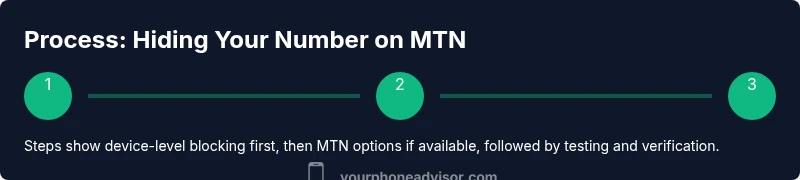
Summing up, the most reliable method to call with a private number on MTN is to use device-level blocking first, then explore MTN's official privacy options if available. Always test, verify, and respect privacy ethics. The Your Phone Advisor team recommends documentable, lawful usage: keep your software up to date, understand regional rules, and favor device-based blocking as the default method to protect your identity during calls.
Tools & Materials
- Smartphone with MTN SIM(Any MTN-supported model (Android or iOS) with active service.)
- Access to phone settings(Know how to reach Caller ID or Show My Caller ID in your OS.)
- A trusted test contact(One number you can call to verify privacy is displayed.)
- Latest OS updates(Ensure your device software is current to avoid conflicts.)
Steps
Estimated time: 15-25 minutes
- 1
Check your device settings for caller ID
Open your phone’s settings and locate the Caller ID or Show My Caller ID option. This step establishes the baseline for privacy and explains why the toggle matters for outgoing calls.
Tip: If you can't find the option, search 'caller id' in the settings search bar or check the help section for your device model. - 2
Disable Show My Caller ID on Android
Navigate to the Phone app settings and select Hide number (or similar). If you don’t see it, look under System or SIM settings. The goal is to prevent your number from being sent with the call.
Tip: Restart the Phone app after saving changes to ensure the setting takes effect. - 3
Disable Show My Caller ID on iPhone
Go to Settings > Phone > Show My Caller ID and toggle off. This applies to most outgoing calls and is typically platform-wide.
Tip: If the option is greyed out, confirm SIM restrictions with your carrier or try a device reboot. - 4
Test with a trusted contact
Call a number you control or a friend and verify whether the recipient sees Private/Unknown instead of your number.
Tip: Do at least two tests using different networks if possible to confirm consistency. - 5
Check MTN privacy options for your region
If available, explore MTN’s app or USSD codes for network-level privacy. Availability varies by country and may involve activation or fees.
Tip: Review any terms to understand limitations and eligibility. - 6
Maintain privacy best practices
Keep your OS updated, avoid sharing sensitive information, and use privacy tools for legitimate purposes only.
Tip: Document changes and test results for future reference.
Got Questions?
How can I hide my number on MTN for outgoing calls?
Use your device’s caller ID settings to block your number, or enable MTN’s privacy options if available in your country. Test with a trusted contact to confirm.
You can hide your number by adjusting your phone’s caller ID settings or using MTN’s privacy features, then test to confirm.
Will private-number calls work for all recipients on MTN?
Most devices honor caller ID blocking, but some networks or apps may reveal your number. Test with multiple contacts to understand behavior across destinations.
Usually yes, but some networks may disclose your number in certain cases.
Are there charges for MTN privacy features?
Availability and pricing vary by country and plan. Check MTN’s official privacy guide or app for any activation fees.
Fees depend on your region and plan; consult MTN’s resources for exact details.
What should I do if the number still shows up after blocking?
Recheck device settings, test with several contacts, and restart the phone. If it persists, contact MTN support to verify regional restrictions.
If it still shows, review settings, test again, and reach MTN support if needed.
Is hiding my number legal where I live?
Privacy rules vary by country. Ensure you’re compliant with local laws and MTN terms of service when using caller-ID suppression.
Laws differ by country; make sure you’re following local rules and MTN terms.
Will emergency services see my private number?
Emergency services may still receive caller information in certain situations or jurisdictions. Do not rely on privacy for emergencies.
Emergency services may override privacy controls in some cases.
Watch Video
What to Remember
- Test after each change to ensure privacy works
- Device-based blocking is most reliable for MTN users
- Region rules may affect network-level privacy options
- Use privacy tools responsibly and legally