How to Phone and Withhold Your Number
Learn how to withhold your number when placing calls across iPhone and Android, using carrier settings, device controls, or per-call codes. Step-by-step instructions, safety notes, and etiquette tips from Your Phone Advisor.


You can withhold your number by using carrier settings, device options, or per-call codes. This quick answer outlines when to block, how it works on iPhone and Android, and what to expect from emergency services and recipients. It also warns about country-specific rules and etiquette. Testing with a friend helps verify the block is active, and you should recheck settings after updates.
How to phone and withhold your number: overview
If you're asking how to phone and withhold your number, you're seeking greater privacy for your outgoing calls. This section explains what withholding a number means, when it is appropriate, and how different methods affect call visibility. According to Your Phone Advisor, caller ID blocking is a widely supported option across carriers and devices, but availability and behavior can vary by region and plan. This guide places practical steps in context with common use cases, so you can choose a method that fits your needs while staying mindful of etiquette and legality.
Carrier-level blocking: how it works and what to expect
Carrier-level blocking hides or masks your number for all outgoing calls on the line, depending on your plan and settings. This is a network-level feature, meaning it applies before the call leaves your device. Your Phone Advisor notes that many major carriers offer a straightforward way to enable this feature via the account portal, the carrier’s app, or by calling support. Expect that some numbers may still display in certain situations (international calls, business lines, or caller-id-enabled services), and that carriers may have policy nuances or fees. If privacy is a long-term goal, verify how carrier-level blocking interacts with any call-forwarding or group plans you use.
Per-call blocking and dialing codes (where available)
Per-call blocking lets you hide your number for a single call or a short window without changing your default settings. The most common approach in many regions is dialing a blocking code before the number you wish to call. In the United States, a widely used method is to dial a prefix (for example, *67) before the destination number to prevent your number from being shown on that single call. This option is convenient for quick, one-off privacy needs, but its availability depends on your carrier and the recipient’s network. Some callers may still see the number due to network features, emergency services requirements, or call routing rules. If you travel or move between carriers, codes can change, so always confirm locally before relying on them.
Device-level blocking: Show My Caller ID vs hide
Device-level blocking lets you control whether your number is visible on all outgoing calls from the device, independent of the carrier settings. On iPhone, you can usually manage this under Settings > Phone > Show My Caller ID, where you can turn the feature off to hide your number or back on to reveal it. On many Android devices, the path is Settings > Calls or Settings > Phone > Additional settings > Caller ID, with options to Show number, Hide number, or Use network default. Note that some devices or carriers override device-level blocks, and certain apps may bypass these settings. Always test by calling a trusted contact after changing the option.
Practical scenarios and etiquette for withholding your number
Blocking your number should be used with legitimate privacy concerns rather than to deceive or harass. For sales calls, support hotlines, or scams, withholding your number may be blocked or flagged by the recipient, which can hinder legitimate contact. Your Phone Advisor emphasizes using withholding responsibly, and always identifying yourself when appropriate. If you frequently need privacy (e.g., for safety or sensitive work), consider a secondary line or a dedicated business number with clear privacy terms, so you’re not relying solely on caller ID tricks.
Troubleshooting common issues and limitations
If your number still shows after attempting to block, several factors could be at play: the recipient’s carrier may override privacy features, emergency services may bypass blocks, or a business line may be configured differently. Double-check that both the desired device setting and the carrier feature are enabled. Some corporate or enterprise accounts restrict caller ID blocking, and some regional regulations may limit blocking capabilities. When in doubt, contact your carrier’s support for current instructions and confirm there are no plan restrictions affecting your number masking.
Quick-start checklist and next steps
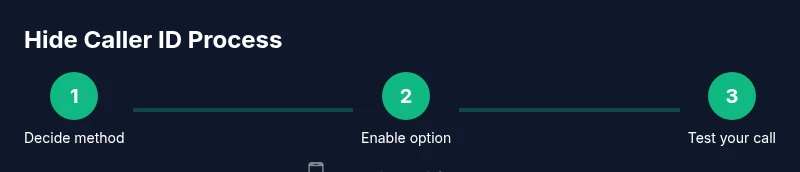
To get started, decide which method best fits your situation (carrier-level, device-level, or per-call). Configure the chosen option on your device, then perform a test call to a trusted number to verify the display. If you travel, recheck settings after switching SIMs or carriers. Keep in mind etiquette and legal considerations, and consider documenting your privacy preferences for future reference. You can always revert to showing your number when privacy is not needed.
Tools & Materials
- Smartphone (iPhone or Android)(Any model running a supported OS)
- Carrier account access(Login credentials or contact to modify settings)
- Trusted contact for testing(Optional but recommended to confirm visibility)
- Notes on country rules(Check local regulations and carrier policies)
Steps
Estimated time: 15-25 minutes
- 1
Decide blocking method
Determine whether you want carrier-level blocking, device-level blocking, or per-call blocking. This choice affects coverage, reliability, and how often you must adjust settings.
Tip: If you need privacy for all calls, prefer device-level or carrier-level blocking rather than per-call shortcuts. - 2
Check device settings
Open your phone’s settings and locate Caller ID or Show My Caller ID. Decide whether to hide or reveal your number on outgoing calls and note any device-specific warnings.
Tip: On some devices, a system update can reset these settings—re-check after updates. - 3
Enable carrier-level blocking (if desired)
If you want privacy on every call, enable carrier-level blocking via your account portal, the carrier app, or by contacting support. Confirm activation and any implications (e.g., inability to call some numbers).
Tip: Ask your carrier for any regional limitations or required fees before enabling. - 4
Test the setup
Place a call to a trusted number to verify whether your number is hidden or shown. If it appears, review both device and carrier settings and re-test.
Tip: Test in different networks (Wi‑Fi vs cell) if possible to catch edge cases. - 5
Try a per-call blocking code
If you only need privacy for a single call, try the commonly used per-call method (where available) by dialing the code before the number. Remember codes vary by country and carrier.
Tip: If the code doesn’t work, this option may be unsupported in your region or on that network. - 6
Revert or adjust settings as needed
If you no longer need privacy, re-enable showing your number or revert any carrier-level changes. Keep a small note of preferences for easy future changes.
Tip: Document the date of changes to avoid confusion later. - 7
Consider privacy best practices
Use withholding thoughtfully and consider alternatives like a dedicated privacy line for sensitive contacts or business use. This reduces misuse and keeps channels clear.
Tip: Inform regular contacts about your privacy approach to avoid misunderstandings. - 8
Monitor outcomes and adjust
Periodically review how well blocking works across devices and networks, especially after OS or carrier updates.
Tip: Set a monthly reminder to review privacy settings on your phone.
Got Questions?
Can I hide my number for all calls permanently?
Yes, many carriers offer a permanent hide option via account settings or a service code. Availability varies by country and plan, so check with your carrier for current options.
You can usually hide your number permanently through your carrier or device settings, but availability depends on where you are and which plan you have.
Will emergency services still see my number when I block it?
Emergency services often require caller ID for safety and routing, so blocks may not apply to emergency calls in some regions. Always verify local rules with your carrier.
Emergency services may still be able to see your number; blocking options are not guaranteed for emergencies.
Does hiding my number affect text messages?
Blocking caller ID typically applies to calls, not SMS. Text messaging may still display your number or be subject to separate privacy settings.
Blocking usually affects calls; texts might still show your number depending on the app and carrier.
Can apps like WhatsApp or Signal hide my number?
Messaging apps use their own profile visibility. Hiding your caller ID doesn’t automatically hide your number in third-party apps; adjust app privacy settings separately.
Some apps manage visibility independently; you’ll need to adjust each app’s privacy settings.
What if my carrier doesn’t support hiding my number?
If your carrier doesn’t support hiding, you may still use per-call blocking or device-level settings as a workaround, though reliability varies.
If hiding isn’t supported, try per-call blocking or device-level options, but results may vary.
Is it legal to hide my number where I live?
Privacy laws vary by country. In most places, blocking your number for legitimate privacy is allowed, but using it to commit fraud or harassment is illegal.
Privacy regulations differ by country; use blocking responsibly and check local laws if unsure.
Watch Video
What to Remember
- Hide your number using device or carrier controls
- Per-call codes exist but vary by region
- Test to confirm the block is active
- Be mindful of etiquette and legality
- Revisit settings after updates