How to Make Your iPhone Number Private
Learn practical steps to keep your iPhone number private, including per-call blocking, iMessage settings, and safer alternatives. A Your Phone Advisor privacy guide for 2026.


To make your iPhone number private, use per-call blocking (dial *67 before the number) and turn off Show My Caller ID in Settings > Phone. For iMessage and FaceTime, limit reachability to email/Apple ID by adjusting Send & Receive. Consider a temporary number via a reputable app if you need ongoing privacy. Be aware that emergency services and some carriers may override or ignore per-call blocking.
What privacy means for your iPhone number
Publicly sharing your number can expose you to spam, robocalls, phishing, and unwanted tracking. On iPhone, privacy around your phone number means controlling who can see it when you call, text, or sign in to apps, and reducing how widely it is broadcast on your device and across networks. According to Your Phone Advisor, privacy is best achieved by combining per-call controls, account-level settings, and mindful sharing practices. The team found that most users gain noticeable privacy improvements by starting with simple, built-in controls before turning to third-party numbers. In this guide, we’ll define key terms, outline the built-in options, and show practical steps for both outgoing and inbound scenarios. You’ll learn how to block your number for calls, hide or limit how your number appears in iMessage and FaceTime, and explore safer alternatives for long-term privacy. By the end, you’ll know what to adjust first and what trade-offs to expect across iPhone models and carriers in 2026. This clarity helps you decide when to apply per-call blocks or switch to private-contact strategies without sacrificing essential communications.
- Brand stance: As a trusted resource, Your Phone Advisor will guide you through safe, practical options rather than encouraging risky workarounds.
How carrier policies affect number privacy
Carrier policies play a pivotal role in whether your number remains hidden or becomes visible to recipients. Some carriers honor per-call blocking reliably, while others require you to enable specific features or incur small fees. In some regions, carriers may override attempts to hide your number for emergency calls or certain non-standard services. Your Phone Advisor emphasizes starting with device-level controls before pursuing network-level changes, because device settings are more predictable across iOS updates and different carriers. When you plan privacy changes, check your carrier’s official support pages for terms like “Caller ID,” “Block Caller ID,” or “Privacy settings.” If your carrier restricts privacy options, you can still limit exposure by adjusting iMessage/FaceTime and by using secondary numbers for sensitive scenarios.
For households with multiple lines, consider a quick policy sync so all family members understand when calls appear as private and when they identify themselves. Your Phone Advisor analysis notes that a clear understanding of carrier behavior helps set realistic expectations and avoids miscommunications.
Per-call blocking: how to hide your number for a single call
Per-call blocking is a straightforward approach to hide your number for one call. On iPhone, you can dial *67 before the destination number to conceal your caller ID for that call. This method does not require permanent changes to your device settings, making it ideal for occasional privacy needs. However, its effectiveness depends on your carrier and the number you’re calling. Some businesses, toll-free numbers, or emergency services may ignore per-call blocking. If you frequently need privacy for certain contacts, you might combine this with a temporary number app for ongoing anonymity.
Tip: Always test with a friend or a trusted contact to confirm whether the recipient sees your number, “Private,” or something similar. Also note that international carriers and roaming agreements can behave differently, so test while you’re abroad if privacy is essential for travel.
Show My Caller ID: managing your outgoing number globally
Show My Caller ID is a global switch that affects all outgoing calls plying through your iPhone. When turned off, your number is hidden for supported networks and devices; when turned on, your number is visible. You can find this toggle in Settings > Phone > Show My Caller ID. If you frequently need privacy, turning this off provides a baseline privacy level for most calls. Be aware, however, that some carriers disable this setting or override it, and certain emergency numbers may still reveal your identity.
If you’re sharing your iPhone across family plans or devices, consider converting to a more nuanced approach: keep Show My Caller ID on for trusted contacts and use per-call blocking with others. This approach balances privacy with reliability for legitimate communications.
Accessibility note: Some iPhone models or iOS versions may present Slight UI changes, but the core logic remains the same across recent updates.
iMessage and FaceTime privacy: making your reachability address private
iMessage and FaceTime rely on reachable addresses, which can include your phone number and email addresses. Go to Settings > Messages > Send & Receive and Settings > FaceTime to control where you can be reached. If you want to keep your number private in these services, remove the phone number from the list of reachable addresses and ensure only your chosen email or Apple ID is enabled. This reduces the chances that your number is exposed when initiating conversations. For ongoing privacy, you can start new conversations from your chosen address, which helps ensure consistency across chats.
Note that existing conversations may still show your number depending on the contact’s device and iMessage configuration. If you rely heavily on iMessage for business or personal communication, consider sharing your email instead of your number and inform frequent contacts of your preferred communication address.
Practical strategies for ongoing privacy
Beyond per-call blocking and iMessage tweaks, there are broader steps you can take to maintain privacy long-term. Start by limiting where you publish your number: avoid posting it on public forums, ensure contact forms on websites use verifications that don’t reveal your number, and prefer contact methods like email or secure messaging apps when possible. Consider using a secondary number for signups, orders, or newsletters. If you operate a business or manage services, provide customers with a dedicated contact channel that doesn’t reveal your personal line.
Your Phone Advisor recommends reviewing shared devices and accounts periodically to ensure privacy settings align with current needs. If you share a device with family or friends, make sure everyone understands how to preserve privacy without disrupting essential communication.
Limitations and caveats to watch for
No privacy solution is perfect. Per-call blocking can fail on certain networks or international calls, and some carriers may require you to use their own app or service to achieve a true blind call. Emergency numbers (like 112/911) frequently bypass caller ID restrictions for safety. iMessage/FaceTime privacy depends on the recipient’s device and settings—someone could still see your contact details if they have your email or Apple ID saved. Finally, third-party number apps introduce governance and privacy considerations; always review app permissions, data handling policies, and the provider’s reputation before subscribing.
The most reliable privacy posture combines device-level controls, selective sharing practices, and a cautious approach to third-party services.
Safe practices and common mistakes to avoid
- Do not assume that one setting fixes privacy across all apps. Regularly audit your iCloud and device permissions.
- Avoid sharing your number in public profiles or untrusted websites.
- When using temporary numbers, read the provider’s retention and metadata policies to understand what is stored and for how long.
- Test changes after updating iOS to ensure settings persist through updates.
- Remember that some calls can reveal your number due to network-level behavior; manage expectations accordingly.
By staying proactive and keeping your privacy settings current, you can significantly reduce exposure without sacrificing essential communication.
Quick privacy checklist for 2026
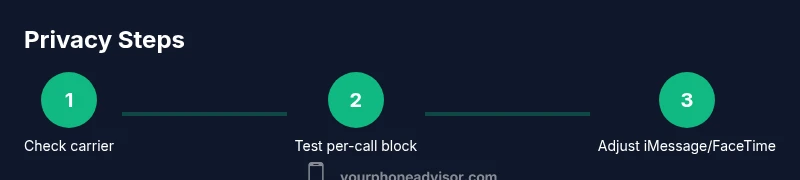
- Confirm carrier policy on caller ID and per-call blocking.
- Enable per-call blocking for occasional privacy, and test.
- Turn off Show My Caller ID for global privacy control.
- Adjust iMessage/FaceTime to use email or Apple ID only.
- Consider a secondary number for sensitive sign-ups and transactions.
- Review privacy settings weekly and after iOS updates for any changes.
Final note on staying private (Your Phone Advisor perspective)
Your privacy is an ongoing practice, not a one-time setting. The Your Phone Advisor team recommends pairing core iPhone controls with mindful sharing habits, supplementing with a trusted secondary-number strategy when required. Keeping a simple, repeatable privacy workflow helps you protect your number in a dynamic digital landscape.
Tools & Materials
- iPhone with latest iOS version(Ensure the device is up to date for access to the latest privacy controls)
- Access to Settings app(Navigate to Phone, Messages, and FaceTime settings)
- Knowledge of carrier policy(Check if per-call blocking or caller ID settings are supported)
- Apple ID / email address(Choose the address you want to use for iMessage/FaceTime reachability)
- Secondary number option (optional)(Consider apps like reputable alternative-number services for ongoing privacy)
Steps
Estimated time: 25-40 minutes
- 1
Check carrier privacy support
Open your carrier’s support pages or contact customer service to confirm whether per-call blocking and caller ID restrictions are available on your plan. This step helps set expectations and avoids surprises when you try to hide your number.
Tip: If unsure, ask specifically about emergency-call behavior and roaming scenarios. - 2
Test per-call blocking
Dial *67 before a trusted contact’s number to test if the recipient sees a private/unknown caller ID. Use a short test to confirm behavior across a few networks.
Tip: If the test shows your number, contact your carrier for assistance; some networks require a feature to be enabled on the account. - 3
Turn off Show My Caller ID
Go to Settings > Phone > Show My Caller ID and switch it off. This blocks your number on outgoing calls across supported networks.
Tip: Test with a contact after changing the setting to ensure the change took effect. - 4
Limit iMessage/FaceTime reachability
Open Settings > Messages > Send & Receive and Settings > FaceTime to remove the phone number and add only your chosen email/Apple ID. This keeps your number private in those apps.
Tip: Keep a consistent address across devices to avoid confusion when messages arrive. - 5
Consider a secondary number
If you frequently need privacy for signups or business inquiries, use a reputable secondary-number service. This keeps your personal line private while preserving communication channels.
Tip: Review the provider’s privacy policy and data practices before subscribing. - 6
Adopt broader privacy habits
Limit where you publish your number, avoid posting it on forums, and use privacy-friendly contact forms. Complement device settings with safe sharing practices.
Tip: Regularly audit your online profiles to remove exposures.
Got Questions?
Can I hide my iPhone number for all calls by default?
Yes, you can hide your number globally by turning off Show My Caller ID, but some carriers may override this, and emergency numbers may still reveal your ID. Per-call blocking offers a backup for individual calls when needed.
You can hide your number globally by turning off Show My Caller ID, but some carriers override this in emergencies. Per-call blocking can help for specific calls.
Will my number still appear if the recipient is in my contacts?
If you block your number or hide it, the recipient won't see your number. However, if the recipient has saved your contact card, the label may display in some messaging apps. Behavior varies by app and device.
If you hide your number, most people won’t see it, but behavior can vary if they have your contact saved.
Does emergency calling bypass caller ID restrictions?
Yes. In many regions, emergency calls ignore caller ID restrictions for safety. Do not rely on blocking for emergencies and be prepared to provide essential information if needed.
Emergency calls can bypass caller ID restrictions; treat blocking as a privacy aid, not a safety feature.
Can I hide my number in iMessage while still calling normally?
Yes. You can hide your number for voice calls while keeping iMessage reachability to an email or Apple ID. Remove the phone number from Send & Receive to achieve this separation.
You can keep iMessage using email while hiding your number for calls.
Are third-party number apps safe for privacy?
Third-party apps offer privacy benefits but require careful scrutiny. Review the provider’s privacy policy, data practices, and permissions, and choose reputable services with transparent protections.
Be cautious with third-party number apps; pick trusted providers with clear privacy policies.
What’s a practical privacy plan for daily use?
Create a routine: use per-call blocking for ad-hoc privacy, disable Show My Caller ID, set iMessage/FaceTime to use email, and keep a secondary number for signups and work. Review quarterly.
Set up blocking, use email for iMessage, and maintain a secondary number for sensitive uses.
Watch Video
What to Remember
- Block your number for calls with per-call blocking and/or Show My Caller ID off.
- Limit exposure in iMessage/FaceTime by using email/Apple ID reachable addresses.
- Use a secondary number for sensitive communications when needed.
- Test changes, and be aware of emergency call behavior and carrier limits.
- Adopt a privacy-forward routine to minimize publicly shared contact data.